How to Fix DNS_PROBE_FINISHED_NXDOMAIN

To fix DNS_PROBE_FINISHED_NXDOMAIN, first check the exact hostname and correct any typing mistake. If the name is correct, compare how it resolves on another device or network before changing browser or system settings or, if you own the domain, its DNS records. Chrome uses this error when it cannot resolve a name and its DNS checks suggest that the name does not exist.
DNS resolvers look up records for names, including the IP addresses browsers use to connect. The Chrome error alone does not prove that the name is missing from the domain owner's DNS records. In a DNS response, NXDOMAIN reports a nonexistent name, while a timeout, refusal, or server failure is a different result. A valid name that lacks one requested record type is also different from a nonexistent name.
Check the Exact Name in the Address Bar
Look for a misspelled domain, an extra dot or character, or an old bookmark that points to a retired hostname. Compare the address with a trustworthy source controlled by the site owner, not a search ad or lookalike suggestion. Check the full hostname: www.example.com and example.com are separate DNS names, and a working example.com does not prove that www.example.com exists.
If the error follows one link, try the site's known main address rather than inventing a new subdomain. For a deleted page, the web server normally returns a response after the name resolves. A name lookup failure occurs earlier, before the browser can connect to that host. If the owner has retired the entire domain or subdomain, a visitor cannot recreate its missing DNS record by changing Chrome settings.
Compare Devices and Resolvers
Try the same exact hostname on a second device connected to the same network, then on a trusted separate network if available. If only one device fails, inspect its local configuration. If all devices on one network fail but the name resolves on another network, check the failing network's DNS server and filtering rules. If the name fails across independent networks, a spelling error or a problem with the domain owner's DNS configuration becomes more likely, though the comparison does not establish the cause.
On Windows 10 or 11, open Command Prompt and run nslookup HOSTNAME to ask the default DNS server for that name. Replace HOSTNAME with the exact host, without a URL path, and record the server and answer. A "Nonexistent domain" result differs from "No records," which means the name exists but the requested record type is absent. Timeouts, refused queries, and server failures require separate investigation.
To compare another resolver, use nslookup HOSTNAME SERVER_ADDRESS with an approved DNS server's IP address in place of SERVER_ADDRESS. This queries the specified server without changing the computer's default DNS setting. Different answers can reflect different caches, filtering, a recent DNS change, or names configured only on an organization's private DNS system. Ask the administrator before querying a public resolver for a work or school name or replacing managed DNS settings.
Check Local DNS Settings
Look at the device's configured DNS servers, any VPN or security product that changes name resolution, and any local hosts-file entry for the exact name. A hosts entry maps a name to an address and can bypass a DNS query on that device. An incorrect address in that entry can cause a connection failure even when the name resolves. Preserve intentional enterprise or development entries; do not delete them blindly.
Chrome can also use a Secure DNS provider to encrypt DNS queries. In desktop Chrome, open Settings > Privacy and security > Security and inspect "Use secure DNS" and the selected provider. Automatic mode can fall back to unencrypted lookup if needed, while a custom provider does not use that fallback. If the error occurs only in Chrome, check whether a custom provider differs from the system's expected resolver.
Extensions and VPN rules can block access to particular names or change how they are resolved. Change a setting only when you have identified a reason to suspect it, and record its original value. Follow the administrator's policy on a managed device. A security tool deliberately blocking a harmful domain should not be bypassed merely to make a page load.
Clear a Stale Answer from the Windows DNS Cache
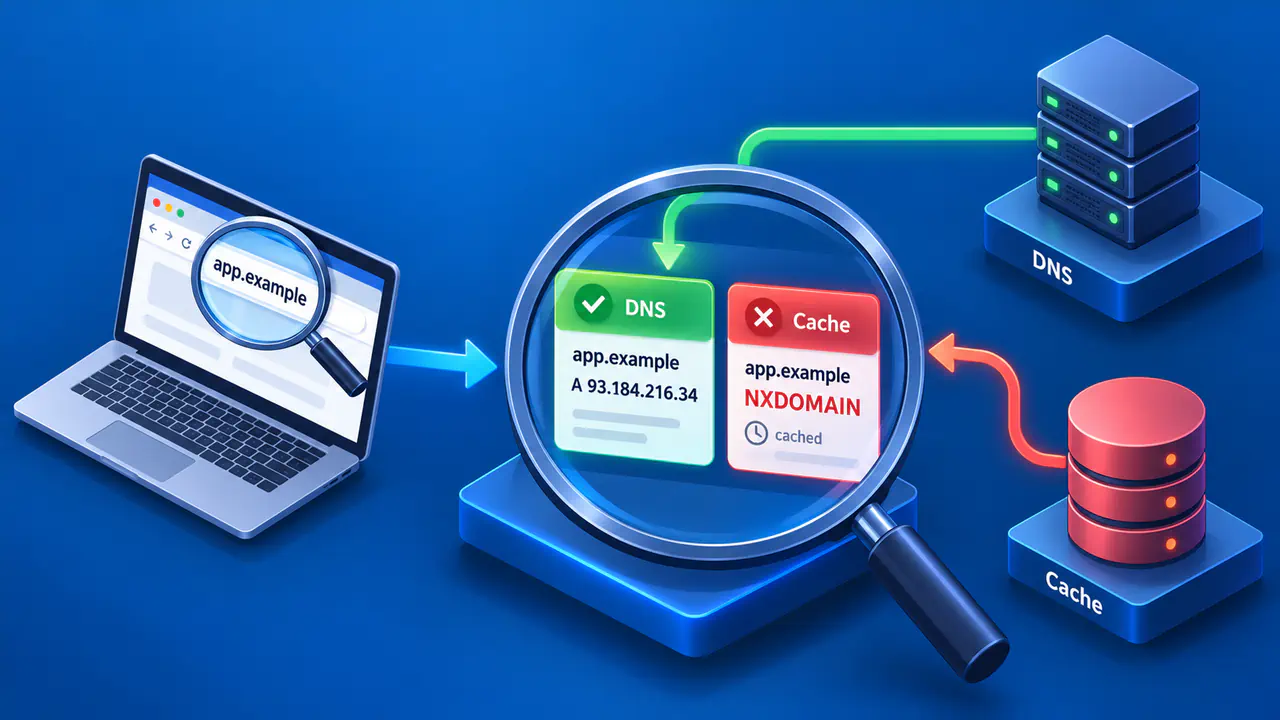
DNS resolvers and operating systems can retain a negative answer after the domain owner has restored a missing record. If the DNS server now returns the expected address but your Windows device still reports NXDOMAIN, a cached negative answer may be the cause. In Command Prompt, ipconfig /flushdns clears the Windows DNS client resolver cache. It does not correct a misspelled hostname or change the domain's published DNS records.
After clearing the cache, reload the affected page in Chrome and check whether the error remains. Windows nslookup queries a DNS server without using the Windows DNS client cache, so repeating that command does not test whether the local cache was cleared. If Chrome still fails while the server returns an address, check Chrome's selected DNS provider and restart the browser to retry the page.
If the domain's DNS records have been corrected but a recursive resolver still holds an older negative answer, you may need to wait for that cached answer to expire. Flushing your computer's cache does not clear a remote resolver's cache. If the domain's authoritative servers, which publish its DNS records, still report the name as missing, waiting for a cached answer to expire will not create the record.
Know When the Site Owner or Provider Must Act
If you own the domain, check the DNS records for the exact domain or subdomain that fails. Add a missing record using the destination supplied by your hosting provider, and check that existing records point to the intended destination. Also check the domain's delegation: the nameservers selected through its registrar must lead to the DNS service that holds the intended records. Your hosting provider may also manage DNS, so use the service that publishes your domain's DNS records to make changes, then verify the resulting answers.
If you are a visitor and the correct name returns NXDOMAIN on multiple independent networks, contact the site owner with the exact hostname and time. If many otherwise valid names fail only through your home network, contact the network administrator or internet provider with the resolver results. Do not disable antivirus, browser protections, or DNSSEC validation, which checks signed DNS data, as a blanket response to this error.