How to Fix Private DNS Problems on Android
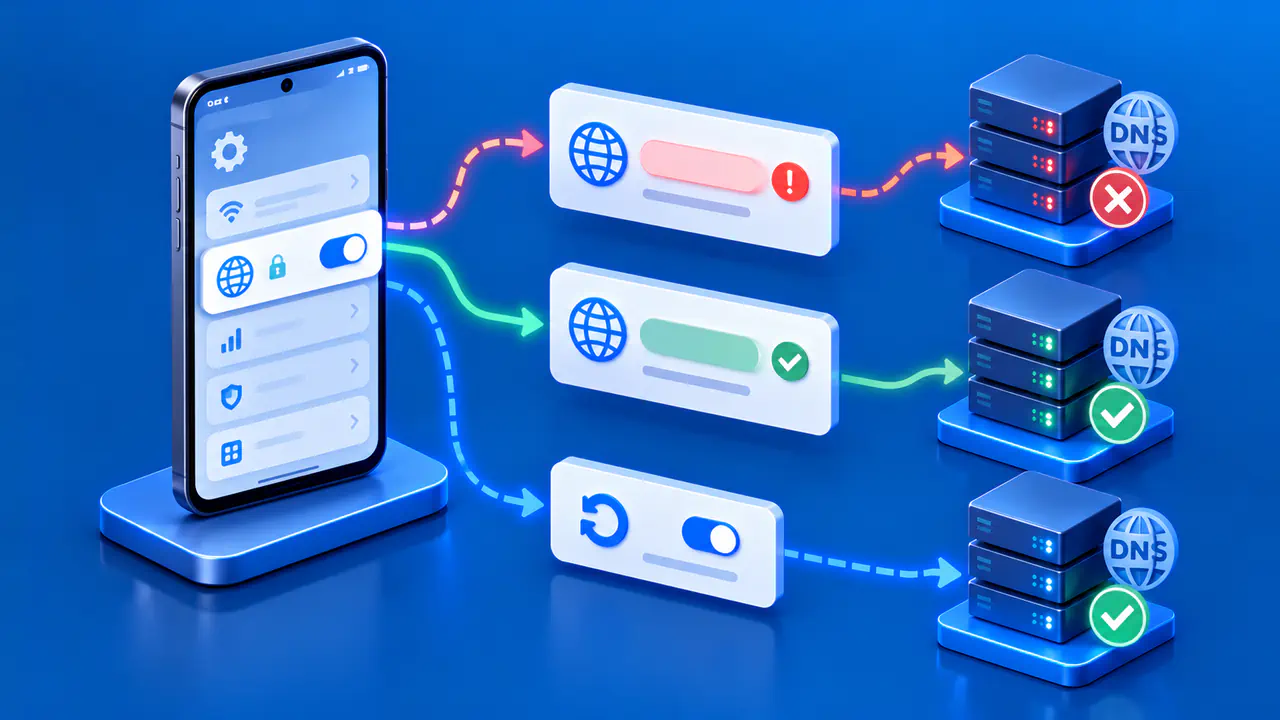
When Android shows a Private DNS error or websites stop resolving after a change, start with the provider hostname. The Private DNS provider field expects a hostname supplied by a DNS service, not the numeric IP address used in a Wi-Fi DNS field. A typo, an unavailable provider, or a network that cannot reach it can prevent lookups.
Before editing the setting, note the selected option and exact provider hostname. Keep this record so you can restore the original configuration if a test does not help. Menu labels vary by device and version; search Settings for Private DNS when the option is not where you expect.
Validate the Provider Hostname
System-wide Private DNS is available from Android 9. In Settings, open Private DNS and note whether Off, Automatic, or Private DNS provider hostname is selected. If a hostname is selected, compare its spelling with the service's current Android setup instructions. That field needs the provider name without an HTTPS prefix, URL path, port, or numeric IP address.
Cloudflare's standard service uses the hostname one.one.one.one, while Google Public DNS uses dns.google. Each hostname identifies a specific DNS service. Use the hostname supplied by your chosen provider. A filtering service may require a different hostname, so confirm the intended policy as well as the spelling.
Understand the Selected Mode
Automatic normally uses the DNS servers supplied by the active network and tries encrypted DNS when supported. It can fall back to unencrypted DNS when a secure connection is unavailable. Selecting a provider hostname instead requires an authenticated encrypted connection for system lookups, so failure to reach or authenticate that provider can stop those lookups.
Android 9 introduced this feature with DNS over TLS (DoT), which normally connects over TCP port 853. Android 11 and later devices with the relevant Google Play system update can also use DNS over HTTP/3 with supported providers. Successful ordinary web browsing or a reply from the provider's unencrypted DNS service does not confirm that the encrypted path works.
Separate a Provider Failure from a Site Failure
Try two or three familiar websites and the application that showed the original problem. Record whether the error concerns the Private DNS connection or only one website, and keep the exact messages. If the phone is not connected to Wi-Fi or mobile data at all, restore that basic connection before treating the problem as a resolver fault.
On a personal phone where changes are allowed, temporarily select Automatic, save, and retry the same sites and app. If they recover, the custom provider or its connection is a likely cause, but the test has also changed resolver selection and possibly encryption. If both modes fail, check for a broader connection or application problem as well. Restore the intended option after this comparison, and keep Private DNS enabled for normal use.
An isolated domain failure needs a different check. The selected resolver may intentionally filter the name, or the domain may have broken DNS records or a website outage. Confirm the filtering policy for the exact provider hostname and whether unrelated names still work. A successful DNS answer also does not prove that the website itself is accepting connections.
Compare Wi-Fi and Mobile Data
Repeat the same test on Wi-Fi and mobile data while keeping the provider hostname and application unchanged. Make sure the phone is actually using the connection being tested rather than silently switching to the other one. A failure on only one network suggests a difference in routing, access rules, or the network's sign-in state.
When public Wi-Fi requires a sign-in page, complete that network's normal login or terms screen first. Use the system's sign-in notification if one appears. If the sign-in screen will not open, follow the network operator's connection instructions before changing more phone settings. After signing in, retry the original provider before making another change.
If the problem follows the phone across networks, recheck the saved hostname, provider status, and available system updates. If only a managed school or workplace network fails, confirm which resolver is approved for it. A public DNS service may not resolve that organization's internal names, so changing to another public service may not help.
Check Authentication and App Overrides
A certificate failure can mean that the provider's identity cannot be verified, even when its address is reachable. Check that the phone's date and time are correct and that the provider hostname has not been mistyped. An expired certificate or a name mismatch can stop the secure connection. If the configured provider hostname and the phone's clock are correct, report the authentication error to the provider or network administrator.
Apps that send their own DNS requests can behave differently from apps using Android's system resolver. Check for a browser-specific secure DNS setting or a DNS-changing application if only one app disagrees. Record that app's settings before any authorized adjustment, and test it separately. A browser loading one page is not evidence that every app used the same encrypted provider.
Restore and Verify the Intended Settings
Return to the recorded option unless you have identified and corrected a specific error, such as a mistyped provider name. Save the setting and retry the affected sites and app on the original network. Then check an unrelated public name and any internal names you need. Confirm that the selected provider still has the filtering policy you intended.
For an Android version without system Private DNS, manual DNS addresses in a Wi-Fi profile are a separate configuration. Changing that profile to a static IP can disrupt connectivity or public Wi-Fi sign-in. Do not put a provider hostname into an IP-address field or change unrelated static network settings to repair a Private DNS error.
If the failure persists, report the Android version, device model, selected option, provider hostname, time, network type, and exact error. Include what changed when you tested Automatic or another network, and say which applications were affected. Send only the relevant diagnostic details through the provider's or administrator's support channel, with credentials and unrelated browsing history removed.