How to Turn On Wi-Fi Calling on Android

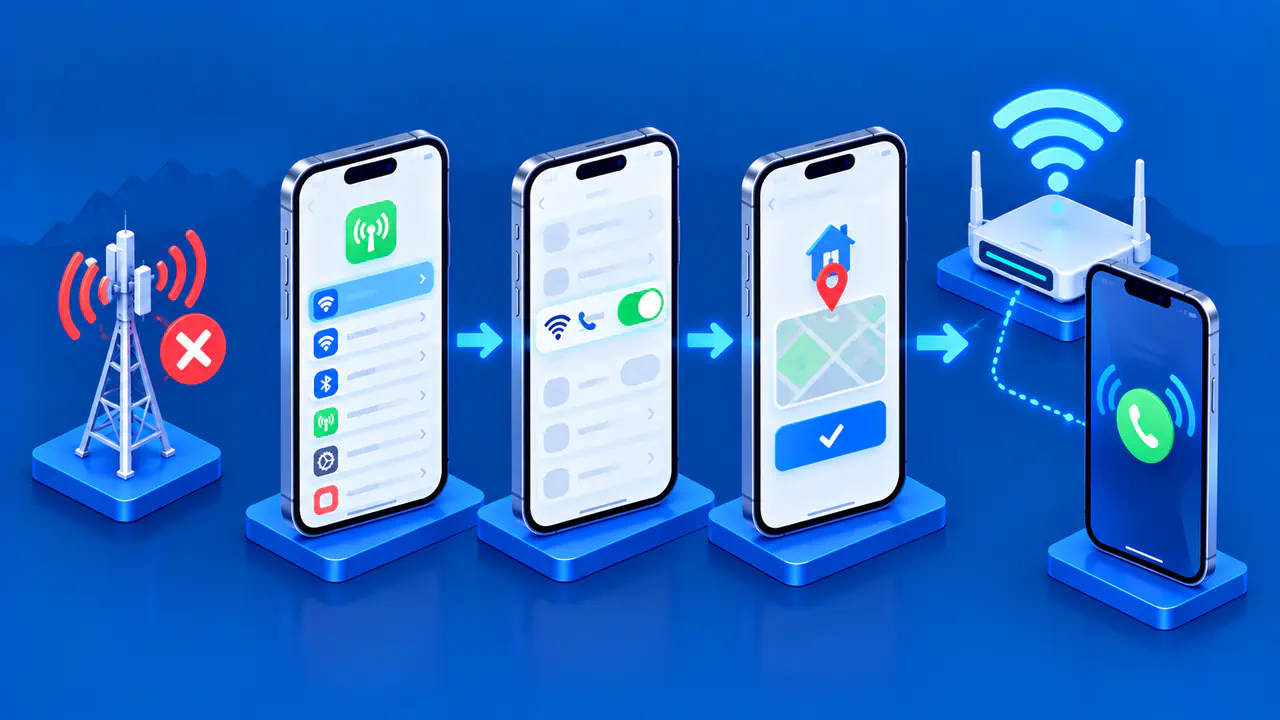
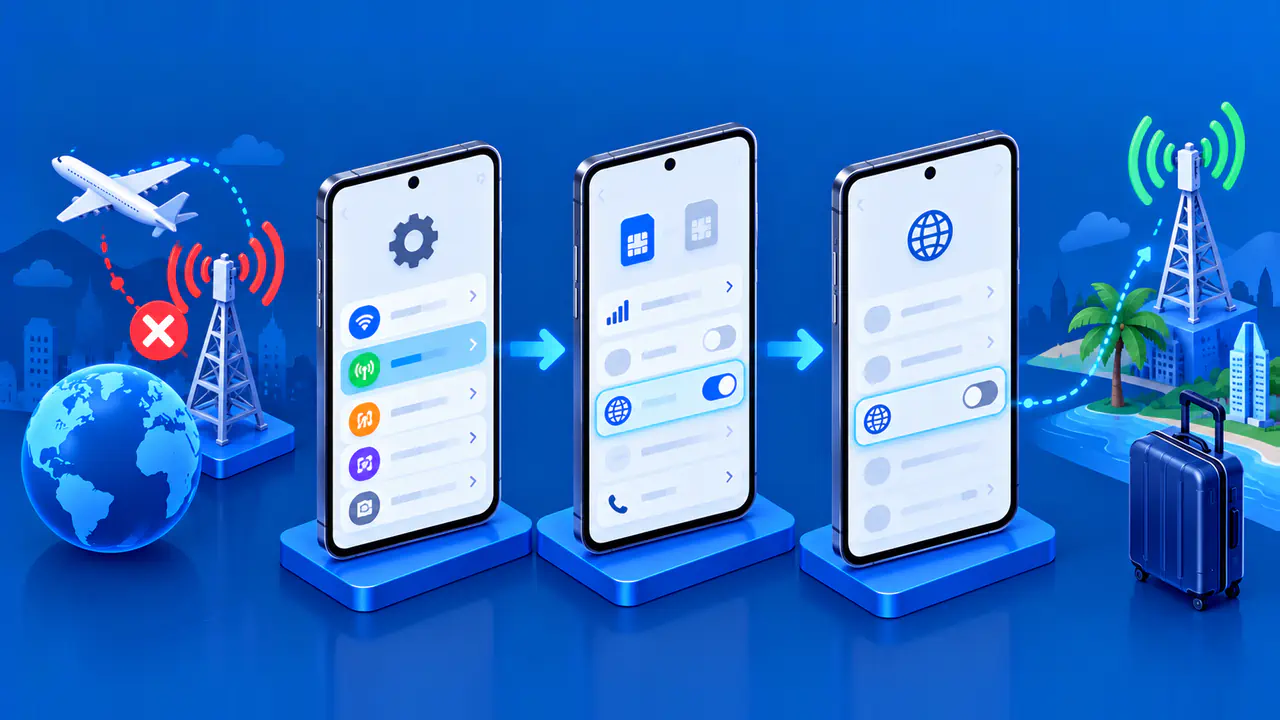
To turn on Wi-Fi Calling on a supported Android phone, open Settings and find the feature in your SIM's settings or the call settings. On a Pixel, the route is Network & internet > SIMs > Wi-Fi calling; on a Galaxy, it is commonly Connections > Wi-Fi Calling. Enable the switch and complete any activation prompts. The feature must be available for your phone, carrier line, plan, and location.
Carrier Wi-Fi Calling uses your existing phone number to make calls over a Wi-Fi internet connection. It can help when the mobile signal is weak, but it is separate from voice calls made inside messaging apps. Connecting to Wi-Fi alone does not turn this calling feature on.
Check Carrier Support and Your Wi-Fi Connection
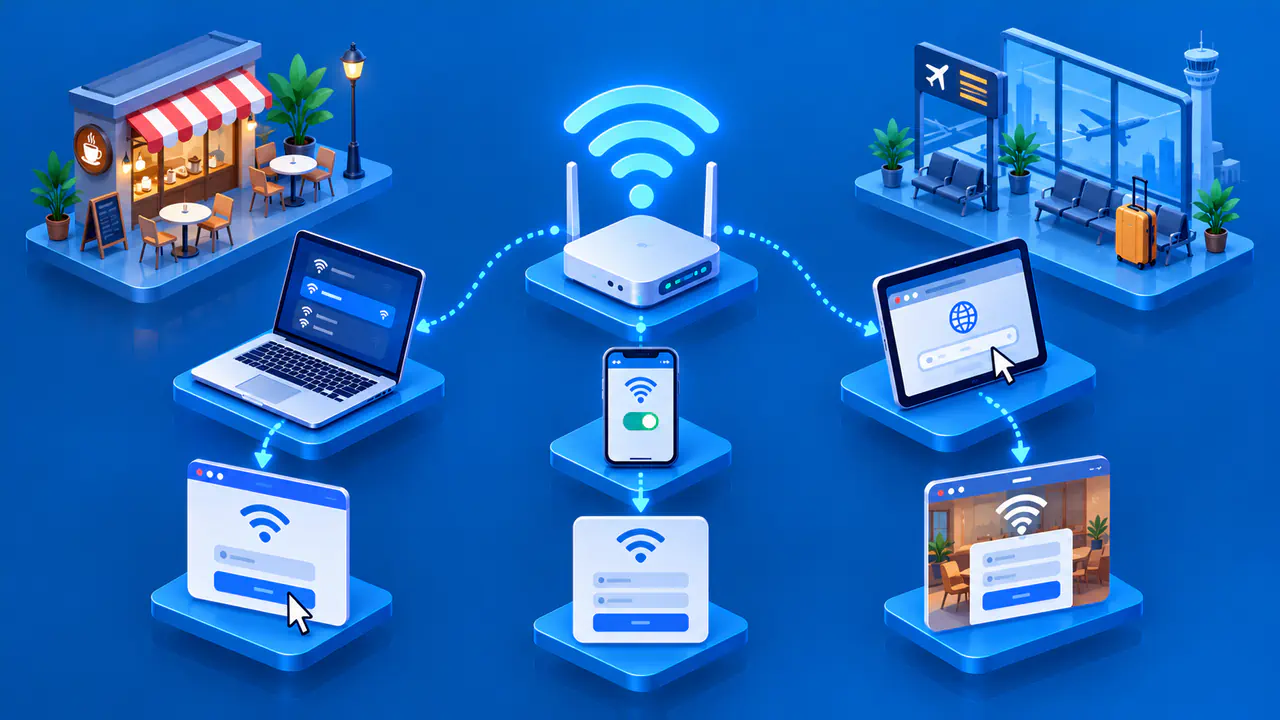
First, connect the phone to a Wi-Fi network with working internet access. A Wi-Fi symbol alone does not confirm internet access, so open a web page to check the connection. If the network requires a sign-in page, complete that step before activation. A network that loads websites can still restrict the traffic needed for Wi-Fi Calling.
Check that your carrier supports the feature on your exact phone model and line. With two SIMs, choose the line you want to use for calls and check that line's settings separately. The two lines can have different carrier features. Keep the phone's software current, since available settings can depend on its software and carrier configuration.
Turn On Wi-Fi Calling on a Pixel
- Open the phone's Settings app.
- Tap Network & internet, then SIMs.
- Select the carrier line you want to use if the phone asks you to choose one.
- Open Wi-Fi calling and enable Use Wi-Fi calling.
- Complete any carrier activation screens, including an emergency address if requested.
This route uses the phone's Settings app. Labels and grouping can vary with the software version. If the intended line is turned off, select it under SIMs and enable Use SIM. If the phone still shows No SIM, check that your physical SIM is installed or your eSIM has been activated with the carrier.
If the Wi-Fi calling switch is missing, your carrier may not support the feature on that phone and line. Ask the carrier to confirm compatibility and enable the service on the line if necessary. Tell the carrier whether the switch has always been missing or disappeared after you changed SIMs.
Use the Settings or Phone App on a Galaxy
On a supported Samsung Galaxy, open Settings > Connections > Wi-Fi Calling and turn on the switch. Another route starts in the Phone app: tap the three-dot menu, choose Settings, then open Wi-Fi calling. Some models also provide a Wi-Fi Calling tile in Quick Settings. Use the route available on your model rather than expecting every Android phone to display the same menus.
Galaxy setup requires a Wi-Fi connection and active SIM or eSIM service. On an AT&T Galaxy, VoLTE, the phone's voice service over LTE, must also be enabled before activating Wi-Fi Calling. If activation fails, ask AT&T to confirm that VoLTE is enabled on your line.
When the activation screen asks for an emergency address, enter accurate information and save it. Keep that address current when your location changes, using the Emergency address control or your carrier account. The address can help emergency services locate you when a call cannot provide your current location; do not enter a placeholder just to dismiss the screen.
Verify with a Normal Test Call
After activation, call someone who has agreed to help with a quick test. Use the normal Phone app and the intended SIM, and check the calling status while the call is active. A Pixel may show an Internet Call or Wi-Fi calling notification; other phones can use a different label or icon. Do not call an emergency number to test activation.
A successful call by itself does not confirm the route, because the phone may have used its mobile connection. On a Pixel, the choice between Wi-Fi and cellular can depend on your calling preference or signal strength. If your phone offers a preference, check whether it applies to all calls or only while roaming before changing it.
Also listen for clear audio in both directions. A call that connects but repeatedly breaks up needs further connection checks. If you move out of Wi-Fi range during a call, continuation over mobile service depends on the phone and network; an enabled switch does not guarantee an uninterrupted handoff.
Resolve Activation or Connection Problems
If the option is missing, use your phone manufacturer's instructions for that model and ask the carrier to check the line. If the option appears but activation fails, note the exact message and whether it occurs before or after the address screen. Tell the carrier your phone model, software version, and which line you selected so its support team can investigate the problem.
If activation succeeds but calls fail on one network, try another trusted Wi-Fi connection. A phone can temporarily disable Wi-Fi Calling when it detects a problem, so check for a notification explaining what happened. If the problem persists, restart the phone and ask the carrier whether the feature needs reactivation.
Before using the feature while traveling, check whether your carrier supports Wi-Fi Calling at your destination and what it charges for the numbers you plan to call. Wi-Fi calls can still incur call charges, and emergency calling arrangements differ by provider and country. Complete these checks before relying on Wi-Fi Calling somewhere with poor mobile coverage.