How to Fix Safari Page Loading Problems on an iPhone
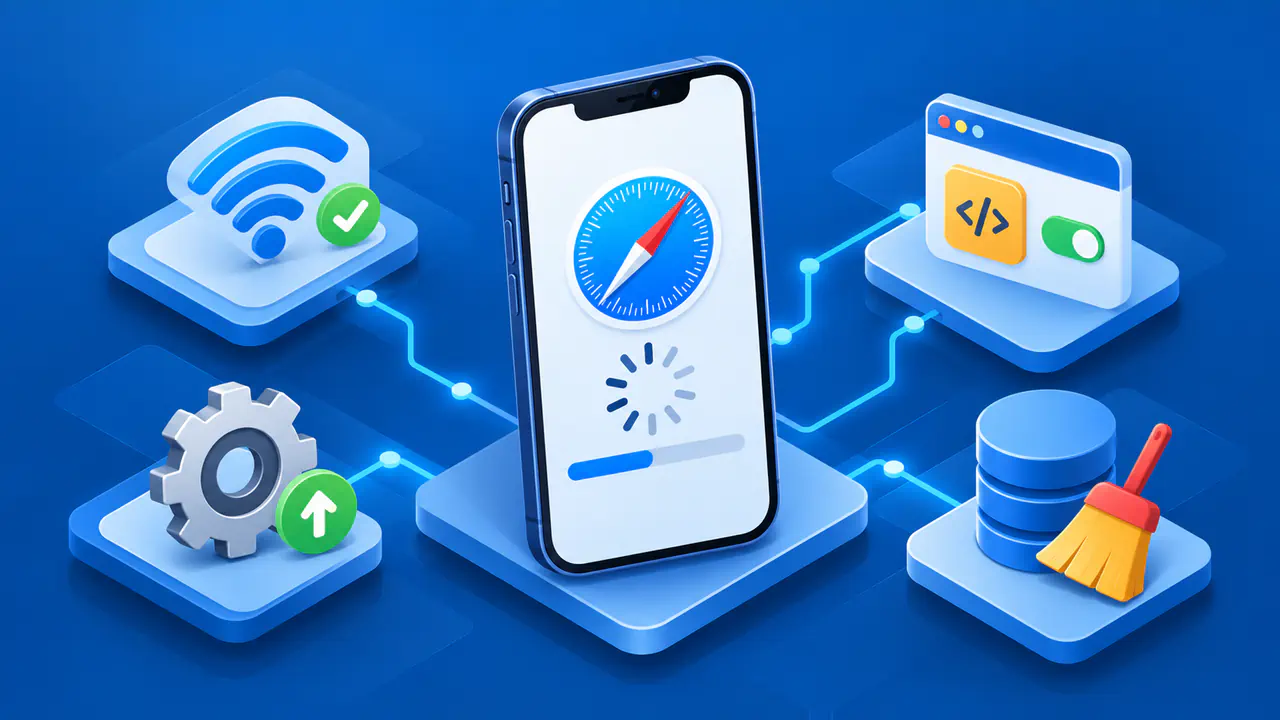
When Safari will not load a page on an iPhone, check whether other websites open and whether the affected address works on another network. If the problem is confined to Safari, restarting the device, updating its software, or correcting website settings may help.
If a page fails only on your home Wi-Fi, the problem may involve that connection. If it fails on other devices and networks too, the site may be at fault. Start with checks you can easily undo, and note Safari's exact message before changing settings or clearing data. The same connection and browser checks also apply to Safari on an iPad.
Check Whether One Site or Every Site Fails
Open a familiar, trusted website in Safari, then retry the page giving you trouble using its full address rather than an old search result or bookmark. If the familiar site opens, your phone can reach the internet, but the affected site may be unavailable or blocking your connection. Data stored for that site in Safari may also interfere with loading. If neither page opens, check the connection before deleting Safari data.
Try the affected address on another device if you have one. If the same page fails on another device and network, give those results to the website owner. A site can still have a problem even when its home page loads: record the specific page and whether the trouble occurs before or after sign-in. Avoid repeatedly submitting a form or payment while the outcome is uncertain.
Compare Wi-Fi and Cellular Data
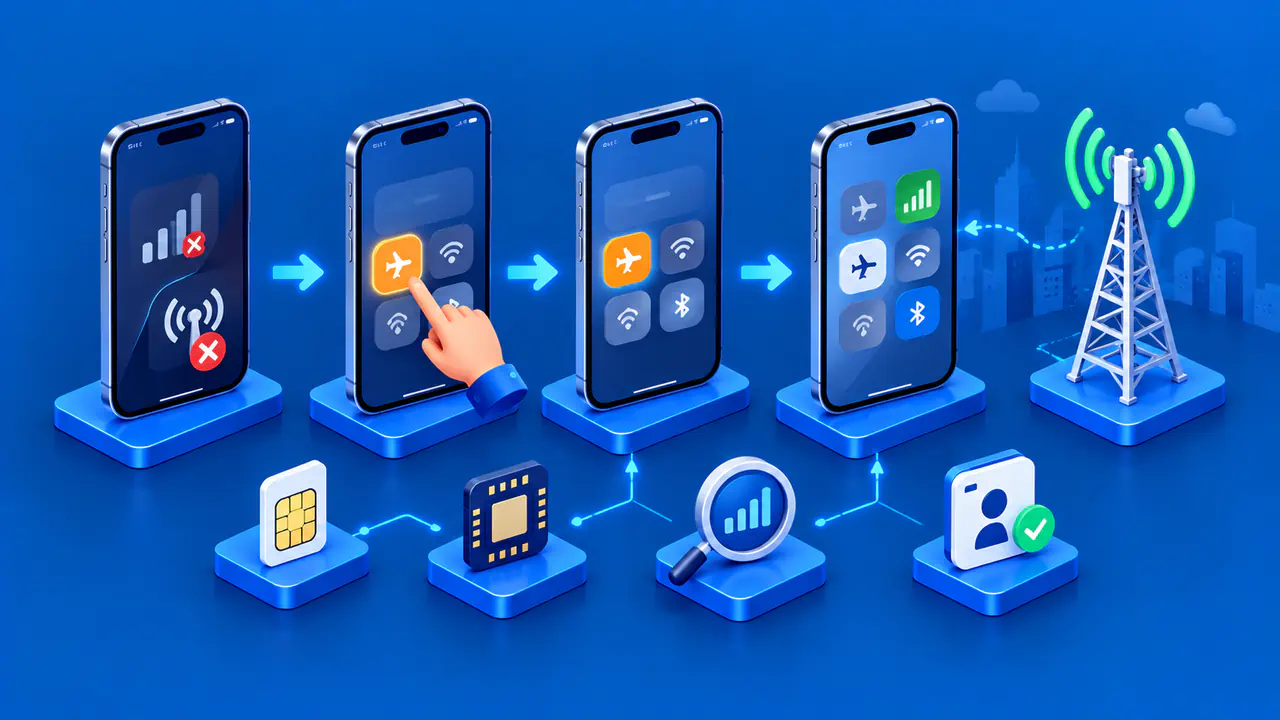
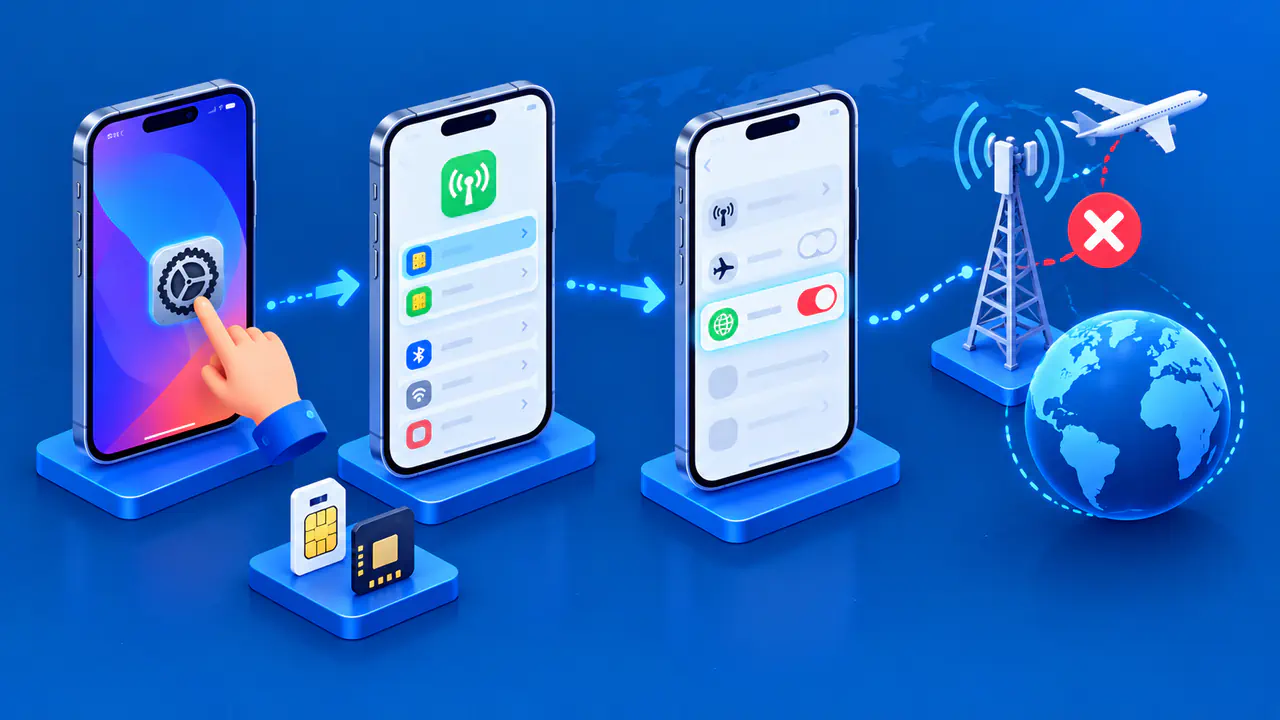
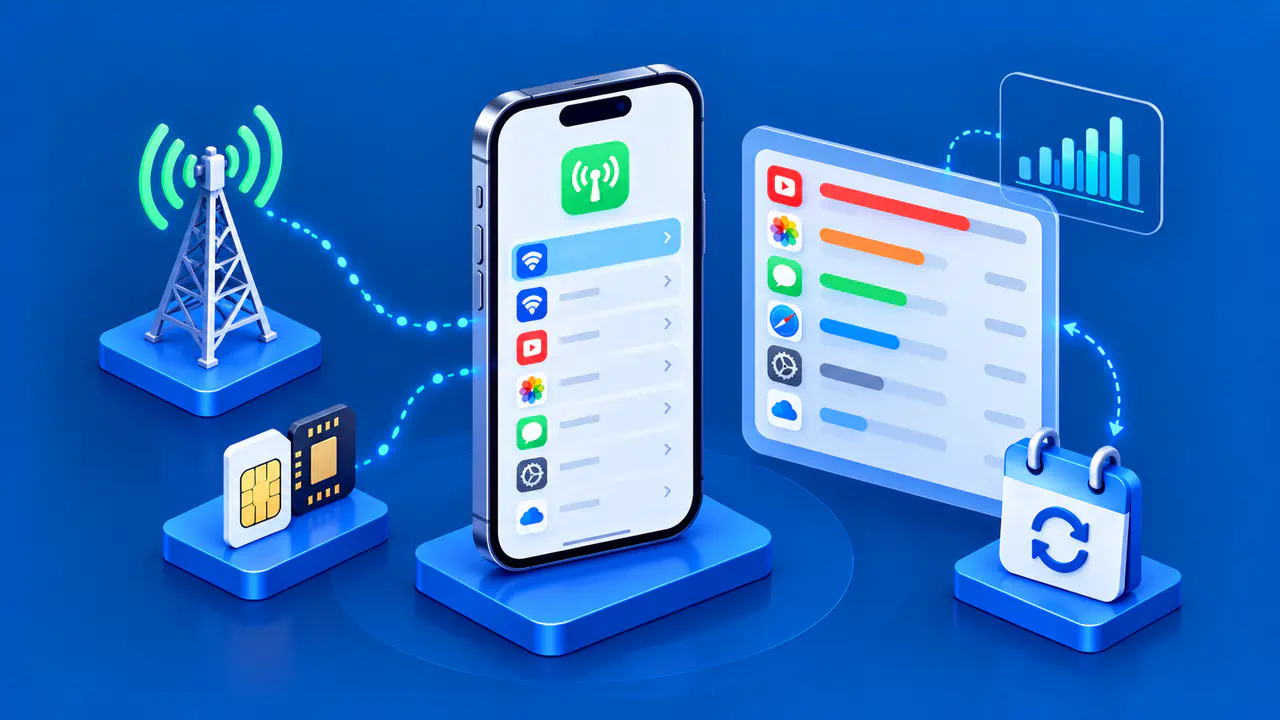
If cellular service is available and your plan allows data use, turn off Wi-Fi in Settings and try the page over cellular data. Turn Wi-Fi back on after the comparison. On an iPad without cellular service, use another trusted Wi-Fi connection instead. If the page works on the second network, investigate the first connection or its access controls before changing Safari settings.
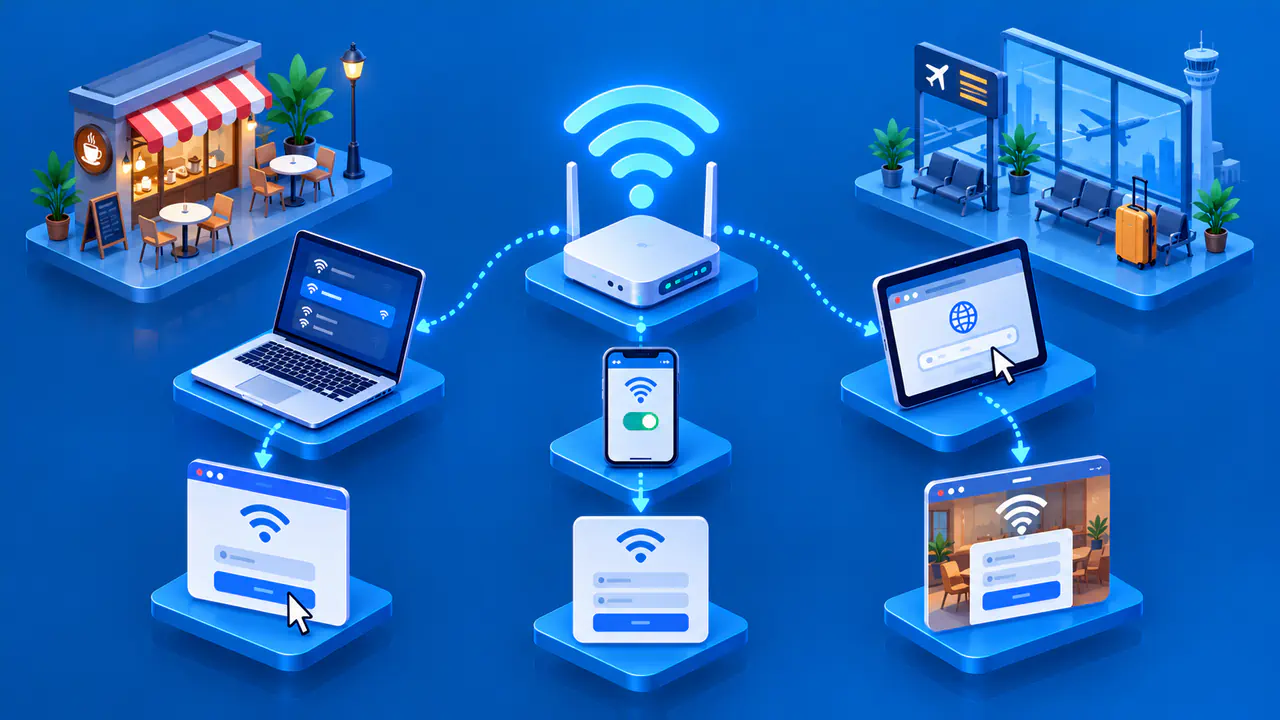
If a public Wi-Fi connection requires sign-in, complete the network's sign-in process. When several apps also fail on the same network, check with the network administrator or internet provider. If Safari alone fails across working networks, continue with the browser checks below.
Check VPN and iCloud Private Relay
A virtual private network (VPN) can change the IP address a website sees, and some sites block connections through a VPN. On a personal device, briefly disconnect the VPN in its app, retry the page, and reconnect afterward. If your work or school requires the VPN, ask the network administrator before disconnecting it. If the page loads with the VPN disconnected, report that result and the affected address to the VPN provider or website operator.
If you use iCloud+ with Private Relay enabled, you can test one website without turning the feature off everywhere. In Safari, open Page Menu, then Privacy & Security if that option appears, and tap Show IP Address. The website can then see your IP address, and your network provider can see which site you are visiting. This exception ends when you leave the website or close its tab; Private Relay continues to protect other websites.
Restart and Update the Device
Restart the device and try the site again. On an iPhone with Face ID, hold a volume button and the side button until the power-off slider appears, then drag it. On models with a Home button, hold the side button, or the top button on older models, to show the slider. Wait about 30 seconds after switching the phone off, then hold its side or top button until the Apple logo appears.
Safari updates come with iOS or iPadOS updates. Back up the device, connect it to power and Wi-Fi, and open Settings > General > Software Update. Follow the onscreen instructions to install an update offered for your device, then test the page again.
Check JavaScript and Extensions
If a page partly loads but its controls do not work, check that JavaScript is enabled. In recent iOS versions, open Settings > Apps > Safari > Advanced and turn JavaScript on. JavaScript helps many modern pages function, but it cannot repair an unavailable server.
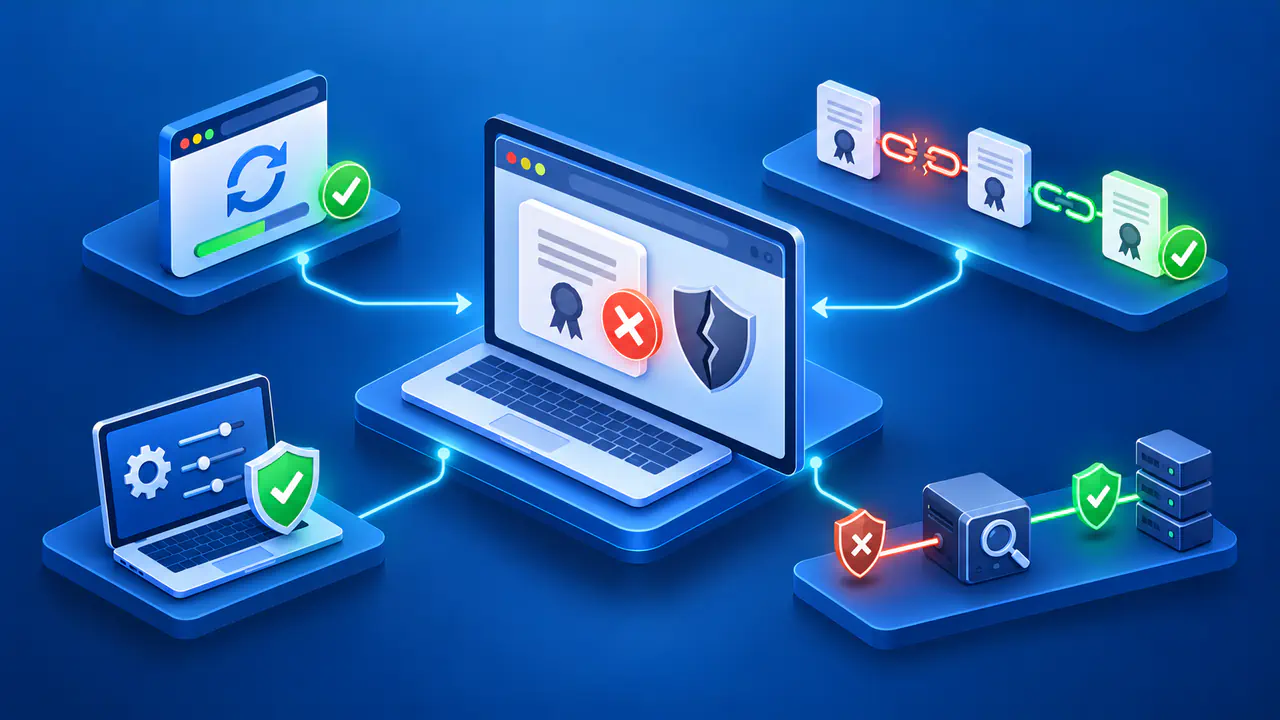
A content blocker or another Safari extension can block scripts or other content a page needs. To test an extension for the affected website, open Page Menu in Safari, tap Manage Extensions, and turn that extension off. Retry the page, then turn the extension back on. If a warning concerns certificate security or suspected fraud, do not disable Safari's safety protections to make the site display.
Clear Stored Website Data
Stored website data can interfere with a page after an update or a change to how the site handles sign-ins. If you need to stay signed in to a website, wait before clearing its data. Otherwise, open Settings > Apps > Safari > Clear History and Website Data. Choose the time range and, if shown, the profile whose history you want to remove, then tap Clear History.
Clearing this data can sign you out of websites and removes browsing history for the time range and profile you selected. Your AutoFill information stays unchanged.
To keep browsing history while removing cookies and other website data, open Settings > Apps > Safari > Advanced > Website Data. Tap Remove All Website Data, then Remove Now to confirm. Removing all website data can sign you out of sites, so be prepared to sign in again. Removing an entry from Safari history is a separate operation and may leave the site's stored data in place.
Retest the Page and Contact Support
After a change helps, retry the original address on the connection you normally use. Check that the part of the page that failed now works, because the home page can load while another page or feature still fails.
If one page still fails after tests on another connection and device, contact the website developer or operator. Include the page address, the exact Safari message, the approximate time and time zone, and the results from each browser, device, or network you tried. If the problem occurs only on your work or school network, contact the network administrator. Do not send passwords, session links, or screenshots containing private information.