Why Does a Website Work by IP but Not by Domain?
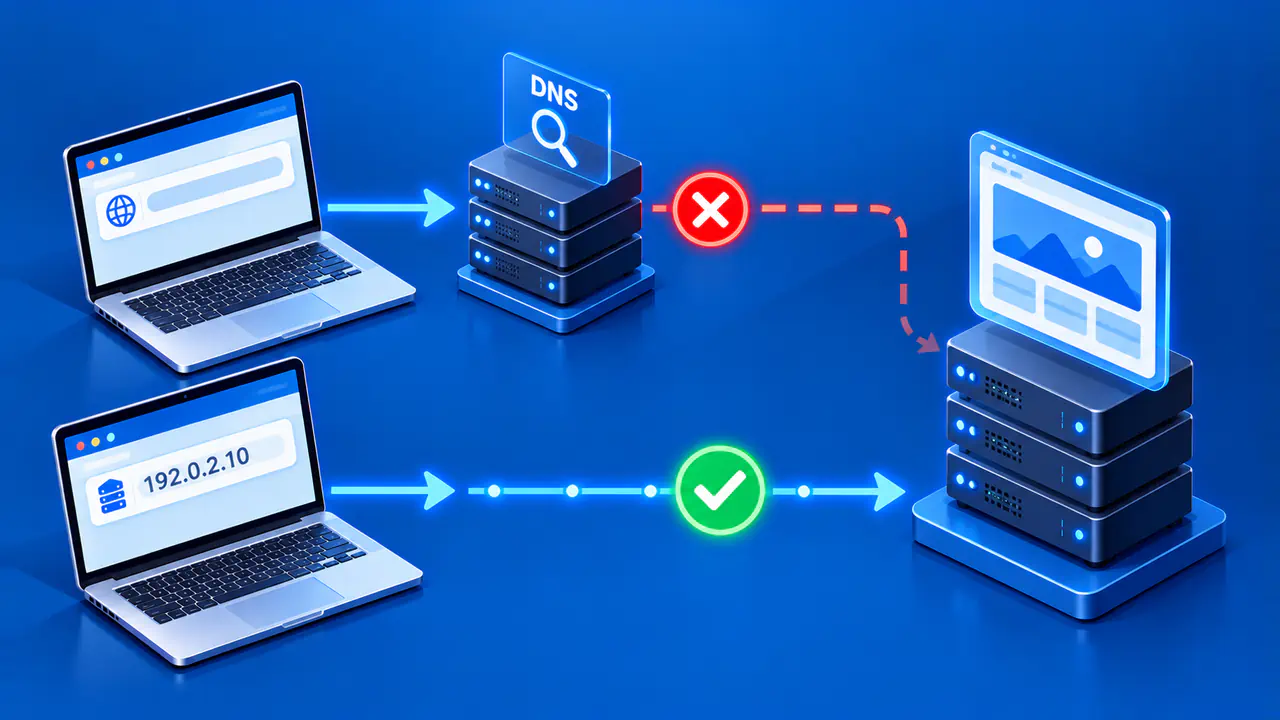
A page loading at a numeric IP address does not prove that its domain name is working. The domain request first needs the intended DNS answer, then the web server must recognize the hostname, and an HTTPS connection must present a certificate valid for that name. Entering an IP directly can take a different path through these decisions and may return another site's default page.
Troubleshoot the hostname you actually use, including any www prefix, and the exact protocol, HTTP or HTTPS. Avoid changing DNS or bypassing a certificate warning just because the numeric IP displays something. The difference can be in name resolution, server selection, or TLS identity rather than basic network reachability.
Verify the Intended Hostname and DNS
Write down the full domain that fails. example.com and www.example.com can have different DNS records and server rules. Check the A and AAAA answers for the failing hostname using an appropriate DNS lookup service or tool, and compare them with the records the domain owner intended to publish. Also note whether the name points through an alias or a content delivery network; the resolved address may not be the origin server address.
A missing answer, an obsolete address, or a resolver error can stop the browser before it reaches the server. DNS caches can temporarily retain older but unexpired answers after a change. If DNSSEC validation is failing, investigate the authoritative DNS configuration; a diagnostic comparison is not a reason to leave validation disabled.
If the lookup returns an address, do not conclude that the site is healthy yet. DNS has answered a name-to-address question, but the target may not accept a connection, may route to a different server, or may reject the hostname. Keep the observed answer, resolver, time, and address family in your notes so later checks refer to the same target.
Compare the Target Address
Compare the IP you typed with the A or AAAA result for the exact hostname. If they differ, opening the numeric address tested a different destination. That can happen after a migration, with a CDN, or when IPv4 and IPv6 have different targets. Even if the numbers match, the two requests are still not equivalent because a URL containing an IP does not carry the same hostname information as a URL containing the domain.
Check the port and scheme too. A plain HTTP request on port 80 and an HTTPS request on port 443 can be handled by different configurations. A redirect might move the browser to another hostname or protocol. Record the final address and any browser error instead of treating the first page displayed as proof that the intended site served correctly.
Do not test a private origin IP or server that you do not administer merely because it appears in a log or dashboard. Use only destinations you are authorized to diagnose.
Understand Host and SNI Selection
Many websites share one IP address. With name-based virtual hosting, a server uses the requested hostname to choose a site on that address and port. In HTTP/1.1, the Host field carries that name; HTTP/2 and HTTP/3 can carry it in the :authority field. If no hostname matches, a default virtual host may answer instead. Thus an IP can show a working default page while the named website is misconfigured or absent on that server.
HTTPS adds a TLS identity step. A client using a domain name can send Server Name Indication, or SNI, during the TLS handshake, allowing the server to select an appropriate certificate. SNI carries a DNS hostname, not a literal IPv4 or IPv6 address. An HTTPS URL entered as an IP also calls for certificate identity matching that IP, not the unrelated domain name. A certificate error from an IP-only visit can therefore be expected even when the named site works.
Test a Specific Address with the Domain Name
Sending an HTTP Host field alone does not fully reproduce an HTTPS visit to the domain because TLS certificate selection occurs before the HTTP request is processed. A controlled test keeps the hostname in the URL and leaves certificate verification enabled while directing the connection to a specific authorized IP.
For example, this curl command pairs example.com on port 443 with 192.0.2.25. The hostname and IP address are reserved examples; replace them with the exact hostname and the intended server address you are authorized to check.
curl --noproxy "*" --resolve example.com:443:192.0.2.25 https://example.com/The resolve option changes the address curl uses for this request, while example.com remains the name used for HTTP host selection and TLS verification. The noproxy option makes this a direct connection without a configured proxy, so it is suitable only where direct access is permitted. A successful response should still be checked for the intended page rather than just any returned content; this command does not change public DNS.
Check Authorized Server Configuration
If DNS points to the intended server but the domain still fails, inspect the server or hosting panel you administer. Confirm that the hostname is configured for the correct virtual host, the correct address and port, and the expected document root or application. For HTTPS, confirm that the site has a certificate valid for that hostname and that the appropriate TLS configuration is active.
On a shared hosting platform, another customer or default site can answer when the name is not matched. That response only proves the server accepted some connection. It does not establish that your domain's site content or certificate is correct. If a CDN or proxy is in front, inspect both the public edge configuration and the upstream origin setting through the provider's supported controls.
Retest the Domain and Compare Results
After correcting the problem, repeat a DNS lookup for the exact hostname, then make a normal HTTPS request using that hostname. Confirm the intended page, redirect target, and certificate validation without turning verification off. Compare IPv4 and IPv6 separately if both records exist. A site that works on one family can still fail on the other.
If a forced-address diagnostic succeeds with the hostname preserved but the ordinary domain request fails, DNS or an intermediary becomes a stronger lead. If both fail with the hostname but an IP-only page works, inspect virtual-host and TLS configuration. These are clues, not absolute proofs; browser cache, proxy rules, and application behavior can add other differences.
Compare the forced-address request with an ordinary request made from the same device, using the same hostname, protocol, and page path. Use the same client and proxy settings for this comparison. If the ordinary request still reaches an old address, compare its resolver result with the intended DNS records. If it reaches the intended address but returns the wrong page, review the named site's configuration and any redirect shown in the response.