How to Change DNS Servers on a Mac
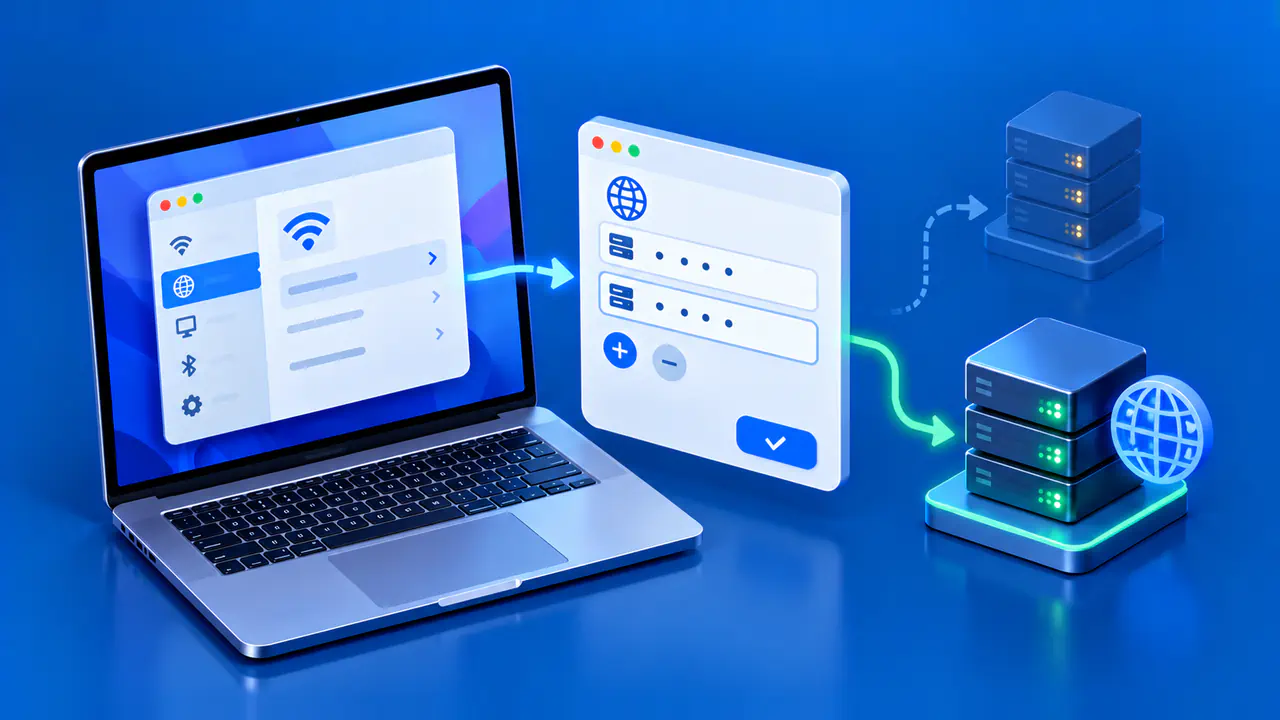
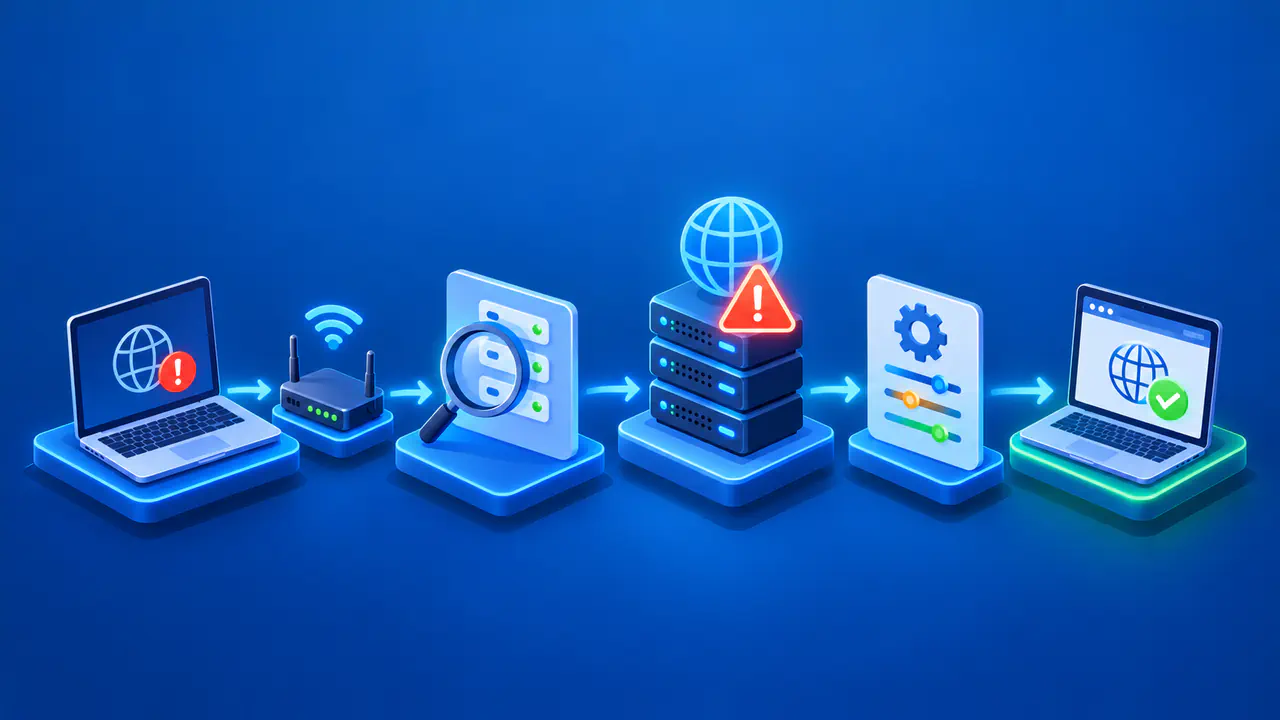
A Mac keeps DNS settings for network services such as Wi-Fi and Ethernet. To change the resolver used by one service, edit its DNS Servers list in System Settings. This is a device-side change, not a router-wide change. Record the current list before you add or remove anything so you can restore the connection if a needed name stops working.
The DNS Servers list and Search Domains list sit near each other but serve different purposes. DNS Servers contains IPv4 or IPv6 addresses of resolvers. Search Domains contains suffixes that can be added when a short name is looked up. Entering a server address in the suffix list will not select that resolver.
Record the Existing Resolver List
Open the Apple menu, choose System Settings, then Network. Select the service you actually use, such as Wi-Fi or Ethernet, choose Details, and open DNS. You may need to scroll to find DNS. Note each visible DNS server address and its order, any manually added entries, and relevant search domains. If the Mac is managed by a workplace or school, check its policy before changing resolvers, because private names may depend on the assigned DNS service.
Also note how the Mac gets its own IP address. The TCP/IP section controls DHCP or a manually assigned device address; the DNS section controls resolver addresses. Changing DNS does not require switching the Mac from DHCP to a static IP address. Keep its existing IP assignment, subnet mask, and router address while editing the resolver list.
Choose addresses for the DNS service you intend to use. Google Public DNS, for example, uses 8.8.8.8 and 8.8.4.4 for IPv4, and 2001:4860:4860::8888 and 2001:4860:4860::8844 for IPv6. Use resolver addresses reachable over the IP versions enabled on your network; entering an IPv6 resolver address does not enable IPv6 connectivity. A different provider may offer separate standard, security, or family-filtering addresses. Use the service variant you intend, rather than mixing addresses whose policies differ.
Select the Service and Edit DNS Servers
In the selected service's DNS pane, click the Add (+) button under DNS Servers and enter a valid IPv4 or IPv6 resolver address. Use a separate entry for each address, including the provider's second resolver address when available. If an old manually entered address must be replaced, select that entry and use the Remove (-) button. Leave Search Domains alone unless there is a separate, authorized reason to change how short names are expanded.
Check the complete list, then click OK to save it. An old manual resolver left in the list may still be used, and an unrelated resolver as a second entry can produce inconsistent filtering or private-name behavior. Avoid assuming that the list acts as a strict primary-then-backup schedule in every situation; the system's selection can depend on service and network state. Write down which addresses you added and removed.
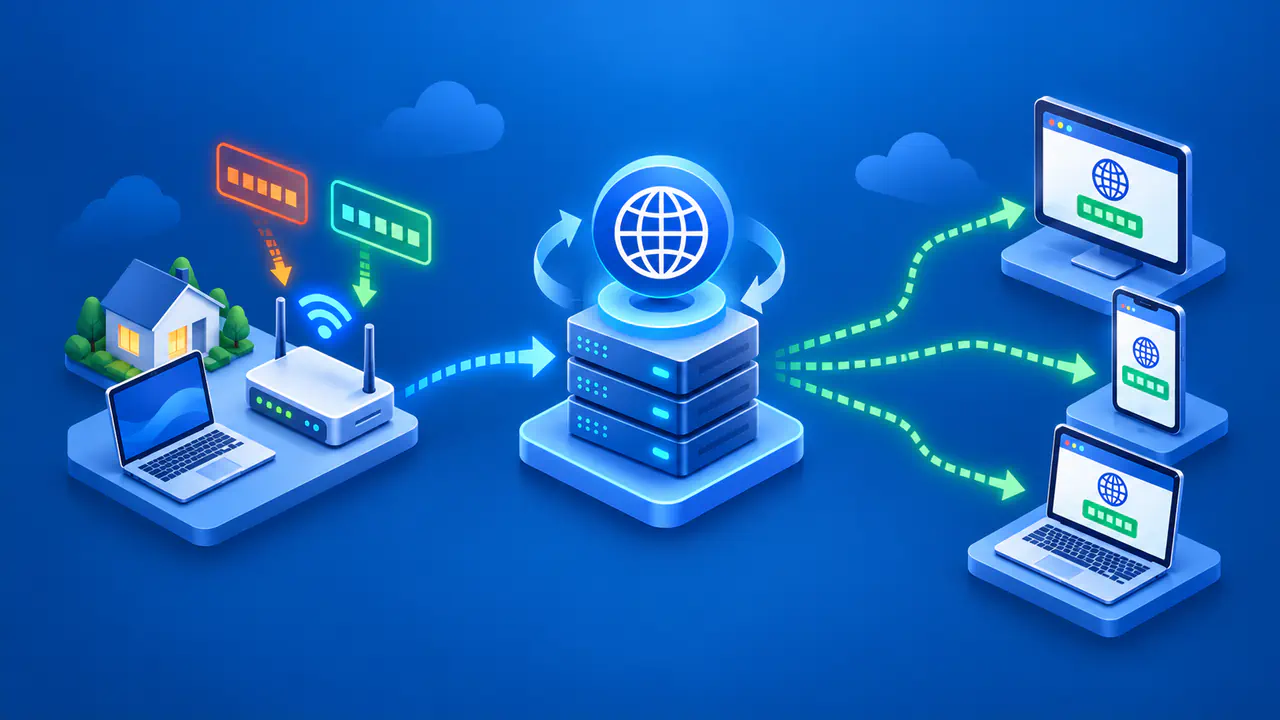
This edit applies to the selected network service. If you switch from Wi-Fi to Ethernet or use a different network configuration, check that service separately. A router may also provide DNS automatically to the Mac; a manual entry on the Mac changes the local service's resolver choice without editing the router's upstream configuration for other devices.
Verify the Saved and Active DNS Settings
After saving, reopen the same service's DNS pane and verify that the intended addresses are present. Then open a familiar public website and any internal site you need, using the connection you changed. If a private work name fails while public names resolve, the previous network or VPN resolver may have provided private DNS information that the public service cannot supply. Restore the previous resolver settings or ask the administrator which DNS service the internal site requires.
For a more detailed view, open Terminal and run scutil --dns. This displays the current DNS configuration, including additional resolvers that can handle particular domains. Compare the listed server addresses and domains with the settings for the service you changed; the output is a configuration report, not a log showing which server answered an individual query.
Account for Caches, Browsers, and Encrypted DNS
Compare results on the connection you changed, at a known time, and with the same hostname. A cached answer can survive a setting change for a while, and a website may use several names. A browser configured with its own DNS over HTTPS provider can take a different path from the system service. Similarly, a VPN or DNS profile can alter which resolver handles selected names.
The DNS pane's address list does not, by itself, show that queries are encrypted. Encrypted DNS can instead be configured through a compatible app or a managed profile, using DNS over HTTPS or DNS over TLS. If encryption is part of the goal, verify that product's configuration and actual behavior separately. Changing a resolver IP in this pane is a resolver choice, not an automatic DNS over HTTPS switch.
When comparing before and after, use the exact hostname rather than a similar address. For example, example.com and www.example.com are different DNS names, while A records contain IPv4 addresses and AAAA records contain IPv6 addresses. Record both the result and which application produced it. If only your browser returns a different result, its own resolver or cached state may be more relevant than the Mac service list. A successful page load alone does not identify the resolver that handled its names.
Restore the Previous Settings if Needed
If lookups fail after the change, return to the Apple menu, System Settings, Network, the same service, Details, and DNS. Remove only the entries you added and restore any manual addresses you removed, using the notes taken earlier. Save with OK and retry the same hostnames. If the service previously obtained DNS automatically and had no manual entries, remove the manual resolver addresses you added and save the empty manual list. The service can then use DNS supplied by the network again; do not copy those automatic addresses into new manual entries, which would fix them to the old values.
If the problem persists after restoring the list, inspect the network connection, VPN state, browser DNS setting, and the name itself. DNS cannot explain every website failure. If no automatic DNS addresses appear after you restore automatic behavior, check that the service is connected and that the network supplies DNS settings. Changing one Mac's DNS list does not guarantee faster downloads or a particular gaming latency; it changes which resolver answers its relevant queries.