How to Fix DNS_PROBE_FINISHED_BAD_CONFIG

To fix Chrome's DNS_PROBE_FINISHED_BAD_CONFIG error, correct the DNS settings that caused the failure or restore access to a working DNS server. Chrome's DNS probe can report this error when the configuration is wrong or the servers it tries are unavailable or malfunctioning. The label alone does not identify a setting to change, so a blanket network reset can create more problems.
Before changing anything, record the exact code, the hostname that failed, and whether other sites load. Test the same hostname on another device or network, then compare the DNS servers used by Chrome and the operating system. If the problem began after a settings change, keep the previous values available so you can restore them.
Check Which Devices and Sites Are Affected
Copy the exact code from Chrome's error page. Codes ending in BAD_CONFIG, BAD_SECURE_CONFIG, NXDOMAIN, and NO_INTERNET describe different DNS probe outcomes. A troubleshooting step for one is not automatically the fix for another. The word “config” does not mean a registry edit is necessary.
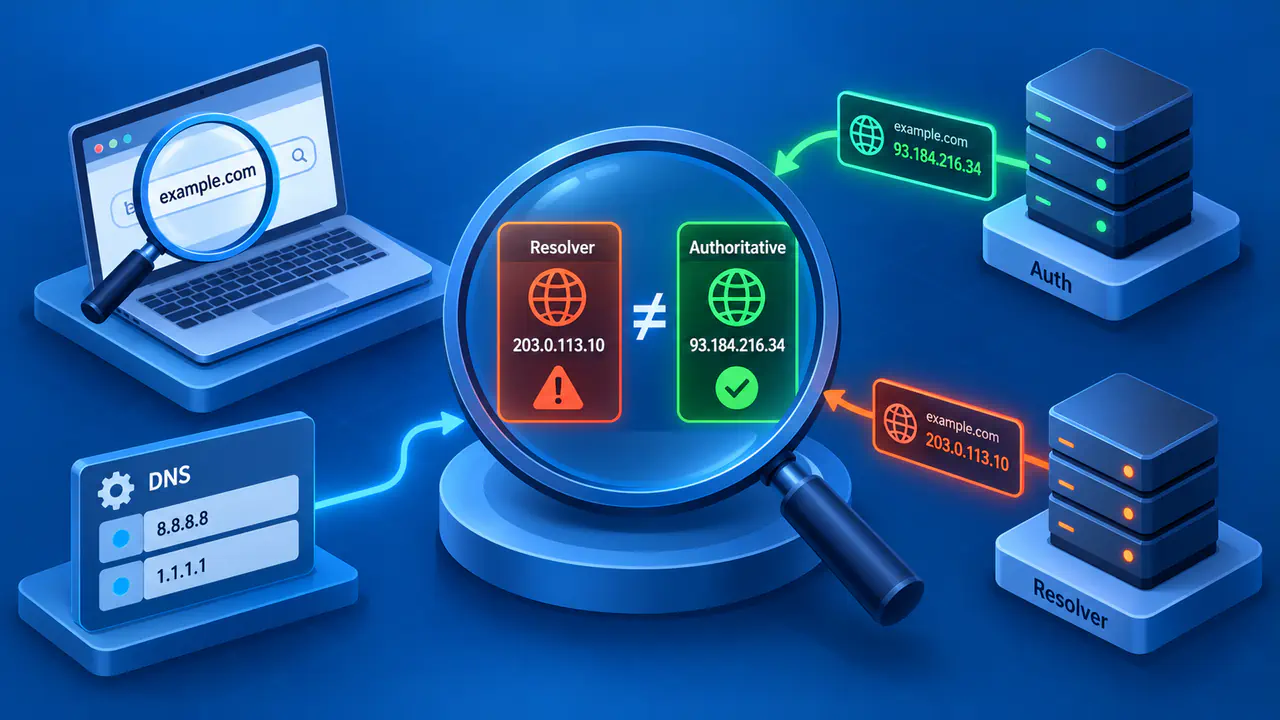
Try a second familiar hostname in Chrome. If only one name fails, verify its spelling and whether the site owner still uses it. If many unrelated names fail, a problem with a client DNS setting or resolver service becomes more plausible. A resolver is the DNS server that looks up records, such as website IP addresses, for your device.
Test the same names on a second device connected to the same network, then on a trusted alternate network if available. Make sure a phone has not switched to cellular data without you noticing. If only one device fails across those networks, investigate that device's browser, VPN, and operating-system settings. If several devices fail only on one network, investigate its DNS server and the connection to that server.
If other internet services also fail, restore the device's basic network connection first. If the device has no working network connection, it cannot send DNS queries to a remote server, even when the server's address is correct. Being able to reach devices on your local network does not prove that you have internet access.
Identify the Resolver Being Used
Check the DNS servers assigned to the active connection in the device's network settings. A VPN, security product, workplace profile, or manual configuration can override the network's usual DNS settings. Record the current values before changing them. Work or school networks may need their own resolver for internal hostnames that public DNS services cannot resolve.
On Windows 10 or 11, open Command Prompt and run ipconfig /all to see the configured DNS servers for each adapter. Then run nslookup HOSTNAME, replacing HOSTNAME with the failed hostname without a URL path. Note the server used and whether the query returns an address, times out, or reports a server failure or nonexistent domain. These results describe different problems.
A timeout means no response arrived within the query's time limit. A server failure means the server could not complete the lookup, while a nonexistent-domain response says the queried name does not exist. None of these results alone proves that a device setting is wrong. Windows nslookup bypasses the local DNS client cache, so its result does not establish what another application has cached.
Where network policy permits, query another DNS server for the same public hostname using nslookup HOSTNAME SERVER_ADDRESS, replacing SERVER_ADDRESS with an approved resolver's IP address. This queries that server without changing the device's default DNS settings. A different answer may reflect cached data, filtering, or a problem with one resolver. Keep queries for private internal names on the organization's approved DNS service.
Check Chrome's Secure DNS Setting
Desktop Chrome's Secure DNS setting is under Settings > Privacy and security > Security. Secure DNS encrypts DNS queries, and a selected custom provider may differ from the resolver used by Windows commands. In automatic mode, Chrome can fall back to an unencrypted lookup if the secure lookup fails. When you select a custom provider, Chrome does not use that unencrypted fallback.
If only Chrome fails, check whether a custom Secure DNS provider was recently selected. Restore the previous permitted choice if that change introduced the problem, then retry the same hostname. A successful Windows query does not, by itself, show that Chrome can reach a different DNS provider.
Undo Recent Changes to Network Settings
If the issue started immediately after a manual DNS server change, restore the prior values that you recorded or return to the network's intended automatic assignment. Edit the active connection rather than an unused Ethernet or virtual adapter. On a managed device, ask the administrator to confirm the approved resolver and policy instead of overriding them.
For example, on Windows 10, open Control Panel > Network and Internet > Network and Sharing Center > Change adapter settings. Right-click the active connection, open Properties, and select Internet Protocol Version 4 (TCP/IPv4) or Internet Protocol Version 6 (TCP/IPv6), whichever you changed. Select Properties for that protocol and correct the DNS server addresses, or select Obtain DNS server address automatically if that was the intended setting. Leave the IP address, subnet, and gateway settings unchanged when correcting only DNS, then select OK to save the change.
If the problem began after enabling a VPN or a network-filtering app, use its supported controls to compare results with and without that connection or feature where policy permits. A VPN's kill switch may intentionally block internet access when the VPN is disconnected. If a lookup fails while that block is active, the failure alone does not prove that DNS is misconfigured. Change one setting at a time and retry the same hostname.
A DNS cache flush can help when a known stale answer persists after a correction, but it cannot repair a wrong server address or an unavailable DNS service. Disabling antivirus or DNSSEC, which checks DNS data signatures, is not a default fix for this error. If the configured resolver is down, ask its operator about recovery or an approved alternative.
Test Again and Record the Results
After a reversible change, retry the same two hostnames in Chrome and repeat the resolver query. Check that previously working internal names still resolve, especially on a work or school network. If the error disappears, restore any unrelated setting you changed during troubleshooting and check that the same sites still load after you reconnect to the network.
If the error remains, report the exact Chrome code, affected names, time, device and network, configured DNS server, and observed nslookup results to the network administrator or DNS provider. Include whether other devices fail on the same network so support can repeat the relevant comparison. Remove private hostnames, addresses, and account details before posting these results publicly.