Browser Proxy vs System Proxy Settings
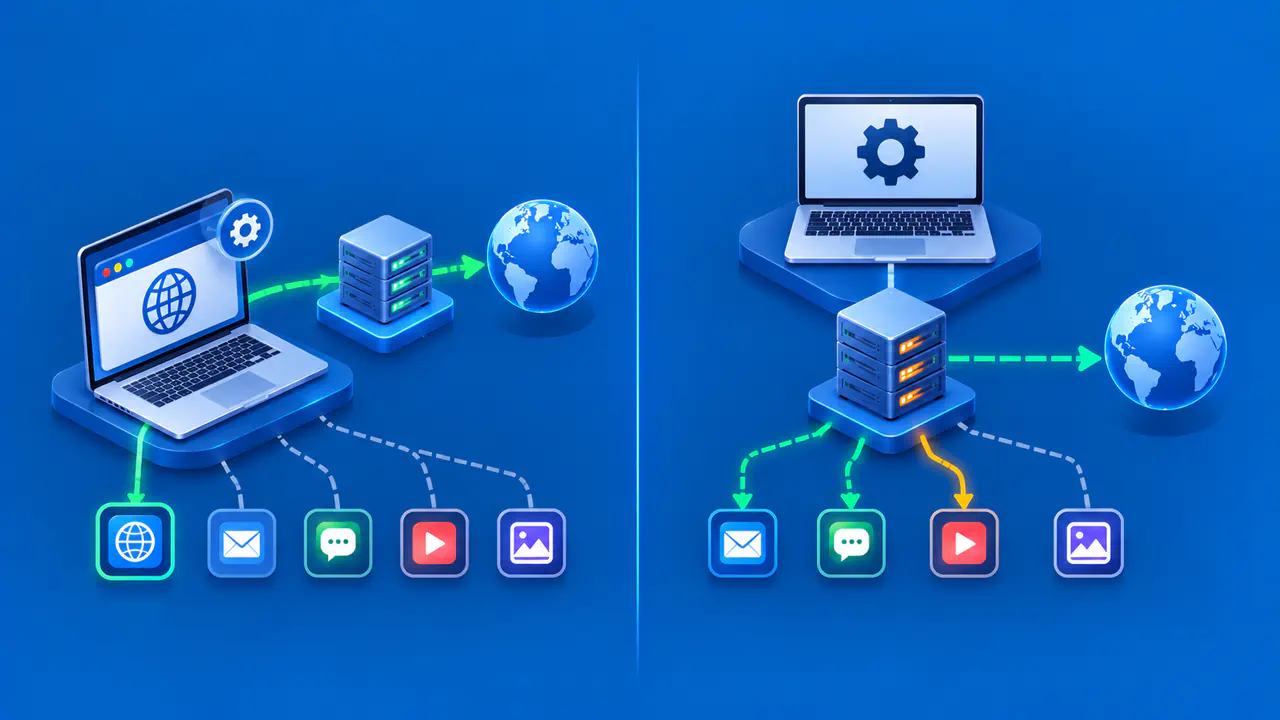
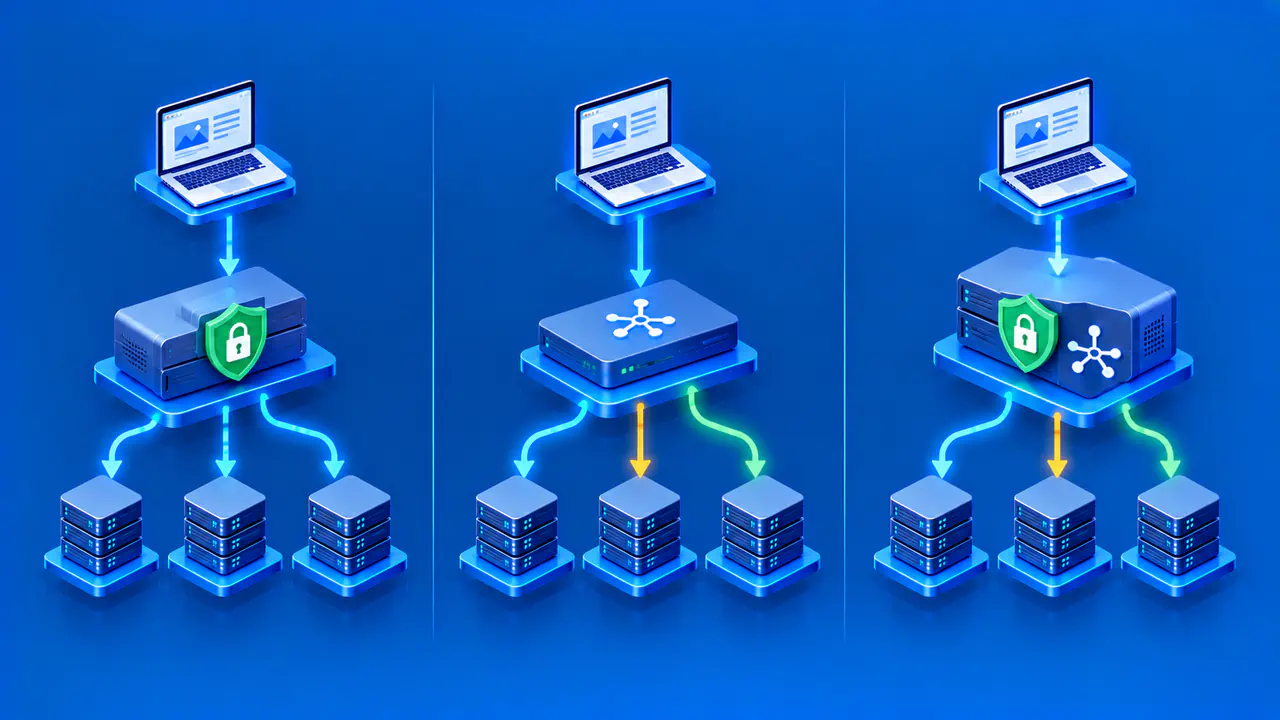
Browser proxy settings control how that browser connects, while system proxy settings provide defaults for applications that support them. A browser may inherit the system configuration, use its own settings, or let an extension select a proxy. Other programs can make different choices. Changing the system's proxy settings does not force every app on the device to use the selected proxy.
Check one application at a time to find out which settings it uses. Identify its proxy configuration and any destinations excluded from that configuration, then confirm where an actual request goes. A browser result cannot establish the behavior of a messenger, an update service, or a command-line tool. Those programs may use different settings even on the same computer.
What System Proxy Settings Affect
Windows offers automatic proxy detection, a setup script, and manual proxy configuration. A manual setup specifies the proxy server and can include exceptions for destinations that should be contacted directly. Proxy settings for a Windows VPN connection are configured separately. For a manual configuration, check the server address, port, and exception list together.
A proxy auto-configuration script, often called a PAC file, can select a proxy or a direct connection according to the destination. A bypass list also excludes specified destinations from proxy use. Two requests from the same application can therefore take different routes without either request indicating a fault. Check the rule for the destination you are testing.
An application may have its own proxy field, read environment variables, or use settings supplied by its networking library. Some applications do not support the proxy you configured. On a work device, an administrator may control the settings through organizational policy, so confirm the required configuration before changing it. A VPN can coexist with a proxy, but the VPN connection alone does not tell you which proxy an application selected.
Browser Settings and Extensions
Firefox lets you choose system settings, a manual proxy, automatic detection, an automatic configuration URL, or no proxy. Its Connection Settings also identify extensions that control the connection. If Firefox uses the system configuration, inspect that configuration and its exceptions. If it uses a manual proxy, check the values entered in Firefox instead.
A button inside a browser may simply open the operating system's proxy settings. Before editing anything, check whether the controls belong to the browser or the operating system. Changing a shared system setting can affect other applications that use it; changing a browser-specific setting ordinarily affects that browser. Do not assume that similarly named controls have identical effects across browsers.
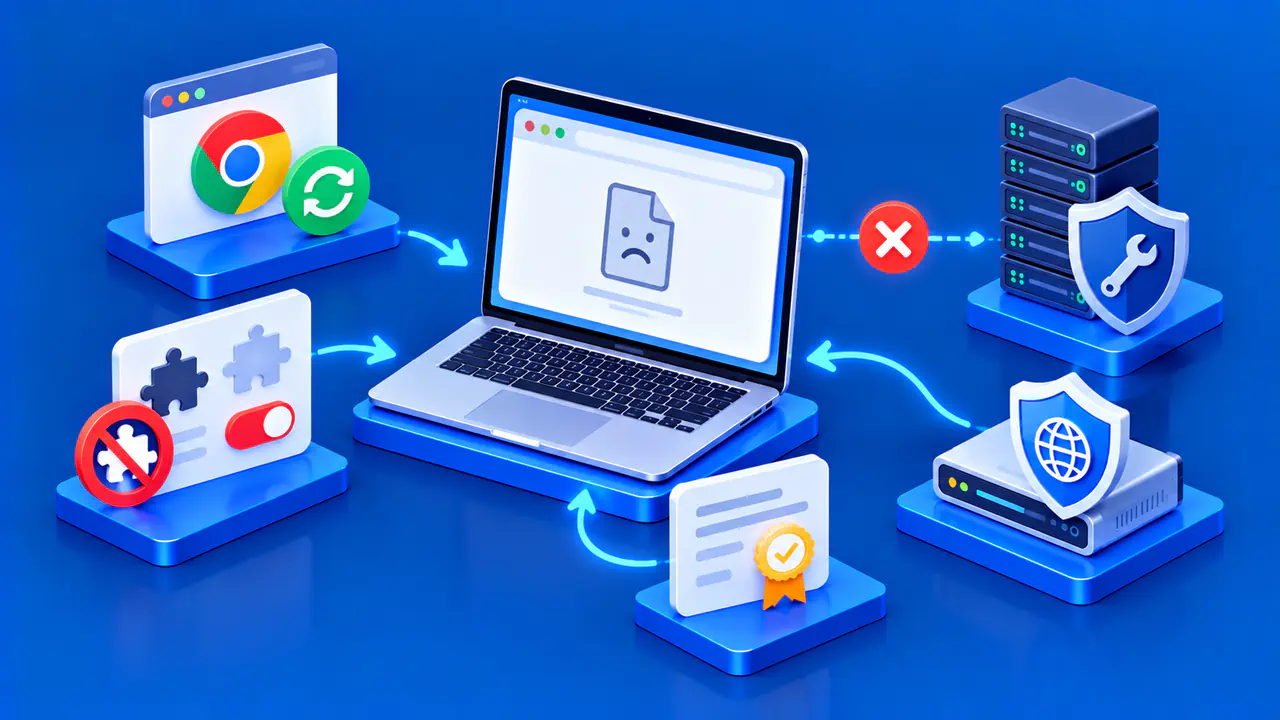
Extensions add another possibility. For example, the Proton VPN browser extension covers connections made within the browser where it is active; it does not provide the same coverage to a separate messenger or another browser. A separate VPN app may also be running, so check the extension and app together. Record the browser profile as well, because installed and enabled extensions can differ between profiles.
Check Which Connection an App Uses
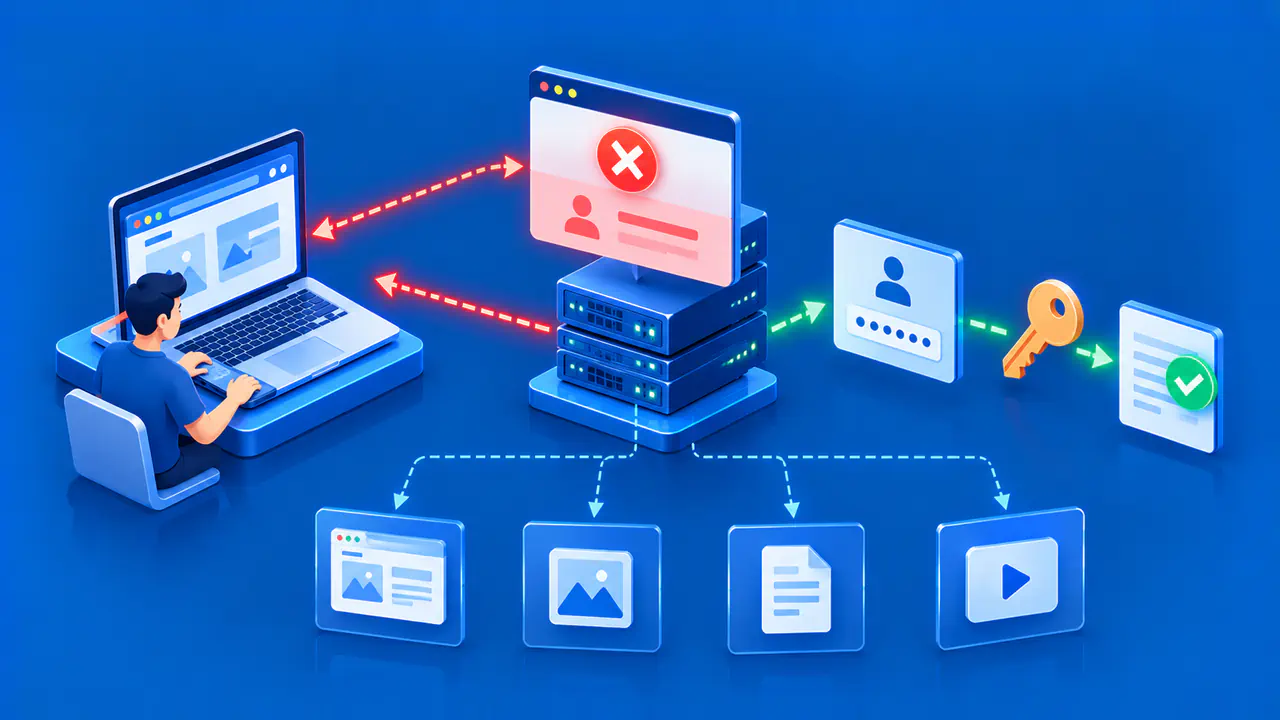
Use a proxy and a test destination that you are authorized to access. Record the application version, relevant settings, and expected result before testing. Send a request from that application and examine the proxy's connection log or an appropriate client diagnostic. Match the observation to the time and destination of your request so that unrelated activity is not mistaken for the test.
Test a destination expected to use the proxy and, if your configuration includes an exception, a destination expected to bypass it. A page appearing in the browser does not prove that the proxy handled the request; the browser may have connected directly or reused cached content. Likewise, no matching proxy log entry does not prove a direct connection if logging is incomplete or the request failed.
A public IP check can provide supporting evidence when the proxy should change the address a website sees. An unchanged address is inconclusive if direct and proxied requests share the same internet exit, or if the displayed result was cached. Prefer a connection record that identifies the proxy actually contacted. Keep credentials, internal server names, and sensitive log data out of public screenshots.
Compare a Browser with curl
curl can test a proxy independently of the browser. Its --proxy option selects a proxy for that invocation, while --noproxy controls which destinations bypass it. An existing bypass environment variable can still affect a request that specifies a proxy. A comparison needs to account for those settings, not just the proxy address.
Suppose an HTTP test proxy is already running on your own computer at 127.0.0.1, port 8888, and permits the test request without authentication. In Bash on Linux or macOS, the command curl -q --proxy http://127.0.0.1:8888 --noproxy "" --verbose https://example.com/ requests the example page through that proxy. The proxy must allow connections to the destination; the command does not create or start a proxy.
The first option, -q, prevents curl from loading its default configuration file. The empty argument after --noproxy overrides bypass environment variables for this invocation. Keep the empty argument intact when entering the command in Bash. Verbose output helps identify the connection, but it can expose credentials and other sensitive data, so review it before sharing.
Compare the curl request with a browser request under the same network conditions. The result shows what curl did with the explicit options you supplied, not what the browser inherited. If the results differ, compare each application's proxy selection and bypass rules. Do not change browser settings merely to make the two outputs match when the applications are intentionally configured differently.
Resolve Conflicting Settings
Find which setting controls the affected application before removing an old proxy entry. A system script, manual browser setting, extension, and organizational policy may all be present, but the application decides which applies. Change one authorized setting at a time and repeat the relevant request. If a required setting returns after you change it, ask the administrator whether a policy is restoring it.
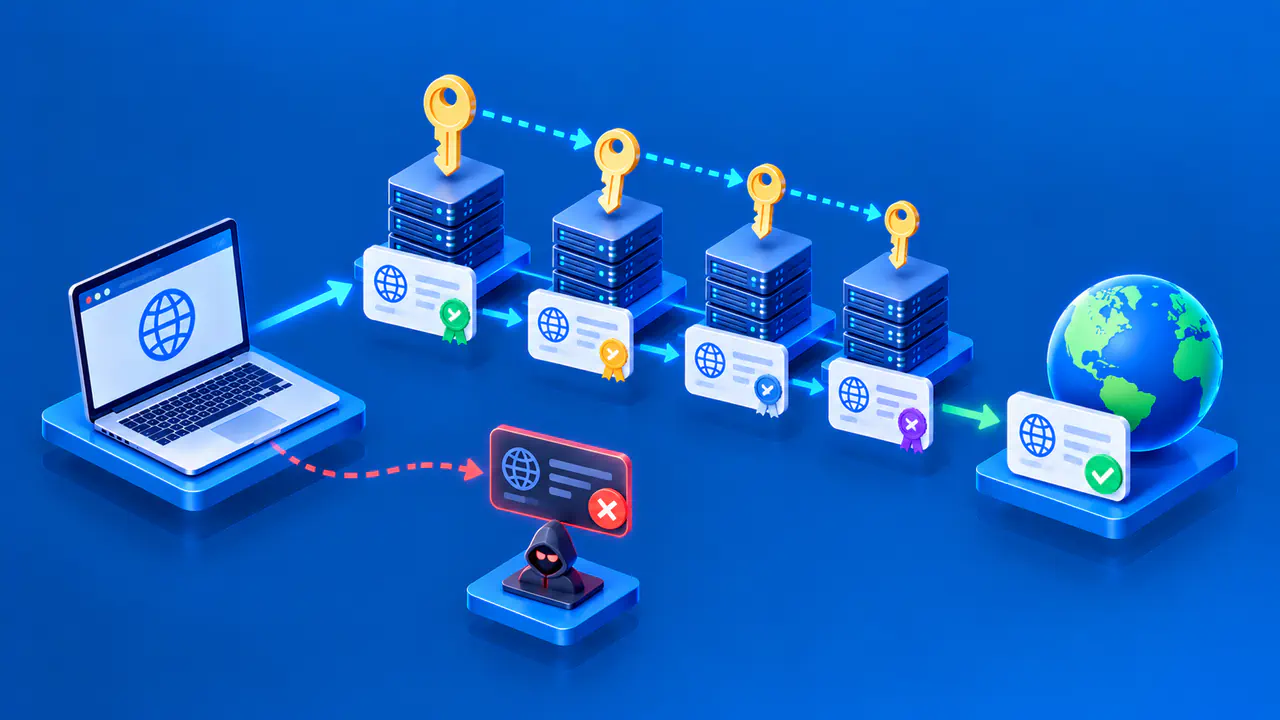
When one app connects and another fails, compare their supported proxy protocols, authentication requirements, and destination exceptions. A deliberately excluded destination should connect directly. Keep that expected result separate from a request that was supposed to reach the proxy but failed. Avoid deleting a needed exception or disabling a required proxy simply because another app behaves differently.
Keep a short record for each application: the setting it uses, the destinations tested, and the connection you observed. Recheck the affected app after a browser update, extension change, VPN change, or network policy update. Restore any settings changed only for diagnosis, and confirm that the application once again follows the intended configuration.