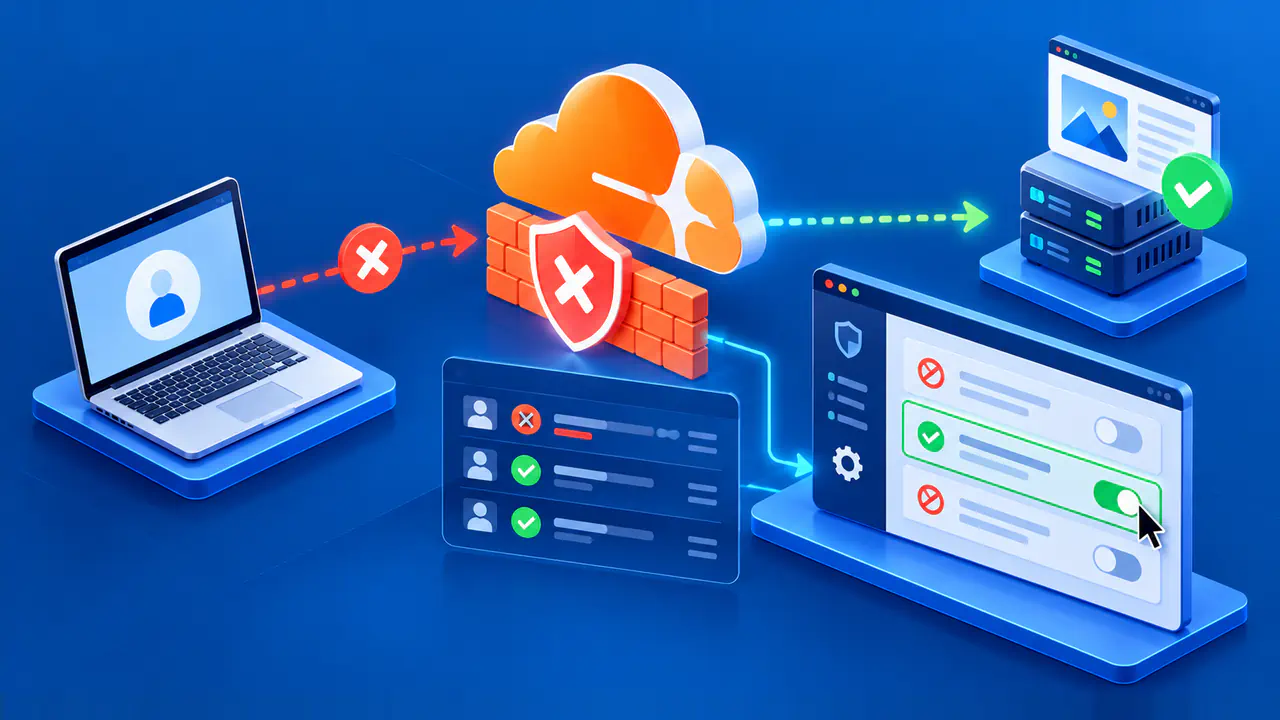
How to Fix Cloudflare Verification Loops

To fix a Cloudflare verification loop, start with an updated browser that can run JavaScript, then check extensions, stored site data, and the connection. Change one thing at a time and retry the affected page so you can tell which change makes a difference.
In a verification loop, the check keeps reappearing or failing without letting you reach the website. A challenge that completes successfully, even if another appears on a later visit, is a different situation. Some failures require the website owner's help, and changing an IP address does not guarantee access.
Record the Error before Changing Settings
Write down the website address, the time and time zone, your browser version and device, and any error code or Cloudflare Ray ID shown. Note whether verification keeps spinning, returns to the same checkbox, or displays an error message. The Ray ID and time help the website operator find the affected requests in the site's logs. If the challenge offers Submit Feedback, you can also use that option to report the failure.
Record whether the problem occurs in a regular browser tab or inside an app. An app's built-in browser may handle scripts and storage differently from the full browser. If verification fails inside an app, give the support team its name and version so they can test the same setup.
Use an Updated, Supported Browser
Open the site directly in an up-to-date version of Chrome, Edge, Firefox, or Safari. For example, in Chrome on Windows or macOS, open the three-dot menu, select Help, and then select About Google Chrome. Let Chrome check for updates, and select Relaunch if offered to apply the update. Save unfinished work before restarting the browser.
Cloudflare verification requires JavaScript to run its checks. In Chrome on a computer, open the affected site, select View site information beside the address, and open Site settings. If JavaScript is blocked, change its permission to Allow, return to the original tab, and reload. On a managed device, ask the administrator if policy prevents the change.
If the full browser works but an app's built-in browser still fails, report that difference to the app owner. The app may use a WebView, which displays web content inside the app. The app's developer should check that the WebView can run scripts, retain cookies and other site data, and reach the challenge service. The user agent, which identifies the browser in requests, must also stay consistent during the session.
Test Browser Extensions
Content blockers, privacy extensions, and script filters can interfere with verification. Where permitted, temporarily pause the extensions and retry the page, limiting the change to the affected site if each extension supports that option. If verification works, turn the extensions back on one at a time and reload after each change. You can then adjust the extension or rule that caused the failure.
In Chrome on a computer, select the three-dot menu, choose New Incognito window, and try the page there. Private mode uses separate site data and may run a different set of extensions. Check whether any extensions are allowed in private mode before interpreting the result. Restore temporarily paused extensions after testing.
Check Cookies and Stored Site Data
After you pass a challenge page, Cloudflare can store a cf_clearance cookie in your browser as proof. If your browser cannot save or send that cookie, Cloudflare may ask you to complete another challenge.
In Chrome on a computer, open Settings, Privacy and security, Site settings, Additional content settings, and On-device site data to check whether sites can save data. The option labeled "Allow sites to save data on your device" lets websites store data by default. Check any exceptions for the affected site before changing that setting.
If a private window works and extension testing does not explain the normal tab's failure, try clearing data for the affected site. In Chrome on a computer, open Settings, Privacy and security, Third-party cookies, and See all site data and permissions. Search for the website, select Delete beside its entry, and confirm Delete. This can sign you out of that site and remove its saved preferences and clearance, so expect to sign in and complete verification again when you reload.
Keep the Connection Steady during the Challenge
An unstable connection can interrupt verification. Start a new verification attempt and stay on the same connection until it finishes, without switching between Wi-Fi and cellular data. If the connection keeps dropping, try another stable network and record the result. If verification works on the second network, differences in routing or filtering may be involved, but that result does not identify the exact cause.
A virtual private network (VPN) or proxy can send your requests through another server. If your work or school requires the VPN or proxy, ask the network administrator before changing it. Otherwise, temporarily disconnect the VPN or turn off the proxy, start a new verification attempt, and restore your usual settings afterward. If verification works with the VPN or proxy off, report that result to the VPN provider or network administrator.
Read Browser Errors in Context
A 401 response to a Private Access Token request can occur when the device or browser cannot use that verification method. Cloudflare can then fall back to a standard challenge, so this specific response does not by itself explain a loop. Similarly, some failed DNS lookups to challenge test subdomains are expected. A failure to reach challenges.cloudflare.com itself is different and can prevent verification resources from loading.
When checking browser developer tools, focus on errors that coincide with the visible failure. Record the failing resource and its error alongside the challenge message. The support team can use these details to distinguish a harmless diagnostic failure from a blocked script or connection needed for verification.
Contact the Website Administrator
If the browser, extension, site data, and connection checks do not resolve the loop, send the website administrator the details you recorded and the result of each test. The site owner can check the site's challenge settings and request logs. Visitors cannot correct a site's configuration through browser settings.
Support may ask for a HAR file, a recording of browser network requests. In Chrome's developer tools, open Network, enable Preserve log, and reproduce the failure in the browser session where it occurs. Use Export HAR (sanitized) to save the recording with certain sensitive headers excluded. The file can still contain private addresses or submitted information, so review it before sharing through the site's trusted support channel.