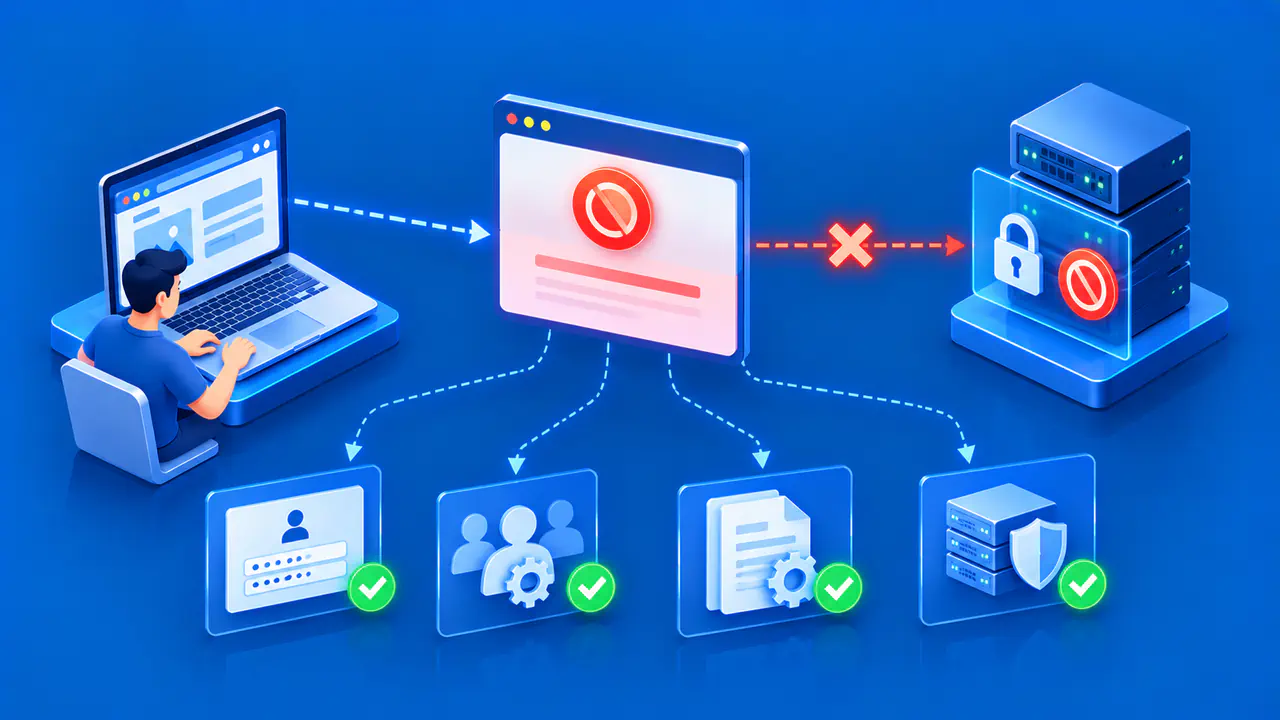
How to Fix ERR_EMPTY_RESPONSE
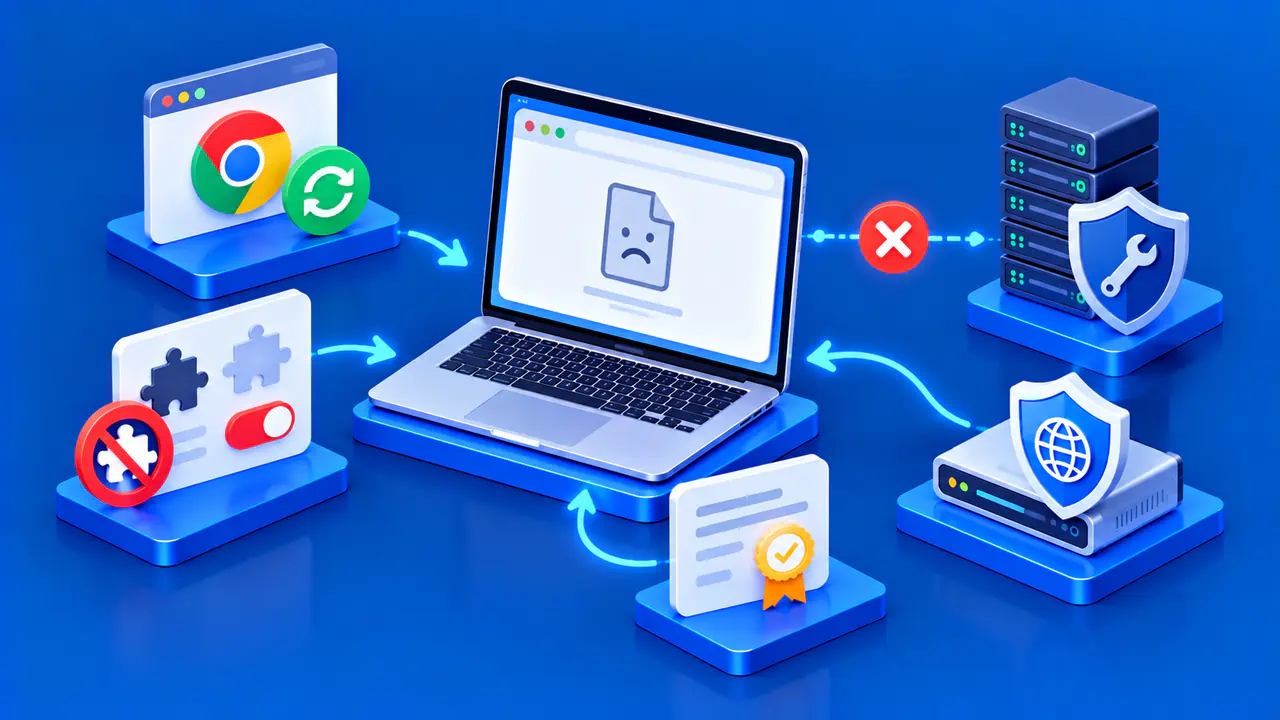
ERR_EMPTY_RESPONSE means Chrome received no response data before the connection closed. This differs from a website returning an HTTP 404 or 500 error page, where the browser received a response indicating a problem.
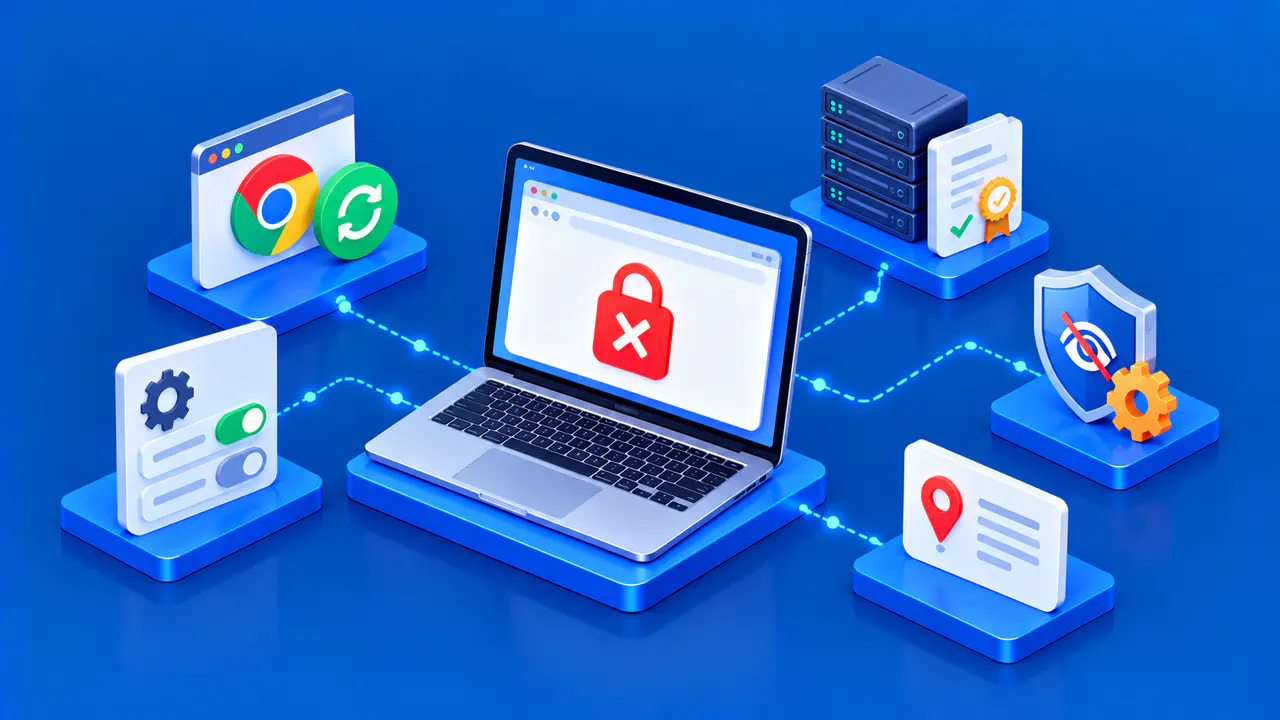
The error identifies what Chrome observed, not which component closed the connection. A server process, reverse proxy, network gateway, VPN, or local software could be involved. Check the exact code and which pages are affected before changing network settings or clearing browser data. As you test, change one thing at a time so you can tell which change affected the result.
Check the Error Code and URL
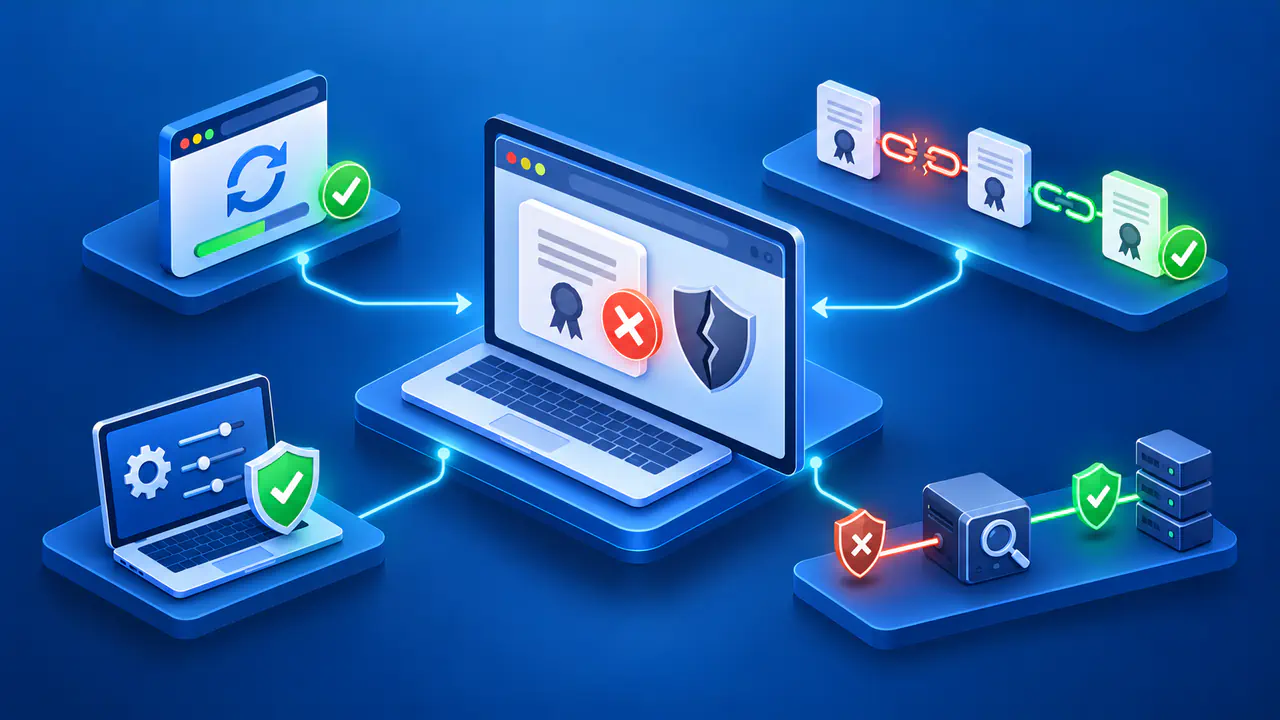
Read the exact code on Chrome's error page and copy the full address. ERR_NAME_NOT_RESOLVED means Chrome could not resolve the hostname to an IP address. A certificate warning concerns the secure connection, while an HTTP error status means response headers arrived. These errors require different checks from ERR_EMPTY_RESPONSE.
Reload a simple page on the same site once. If you were submitting a payment or form, do not reload the page or submit the same information again until you know what happened. Check your account on the site or contact support to find out whether the original submission went through. An empty browser response does not prove that the server did nothing with the original request.
Note the exact time, whether the error is intermittent, and whether it affects one URL or the entire site. These details help a site owner match your report with connection and application logs. A screenshot of the code is useful, but the address and timestamp help narrow the search.
Compare Sites, Browsers, and Networks
Open a few unrelated sites in the same browser. If many fail, check the internet connection and device first. If only one site fails, try its homepage or another harmless page to see whether the issue affects a particular path. Then test the failing page in another up-to-date browser or on another device you control.
If another browser or device works on the same network, check the affected browser's extensions and version, along with security software on the affected device. If both devices fail on one network but succeed on another trusted network, consider a router, proxy, VPN, or filtering gateway. If the same address fails across independent devices and networks, ask the site owner to investigate the servers and proxies handling visitors' requests.
These comparisons do not establish a cause on their own. A gateway can filter one hostname while other sites work, and a website can fail only for one request path. Keep the URL unchanged between comparable tests, record the time of each attempt, and note which tests succeeded.
Check Chrome and Extensions
Update Chrome and restart it before testing again. On a Windows PC or Mac, open More, then Help, then About Google Chrome, and select Relaunch if prompted after an update. On Linux, use your package manager; on a Chromebook, update ChromeOS. On a phone or tablet, check Chrome's listing in the device's app store for an available update.
On a computer, try the affected page in an Incognito window. If it works there, exit Incognito and open More, then Extensions, then Manage extensions in a regular Chrome window. Turn extensions off and test the harmless page again. If it loads, turn extensions back on one at a time and repeat the test to identify any extension that causes the failure.
If the problem remains limited to that browser, clearing its cache is another check. On a computer, open More, then Delete browsing data, choose a time range, and select Cached images and files. Clear the other selections before choosing Delete data to keep the operation limited to cached files. This cannot repair a server that closes connections without responding.
Check VPNs, Proxies, and Security Software
If you use a work or school VPN or proxy, ask the network administrator whether it blocked your request or closed the connection without a response. For a VPN you manage yourself, check its connection logs or ask its provider about failures affecting the site. On a personal network, check whether other devices show the same problem and whether the router shows an internet connection problem.
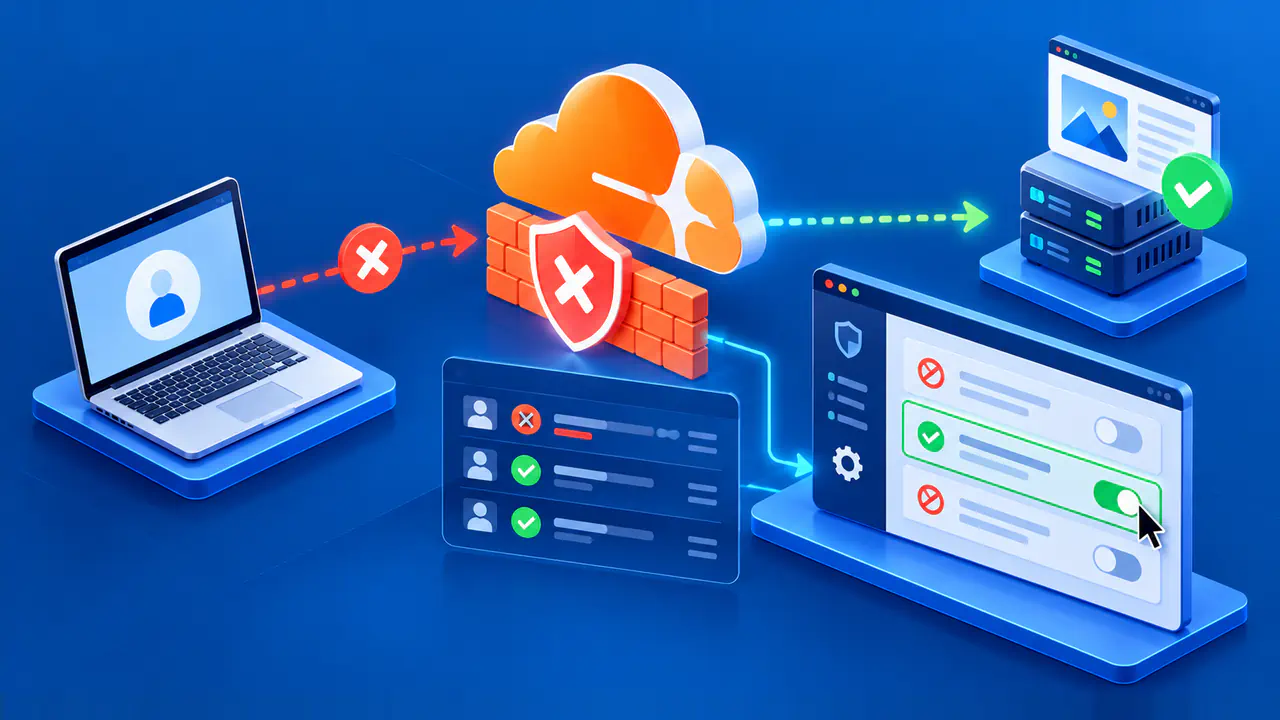
If the tests point to local security software, inspect its blocked-connection log before changing settings. An entry matching the site's address and test time can help you or the network administrator identify the blocking rule. Let the work or school administrator handle managed extensions, proxies, and security policies, and avoid disabling protection globally to test one website.
What a Site Owner Should Fix
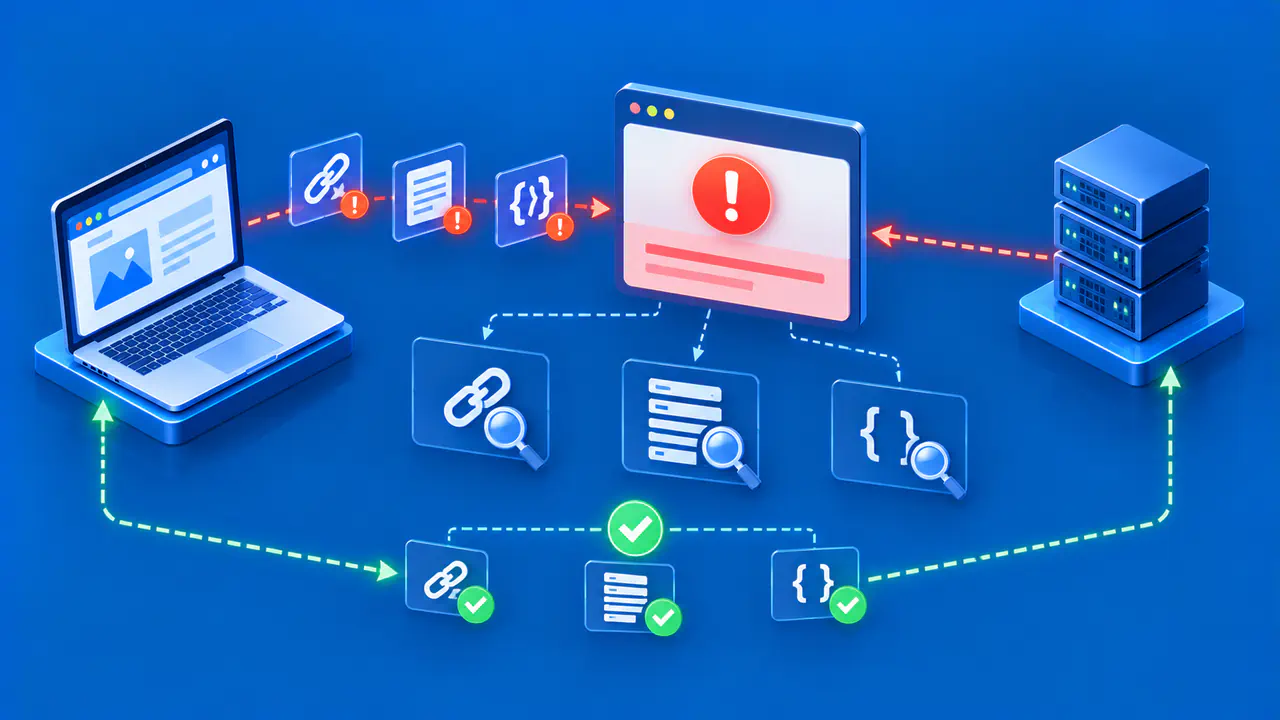
If you operate the affected site, trace the request through the components you use, such as a load balancer, reverse proxy, web server, and application. Determine which component accepted the connection and which closed it before sending an HTTP response. A missing application log entry does not prove the request never reached your infrastructure; a proxy may have closed the connection before forwarding the request to the application.
Match the failing URL, time, client network, and request method with logs from those components. Look for process crashes, upstream connection closure, request-size rules, rate limits, proxy timeouts, or deployment changes. If a crashed application or incorrect proxy destination is confirmed, restore the application or correct that destination, then retest. A timeout or upstream failure can produce other errors, so the log entry must match the failed request before you treat it as the cause.
Also check for a rule that deliberately drops the connection. For example, nginx's return 444 action closes a connection without sending response headers; it does not send an HTTP 444 response to Chrome. If such a rule mistakenly matches legitimate traffic, correct its matching conditions while preserving the intended access restrictions.
Report the Failure and Verify the Fix
If you cannot fix the problem as a visitor, send the site owner or network administrator the exact URL, error code, time, device, browser version, and comparison results. The site owner can inspect logs and check whether your payment or form submission went through. Use a private support channel if the address or screenshot contains account information.
After a fix, retest the public address from more than one network and confirm that the expected page loads. Testing the site's own server directly is not enough if visitors reach it through a content delivery network (CDN) or proxy. If Chrome now shows a different name-resolution, certificate, or HTTP error, investigate that new result instead of assuming the site is fully repaired.