How to Fix Bufferbloat

Bufferbloat is excess delay that appears when a network link is busy and packets wait in long queues. A video call that becomes choppy whenever someone uploads a file is a useful clue. A high ping when the connection is idle does not, by itself, show that packets are waiting in an overloaded queue.
Measure latency with the connection idle, then during uploads and downloads that use its available capacity. Once you know which direction produces the delay, configure the queue management feature your router supports and repeat the tests. Aim to reduce the delay without giving up more speed than necessary.
Measure Idle and Loaded Latency
Start with one device connected by Ethernet if possible, so changes in Wi-Fi signal strength are less likely to affect the result. Pause large updates, backups, and streams on other devices while taking a baseline. Record the test server, time, wired or wireless connection, idle latency, download speed, upload speed, and latency during each direction of load. Repeat the test more than once because a single run can reflect temporary changes at the test server or on your internet connection.
A useful bufferbloat test measures delay both while the line is idle and while download or upload traffic fills it. Choose one reputable tool that reports these phases separately and keep using the same tool and settings for the before and after comparison. If you use a continuous ping alongside a speed test, the ping target must be stable and permitted; a server that rate-limits echo replies can make the result misleading.
Focus on the difference between idle and loaded latency. For example, if latency is 20 ms at idle but rises sharply when uploads fill the link, the increase suggests that packets are waiting in an upload queue. The 20 ms figure is an example, not a target or a measurement of your connection. If the idle value is already high, investigate the access link, Wi-Fi, routing, or server path before attributing it to bufferbloat.
Run a download-heavy phase and an upload-heavy phase separately if the tool allows it. Many home connections have different upload and download capacities, so one direction may be the main source of delay. Record packet loss or unstable throughput too; if the link disconnects entirely during load, queue management alone may not solve the underlying fault.
Find Where the Link Saturates
Check which activity makes real-time work suffer. A cloud backup or video upload can fill the upstream link while ordinary browsing still seems fast. A large download or several streams can fill the downstream link. If the problem appears only over Wi-Fi but not Ethernet at comparable load, wireless interference or a local radio bottleneck may be more important than the router's internet queue.
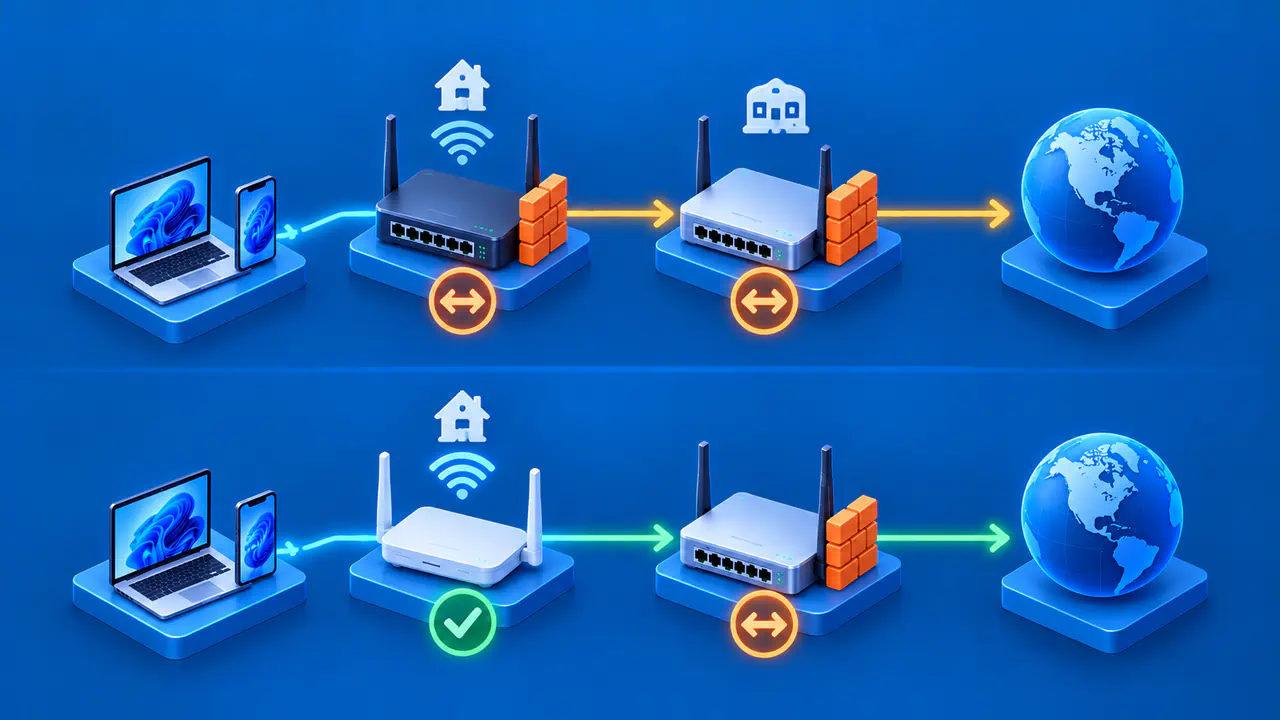
Compare the measured speed with the service tier and the router's actual forwarding capability. A rate quoted in a contract is not necessarily the speed available at every hour, especially on variable wireless or shared links. The router can directly manage only its own queues. Shaping the traffic below the link's available capacity helps keep packets from building up in a modem or upstream queue that the router cannot manage directly. If the router cannot process the line rate with queue management enabled, the measured throughput may fall more than expected.
Do not assume the problem is solved by buying a faster internet plan or a router sold for gaming. Link speed and gaming labels do not show whether a router keeps delay low under load. Check whether the current router has a supported smart queue management feature and what throughput the manufacturer specifies with that feature enabled.
Configure Smart Queue Management
Smart queue management, often shortened to SQM, combines traffic shaping with queue control and fair scheduling. It aims to keep the queue short enough for interactive packets to move promptly while a link is busy. The CAKE algorithm includes a traffic shaper, which limits the rate at which packets are sent. Another option, fq_codel, normally needs a separate shaper to control a bottleneck below the interface's physical rate. Product names and menus vary. Follow the instructions for your router model and firmware version.
Save the current configuration first. If the router offers an SQM or equivalent supported feature, select the correct WAN interface and enter initial upload and download rates based on measured, sustainable link speeds. Begin below the measured sustainable rate, following the starting point documented for your device, so the router can manage the queue. A rate set too high may leave a queue beyond the router's control; a rate set too low can unnecessarily reduce throughput.
Change one direction or setting at a time when possible, then repeat the loaded-latency test. If upload load causes the delay, tune upstream shaping first. If download load is the main issue, tune downstream shaping. Keep an eye on measured speed and router CPU load. Some routers disable hardware acceleration when advanced queue features are enabled, so a lower top speed can be a real tradeoff. The right setting is the one that improves responsiveness at a throughput you can accept.
If the connection rate varies substantially through the day, one fixed shaping value may work at one time and fail at another. Adaptive shaping can adjust rates on a variable-rate link, but support depends on the router and its software. Follow the device's supported controls or ask its vendor rather than installing unverified firmware solely to copy a configuration.
Repeat the Test and Record Tradeoffs
Use the same test device, cable or Wi-Fi position, test service, and roughly the same time of day. Record idle latency, upload-loaded latency, download-loaded latency, upload speed, download speed, router settings, CPU usage, and any change in connection stability. Run several passes and compare the pattern rather than selecting the best single number.
If loaded latency drops but throughput falls too far, revisit the shaping rates or router capacity. If latency remains high even with a sensible rate, check for another bottleneck such as a modem, Wi-Fi link, or queue in the internet provider's network. If latency is high even at idle, look beyond bufferbloat. A good result is a reproducible improvement under load without an unacceptable speed or reliability cost.
Keep the original settings and test record so the change can be reversed. If your router lacks documented queue management, send the measurements to the router manufacturer or your internet provider and ask what supported options exist. If you were able to test shaping settings, include the rates you tried and the latency and throughput measured at each rate.