What Is Double NAT and How Do You Fix It?
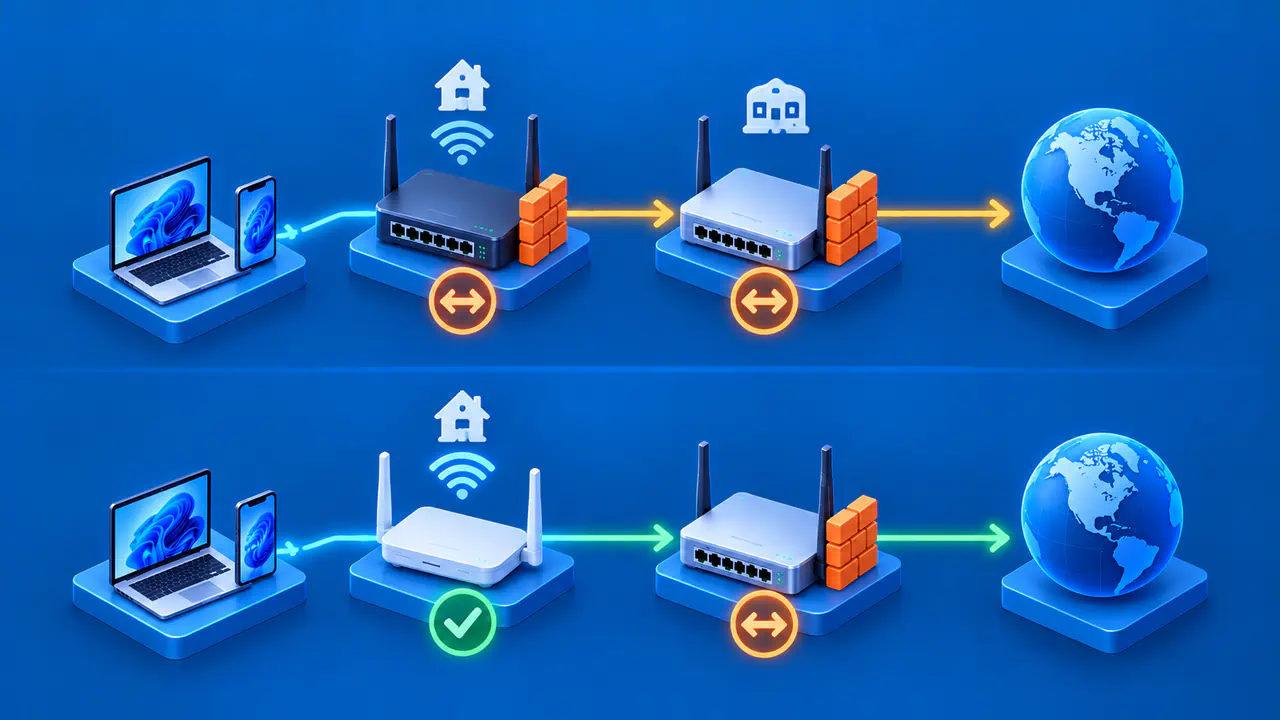
Double NAT occurs when IPv4 traffic from a home device passes through two routers that each perform network address translation. Each router changes the source address used for an outgoing internet connection. A common example is a gateway from your internet service provider (ISP) connected to a personal router or mesh system, with both devices performing NAT.
Double NAT does not necessarily need fixing. Web browsing, streaming, and many apps may work normally with two NAT layers. Consider a change when the extra translation or separate local networks cause a specific, repeatable problem.
A private address on a router's WAN interface is a clue, but it is not proof by itself. The address may come from another router in the home, or it may reflect carrier-grade NAT inside the provider's network. Identify the actual path before changing operating modes.
Identify the Two NAT Layers
Draw the connections from the ISP's equipment to the device having trouble. Label any modem, optical network terminal (ONT), gateway, router, mesh unit, switch, or access point along that path. A modem or ONT does not necessarily perform NAT. An ISP gateway often combines its connection hardware with a router, DHCP service for assigning local addresses, a firewall, and Wi-Fi.
Open the status page for the router closest to the affected device and record its WAN or Internet address, default gateway, and connection type. This is the downstream router; the gateway closer to the ISP is upstream. Sign in to that gateway, if you manage it, and look for the downstream router in its connected-device or DHCP client list. An address from the gateway's LAN range shows where the downstream WAN connects, but address assignment and routing alone do not prove NAT. Check both devices' operating modes and NAT settings to confirm that each translates the same IPv4 traffic.
The private IPv4 ranges are 10.0.0.0/8, 172.16.0.0/12, and 192.168.0.0/16. The range 100.64.0.0/10 is shared address space reserved for uses such as carrier-grade NAT (CGNAT) in ISP networks. If the router's WAN address falls within one of these ranges, that address is not globally routable. The address alone does not show whether another device is performing NAT or who operates it.
Compare the downstream router's WAN IPv4 address with a public IPv4 lookup made through the same WAN connection at the same time, without a VPN or proxy. A difference may indicate NAT farther along the connection, but it does not identify the device doing the translation. Check the gateway's client list, cabling, operating mode, and ISP documentation before deciding which device to change. A traceroute can help show the path, but some routers do not respond, and a private address in the results does not prove that the hop performs NAT.
Check Whether Double NAT Causes the Problem
Reproduce the problem before changing the network. Record the affected device, application, protocol, time, and result. Double NAT often has no noticeable performance effect, but it can interfere with some games, port forwarding, and the automatic port mapping used by Universal Plug and Play (UPnP). Devices on different private networks can also have trouble communicating.
For an incoming connection to reach a service behind both routers, a forwarding rule on the downstream router handles only one NAT layer. The upstream gateway must also forward the traffic to that router's WAN address. CGNAT can prevent unsolicited incoming IPv4 connections when the ISP does not provide a way to allow them. A strict NAT status on a game console, an unreachable home server, or a remote-access failure is a reason to investigate, not proof of double NAT by itself.
Local discovery problems can arise when a printer, television, or casting device is connected to the upstream gateway while the computer or phone controlling it is connected to the second router. Discovery protocols often do not cross routed subnets. Temporarily connect the two devices to the same local network and retest before blaming the internet connection.
Double NAT and overlapping subnets are different problems. In a setup that connects one router's LAN port to the other's WAN port, the routers can use different private LAN ranges and still create double NAT. Using the same LAN subnet on both routers in that setup can cause additional routing or management problems. If speed is the concern, compare latency and throughput under similar conditions before and after a change instead of assuming that two NAT layers must slow the connection.
Choose How to Remove the Extra NAT Layer
If you want your own router or mesh system to manage the home network, a supported bridge mode on the ISP gateway can remove the gateway's NAT layer. The gateway then passes the internet connection to your router, which handles the ISP connection settings. The gateway may retain management or provider-service functions, and its Wi-Fi may turn off. Before making the change, check the ISP's requirements for phone or television service, VLAN settings, PPPoE login details, and device registration.
If the ISP gateway will remain the primary router, set the second unit to access point (AP) mode if it supports that option. The second unit can then connect wired and Wi-Fi devices to the existing LAN without adding another NAT layer. Features such as port forwarding, a VPN server, parental controls, or guest isolation may become unavailable or work differently. Check the exact model's feature list before switching modes.
Check mesh compatibility before choosing which device to bridge. A primary Nest Wifi or Google Wifi router cannot use bridge mode in a mesh network with multiple units, and bridge mode disables some management and security features even in a single-device setup. Other mesh systems may offer AP mode while keeping the mesh active. Use the connection layout supported by your installed model.
You may be able to remove a separate, redundant router and connect clients, switches, or access points to the router you keep. If you need two separate local networks, keeping both routers may be appropriate, but configure and test the firewall rules that control traffic between them. Two NAT layers do not guarantee isolation. DMZ host and IP passthrough settings are other options on some gateways, but their effects vary by model and they are not automatically equivalent to bridge mode.
Back Up Settings and Test the New Setup
Before changing anything, export a configuration backup if the router supports it. Record the WAN connection type, local subnets, DHCP pools, Wi-Fi names, management addresses, address reservations, port-forwarding rules, and any phone or television settings. Also check how you will access the management page in the new mode. Keep the model's recovery instructions available, and use a wired connection for setup where supported.
Change one operating mode or cable connection at a time. If the router handling the ISP connection uses DHCP on its WAN interface, renew that lease after the change or restart devices as the ISP directs. PPPoE and static WAN connections need their own ISP settings, not a DHCP renewal. For one shared LAN, keep DHCP address assignment on the router that will serve that LAN, and disable any extra DHCP server on a device you have changed to bridge or AP mode. Check the primary router's WAN status, internet access and DNS resolution from a client, and access to both management pages.
Retest the original problem and any functions the change could affect, such as printing, casting, mesh roaming, gaming, VPN connections, and remote access. If only one home router now performs NAT but its WAN address is still private or within 100.64.0.0/10, ask the ISP whether it uses CGNAT. Changing bridge or AP mode at home cannot remove NAT in the ISP's network. Ask about a public IPv4 address or supported IPv6 connectivity if you need incoming connections, and check the relevant firewall settings.
If a required service stops working, restore the previous cable connections and operating modes, then import the backup if the model's instructions call for it. Avoid a factory reset while diagnosing the problem unless the recovery procedure requires one. A reset can erase settings and useful logs, so make sure you can restore the required configuration first.