What Is Ethernet and How Does It Work?
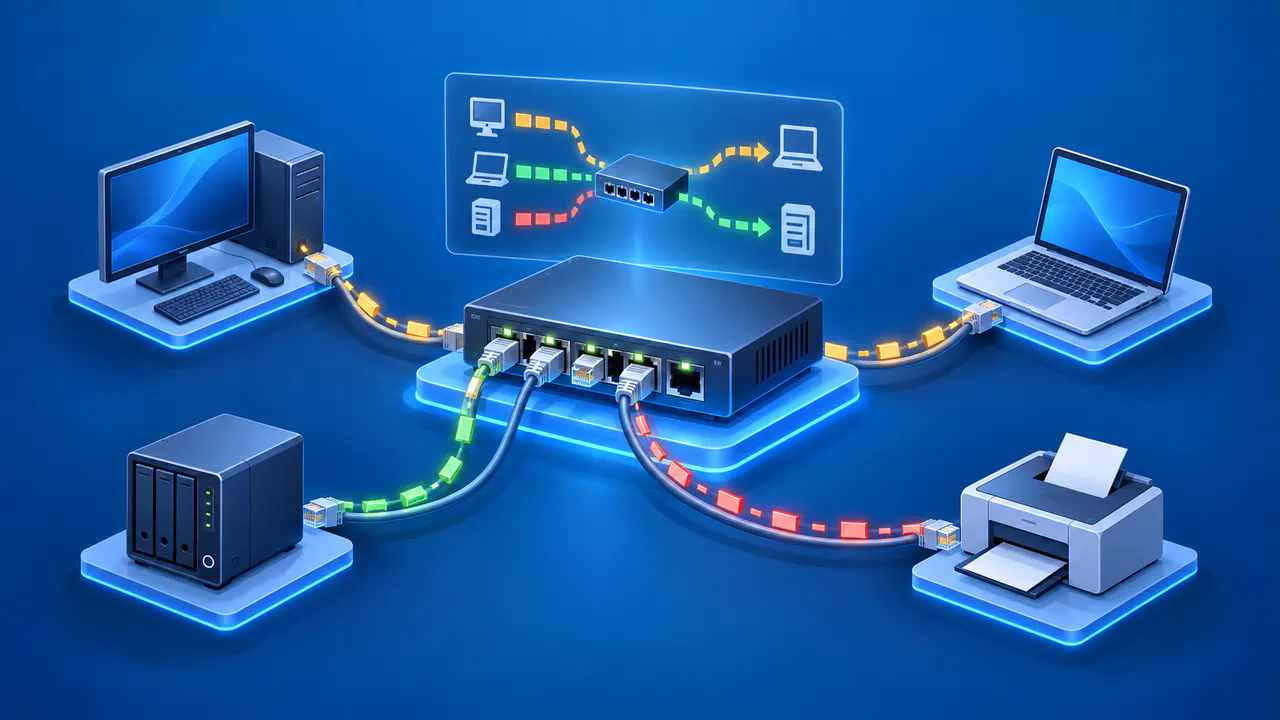
Ethernet is a family of technologies for moving data across wired network links. In a typical home, a cable connects a computer or game console to a LAN port on a router or switch. The devices at each end exchange data in units called frames. A switch can then forward those frames to another local device or toward the router.
Ethernet provides the connection between those ports, while IP settings and routing determine which network destinations a device can reach. This is why a computer can have an active Ethernet link while websites remain unavailable. The cause may be on the local network, in the internet connection, or at the website.
How Ethernet Ports and Switches Connect Devices
Each end of a common home Ethernet connection has a network interface. The interface sends and receives electrical signals through the cable plugged into its port. Compatible ports establish a link so they can exchange frames. A link indicator shows that this local connection is up, but it does not confirm that the device has suitable IP settings or internet access.
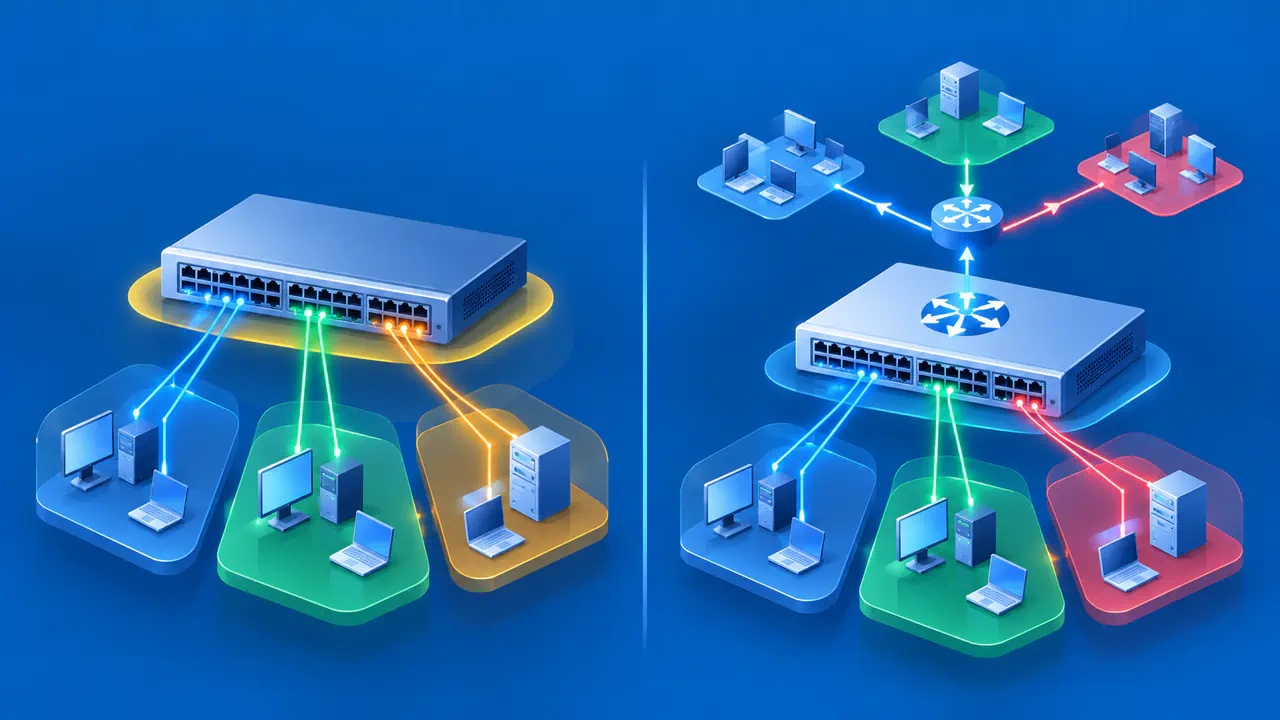
A MAC address identifies a network interface on a local link. On some adapters, the MAC address can be changed in software. A switch learns which port leads to each address by reading the source MAC address of an incoming frame and recording which port received it. The switch then uses its address table to decide where to forward later frames.
When the destination MAC address is in the table, the switch normally sends the frame through the matching port. If the address is missing, the switch may send copies through other eligible ports in the same local network.
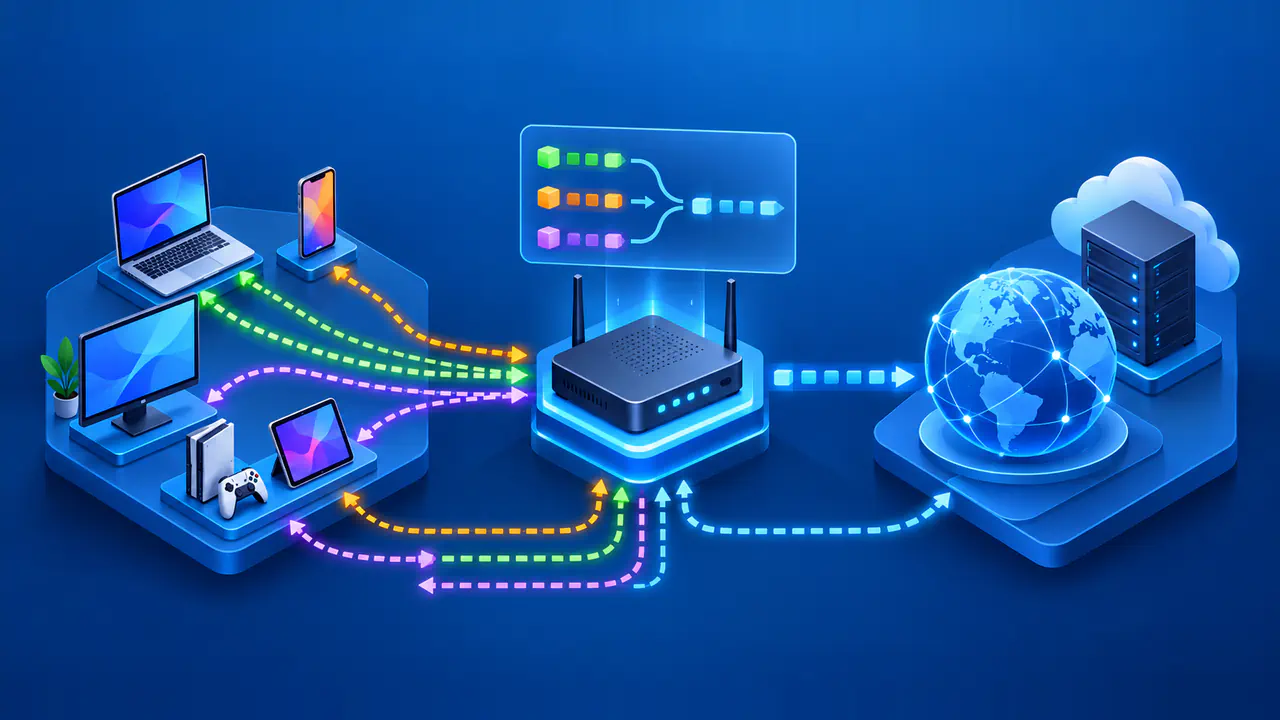
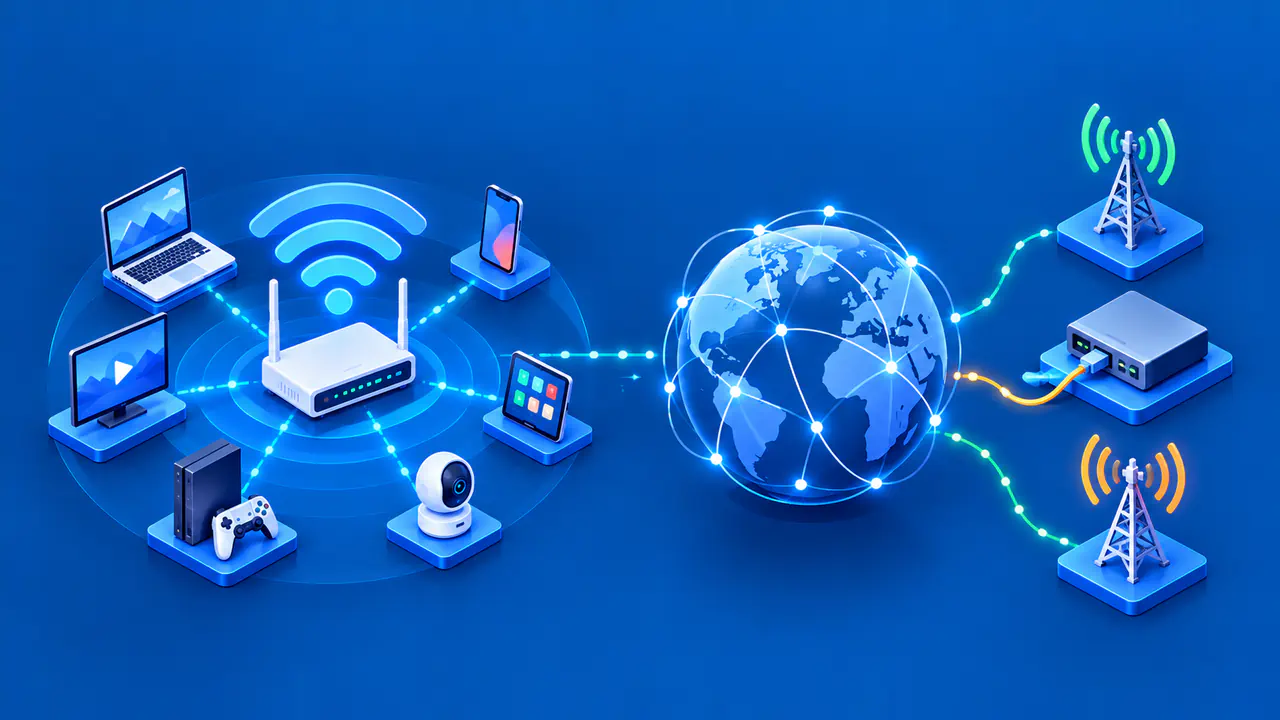
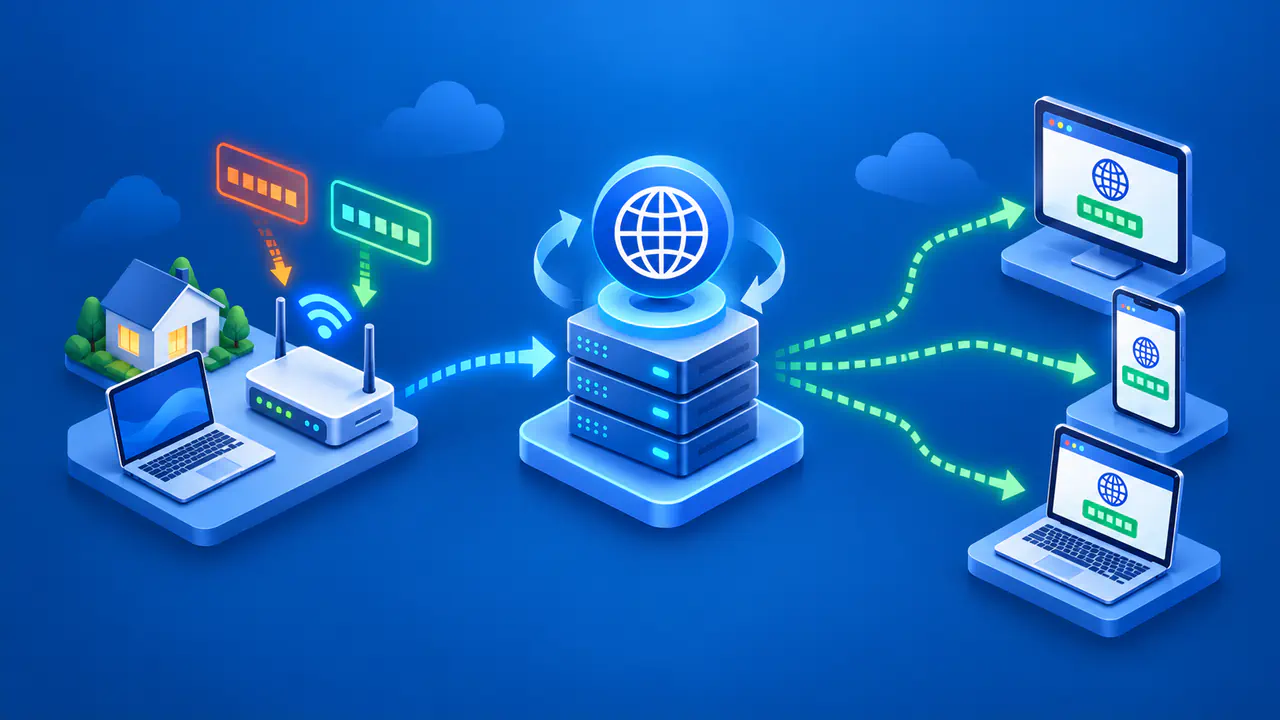
Many home gateways combine a switch, a Wi-Fi access point, and a router in one box. Their LAN ports connect devices to the local area network. A desktop plugged into a LAN port uses Ethernet, while a phone connected over radio uses Wi-Fi. Both can reach the same local network and share the gateway's internet connection.
How Ethernet Frames Carry IP Packets
An Ethernet frame contains source and destination MAC addresses, plus a payload carrying the data. That payload can contain an IP packet, which has its own source and destination IP addresses. A switch reads the Ethernet destination, while a router uses the IP destination when deciding where to send the packet next.
Suppose a laptop sends a request to a printer on the same local IP network. The frame carrying that request can travel through a switch to the printer without leaving the LAN. To reach a website outside the local network, the laptop instead sends a packet addressed to the web server inside a frame addressed to the local gateway. The frame's destination MAC address belongs to the gateway, while the packet's destination IP address is the web server's address.
A router takes the IP packet out of the incoming frame and prepares it for the next network link. If the next link uses Ethernet, the router places the packet in a new Ethernet frame. A remote website does not normally receive the laptop's Ethernet MAC address as part of an IP connection.
Link Rate Is Not Application Throughput
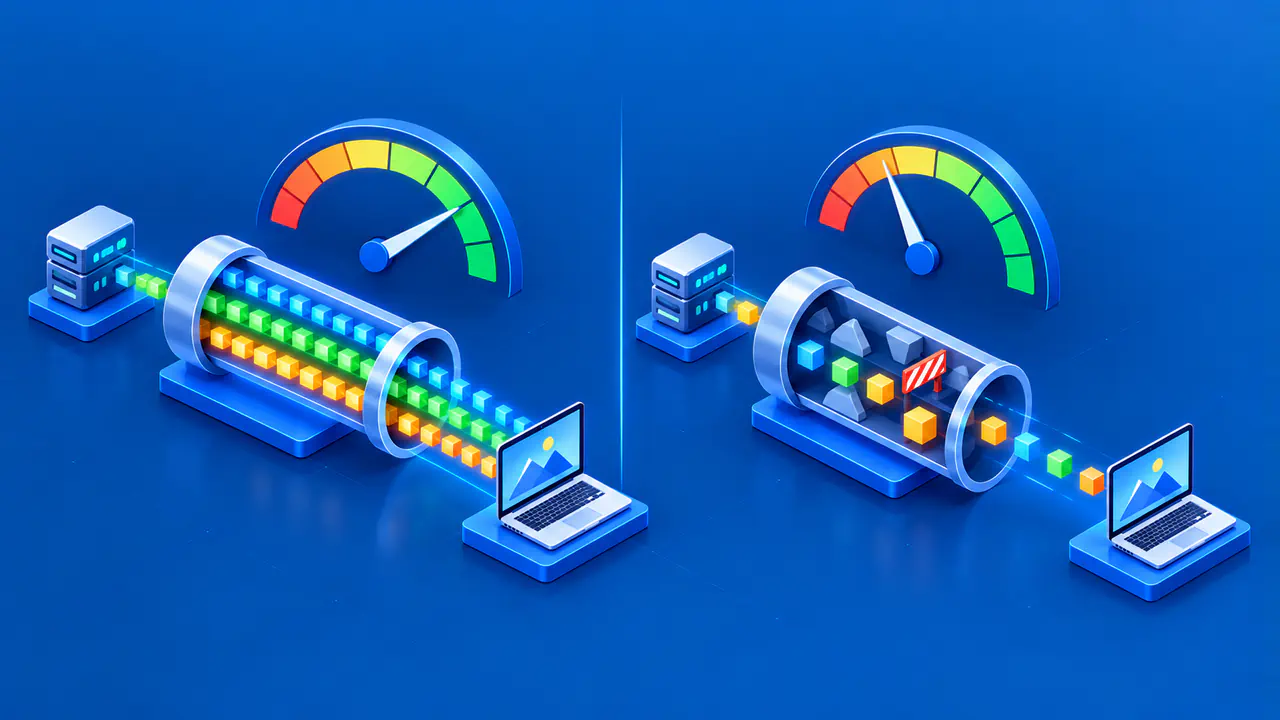
Ethernet ports can negotiate a link rate that both ends support. A status reading of 1 Gbps, for example, describes the connection between a device and the port at the other end of its cable. It does not measure how much file data an application receives per second. That rate is the application's throughput.
Frames carry addressing and control information as well as application data, so an application cannot use the entire link rate for file contents. A slower network link, the server, or the receiving device's storage can reduce throughput further. For example, a 1 Gbps connection to a switch cannot make an internet service limited to 100 Mbps deliver a 1 Gbps download.
A negotiated rate below the port's advertised maximum can reflect the capabilities or configuration of either device. Cable quality and loose or damaged connections can also limit the speeds the link can use. A low rate alone does not prove that the cable is faulty, and replacing the cable cannot make either port support a higher speed than it was designed for.
Ethernet avoids competing for Wi-Fi radio airtime, but a wired connection can still be slow. Traffic from several devices can compete for bandwidth on the switch's connection to the rest of the network or on a shared internet connection. A busy website can also respond slowly even when the local Ethernet connection is working well.
What the Ethernet Connection Status Tells You
Following the cable shows whether a computer connects to a gateway's LAN port or a separate switch. A link light or a connected status shows that the computer has a link to the device at the other end of the cable. The computer also needs IP settings that suit its network.
On a typical home IPv4 network, DHCP usually provides the address, subnet mask, default gateway, and DNS server settings. Those settings can also be configured manually. The default gateway provides a route to destinations outside the local network, while DNS servers help resolve website names to addresses. Incorrect settings can prevent website access without stopping the physical Ethernet link from working.
If a local file transfer works while several websites do not, the Ethernet connection is carrying traffic, so a fault farther along the internet path is possible. If neither local nor internet tasks work, the cable, ports, IP settings, and access restrictions are all possible causes. A "no internet" status can also reflect a failed connection check rather than a complete outage, so the message alone does not identify which component failed.