Bandwidth vs Throughput: What Is the Difference?
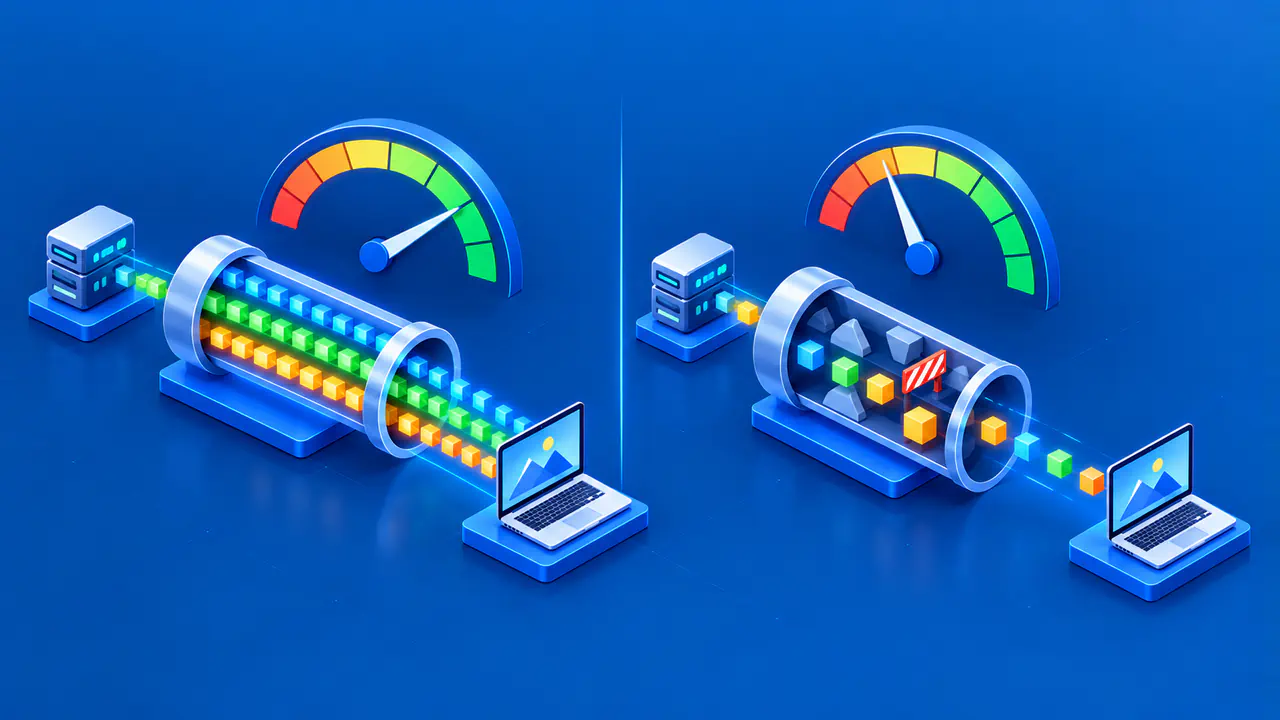
Bandwidth is the capacity of a connection to carry data per unit of time. Throughput is the data rate actually achieved during a transfer or measurement. An internet plan lists a service speed, while a download test measures the rate achieved between your device and the test server.
Both quantities are commonly expressed in bits per second, which is why they are easy to confuse. The distinction matters when you troubleshoot a slow file transfer. A low result may come from a low-capacity link, other traffic sharing the connection, Wi-Fi conditions, protocol behavior, the test server, or network delay. Check what the test measured and which connection it used.
Capacity and Achieved Rate
Think of a network path as several links and devices in series. Each link has a capacity. The slowest relevant segment can limit the rate of a transfer, and traffic from other users can consume part of the available capacity. Available bandwidth is the capacity left for additional traffic; it can change even when a link's nominal rate stays the same.
For example, an internet plan advertised at 300 Mbps download does not make every website deliver data at 300 Mbps. The home router, Wi-Fi connection, provider network, transit path, remote server, and application can each impose a lower effective rate. If a test reports 140 Mbps, that is an observed result for that test path and moment. It does not by itself identify which segment limited the transfer.
The term “download speed” can refer to either an advertised plan rate or a measured download throughput. Keep the context explicit rather than treating download speed as a separate type of network capacity. Upload is measured in the opposite direction and can have a different plan limit and different bottlenecks.
A fast download does not mean your connection has the same capacity for uploads. A congested upload connection can disrupt video calls or slow backups even when a download test looks good. Check the results in each direction to see whether only uploads or only downloads are affected.
Use the Same Units before Comparing Numbers
Internet plans and most speed tests report megabits per second, written Mbps. File managers often show megabytes per second, written MB/s. Eight bits make a byte, so 80 Mbps equals 10 MB/s when both figures count the same data.
Specify whether the rate includes protocol headers and retransmissions or counts only useful application bytes. Goodput counts useful data delivered to the application, excluding duplicate data and protocol overhead. For example, retransmissions increase the total traffic needed to deliver a file without increasing the file's size. Different tools can count bytes at different layers, so two correct readings may not be directly comparable.
For example, if an application delivers 100 megabytes of file data in 10 seconds, its average goodput is 10 MB/s, or 80 Mbps, over that interval. A brief peak displayed by the application can be higher than this average. The result describes the chosen interval; it does not establish the path's maximum capacity.
Do not convert a file size into a guaranteed download time by dividing by the advertised rate alone. The practical time also depends on setup, server pacing, concurrent traffic, and changing conditions during the transfer. State the measured interval and the data unit if the number will be used to compare devices or providers.
Locate the Bottleneck behind Lower Throughput
Check the local path first. A weak Wi-Fi signal, a crowded channel, a port using a lower link rate, or a busy device can constrain throughput before traffic reaches the provider. If possible, compare results from a wired connection with results from the affected device over Wi-Fi. If both tests are slow, check shared equipment and competing traffic before narrowing the problem to the provider or external path. If only one device is slow, focus on its local connection and software.
Then consider shared load. A household backup or other active transfer can consume capacity during a test. At the far end, a service may deliberately pace downloads or be limited by its own capacity. A speed test chooses a particular test server and transfer method; it measures that route, not every possible route to every website. Repeat measurements at different times and note which server and device were used.
Test methods matter as well. A test using one TCP connection can report a lower rate than a test using several parallel connections, especially when loss or long round-trip times constrain each connection. The combined result from parallel connections measures their total transfer rate. It does not show what one connection to the same destination would achieve.
Check Latency Separately
Latency measures delay, usually in milliseconds, while bandwidth and throughput measure data rate. Round-trip time includes the trip to the destination and the return trip; the two directions do not necessarily take the same amount of time. A throughput result does not show how long individual messages take to travel, and an idle latency reading may miss delays that appear when the connection is busy.
For example, a test might report 290 Mbps while an online game still responds slowly. The bulk transfer result shows a high data rate, but it says little about the delay experienced by the game's traffic. Check latency, its variation, and packet loss on the game's connection when possible; the speed-test server may use a different route.
For interactive tasks, look at responsiveness as well as capacity. Long queues, packet loss, route distance, and retransmissions can increase delay or reduce achieved throughput. More nominal bandwidth can help when congestion on a narrow link is the cause, but it does not guarantee a shorter route or a faster server. Compare measurements under the same conditions and use the metric that corresponds to the symptom.