Why Browsers Show Certificate Warnings
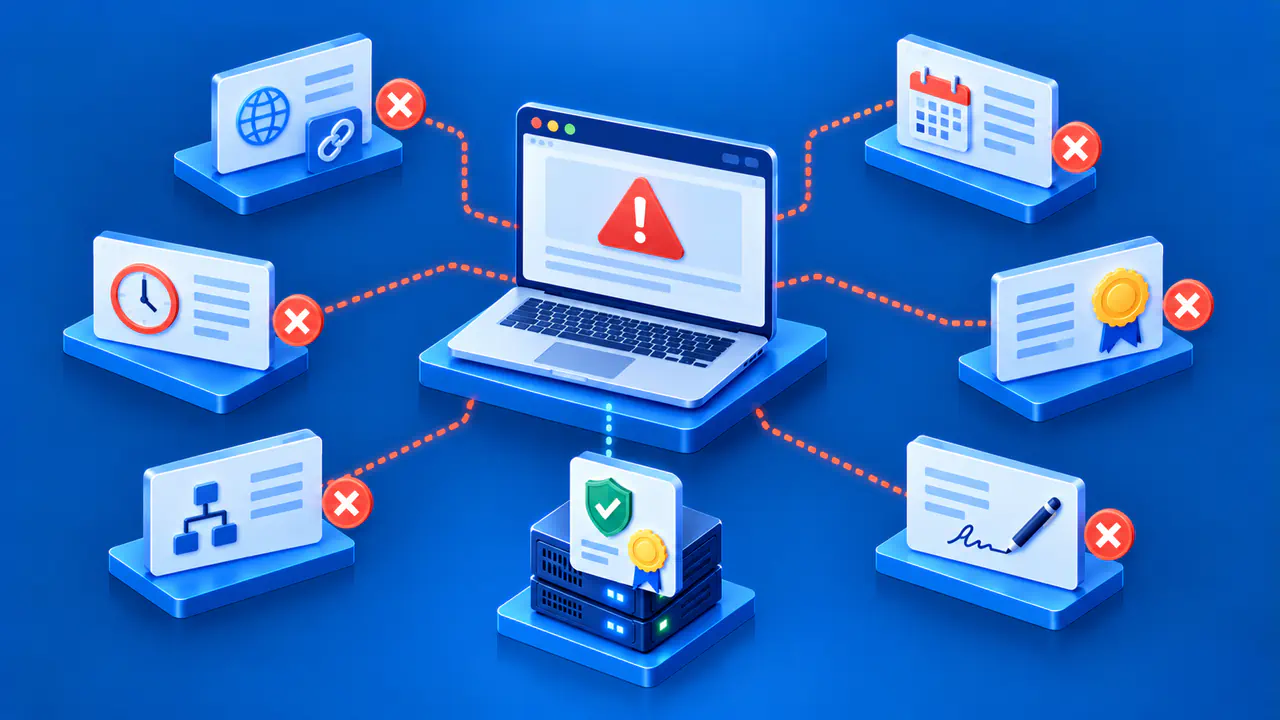
A browser certificate warning means the browser could not complete one or more checks needed to trust a TLS connection. It does not by itself identify an attacker, nor does it prove that the warning is harmless. Possible causes include an expired certificate, a certificate for the wrong hostname, or an incomplete certificate chain. Start by reading the exact warning and checking the address in the browser bar.
Visitors can record the intended hostname, the browser's error details, the device date and time, and whether other familiar sites show the same problem, without continuing past the warning. The website operator can then inspect the certificate served at the public endpoint. Do not enter login or payment details while the browser cannot verify the connection.
Record the Warning before Changing Anything
Read the browser's error page and expand its details where available. Record the wording or code, the requested hostname, the time of the attempt, and whether you are using a company or public Wi-Fi network. Browser codes are product-specific, so do not treat the same short phrase as a full diagnosis across Chrome, Firefox, Safari, and other clients. Secure connection errors can arise from website configuration, security software, or an incorrect system clock.
If the warning appears for one site but other secure sites work, check the certificate served by that site's server, proxy, or CDN. If many unrelated sites fail on the same device, a wrong clock, outdated software, or network interception may be involved. These are diagnostic clues, not permission to bypass a warning. A second trusted device or network can help distinguish a local condition from a sitewide one without sending sensitive information.
Compare the Requested Name and Validity Dates
A name mismatch occurs when the certificate presented by the endpoint does not cover the name in the browser bar. Current TLS identity guidance uses identifiers in the certificate's Subject Alternative Name extension. A DNS name must match an appropriate DNS identifier; an IP literal needs a matching IP address identifier. A certificate for www.example.com does not automatically cover example.com, and a wildcard has limited matching rules. The Common Name field does not substitute for a matching Subject Alternative Name in modern browser checks.
Website operators should check the exact hostname, the certificate served for that hostname, and which proxy or virtual host selected it. A CDN edge may present a different certificate from the origin server. A visitor can correct an accidental typo in the address, but only the operator or certificate manager can install a certificate that covers the intended site. Do not accept a mismatch on a login page as if the displayed site name were sufficient proof.
A time warning is different. X.509 certificates have a validity interval beginning at notBefore and ending at notAfter. A certificate may be expired, not yet valid, or apparently invalid because the device clock is wrong. The visitor can verify the operating system date, time, and time zone through trusted device settings. If those are correct, the operator should inspect the publicly served certificate and its renewal and deployment process. A new certificate stored on the server does not help if the public proxy still serves the expired one.
Follow the Issuer and Certificate Chain
An untrusted issuer warning usually means the browser cannot connect the site's certificate to an issuer it trusts. A missing intermediate, an untrusted private issuer, or a self-signed site certificate can cause this warning. Other chain problems may produce different messages. Chain validation also checks signatures, certificate validity, and limits on what each issuing certificate may sign.
The site operator should compare the leaf certificate and intermediates actually sent by the public TLS endpoint with the issuer's intended chain. Supply the correct intermediates through the server or CDN configuration and verify the public result. Installing an unfamiliar root on visitors' devices is a major trust change and is not a routine repair for a public website. In a managed enterprise environment, an administrator may legitimately control a private trust anchor, but visitors should not make that decision based on an unexpected page prompt.
Security software and network gateways can intercept HTTPS and present a different certificate. If the certificate issuer or subject changes only on one managed network, contact the network administrator or security product vendor. The website operator cannot fix a local interception certificate by replacing the site's own public certificate.
Identify Who Can Fix the Problem
For a typo or wrong device clock, the visitor can correct the local input or setting. For an expired site certificate, missing intermediate, mismatched hostname, or incorrect CDN selection, the site operator or hosting provider must repair what the endpoint serves. For a managed proxy or antivirus interception, the responsible administrator should verify its certificate and policy. Give them the hostname, time, exact warning, and browser version, while excluding passwords and private data from screenshots or tickets.
Do not assume a single fix applies to every warning. Renewing a certificate without adding the missing hostname does not fix a name mismatch. Adding an intermediate does not fix an incorrect clock, and clearing browser data does not make an untrusted issuer trustworthy. Diagnose the failed check first. If the browser says the connection is unsafe, stop before entering credentials, payment details, or other sensitive information. Revisit only after the warning's cause has been resolved and the browser accepts the connection normally.