How to Fix ERR_SSL_VERSION_OR_CIPHER_MISMATCH

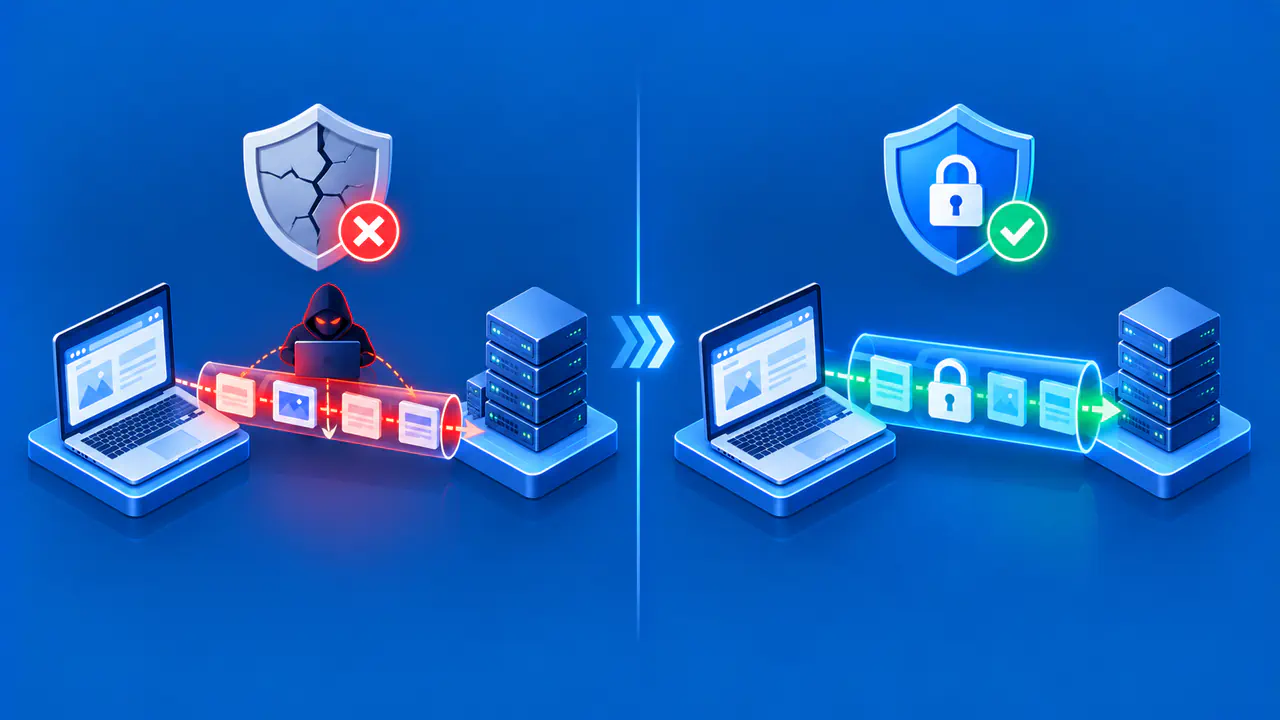
ERR_SSL_VERSION_OR_CIPHER_MISMATCH means Chrome could not establish a secure connection using the available TLS settings. Start by updating an outdated browser and checking whether the same address fails on another device with an up-to-date browser or on a trusted network. If the problem is on the website's side, its owner must correct the TLS configuration or certificate deployment.
TLS is the protocol that protects HTTPS connections. A failure can involve the website's server or a service that handles encrypted traffic between the browser and the server. The error code alone does not identify the failing component, so the comparisons below help determine who needs to make the repair.
Check the Error Code and Affected Sites
Read the complete code on Chrome's error page and note the hostname in the address bar. Certificate name warnings, certificate date warnings, and timeouts have different codes and need different checks. If the message changes after a test, record the new code rather than continuing with the earlier diagnosis.
Try a few unrelated HTTPS sites on the same device. If they also fail, check the device's internet connection and whether a browser or network setting recently changed. If only one site fails, focus on that site's connection, but remember that a filter can block individual sites. This comparison suggests where to investigate; it does not establish a cause.
Update Chrome and Compare Devices
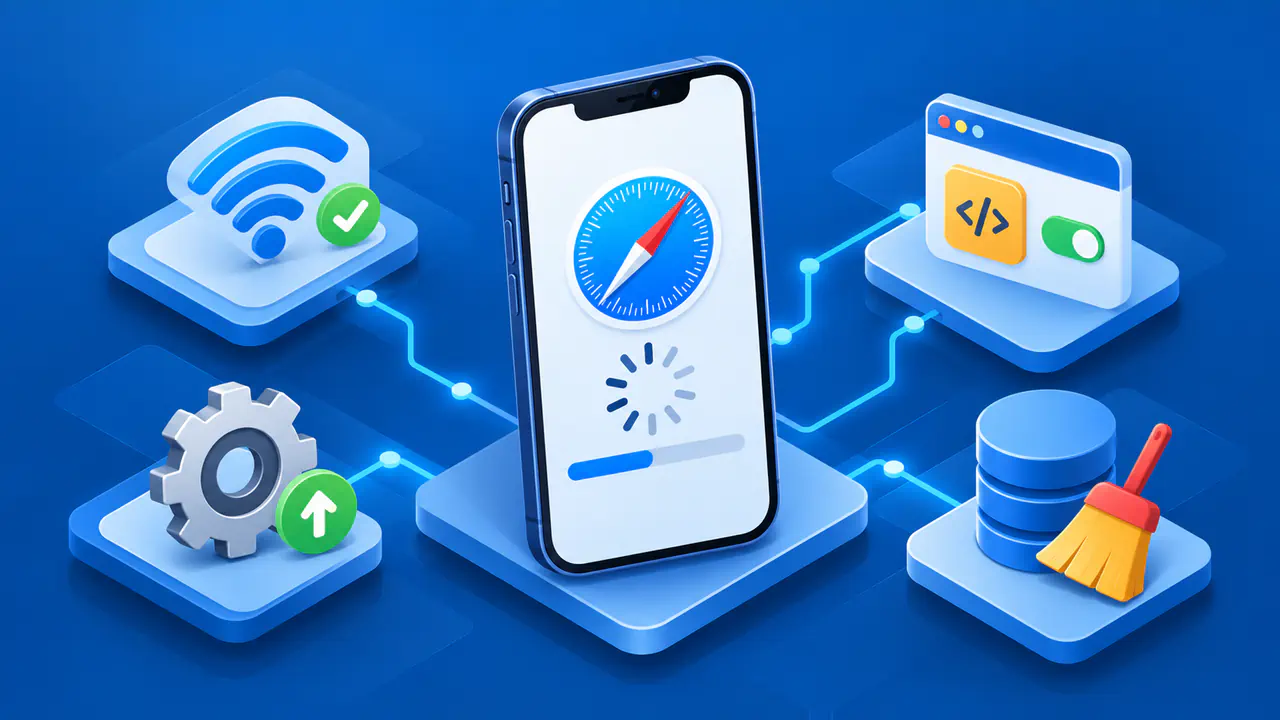
On a Windows PC or Mac, open Chrome's three-dot menu, select Help, and open About Google Chrome. Let any available update finish, then select Relaunch when offered. On Linux, update Chrome through your package manager; on a Chromebook, update ChromeOS.
Keep the operating system supported and up to date as well. An unsupported system may prevent Chrome from receiving updates, leaving you unable to test with a current browser.
Retry the exact HTTPS address after restarting the browser. Then try it from another up-to-date device on the same network. If the second device works, compare the first device's browser version, updates, and security software. If both fail only for this site, investigate the server and the network components they share.
On the affected computer, try the address in an Incognito window. If it works there, return to a regular window, open the three-dot menu, select Extensions, and open Manage extensions. Turn off extensions you control, then turn them back on one at a time while retrying the address. Involve your administrator before changing extensions enforced on a managed device.
Try Another Network and Check HTTPS Inspection
If another trusted connection is available, retry from that network while keeping the device and address the same. You can use your own mobile connection for this test. A result that changes with the network may involve a proxy, VPN route, filtering service, or a different server reached through that network.
A workplace or school may use HTTPS inspection, where an intermediary handles secure connections on the organization's behalf. Ask the network administrator to check the intermediary's TLS compatibility and certificate configuration. Security software on a personal device may also inspect HTTPS; use the vendor's troubleshooting guidance if the failure is limited to that device.
A working connection elsewhere does not prove that the website itself is trustworthy. Check that you are using the intended hostname, and leave passwords or payment details out of your tests. Do not install certificates from an unfamiliar error page or weaken browser security to force a connection.
Check the Website's Public HTTPS Configuration
If you manage the website, check the endpoint that accepts visitors' HTTPS connections. This may be a content delivery network (CDN), load balancer, reverse proxy, or the web server itself. When a CDN handles the browser's TLS connection, a test of the origin alone cannot confirm that visitors will connect successfully.
Enable TLS 1.3 and a compatible cipher suite such as TLS_AES_128_GCM_SHA256 on the browser-facing endpoint. A cipher suite specifies cryptographic algorithms used by the connection. TLS 1.2 can remain available with suitable ciphers for clients that need it, but TLS 1.0 and 1.1 should remain disabled. Have the hosting provider review the configuration if you do not control these settings.
Also confirm that the endpoint has an active certificate covering the exact hostname. With Cloudflare, check the certificate's status under Edge Certificates and confirm that the hostname's DNS record is proxied when you intend to use Cloudflare's certificate. A DNS-only record sends visitors to the origin, which must provide its own working HTTPS service.
If the failure followed a hosting or proxy change, compare the affected hostname's configuration before and after that change. Check the TLS settings and deployed certificate on the service now receiving the traffic. Correct the identified problem there, then repeat the browser test before changing unrelated settings.
Report the Error and Check the Repair
If devices with up-to-date browsers still fail on different trusted networks, send the site owner the hostname, exact code, time, browser versions, and comparison results. For a failure limited to a managed network, give those details to the network administrator. These details help the owner or administrator narrow down the cause.
After the site owner or administrator reports a repair, retry the original HTTPS address in a current browser. Confirm that the intended hostname opens without a connection warning before using the site. If the code changes, pass the new result back to the owner; a different error can reveal a separate problem that still needs attention.