How to Block an IP Address in Windows Firewall

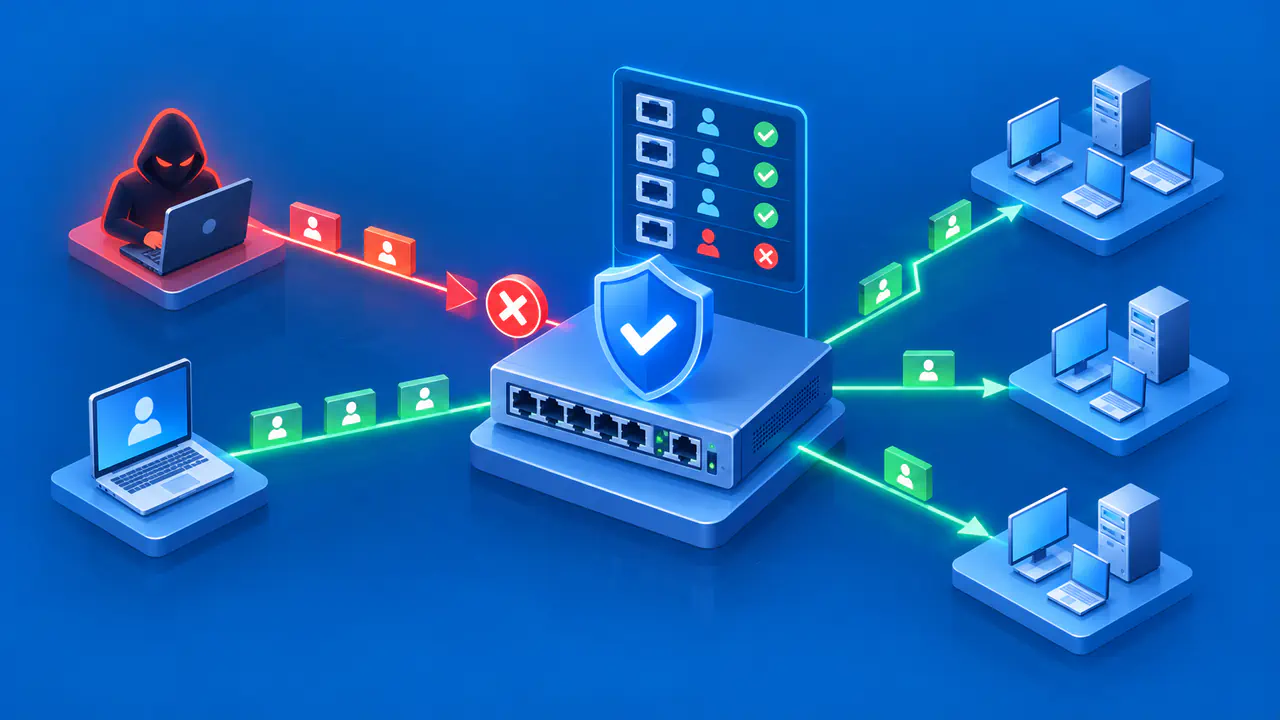
A Windows Firewall block rule can stop traffic to or from a particular remote IP address. First decide whether you need to stop incoming connections from that address or outgoing connections to it. Then identify the network profile that applies. A rule pointed in the wrong direction can appear valid while leaving the unwanted connection untouched.
Use this procedure on a computer you administer. If the device is managed by an organization, check its firewall policy and change process first. Central settings can prevent a locally created rule from joining the effective policy, and a broad rule can break remote administration. Keep a separate access path available when changing rules on a remote machine.
Identify the Connection and Address
For an inbound connection, the remote address is the client IP seen by the Windows computer. For an outbound connection, it is the destination server IP. The local address is an address assigned to the Windows computer, so putting the unwanted external IP in the local address field usually targets the wrong side of the connection. Confirm the address from a trustworthy log or connection record and decide whether the problem is inbound or outbound before opening the rule editor.
Check whether the service receives traffic directly. If a reverse proxy, load balancer, VPN gateway, or network address translation device stands in front of it, the address seen by Windows can differ from the original client address. Blocking that shared intermediary could interrupt many legitimate users. Likewise, a hosting provider may change a service destination address or share one IP among several sites. An IP address identifies a network interface or endpoint, but it does not reliably identify one person or application.
Write down the IP exactly, including whether it is IPv4 or IPv6. Blocking one IPv4 address does not also block a separate IPv6 address used by the same device. Avoid replacing one host address with a large subnet unless the wider block is intentional. If the issue involves only one application or port, note that scope as well. This record makes the rule easier to review and remove later.
Create a Named and Scoped Block Rule
Open Windows Defender Firewall with Advanced Security as an administrator. Choose Inbound Rules when the unwanted peer initiates traffic toward this computer, or Outbound Rules when this computer initiates traffic toward the destination. Select New Rule and then Custom to review all the matching conditions. On the Program page, select the intended executable or service if the block should be limited to that software. On Protocol and Ports, choose the protocol and any required port restriction; use the local service port for incoming connections or the remote service port for outgoing connections.
On the Scope page, enter the unwanted address under the remote IP addresses. Restrict the local address only if the block should apply to a particular address on this computer. Select Block the connection, choose the applicable Domain, Private, or Public profiles, and enter a descriptive name before selecting Finish. Include the direction and affected service in the name, and record the reason for the block in the description.
Create the Rule in PowerShell
You can use an elevated PowerShell session instead of the wizard. For an incoming TCP connection to local port 443 on a Public network, the example is New-NetFirewallRule -Name "BlockReviewedIP-In443" -DisplayName "Block reviewed IP to local HTTPS" -Direction Inbound -Action Block -RemoteAddress 203.0.113.42 -Protocol TCP -LocalPort 443 -Profile Public. Replace the documentation address 203.0.113.42 with the address you verified, and choose the actual port and profile before running the command.
The command applies to any program using that local port because no program restriction is included. Add the intended executable with -Program if the block should apply only to that application. Choose an unused rule identifier for -Name and keep it in your change record.
For an outgoing connection to a server on TCP port 443, use the remote port instead: New-NetFirewallRule -Name "BlockReviewedIP-Out443" -DisplayName "Block reviewed HTTPS destination" -Direction Outbound -Action Block -RemoteAddress 203.0.113.42 -Protocol TCP -RemotePort 443 -Profile Public. Substitute the destination address and other conditions for the connection you intend to block. Copying -LocalPort 443 into this outbound example would usually miss a browser connection, whose local source port is assigned separately.
Check the Profile and Rule Effect
Use Get-NetConnectionProfile to identify the network category on the interface carrying the traffic. A Public-only rule does not apply to a connection using a Private or Domain profile. Check the effective firewall settings with Get-NetFirewallProfile -PolicyStore ActiveStore and confirm that the firewall is enabled for the relevant profile.
For the inbound PowerShell example, run Get-NetFirewallRule -PolicyStore ActiveStore -Name "BlockReviewedIP-In443" and check the enabled state, action, direction, and profile in the output. Query the address and port conditions with Get-NetFirewallRule -PolicyStore ActiveStore -Name "BlockReviewedIP-In443" | Get-NetFirewallAddressFilter and Get-NetFirewallRule -PolicyStore ActiveStore -Name "BlockReviewedIP-In443" | Get-NetFirewallPortFilter. Use the outbound identifier when checking the outbound example.
In ordinary Windows Firewall rule evaluation, an explicit block takes precedence over a conflicting allow rule. Moving rules up or down is not a way to assign priority in this firewall. A failed connection by itself does not prove that the intended block matched: the service might be down, the peer might have changed address, or another device might be dropping packets.
For an inbound block, attempt a fresh connection from the intended source when you control it; for an outbound block, connect from the Windows computer to the intended destination. Correlate available firewall records with the address, port, protocol, and time of the attempt. Also test a legitimate connection outside the block's scope to check for unintended blocking.
Be especially careful with remote desktop or other management paths. Before enabling an inbound block that might cover your own source address, arrange console access or another recovery route. On an organization-managed device, local rule merging may be disabled for the applicable profile. If the local rule is excluded from the effective policy, the policy administrator must make the change through the management system that supplies the firewall rules.
Disable or Remove the Block Rule
If the block is wrong or no longer needed, find that rule in the Advanced Security console and disable it first. For the local inbound rule created in PowerShell, use Disable-NetFirewallRule -Name "BlockReviewedIP-In443". Retest the affected connection, then use Remove-NetFirewallRule -Name "BlockReviewedIP-In443" if the rule should be deleted. Substitute the outbound rule's identifier when undoing that example; these identifiers do not automatically refer to rules created through the wizard.
Disabling a rule keeps its settings for later review, while deleting it removes the rule. If disabling the block does not restore connectivity, check for another blocking rule, the default policy, or a failure outside the firewall before removing more rules.
If the address changes often, repeated manual blocks may not solve the underlying issue. Review the application, authentication, proxy, and upstream controls that can identify or limit the problematic traffic more precisely.