How to Find Your Router's IP Address
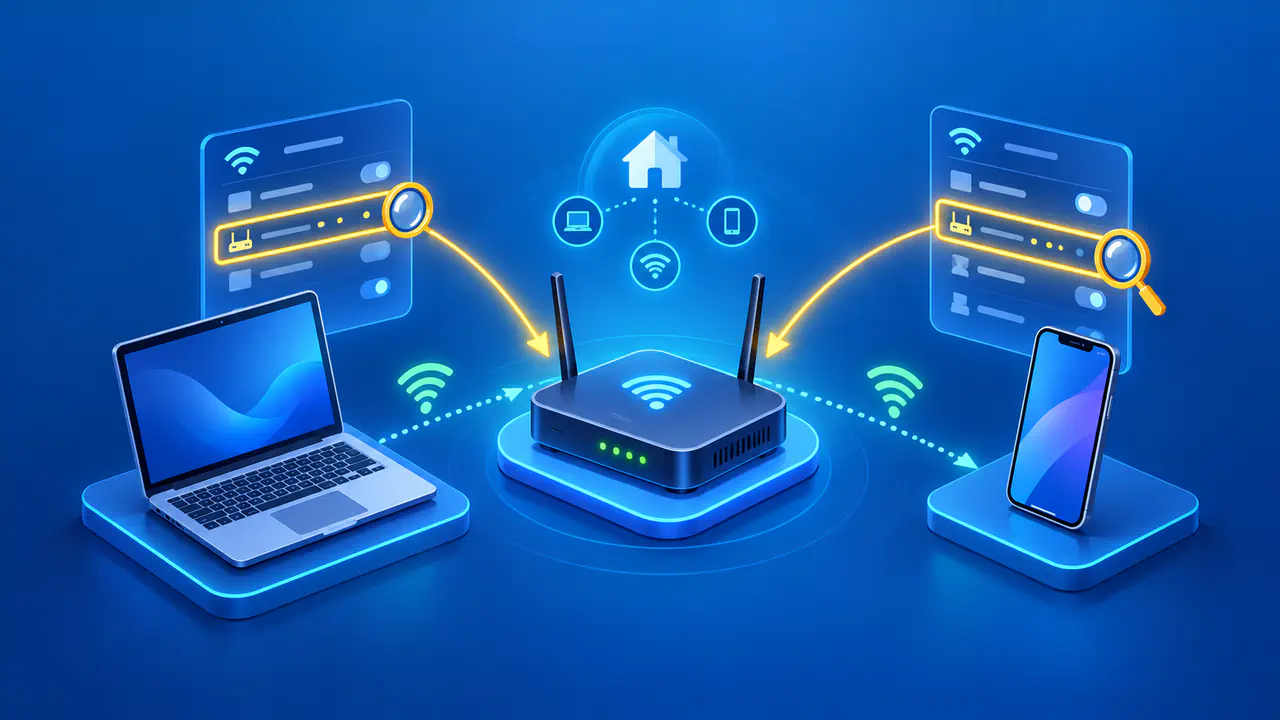
Your router's local IP address is usually the default gateway shown in your device's network settings. On a typical home network, your computer or phone sends internet traffic through the router at that address. Connect to your home WiFi or Ethernet, open the connection details, and look for a field labeled Default Gateway, Router, or Gateway.
The address might be 192.168.1.1, but that is only an example. Routers do not all use the same default address, and someone may have changed your router's address during setup. Checking a connected device lets you find the current address without trying a list of common defaults.
Choose the Right Network
Use your main home WiFi network or a wired connection to your home router. A phone using cellular data cannot show your home router's address in its cellular connection details. Likewise, a laptop connected to a phone hotspot will show information about that hotspot, even when you are sitting next to your home router.
A guest network may restrict access to other devices in your home, so use the main network for this lookup. Your computer may also list VPN connections or virtual network adapters. Find the gateway listed for the WiFi or Ethernet adapter connected to your home network.
Find the Default Gateway on Windows
Open the Start menu, search for Command Prompt, and open it. Type ipconfig and press Enter. In the output, find the adapter connected to your home network, usually listed under Wireless LAN adapter Wi-Fi or Ethernet adapter Ethernet. Read the address beside Default Gateway in that adapter's section.
The IPv4 Address line shows your computer's address on that network, not the router's address. You may see both an IPv4 gateway, written as four numbers separated by periods, and an IPv6 gateway, which contains colons. If your router's instructions refer to an IPv4 address, use the IPv4 gateway from the connected adapter.
Find the Router Address on a Mac
Open the Apple menu, choose System Settings, and select Network. Click the connected WiFi or Ethernet service, open Details, and choose TCP/IP. The Router field shows the gateway for that connection. Read the value without changing the configuration options or renewing the DHCP lease.
On macOS Monterey or earlier, open System Preferences, choose Network, select the connected service, and click Advanced, then TCP/IP. The field is still labeled Router. The IPv4 Address field on the same screen shows the Mac's own address.
Find the Address on a Phone or Tablet
On an iPhone or iPad, open Settings and tap Wi-Fi. Your connected network has a check mark next to its name. Tap the information button for that network, then read the address next to Router.
On Android, open Settings and find the connected WiFi network. On devices with the standard Network & internet menu, choose Internet, then tap the settings icon next to the connected network. Look for Gateway in the connection details. The exact menus and available fields depend on the device maker and software version. Some phones do not display the gateway, in which case you can use another connected device instead.
Check the Router's Label or Manual
The router's label or manual may list a default IP address or a name for its settings page. A printed default address may be outdated if someone has changed the router's local IP address. The gateway shown on a connected device is more useful when you need the address in use now.
Read the description next to each value on the label. A WiFi name, serial number, or MAC address is not the router's IP address. A management hostname printed on the label may provide another way to reach the router on supported models, but it is a name rather than the numeric address you are looking up.
Identify the Router in a Larger Home Network
The device providing WiFi is not always the device acting as the default gateway. For example, your internet provider's gateway may handle routing while a separate access point provides wireless coverage. A phone connected through that access point will normally list the provider's gateway address in the Router or Gateway field. The access point can have a different address for its own settings.
To find the access point's management address, check whether its manufacturer provides a discovery app or another lookup method for that model. If your router assigns an IP address to the access point, you may find that address in the router's list of connected devices. The address printed on the access point may not apply after it has joined an existing network.
Two devices operating as routers create a different arrangement. If a second router's WAN port connects to the first router's LAN, a phone on the second router's WiFi normally uses the second router as its gateway. A phone on the first router's WiFi normally shows the first router instead. A mesh system can operate as a router or, on supported models, as an access point, so its operating mode matters more than the number of WiFi units.
Keep Local and Public Addresses Separate
An IP lookup website shows the public address used to reach that website, which can differ from your router's local address. With a VPN, the website may see the VPN service's address. To find the router's local address, use the network details on a connected device. A public IP lookup cannot give you that information.
If the Gateway Field Is Empty
First check that you selected a connected WiFi or Ethernet adapter rather than one marked disconnected. If that adapter still has no gateway, check whether another device on the same home network lists a gateway. If only one device has no gateway listed, that device's network configuration may be the cause. For a network managed by an employer, school, or building manager, ask the network administrator to confirm the gateway before changing any settings.