How to Fix an IP Address Conflict

An IP address conflict is resolved by removing the duplicate assignment so that each affected device has its own IPv4 address on the local network. Find the two devices first, then correct the manual setting or the DHCP configuration that gave them the same address. DHCP is the service that assigns addresses automatically.
A restart may restore access briefly without removing the cause. If the conflict returns when a printer, camera, or laptop reconnects, keep that timing in your notes; it helps narrow down which device to inspect.
Evidence of a Duplicate Local Address
Start with the exact warning and the network connection on which it appeared. Record the affected interface’s IPv4 address, subnet mask, default gateway, and whether it obtains its address automatically. A laptop connected through Ethernet and Wi-Fi has separate interfaces, so an address from the wrong connection can send the investigation in the wrong direction.
On Windows, ipconfig /all displays the full configuration for each adapter. On other systems, use the connection’s network details. This is an inspection step: avoid changing settings while you are still establishing which address and connection are involved.
An administrator can examine Address Resolution Protocol (ARP) information to see which hardware addresses, also called MAC addresses, are associated with the disputed IPv4 address. Two different hardware addresses claiming the same IPv4 address on the local link can indicate a duplicate, but an old entry alone is not enough to confirm a conflict. Compare current observations with the devices’ own settings.
The address shown by a public IP checker is a different matter. Several devices can legitimately share one public IPv4 address through network address and port translation. Matching public results on a phone and computer do not establish a local conflict.
Match the Address to the Right Devices
Open the router or DHCP server’s device and lease records, if you manage that network. Look for the disputed address, the associated hardware address or client identifier, and the time of the entry. Then inspect likely devices directly; a server’s records are one part of the evidence, rather than a complete inventory of every manually configured device.
Give each device you are checking a recognizable label in your notes, such as “reception printer, wired interface” or “laptop, office Wi-Fi.” Compare the identifier for the connection actually in use. A device name by itself is a poor basis for changing a reservation when several entries have similar names.
If identification remains uncertain, arrange a brief disconnection of one suspected, noncritical device and observe whether the warning stops. Reconnect it to confirm the relationship before changing its configuration. Plan this with the person using the device; do not disconnect infrastructure or other people’s equipment simply to see what happens.
Where Manual Settings and DHCP Overlap
A common configuration error is a manually assigned address inside the range that DHCP can distribute. An exclusion removes an address from the server's ordinary dynamic allocation pool. A reservation serves another purpose: it keeps a particular DHCP client on a chosen address while the server manages the assignment.
For example, imagine a network whose dynamic pool includes 192.168.40.100 through 192.168.40.180. A printer manually set to 192.168.40.120 could collide with a laptop receiving that address from DHCP. These are illustrative values, not settings to copy into your network.
Compare the printer’s current setting, the laptop’s lease, any reservation for that address, and the pool’s exclusions. Check whether DHCP can issue the printer’s manually configured address to another device. An old reservation with a familiar device name does not confirm that the current settings prevent duplicate assignments.
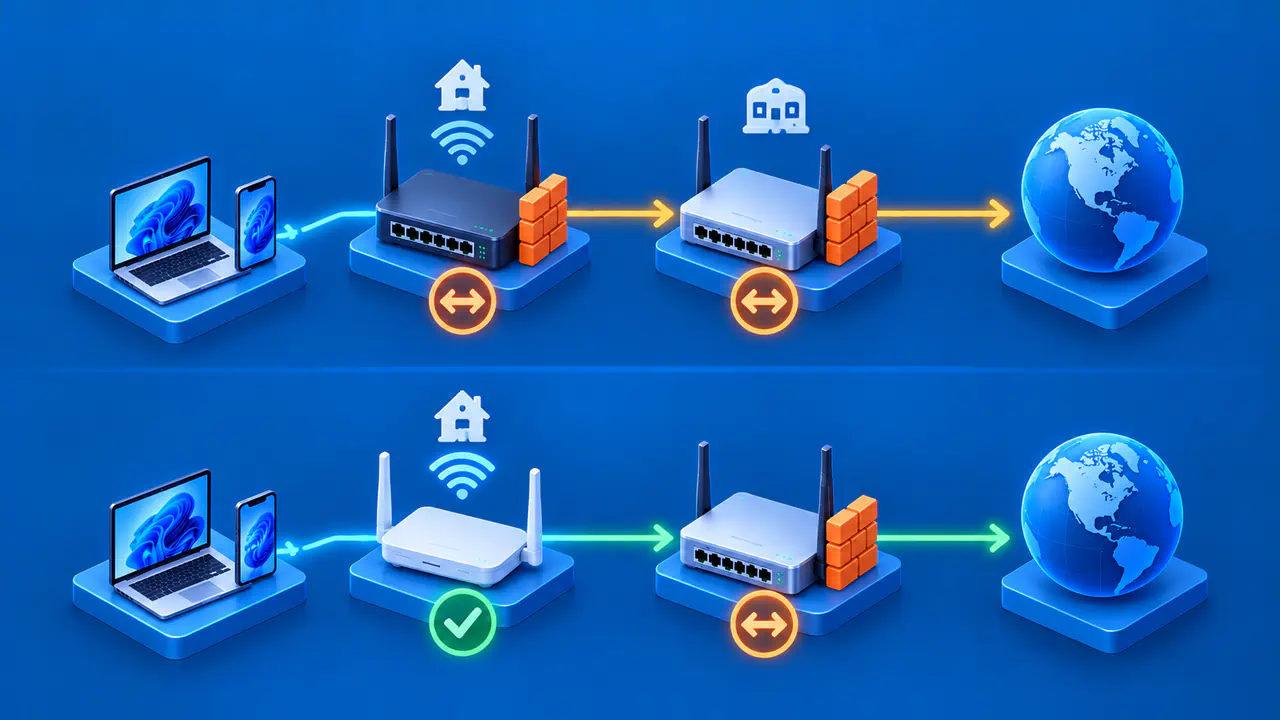
Also check for an unintended DHCP server, particularly if the problem started after another router was connected. Do not disable a server solely because you found more than one: an administrator may have deliberately arranged coordinated DHCP service. Identify the intended design and correct the unexpected configuration.
Choose Which Device Keeps the Address
Decide which device is meant to keep the disputed address before editing anything. A client with an accidental manual setting can return to automatic addressing if that is how the network is configured. For a device that needs a fixed address, either keep its current address and correct the other device’s assignment, or choose an available replacement.
For manual addressing, choose an approved, unused address suitable for that subnet and keep it out of dynamic distribution, using the network’s pool or exclusion controls. Preserve the correct mask, gateway, and DNS settings. Picking a different final number without checking the network’s address plan can create a second problem.
For a reservation, verify the intended client’s identifier and remove or amend the conflicting mapping. Do not take an address away from a different active client just because it is convenient. Coordinate the transition so that the selected address is available when the intended client obtains it.
Write down the original values and the proposed change. If you are connected remotely through the interface you plan to alter, arrange another way to reach the device first. Losing the management connection halfway through an address change can leave you unable to complete or reverse it.
Renew the DHCP Lease and Check Both Devices
After correcting the assignment, renew the affected client’s DHCP lease using the operating system’s renewal option. Windows ipconfig /renew can target a named adapter; without a name it renews all DHCP adapters. A release discards the current DHCP address configuration and can interrupt access, so it should not be a routine first move.
Check the resulting address on the client rather than assuming a button press succeeded. Then compare the two affected devices again: each should now have its intended, distinct address. Retry the activity that exposed the problem, such as reaching the printer or opening the local service.
A website loading once is weak confirmation if the original failure involved a local device. Keep both devices connected during the check, and include the reconnection that previously triggered the conflict. Record the final settings and what actually worked; if you could not reproduce the original conditions, leave that part unconfirmed.
When the Same Conflict Comes Back
Recurring conflicts call for a review of the address plan and recent changes. Useful evidence includes the exact warning, its time, the affected subnet, client identifiers, and the DHCP server that issued the lease. An administrator can compare these with server event and lease-assignment logs.
If renewal produces no usable lease, check whether the correct scope has available addresses and whether the client can reach DHCP service. That is a separate failure to investigate after the conflicting assignment has been corrected. Rebooting the entire network or repeatedly assigning guessed addresses makes it harder to preserve evidence and can interrupt unrelated devices.