How to Fix ERR_CONNECTION_TIMED_OUT in Chrome

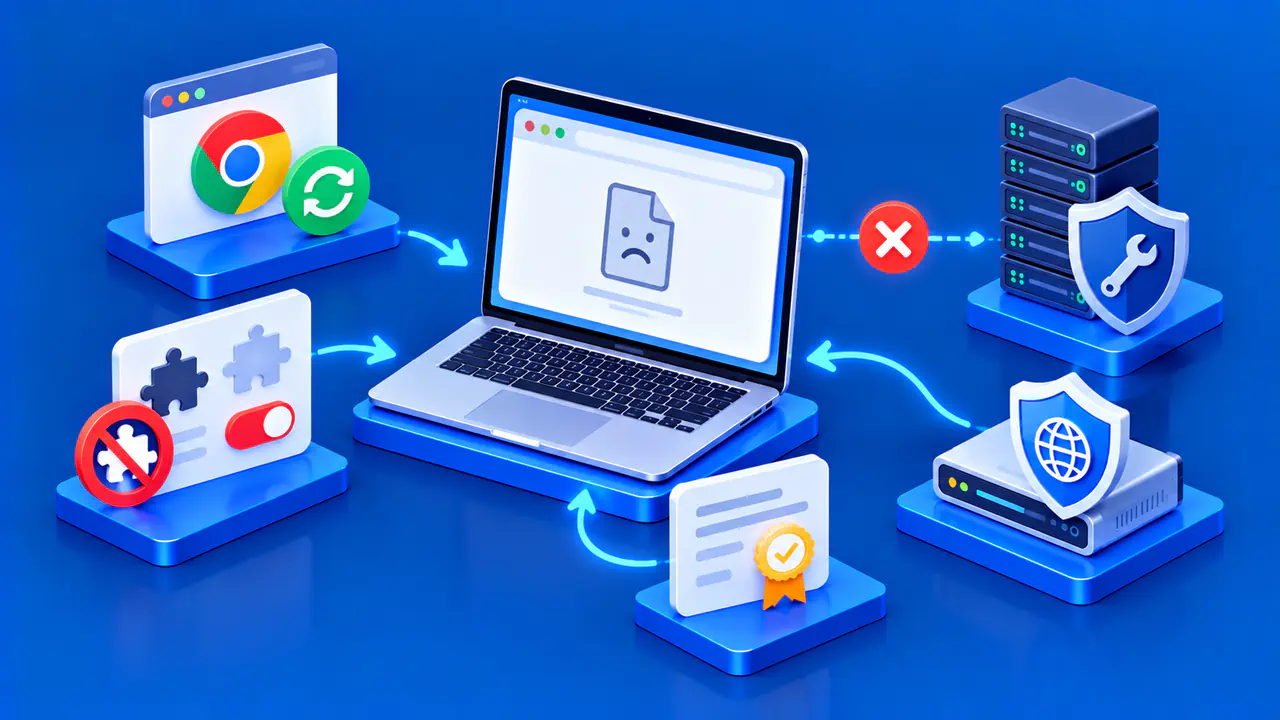
Fixing ERR_CONNECTION_TIMED_OUT starts with finding which connection is failing, then correcting the setting or service responsible. If only Chrome is affected, restart the browser and check its extensions; if several applications cannot connect, restore the device's network access first. The site's operator may need to restore service if it is unavailable across independent networks.
The error means Chrome's attempt to establish a connection did not finish in time. It differs from ERR_NAME_NOT_RESOLVED, which indicates a hostname lookup failure, and ERR_CONNECTION_REFUSED, which indicates a rejected connection attempt. The timeout alone does not identify the device, router, firewall, or server responsible.
Check the Address before Retrying
Verify the URL, including the hostname and any unusual port in the address. A typo, an old bookmark, or a link to a retired service can take you to the wrong destination. For an ordinary page view, wait briefly and reload once.
If you had just submitted a payment or another action that could run twice, check the transaction or submission status before repeating it. The timeout might concern a later connection in a sequence of requests, so it does not establish that the original action failed. Record the exact error, target, and time without repeatedly sending the same action.
Check Which Sites and Devices Are Affected
Open one or two unrelated, familiar sites in the same Chrome session. If they work, a complete loss of internet access is less likely. The failing site may be unavailable, filtered on the connection you are using, or accessible only from a particular network.
If many sites fail, check another application that needs internet access. A connected WiFi or Ethernet icon may indicate only a local link. Reconnect any loose network cable or rejoin your WiFi network if the connection dropped, then check the router's internet status. If several devices have lost access through a router you manage, a normal restart may help, but it briefly interrupts everyone using that router.
Try the same URL on another device using the same network, then through an independent connection such as cellular data. Turn off WiFi on a phone when you specifically want to test its cellular connection. A failure limited to one device suggests a local configuration problem, while a failure shared by devices on one network suggests that network or its upstream connection.
These comparisons narrow the investigation without proving a cause. Different devices can use different DNS settings, proxy rules, and destination addresses even on one network. If the same site fails through independent connections while unrelated sites work, check the site's status information or contact its operator.
Correct Problems Limited to Chrome
Save unfinished work, fully close Chrome, and reopen it before retesting the same page. On a desktop, open the three-dot menu, then Help > About Google Chrome to check for updates. Apply an available update and relaunch when prompted, using your operating system's update process where appropriate.
Try the same simple page in an Incognito window. A successful private session suggests a difference in browser data or active extensions, rather than proving that cookies caused the timeout. For a desktop extension check, open the three-dot menu, choose Extensions > Manage extensions, and turn off one suspected extension before retrying in a normal window.
If that extension caused the failure, leave it off and seek an update or correction from its developer. Restore extensions that made no difference. If the page works in Incognito but still fails in a normal window with extensions off, try clearing data for just that site. This can sign you out, so save unfinished work first. Browser data cleanup cannot repair a server or network path that remains unreachable.
Review Proxy, VPN, and Security Settings
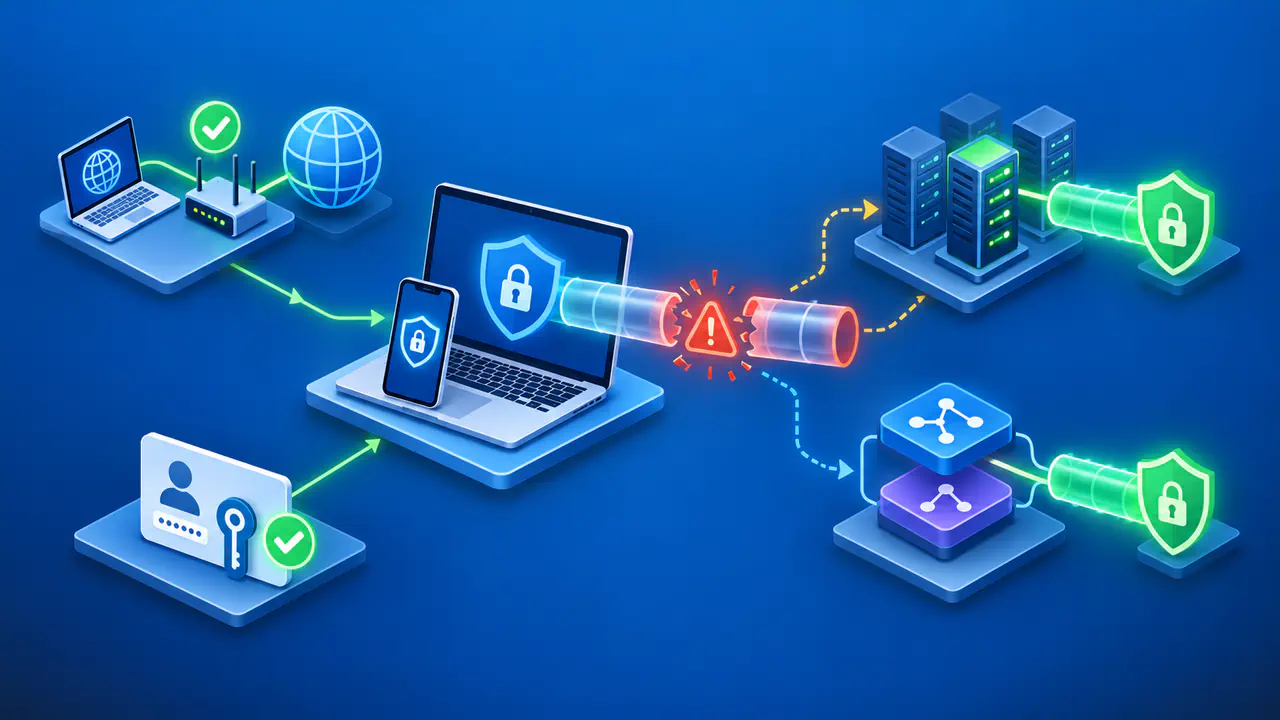
Check whether a proxy, VPN, or security product changed shortly before the failures began. A proxy forwards browser requests, while a VPN can change how the device reaches the network. Proxy failures can produce other codes, including ERR_PROXY_CONNECTION_FAILED, so record the code from each comparison instead of treating all failures as the same timeout.
If you control a recently changed proxy setting, compare it with the known working value and restore an accidental change. If your personal VPN is optional, briefly disconnect it on a trusted network to compare the result, then reconnect. A VPN kill switch may block internet access while the VPN is disconnected, so a failed test with the VPN off does not by itself rule out the VPN.
On a managed device, have the administrator check required proxy settings and any security rule that could affect Chrome or the destination. Use the security product's logs or blocked-connection notices to identify a specific rule. Disabling the firewall or antivirus broadly is not a reliable way to identify which connection failed.
Distinguish Web Access from Ping Results
Ping tests a different kind of traffic from a web connection. Some servers ignore ping requests while serving HTTPS, and others answer ping while their web service is unavailable. A failed ping alone therefore cannot show that an internet provider caused Chrome's timeout.
On Windows, a more specific TCP connection check is available in PowerShell. For an HTTPS site using the usual port, enter Test-NetConnection -ComputerName example.com -Port 443, replacing example.com with the actual hostname you are authorized to check. Use only the hostname, without the URL's scheme or page path, and substitute the actual port if the URL specifies a different one.
The TcpTestSucceeded result shows whether that TCP attempt succeeded. This direct TCP test does not check the page or certificate, and Chrome may use a different address or proxy route. A failed result does not identify the faulty component or prove that a firewall blocked it. Keep the RemoteAddress and test time with the result so support can compare the destination actually tested.
Retest and Contact the Right Support Team
After each relevant change, retry the original URL and a site that worked before. If the change did not help, restore the previous setting before testing a different possibility. If it helped, repeat the comparison once to check that the improvement persists instead of assuming that a single successful load proves the cause.
Contact the site operator when one website repeatedly fails across independent networks, or your network administrator or internet provider when the problem occurs only on one network. Include the error code, Chrome version, hostname, time and time zone, and the results from other devices or connections. Remove private tokens and account details from URLs or screenshots before sharing them with support.