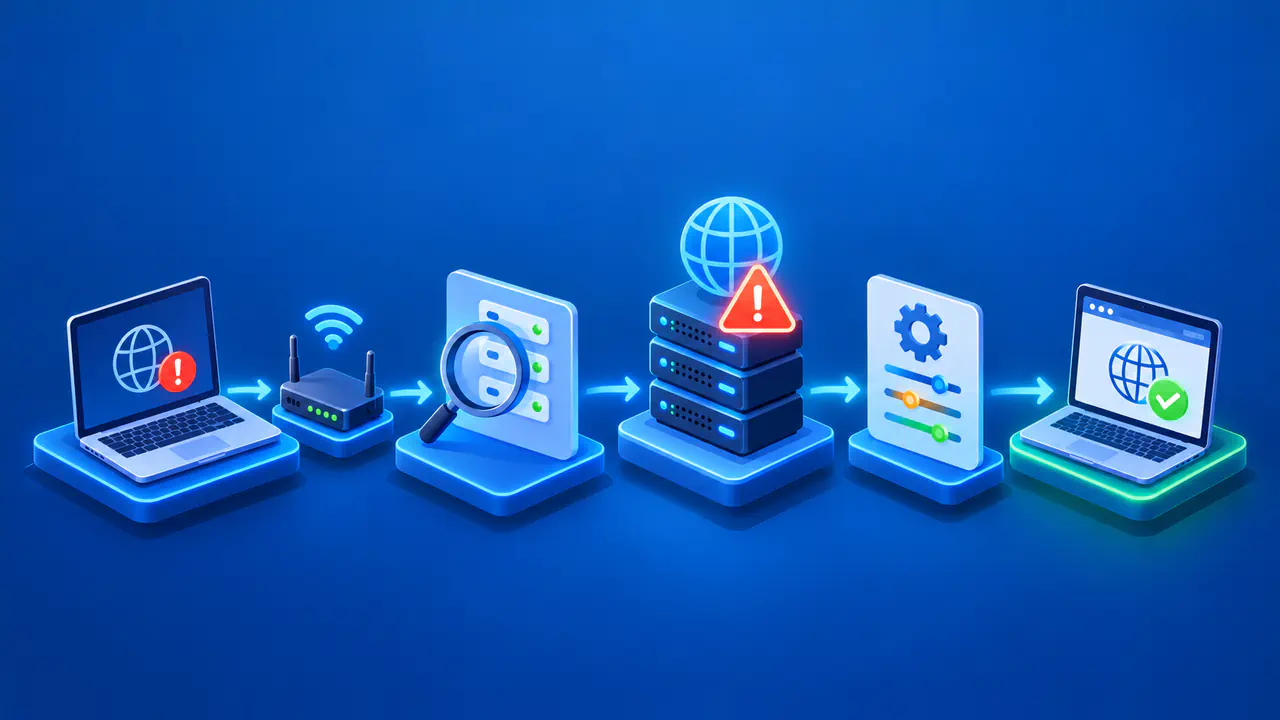
How to Fix a VPN That Will Not Connect
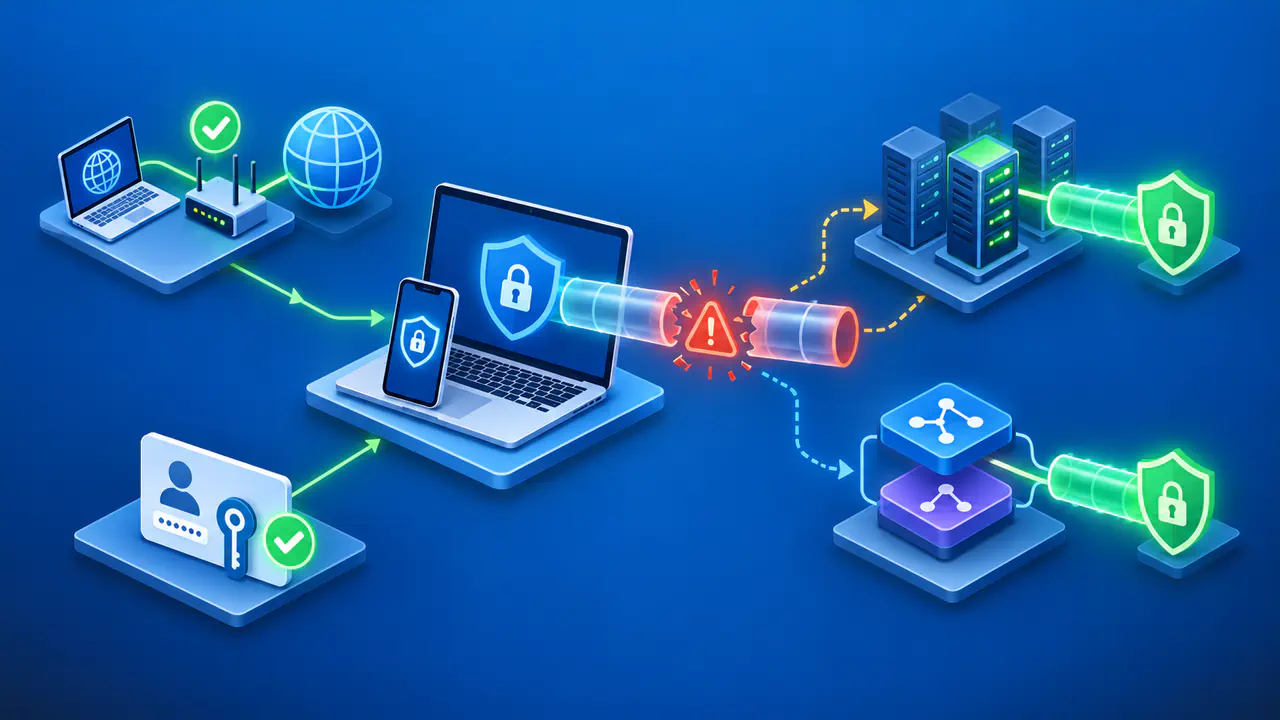
A VPN that cannot establish a connection needs different checks from one that connects but runs slowly. Your VPN app may fail to sign in, reach a server, or finish establishing an encrypted connection. The error message and the point where the attempt stops help distinguish these problems.
Change one setting at a time, then try connecting again and note the result. If you change several settings together, you will not know which change helped. For a work or school VPN, follow your organization's instructions before editing the configuration. Your administrator may control your account, the server address, and the protocols you can use.
Check Internet Access
If you are allowed to use the internet without the VPN, cancel the failed connection attempt and try two websites that you normally use. Joining a WiFi network does not prove that the device can reach the internet. If just one site fails, try another application before treating the failure as a general outage.
Some kill switch modes block internet traffic whenever the VPN is disconnected. Your organization may also require a VPN and block connections made without it. In either case, websites may fail to load because of those restrictions even when the network itself is working. Keep required protections in place and ask your administrator how to check the underlying network. You can also check whether another device with permission to use that network can get online. A successful connection shows that the network is working for that device, but access restrictions may differ between devices.
If direct access is permitted but still unavailable, check the WiFi connection, mobile signal, or Ethernet cable. Public WiFi may require you to sign in or accept its terms before you can use the internet. Complete the steps on the network's sign-in screen, then retry the VPN. If your internet connection keeps dropping, address that problem before changing more VPN settings.
Check the Account and Selected Server
Read the app's sign-in message carefully. Check that you have signed in to the right account and completed any additional verification, such as entering a code or approving a sign-in notification. Check whether the subscription is active and whether the chosen server is included in your plan. A plan change can remove access to a server you used previously, even though you can still sign in to the account.
Try a different server that your account is permitted to use. The original server may be offline for maintenance, or a network problem may prevent your device from reaching it. If another server connects, note the original server and time, then check the VPN service's status information. One unavailable server does not establish that the entire service is down.
For a work VPN, confirm that the server name or profile came from your organization and that your access has not expired. A commercial VPN server cannot replace the corporate gateway that provides access to company resources. Your administrator can check the account, required certificates, and device enrollment if those are part of the setup.
Review the Clock and VPN Settings
Check the device's date, time, and time zone. A device clock that is far ahead or behind can cause sign-in or certificate checks to fail. If your device settings allow it, turn on automatic time and confirm that the displayed date and time are correct. Do not change certificate trust settings to get past a connection error.
Check which connection protocols are available in your VPN app on your device. A protocol controls how the app establishes and protects the VPN connection. If the app offers automatic protocol selection, try it first. If automatic selection fails or is unavailable, try another protocol supported for your setup. If possible, use the same account, network, and server for each protocol you try. Record any server change the app makes automatically, since the result would then reflect both changes.
Keep the app and operating system current through their normal update channels. An old client may no longer support the settings required by the VPN service. If another protocol works, check that your VPN provider or administrator recommends it for your setup before leaving it selected. Switching protocols does not guarantee access on a network that restricts VPN traffic.
Check Security Software and Try Another Network
Security software or a network firewall can block a connection attempt. Look for a notification or log entry identifying the VPN app or connection, then use the security product's guidance for the specific block. Keep your firewall and antivirus enabled while you investigate. If the security product blocks a trusted VPN app, follow its instructions for allowing that app instead of opening ports at random. On a managed device, ask the administrator to review the block.
If you have permission to use another network, try connecting with the same VPN settings on that network. For example, a connection that succeeds on personal mobile data but fails on office WiFi suggests a difference between the network paths or policies. That result alone does not show why the VPN failed on office WiFi. Tell the office administrator which network worked and which failed before changing any managed VPN settings.
When to Contact Support
If the VPN still will not connect after these checks, contact your VPN provider or administrator and explain what you tried. Record the time of each attempt, your device model and operating system version, the VPN app version, your network type, the selected server, and the protocol. Include the exact error and the stage where the attempt stops, such as sign-in or connecting after sign-in. A brief list of what changed between attempts helps support reproduce the problem. Include successful attempts as well as failures, since those comparisons can narrow the investigation.
Use the app's diagnostic export when the VPN provider or administrator requests it. Check logs and screenshots for account names, IP addresses, tokens, and other private details before sharing them. Send the relevant material through the provider's support channel or your organization's help desk. Ask support which diagnostic details to include and how to remove sensitive information without losing the error messages they need.
After each change, check whether the app reports an active VPN connection. If it connects but cannot reach a particular resource, report that new symptom instead of continuing to troubleshoot the original connection failure. A connection that later becomes slow or repeatedly disconnects also needs different checks.