How to Run an Accurate Internet Speed Test

To run an accurate internet speed test, pause competing traffic, keep the setup consistent, and record several complete results. Each test measures performance between your device and a particular server at that moment, so one result cannot describe every online activity. Comparable measurements help you separate a recurring problem from a single unusual result.
A test on a quiet network helps you assess performance with little competition from other devices. A test during normal household use answers a different question: how the connection performs while people share it. Both can be useful, but note whether the network was quiet or busy. Check your data allowance before running repeated tests on a metered or mobile plan.
Prepare a Repeatable Test
Choose a test service and read its data policy before starting. Measurement Lab's Network Diagnostic Tool, or NDT, measures download speed, upload speed, and latency between your device and an M-Lab server. Its test data, including your public IP address, is retained and published for research. Use another service if those terms do not suit your needs.
Use the same device, browser or app, test service, and connection type for your first set of tests. Pause known background downloads, cloud backups, game updates, and video streams on devices sharing the connection, where practical. Record what remains active. A busy home network can lower the result even when the provider's connection is healthy.
Note whether the test device uses Ethernet, WiFi, or cellular data. On WiFi, record the room or approximate distance from the router and keep the device in place. If you use a VPN, record whether it is connected and which VPN server is selected.
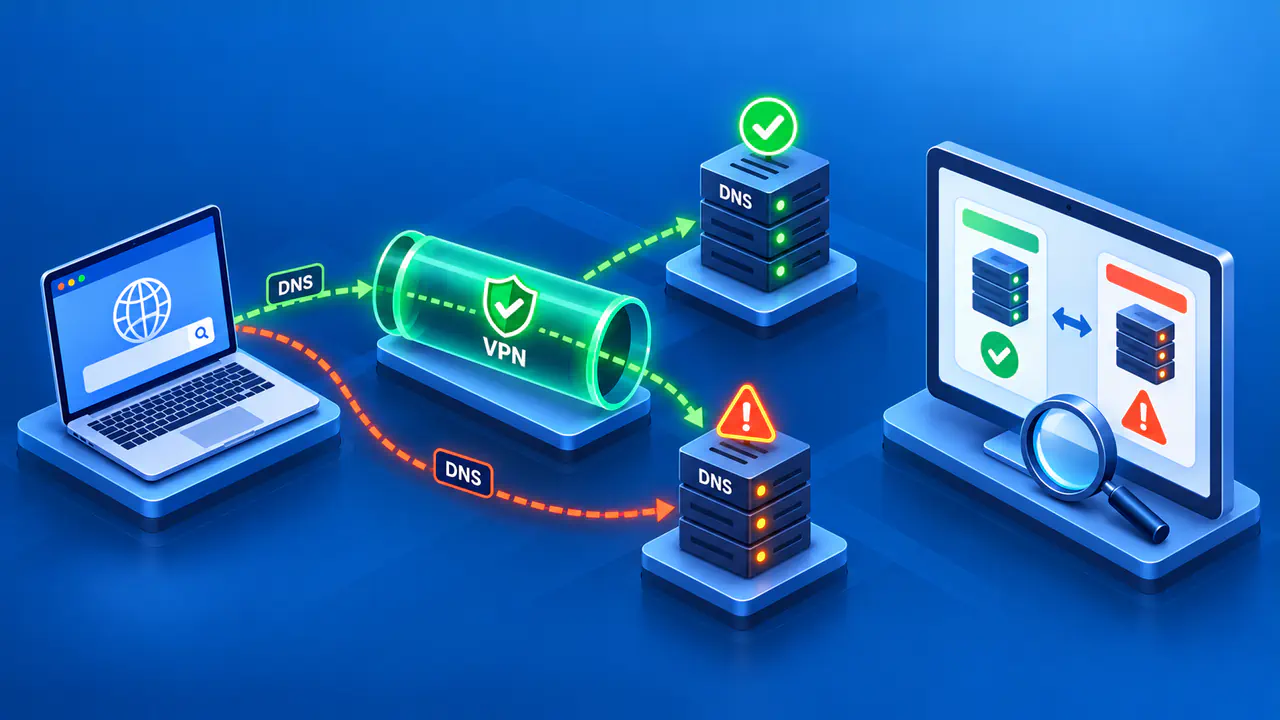
If you are allowed to disconnect the VPN, compare tests with the VPN on and off. When your test traffic passes through a VPN server, that server changes the route and may limit the transfer speed. Keep the two sets of results separate; averaging them together can hide the VPN's effect.
Run Several Measurements
Keep the test tab visible and the device awake while the test runs. Run one test at a time, and wait for the service to finish its measurements before copying the results. Use the following sequence for each trial:
- Start the test and let both the download and upload measurements finish. Record any error or incomplete stage instead of treating a missing value as a measured zero.
- Write down the date, local time, and time zone, along with the selected test server if the service shows one.
- Record download and upload throughput with their displayed units, plus latency in milliseconds. Copy the labels for any additional measurements, such as latency under load, jitter, or packet loss.
- Wait for the previous test to finish transferring data, then repeat with the same settings. Keep every completed trial as a separate row in your notes.
Beside each result, note the device, connection type, whether the VPN was on, and any background activity that was still running. If the service chooses a server automatically, check whether it uses the same server each time. Note when the server's name is not displayed. Measurements from different servers or services can still be useful, but keep them in separate groups because their routes and methods may differ.
If one result is far outside the others, repeat under the same conditions before drawing a conclusion. Also compare tests at different times of day when investigating a recurring slowdown. Consistently lower evening results show a pattern worth investigating, although they do not identify the congested part of the network by themselves.
Compare Ethernet, WiFi, and Cellular Results
If your device and router support Ethernet, connect the device to the router with a suitable cable and confirm that the test uses the wired connection. Run the test with other traffic paused, then compare WiFi results from the same device under the same conditions if possible. A wired result that is consistently higher suggests that the local wireless connection deserves attention.
A faster wired result does not tell you exactly why WiFi is slower. Signal strength, interference, device capability, and local traffic can all matter. Conversely, a low wired result can reflect a slow Ethernet port, adapter, cable connection, or other equipment in the path. Check those limits before blaming the provider for a low wired result.
When Ethernet is unavailable, move the same device closer to the router and retest without changing the service. If speeds consistently improve nearby, the WiFi signal or interference may be part of the problem. For a cellular comparison, confirm that the phone is using mobile data instead of WiFi, then label that set separately because it uses a different network and data allowance.
Interpret Download, Upload, and Latency
Download throughput is the measured rate of data arriving at your device, while upload throughput measures data sent in the opposite direction. Both are usually shown in megabits per second, or Mbps. Higher throughput means more data was transferred per second during that test.
Latency describes delay, commonly the time for a signal to reach the test server and for a response to return. Some tools include additional processing in their measurement, so read the service's definition. Idle latency is measured when the connection is quiet; latency under load is measured during a busy transfer. Keep those labels in your notes so you can distinguish the two measurements.
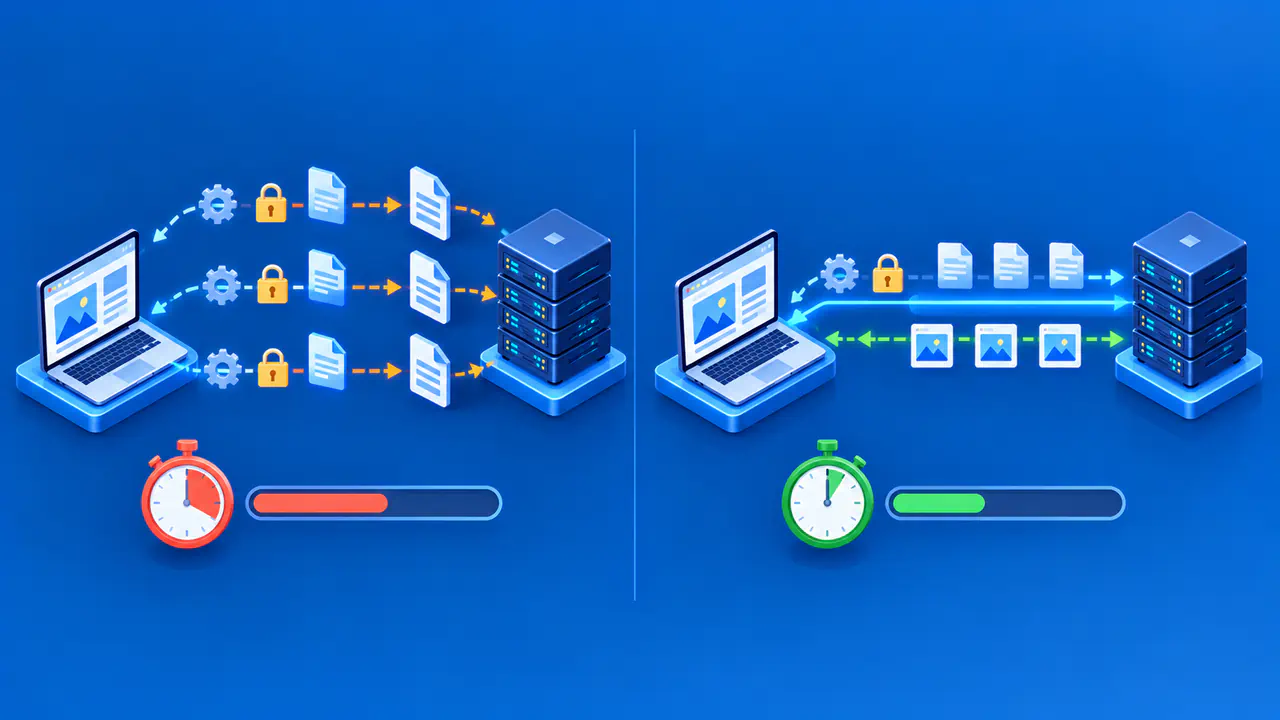
NDT measures a sustained transfer through a single data stream between your device and the server. Other tools may use several connections at once and return different numbers on the same internet connection. A game, video stream, or file download may use another destination and method, so the speed-test result does not predict each application's performance.
Use the Results as Evidence
Compare trials made under similar conditions and describe the pattern you actually observed. Useful distinctions include a slowdown confined to WiFi, a recurring drop at a certain time, or a change when traffic uses a VPN. Avoid assigning a cause solely from one low number.
If you contact your internet provider for help, share the dates and results, along with your connection type, test server, and notes on other network activity. Before posting screenshots publicly, remove IP addresses and account details. These records can support troubleshooting, but a speed test alone does not establish a guaranteed connection capacity or explain every application failure.