What Is WiFi and How Does It Work?
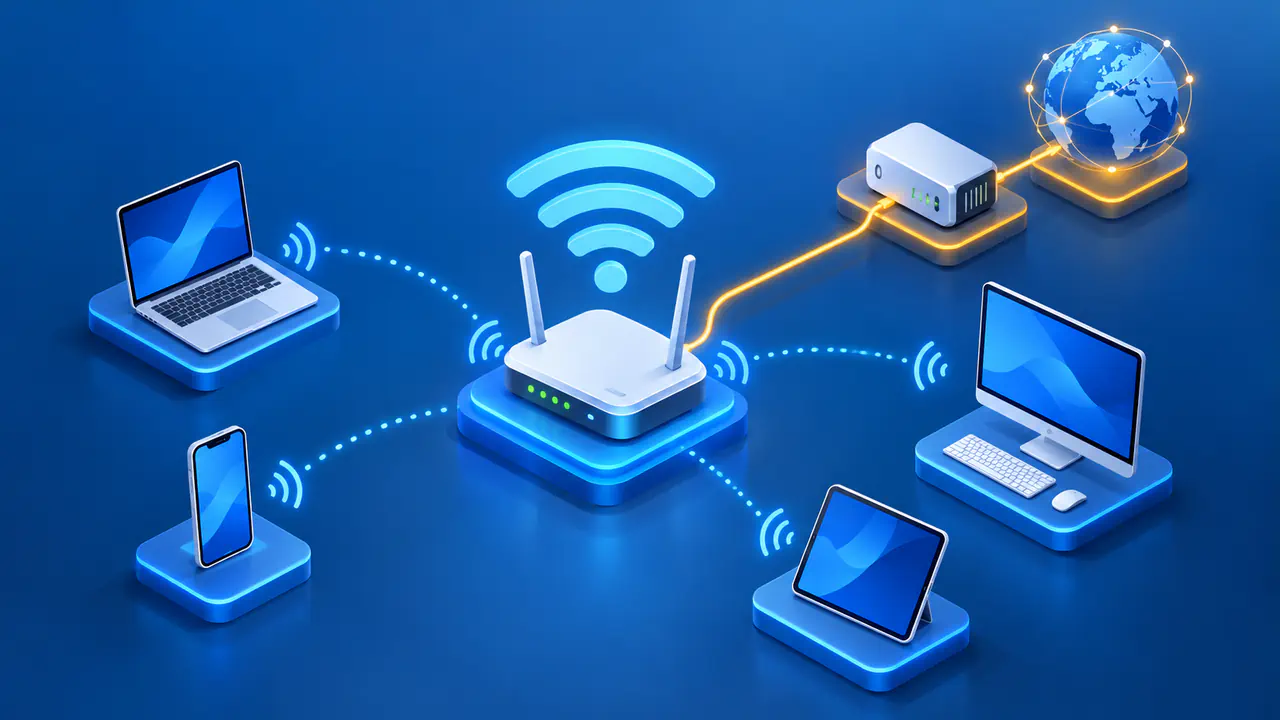
WiFi is a way for nearby devices to join a local area network over radio instead of an Ethernet cable. A phone or laptop communicates with a wireless access point, which forwards traffic to and from the rest of the local network. In a home, the access point is often built into the same box as the router. WiFi itself is the local link; internet access requires a working connection beyond that network.
A device can be connected to WiFi while websites fail to load. The wireless link may be working even if the internet service is down, a network setting is wrong, or a particular website is unavailable. Local tasks, such as printing to a nearby printer, may still work during an internet outage.
How Devices Join a WiFi Network
An access point normally broadcasts the wireless network name, or SSID, that appears in a phone or laptop's WiFi list. When a device joins the network, it exchanges connection messages with the access point in a process called association. The device must also support the network's security mode and complete any required authentication before it can send ordinary data. On a typical home network, this involves using the correct WiFi password.
WiFi uses the IEEE 802.11 family of wireless networking standards. These standards describe how devices transmit data over radio and coordinate their use of the wireless channel. Both the device and the access point send and receive signals, so a download needs a working radio connection in both directions. A strong signal from the access point does not guarantee that signals from the device reach the access point reliably.
The access point carries traffic between wireless devices and the rest of the local network. The router handles traffic between that network and other networks, although both functions often run in one home gateway. This is why adding an access point can extend wireless coverage without replacing the router. The access point still needs a link to the existing network.
After joining WiFi, a device needs suitable IP settings for the services it will use. For IPv4, DHCP usually supplies a device's address, default gateway, and DNS server settings on a home network. The gateway is the router used to reach destinations outside the local network, while DNS servers help resolve website names to addresses. A missing gateway can prevent internet access even when a device can still communicate with a local computer.
WiFi Connections and Internet Access
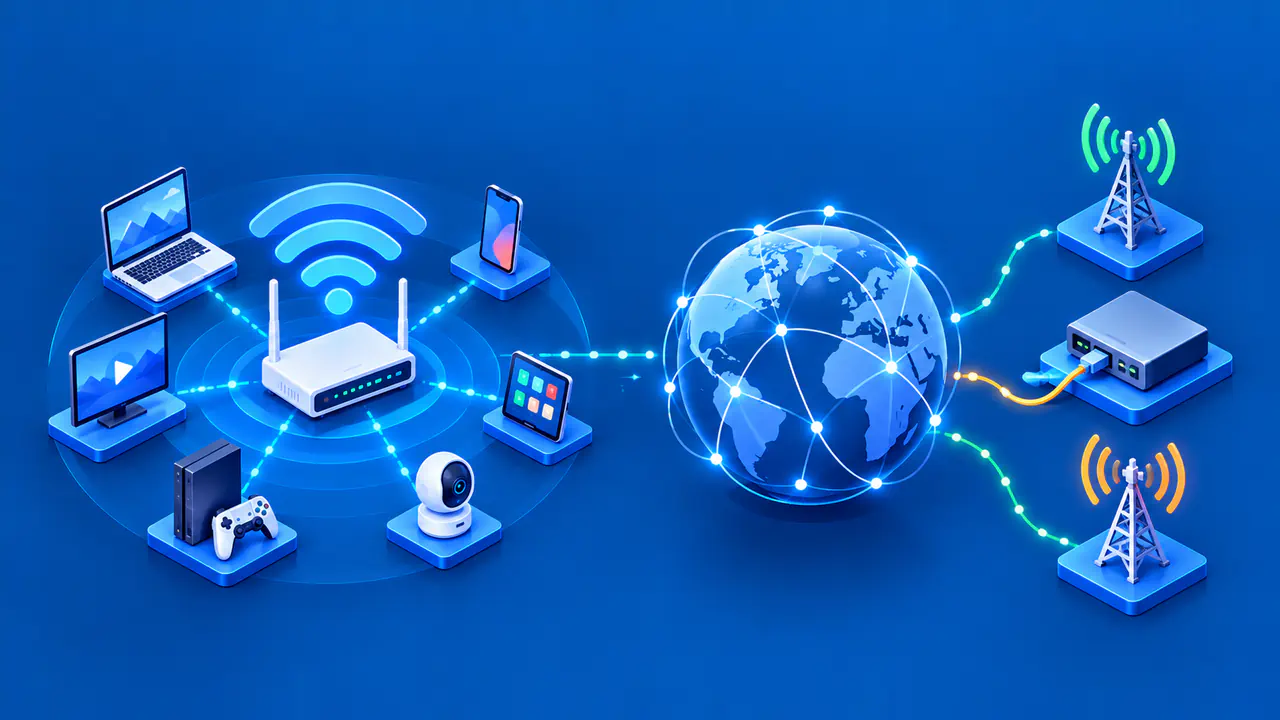
When a device opens a website over WiFi, its traffic first crosses the radio link to the access point. The home router sends that traffic toward the internet provider, whose network connects the home to other networks. Replies travel back through the internet connection and then across the local wireless link.
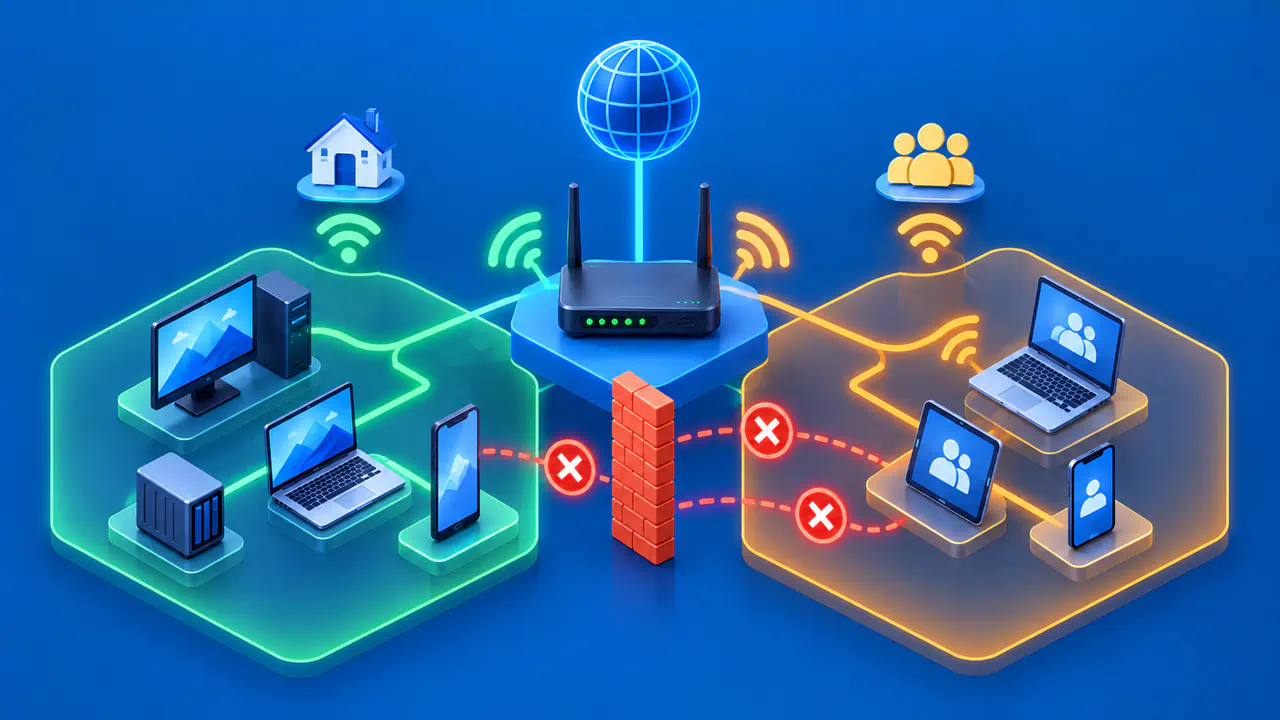
A local area network, or LAN, can operate without an internet connection. Devices may use it to share files, print, or control equipment, provided their settings and the network's access rules allow those tasks. A wide area network, or WAN, connects networks across larger distances. A home router's WAN connection provides the route beyond the local network, but joining WiFi does not mean that the WAN connection is working.
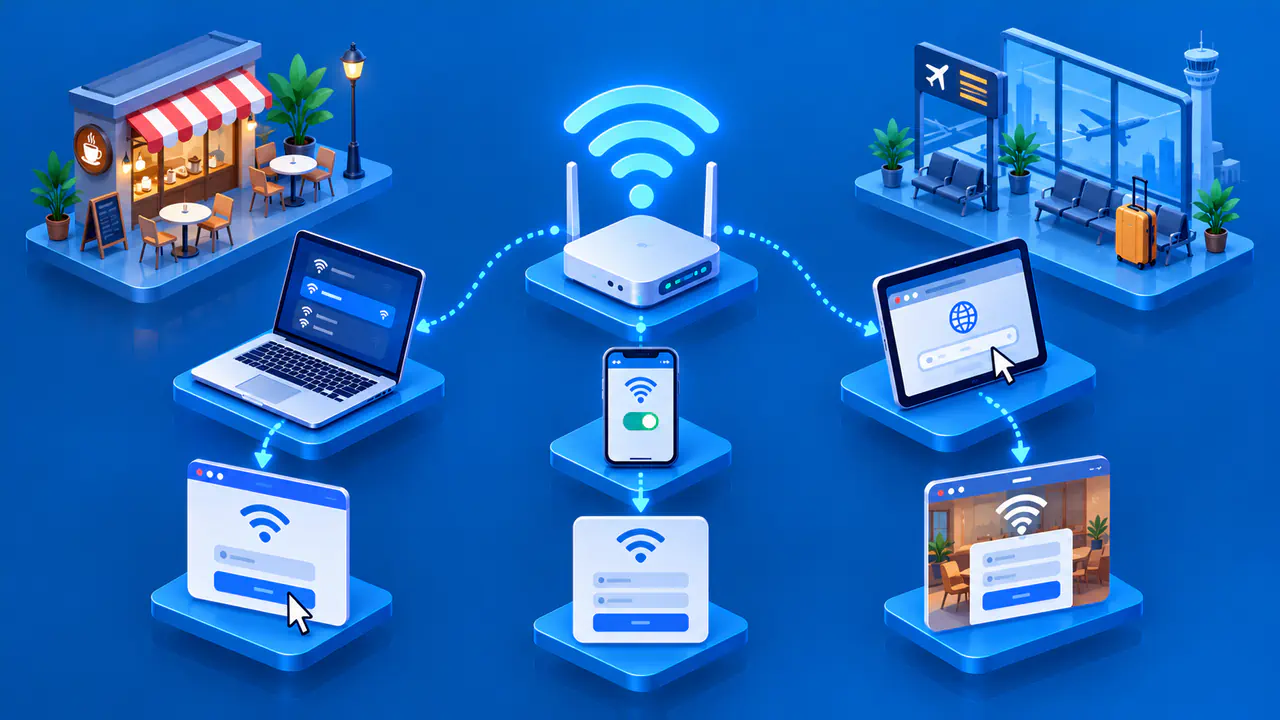
A message such as "connected, no internet" means the device has joined the wireless network but has not confirmed internet access. The message alone does not identify a faulty router, access point, or provider connection. Some devices base that status on connection checks that can fail even when other internet traffic works. On public WiFi, a sign-in page called a captive portal may require a login or acceptance of terms before the network allows internet use.
Bands, Channels, and Shared Airtime
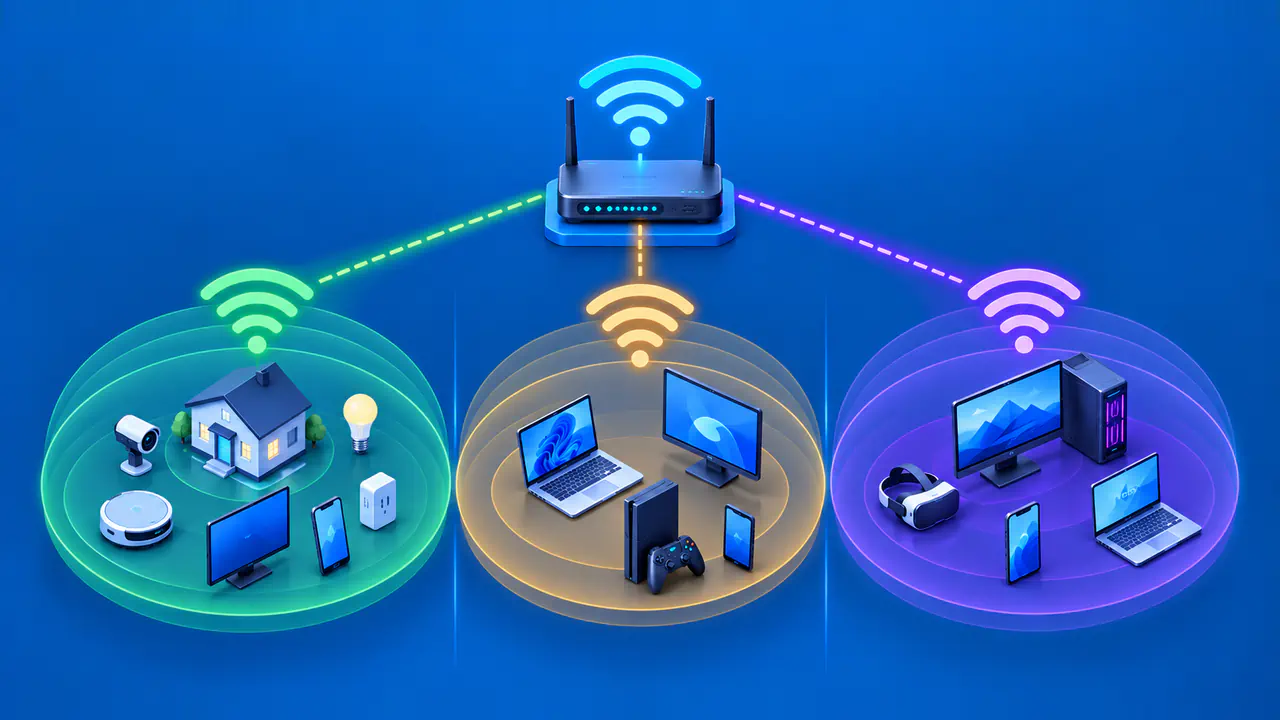
Home WiFi commonly uses the 2.4 GHz and 5 GHz bands, with compatible equipment also able to use 6 GHz where local regulations allow it. Each band contains channels that occupy different parts of the available radio frequencies. Both the device and the access point must support the band they use. A device that supports only 2.4 GHz cannot join a network available only on 5 GHz, regardless of how close it is to the access point.
Airtime is the time occupied by transmissions on a wireless channel. Nearby devices and access points using the same channel compete for that time, even if they belong to different networks. WiFi uses channel checks and waiting periods to reduce the chance of transmissions interfering with one another. When several devices are actively transferring data, each may have to wait longer before sending.
Signal strength and available airtime describe different aspects of a connection. A device close to an access point can have a strong signal while the channel is busy with other traffic. Signals on overlapping channels can also interfere with reception, causing data to be sent again. These extra transmissions use more airtime and can reduce the amount of useful data delivered each second.
What Can Slow or Interrupt WiFi
Distance, walls, metal objects, and the position of the access point affect how well radio signals reach a device. A connection may work well in one room and become unreliable farther away or behind several walls. The access point's radio, the device's radio, and their antennas also affect the connection. Two devices in the same room can therefore perform differently without either one having a fault.
The wireless link can also change as the surroundings change. A nearby network may become busy, a device may move, or an obstruction may weaken the signal. The device and access point can adjust their transmission rate to suit the conditions they detect. Slower transmission and repeated attempts to deliver data can make an application feel sluggish even when the internet provider's connection is working normally.
A webpage can load slowly even when the WiFi connection is working well. The provider connection may be congested, a DNS request may fail, or the website itself may be slow or unavailable. If a file transfer between local devices works while several websites do not, the wireless link is carrying some traffic, and the problem may be elsewhere. If both local and internet tasks fail on one wireless device while other devices work, that device's settings or wireless connection may be at fault.