How to Test a VPN for IP Leaks
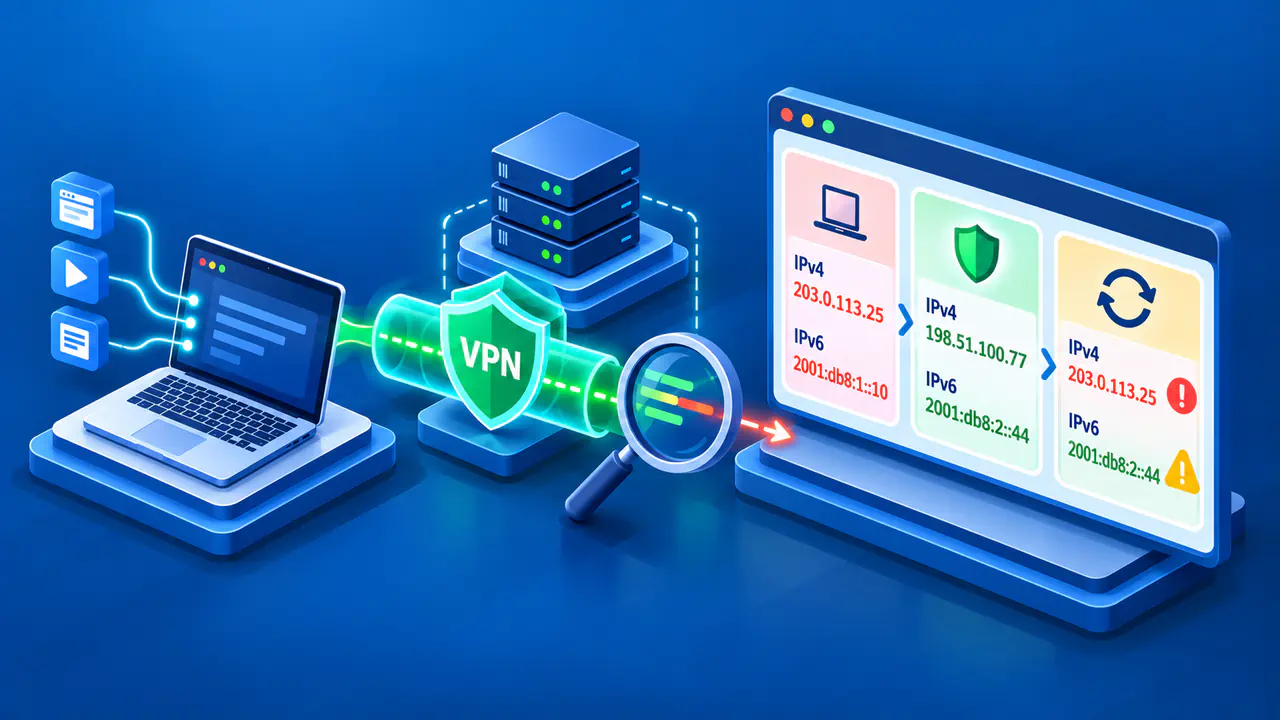
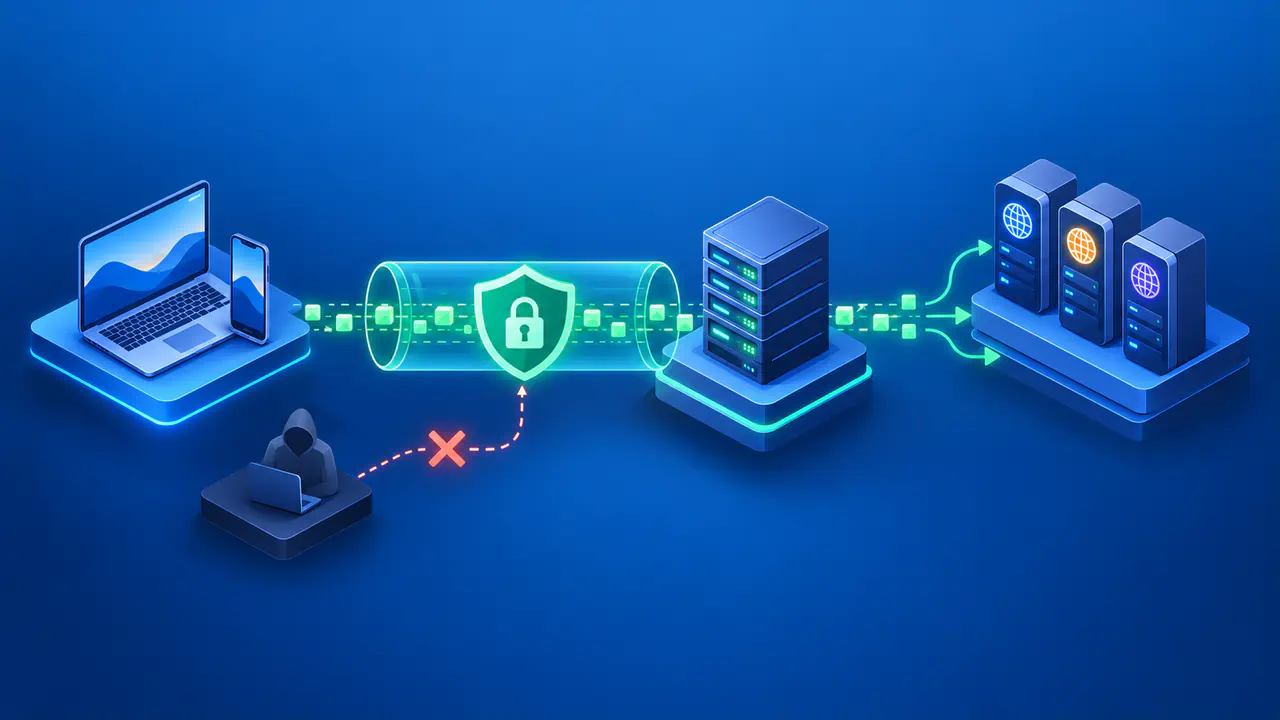
To test a VPN for IP leaks, compare the public addresses a website sees with the VPN disconnected and connected. Check IPv4 and IPv6 separately, then examine what happens during a supported reconnection test. If traffic meant to use the VPN reaches the test service with your ordinary public address, the connection needs investigation.
First, check which apps and destinations your VPN is supposed to cover. A browser deliberately excluded from the tunnel may correctly show your ordinary address. The same result is a problem if the browser is supposed to use the VPN. A browser test describes that browser's requests at the time of the check; it cannot establish how every app on the device connects.
Check Which Apps the VPN Includes
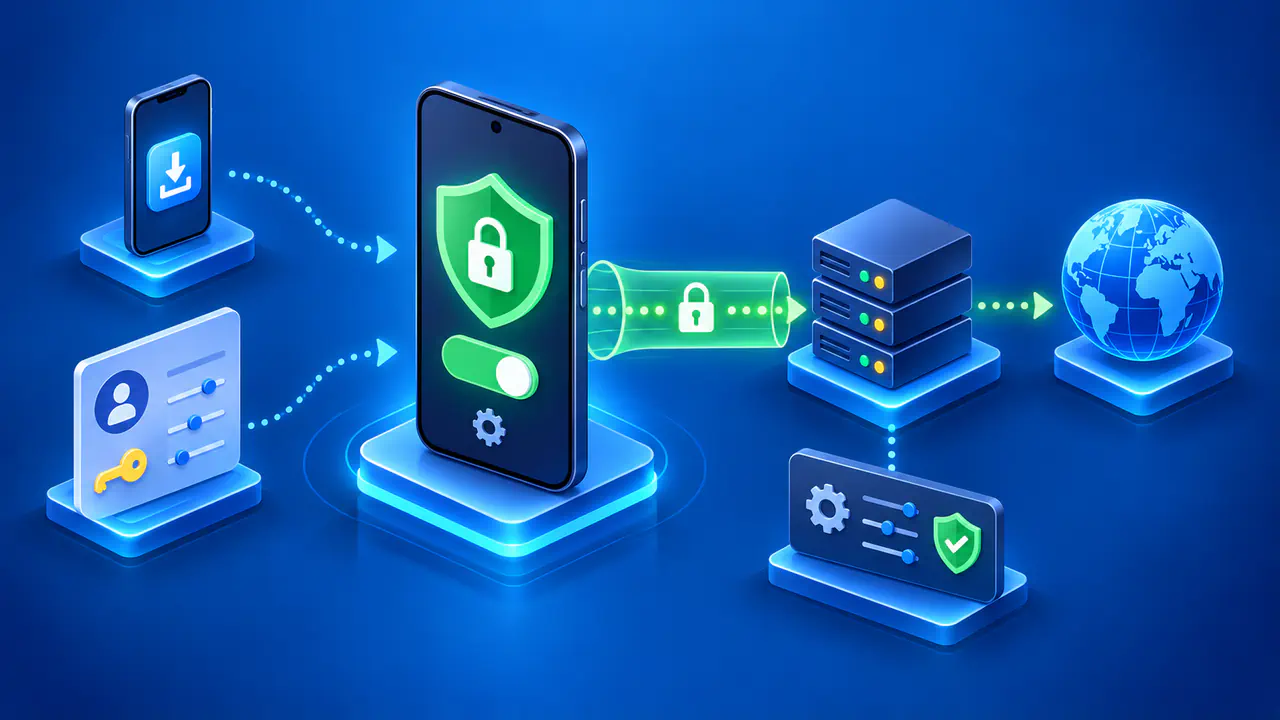
A VPN installed on a device can cover several applications, while a browser extension may cover only browser traffic. Split tunneling lets selected traffic use the VPN while other traffic connects directly. The choices may be based on apps, destination addresses, or websites, depending on the client. Identify the rule that applies to the application you will test.
Before changing anything, note the operating system and VPN app versions, selected server, and relevant settings. Identify any app you intentionally excluded. Check whether your VPN is meant to carry IPv6, block it, or leave particular connections outside the tunnel.
Check the kill switch settings as well. Some VPN apps restrict how split tunneling and traffic blocking can be combined. For example, Proton VPN on Windows supports combining them, while its other clients may have different restrictions. On a managed work device, use the administrator's approved test method and keep required VPN policies in place.
Record Your Addresses before Connecting
Choose a time when disconnecting the VPN will not interrupt important work. Close unrelated apps that could send sensitive data, then use an IP check service you trust. With the VPN disconnected, record the public IPv4 address the service reports. If the service can test IPv6, record the public IPv6 result separately.
If the IPv6 check returns no address, record that IPv6 was not observed. The result may reflect your network, the test destination, or a connection problem; it does not establish that your device can never use IPv6. A service that checks only IPv4 cannot tell you how IPv6 traffic would connect. Choose a test that identifies the address family of each result.
Keep full addresses in private notes. If you share the results, use labels such as ordinary IPv4 and VPN IPv4, or redact the addresses consistently. Also note whether the browser uses a proxy or another extension that could change its route. Keep the same browser and underlying network for the disconnected and connected comparisons.
Compare the Results with the VPN Connected
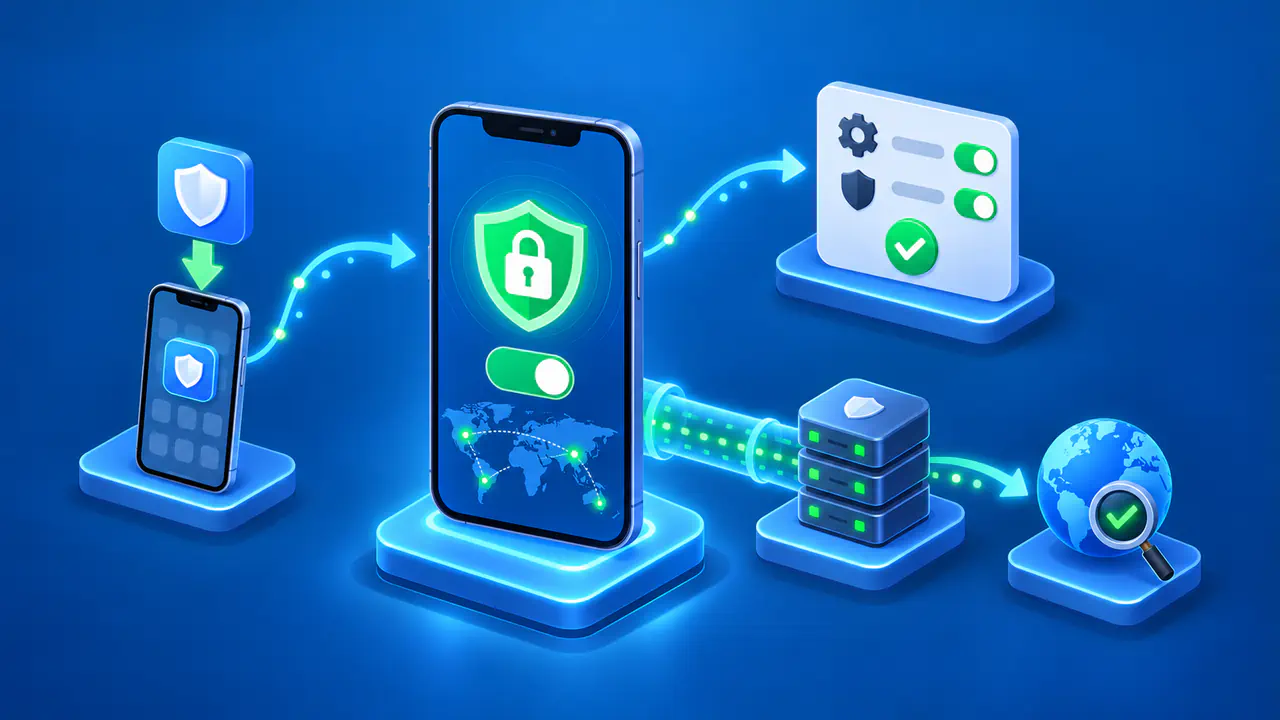
Connect the VPN and wait for its app to report that the connection is established. If your operating system provides a VPN status indicator for this connection, check that too. Run a new check on the same service and compare the reported address with the VPN's expected public exit address. Confirming an expected VPN exit is more useful than observing an arbitrary address change.
Repeat the comparison for each available address family. A VPN may carry IPv4 while blocking IPv6, or it may carry both through the tunnel. Support can depend on the client, selected server, and settings. Check those details for your setup instead of assuming that an IPv4 result also describes IPv6.
If IPv6 worked with the VPN off but is unavailable with the VPN connected, the client may be blocking it as intended. If the test instead shows your ordinary public IPv6 address, investigate whether that request was supposed to use the tunnel. An IPv6 address belonging to the expected VPN exit can be a normal result. The presence of an IPv6 address is not itself evidence of a leak.
Check What Happens during Reconnection
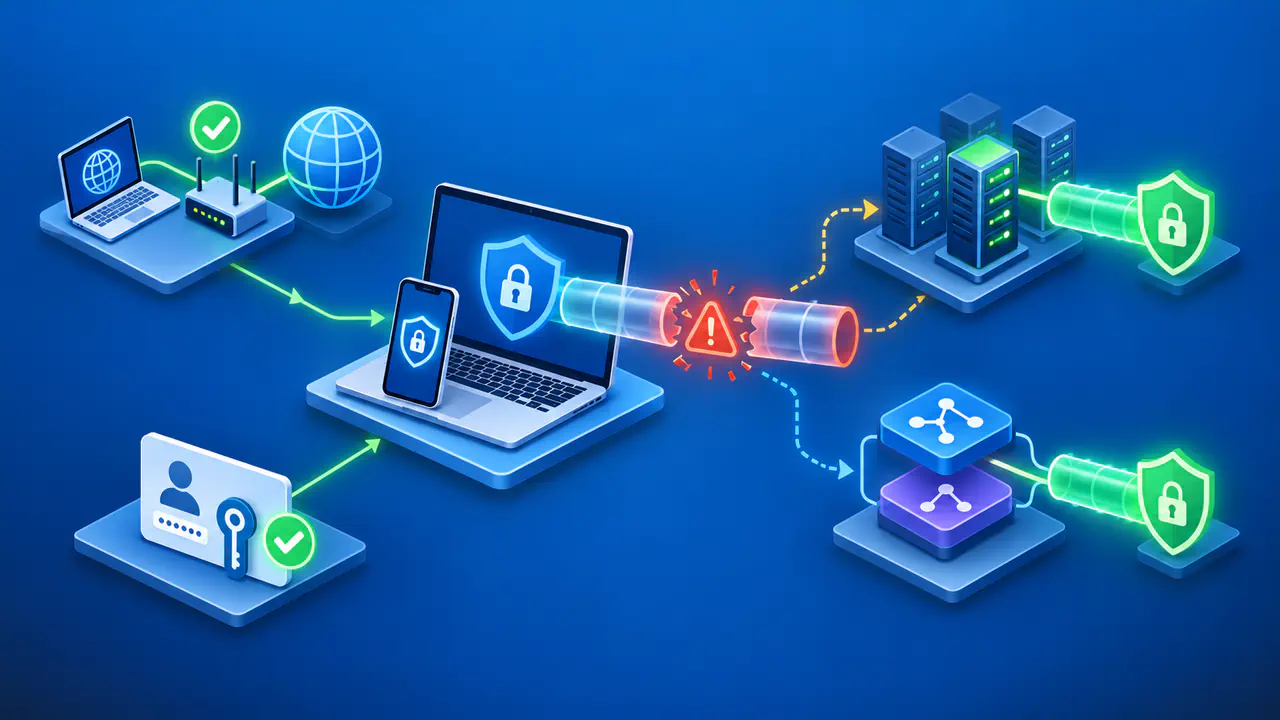
A reconnect check needs a working underlying network. Turning off the device's only WiFi or cellular connection stops traffic even without a kill switch, so a failed page load would tell you little. Use the VPN provider's supported interruption method for your app and platform. If there is no suitable method, record that you have not verified behavior during an unexpected drop.
Match the method to the selected blocking mode. Some kill switches allow direct internet access when you deliberately disconnect, while continuing to block after an accidental drop. Pressing Disconnect is therefore not a substitute for every interruption test. If your provider supports a manual-disconnect test for the mode you selected, leave that blocking mode enabled while testing.
Use only nonsensitive requests during the check. Record the public IP result before the interruption, during any interval when a fresh request succeeds, and after the VPN reconnects. If the test reports your ordinary public address while the browser should remain inside the tunnel, save the relevant settings and result privately for troubleshooting. If no request succeeds, check the underlying network before concluding that blocking worked.
Investigate Unexpected Results
Test an intentionally excluded app separately from an included app. Use a request made by the app you are checking, because a browser with a different routing rule does not show how that app connects. Direct access can be correct for the excluded app even when it would be a failure for the included one. If you cannot inspect an app's connection reliably, leave that result unverified.
Read other test indicators according to what they measure. WebRTC, which supports real-time browser communication, can reveal connection addresses separately from an ordinary web request. A private local address alone does not prove that a request used your ordinary public connection, although exposing local addresses can have privacy implications. If WebRTC reveals your ordinary public address when it should use the VPN, investigate its routing and the browser's WebRTC settings. A DNS resolver result describes name resolution and does not, by itself, identify the public source address of the browser's web request.
For a suspected leak, review exclusions, IPv6 support, and the selected blocking mode before changing settings. Follow the VPN provider's troubleshooting steps or contact the administrator with the relevant app version and results. Restore any settings changed only for the check, reconnect, and verify the final public exit. Keep the result tied to the application, network, and settings you tested instead of treating it as a guarantee for the whole device.