Why Do I Keep Getting CAPTCHA Checks?
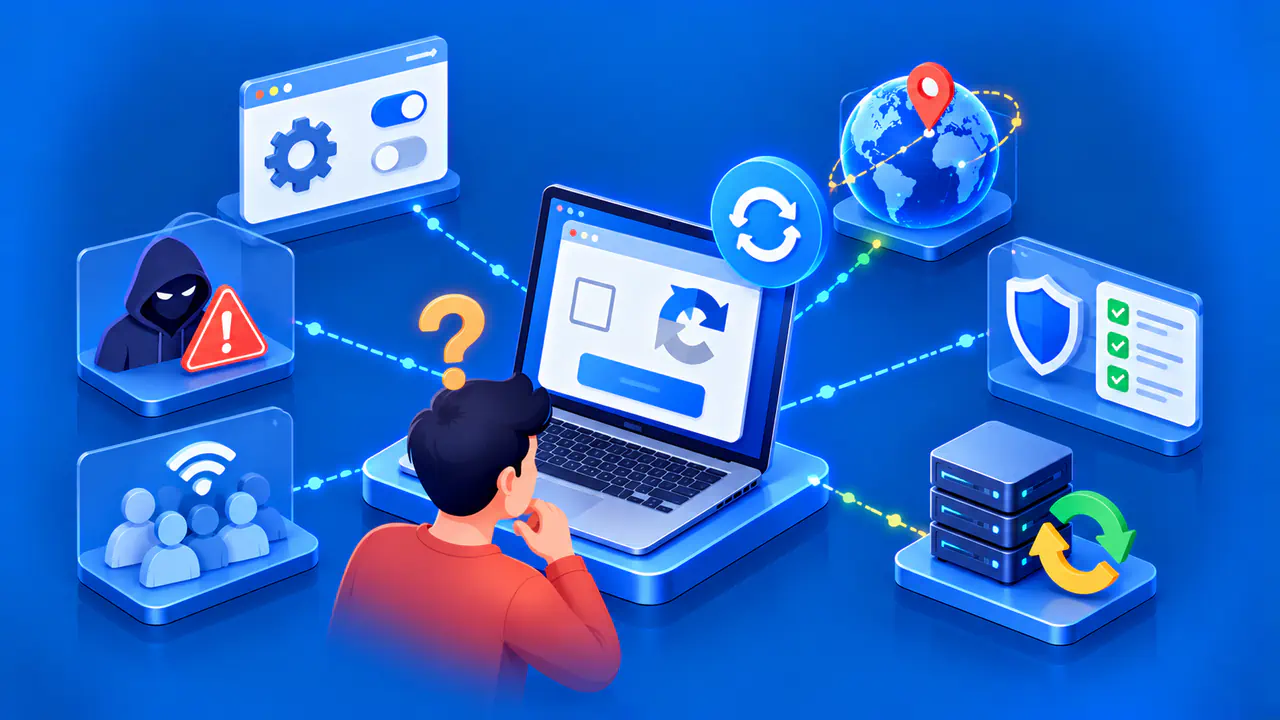
Repeated CAPTCHA checks can have several causes: a website may request another verification, your connection may interrupt the check, or your browser may fail to complete it. Extensions, blocked scripts, stored site data, and VPN connections are worth checking. Frequent challenges alone do not prove that your IP address has a bad reputation.
The timing helps you narrow down the problem. An occasional check that lets you continue differs from a loop that sends you straight back to verification. Before changing settings, note the website, the message on the screen, and what happens after you finish the challenge.
Find Out When the Check Repeats
Start with the page where the problem occurs. Does verification fail to appear, keep loading, or return after a successful check? Also note whether you can open other pages on the same website. A problem confined to one form gives support a different starting point from a challenge that prevents every page from opening.
A later challenge can be normal. For example, Cloudflare Challenge Pages can store a clearance cookie after a successful check, and the website operator sets how long that clearance lasts. A stricter check or a new assessment of the session can require verification again, even before the cookie expires.
That cookie mechanism does not describe every verification product. A Turnstile widget normally returns a token that the website must validate; a clearance cookie is an optional addition. Keep the product name with your notes when the page displays one, so you do not apply instructions for a different service.
Compare Browsers and Extensions
Open the affected page in another up-to-date browser on the same device and connection. If verification works there, focus first on the browser that fails. If both browsers fail, a website or network problem remains possible. Neither result, by itself, identifies the exact cause.
A private window provides another comparison because its site data and enabled extensions may differ from those in your normal window. Success in a private window is a useful clue, but it does not name a faulty extension. Check which extensions are active in each window before drawing that conclusion.
Verification widgets such as reCAPTCHA and Turnstile need JavaScript. A script blocker or another extension can prevent the widget from loading or communicating with its service. On the affected website, temporarily pause one relevant extension, reload the page, and check the result. Restore the extension before testing a different one.
If you use Firefox, Troubleshoot Mode can help investigate a browser problem by temporarily disabling extensions and several other features. A successful check in that mode narrows the investigation, but it does not prove that an extension was responsible because more than one setting changes. Follow up with individual tests instead of leaving the browser in a diagnostic mode.
Check Cookies and In-App Browsers
If verification succeeds and then immediately returns, inspect the browser's site data settings. Deleting or blocking a clearance cookie can remove the record of a successful check. Keep any change limited to the affected site, and note whether the browser clears its data when you close a window.
Clearing data for that website can also help if stored data is causing a problem. Before doing so, save the error message and any work in an unfinished form. Removing site cookies may sign you out and reset preferences. There is no need to erase cookies for every website just to test one failing page.
If the check fails inside a mobile app, try the website in your regular browser when the app offers that option. An embedded browser, often called a WebView, may handle scripts, cookies, and storage differently. Turnstile also needs access to its verification service and consistent browser information during the check.
A successful check in the regular browser gives the app's support team a specific comparison to investigate. The app may need a change to its embedded browser configuration. Repeatedly changing settings in your regular browser will not necessarily repair the app's separate browser component.
Test Your Connection and VPN
A weak or interrupted connection can stop a challenge from finishing. If pages are also slow or failing to load, establish a stable connection before retrying. Then compare the same browser and device on another connection you are allowed to use, such as mobile data instead of home Wi-Fi.
If you use a VPN or proxy, consider a brief comparison without it, provided your privacy needs and network rules allow that test. Record whether verification completes on each connection. A difference could involve filtering, the shared exit address, or other network conditions; the comparison does not establish that anyone using that address did something wrong.
Changing the browser, VPN, and network together makes the result difficult to interpret. Keep the other conditions the same for each comparison, and distinguish a check that disappears from one that appears and completes successfully. If the site displays an explicit access restriction, use its appeal or support process rather than treating the restriction as a browser error.
Give Support a Clear Description
For a persistent loop, contact the website's official support with the affected page address, exact message, date and time with time zone, and browser and device details. Include the request identifier, such as a Cloudflare Ray ID, if the page shows one. Describe each comparison and its result, including whether a VPN was active.
Support may ask for a browser console log or a HAR file, which records network requests. These files can contain private information. A sanitized HAR export removes some sensitive fields, but review the file for account details and other private data before sharing it through an official private channel.
A useful report explains where the process stops: the widget never loads, the check fails, or a completed check immediately repeats. Those observations help the operator investigate browser compatibility, failed requests, or the site's verification rules. Keep your notes until the issue is resolved so that follow-up tests build on what you already know.