Why Is My VPN So Slow?

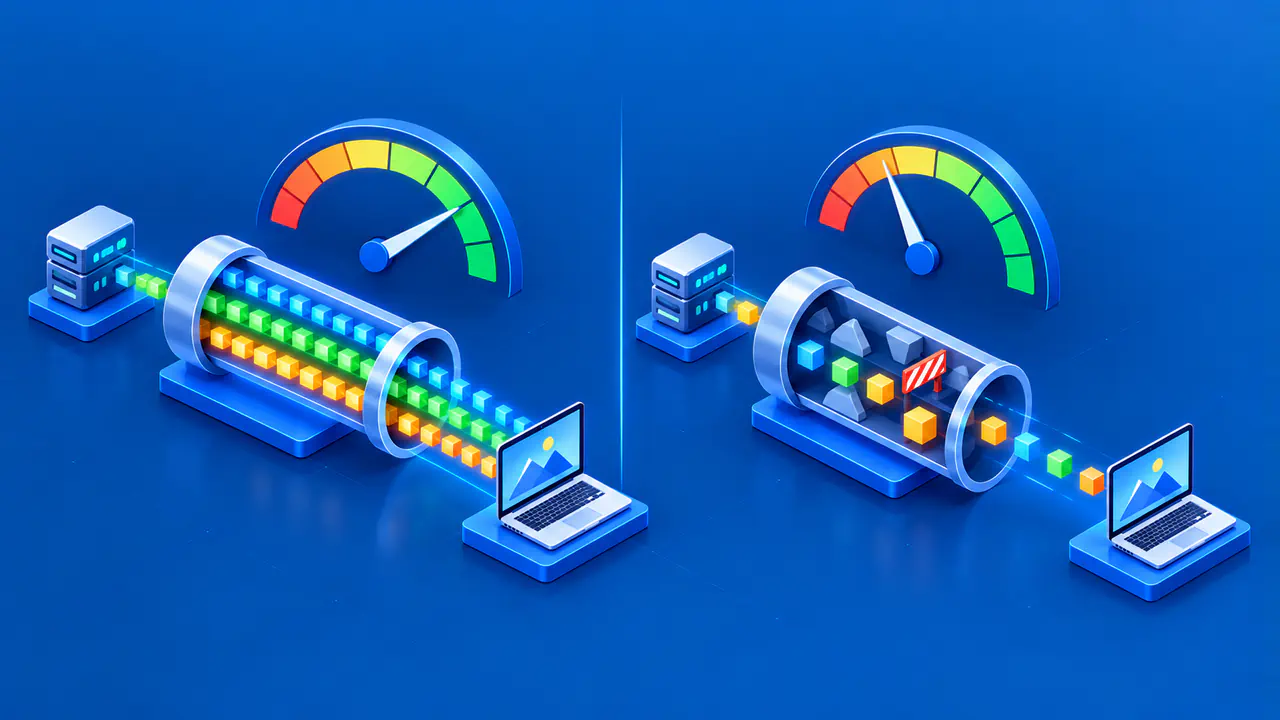
A slow VPN can result from congestion on the route to its server, a busy server, or a device struggling to process the encrypted traffic. Your ordinary internet connection can also be the limiting factor. The VPN app may show that it is connected even while transfers are slow, so the status indicator alone will not explain the problem.
Before changing settings, check whether data transfers are slow or responses are delayed. Download and upload throughput describe how much data moves per second, while a speed test's latency reading usually measures the time for a request and reply to make a round trip. A video call can lag even when large files download quickly.
Start with a Direct Connection Test
Use the same device, local network, and test service for comparisons with and without the VPN. Pause downloads, cloud backups, and other large transfers you control. Choose a stable WiFi or wired connection and keep it unchanged during this first comparison. Record download speed, upload speed, and latency separately, along with the time of each test.
If your work and privacy requirements allow a direct test, disconnect the VPN and measure the connection, then reconnect and repeat the test. If you must keep the tunnel active, compare only the VPN settings you are allowed to change and tell the VPN support team that you could not test without the VPN. A blocked test after disconnecting may reflect a kill switch that prevents traffic outside the tunnel, rather than a slow internet connection.
Check that traffic from the test app or website passes through the tunnel. Split tunneling can leave selected apps or destinations outside the VPN, and a VPN browser extension may route only browser traffic. Also check which server the speed-test service selects. Use the same test server when the service permits it, because changing that destination changes the route being compared.
Repeat the comparison instead of relying on one result. Alternating between the direct and VPN connections, when permitted, can show whether performance changes during the test period. If both connections are consistently slow, investigate the local connection as well as the VPN. If only the VPN connection is slow, compare another suitable VPN server next.
VPN Server Distance and Load
A longer route can add delay, and the closest VPN server on a map may not have the most direct network route. Try a nearby VPN server if it meets your location requirements, then compare another suitable server. If the app shows server load, a less busy option is worth testing. The load indicator shows how busy the VPN provider reports that server to be; it does not measure congestion along the entire route.
Change only the VPN server for this comparison. Keep the device, network, protocol, and test destination as similar as possible. Consistently better speeds on another server can reflect lower server load or a better network route, but the test alone does not distinguish between those causes. If the slowdowns occur mainly at certain hours, record that pattern too.
Multi-hop VPN modes send traffic through additional VPN servers, which can increase delay. A VPN mode that also sends traffic through the Tor network can add further delay. Note whether either feature is enabled before comparing results. Keep any required protection in place; a faster result from a different configuration is useful only if that configuration still meets your needs.
Protocol and App Settings
VPN apps may offer WireGuard, OpenVPN, IKEv2, or provider-specific modes, depending on the product and operating system. Check the VPN provider's current documentation for your device. If the app selects a protocol automatically, note which one it uses when that information is available. Then compare another supported option using the same server and test conditions where possible.
Wait for the VPN to reconnect before running the next test. No protocol is guaranteed to be fastest on every device and network. The app's design, your device's processing power, and the network route all affect performance. After comparing the measurements, try the activity that originally felt slow. A faster file download does not necessarily mean that video calls will have less delay or that a particular website will load sooner.
Check for app and operating-system updates if performance remains poor. Updates may fix a software problem, but rerun the comparison afterward to see whether they changed the result. Keep your firewall and antivirus protection active. If a security product appears to conflict with the VPN, follow the security software vendor's guidance or ask your device administrator.
Local WiFi and Device Limits
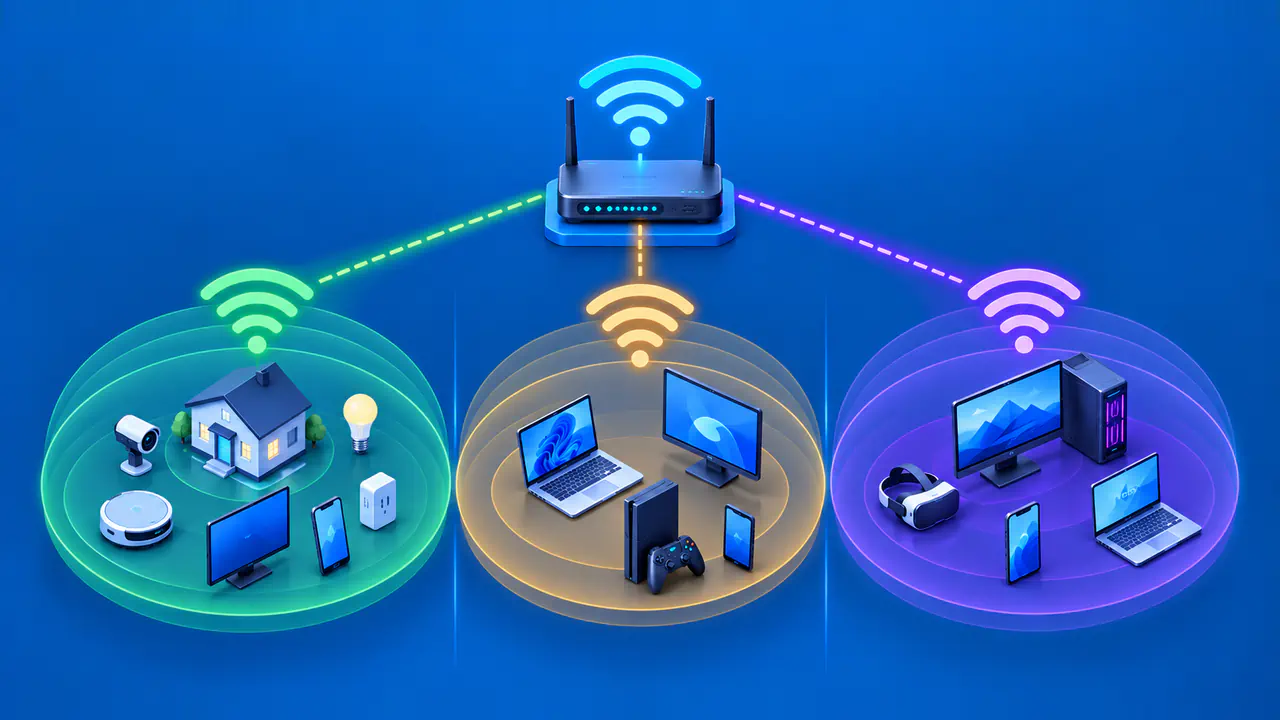
A weak WiFi connection or competing transfers can restrict traffic before it reaches the VPN server. Compare WiFi with Ethernet if practical, or test closer to the access point while keeping the VPN settings unchanged. Check whether other devices are uploading backups or downloading large files. Changing the internet connection and VPN server together would make it harder to tell which change helped.
The device running the VPN also has to encrypt and decrypt traffic. Limited processing power can restrict transfer rates even when the internet connection has capacity available. Check for other demanding applications and compare performance after closing those you do not need. If another device performs better on the same network and VPN server, investigate the slower device's app, software, and local connection before assuming the VPN service caused the slowdown.
When to Contact the VPN Provider
Contact the VPN support team if the connection is still slow after the tests you can carry out. Give the VPN app and operating-system versions, the chosen server and protocol, and the date, time, and time zone of the tests. Include results from repeated tests and name the test service and server. Explain whether downloads or uploads are slow, responses are delayed, or only one application is affected. Share logs through the VPN provider's support channel, removing account details and addresses that the investigation does not require.
A problem limited to one website can involve that service or its route, even if other VPN traffic performs well. You may also get faster transfers through the VPN than without it if the VPN route avoids a congested part of the direct route. Report what changed when you switched connections, and distinguish the measured results from any suspected cause.