How to Check Google Account Login Activity

Google Account device activity shows computers, phones, and other devices where your account is signed in now or was signed in recently. The list can also show separate sessions for browsers and apps on the same device. Review the details before deciding that a name, time, or city represents a new person using your account.
If an entry is unfamiliar, use Google's account security controls promptly. The device list is for checking your own account access; it is not a way to track another person or to correct the location associated with an IP address.
Open Google Account Device Activity
Open your own Google Account at myaccount.google.com in a trusted browser session. In the account, open Security & sign-in, find Your devices, and select Manage all devices. The list includes devices where you are signed in and those used in the last few weeks. Select a device or session to inspect its available details. Signed out means that the listed session is no longer active.
Use the account page reached by typing the address yourself or through a trusted bookmark, especially if you arrived after an alarming email. Avoid entering your password into a page opened from a suspicious message. Review the account you are actually signed in to; people with multiple Google Accounts can otherwise inspect the wrong list.
Note the device type, browser or app, last activity time, and location shown. These are clues to compare with your own use, not independent proof of who had the device. A work laptop, old phone, shared computer, or recently reset device might still explain an entry.
Make a brief private note of entries you recognize before signing out of anything. That record can help you separate an old session from a new one on the same device and avoid removing a trusted session by mistake. Do not keep passwords or verification codes in that note.
Distinguish Devices from Sessions
A session is a period during which the account is signed in through a browser, app, or service on a device. One physical device can have several sessions. Signing in through a different browser, reentering a password to verify identity, signing in from a private window, or granting an app account access can create a separate entry. Several entries with the same device name can also belong to different devices, so compare their details before deciding which ones you recognize.
The time displayed is the last communication with Google's systems at a location. Background sync can make that time more recent than when you last actively used the device. Compare it with expected apps and account activity before drawing a conclusion from the timestamp alone.
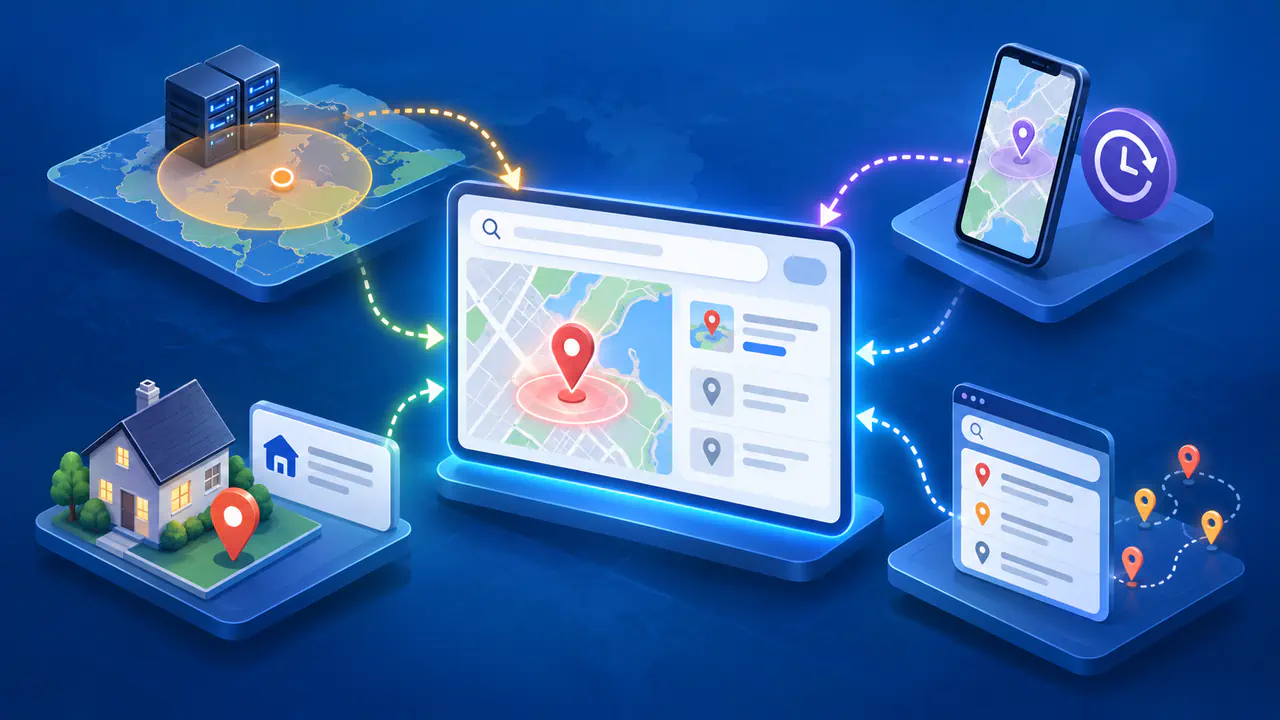
A displayed city is also approximate. It is a context clue for reviewing account activity, not a precise trail of where the device traveled or where its owner lives. The displayed location can be a nearby place, and an IP estimate from a mobile network can be far from where you are. If the browser, time, and device fit your own use, a surprising city by itself is weaker evidence than an unrecognized device or security event. Keep the location in context rather than trying to repair the geolocation record from this page.
Investigate Unfamiliar Activity
Open the entry and compare all available details with your recent actions. Ask whether you signed in on a new device, used a public computer, reinstalled or reset a phone, or allowed an app to connect to your account. If the device is shared, distinguish your own sign-in from the other accounts used on it.
If the entry remains unfamiliar, open Recent security events under Security & sign-in and select Review security events. Inspect the event, and if you did not perform it, select No, it wasn't me when that choice is available. Follow the protection steps shown for that event. A new sign-in method, changed recovery information, or another unexpected security setting warrants prompt investigation even if the city label looks familiar.
If you suspect account compromise, open Security Checkup from your Google Account to review its account protection recommendations. If you cannot sign in, begin account recovery before trying to inspect the device list. Change the Google Account password promptly when you believe someone else has access, and review recovery methods and 2-Step Verification. If you reused that password elsewhere, change it there too. Do not send passwords or verification codes to anyone offering to interpret the activity list.
Sign Out and Secure the Account
For a lost device, one you no longer own, or a session you cannot identify, open its entry from Manage all devices and select Sign out. When several sessions have the same device name and you cannot identify which ones are yours, sign out of all sessions with that name. Ending a session does not remove every way someone might sign in again. Continue reviewing sign-in and recovery methods if you suspect compromise.
After sign-out, return to the device list and confirm the entry shows Signed out where applicable. Recheck recent security events and your account's recovery information. On devices you do trust, be prepared to sign in again if a broad sign-out affected them. Do not mark unknown activity as yours simply to dismiss an alert.