Why Does a Login Alert Show the Wrong Location?
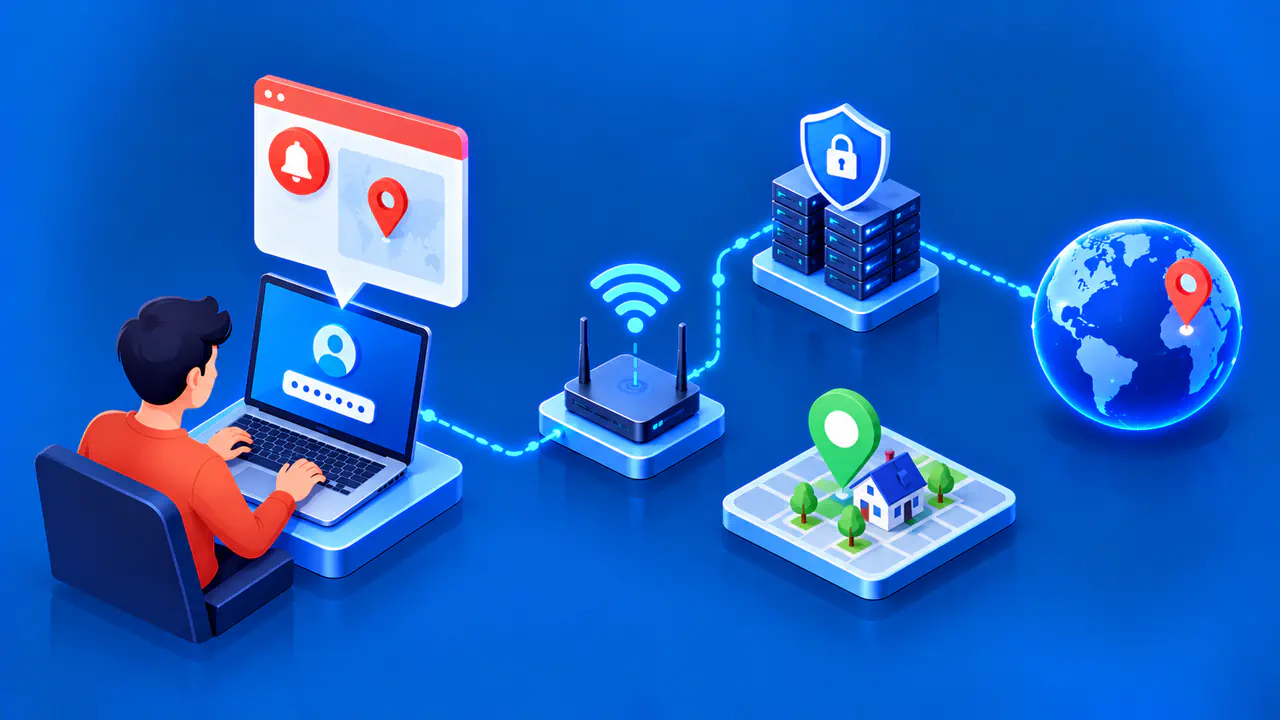
A login alert can show the wrong city because the service estimates the sign-in location from an IP address. The address may point to a mobile carrier's network or a VPN server far from the device. Location records can also be inaccurate or outdated, so a map pin does not establish where the device is physically located.
Check whether the sign-in was yours before responding. An unfamiliar location can appear during a legitimate login, but the same uncertainty does not make an unexpected prompt safe to approve. Review the device, time, account, and event details through the service's official app or website.
Compare the Device and Sign-In Time
Start with the account named in the alert and the action it describes. A request to approve a new sign-in is different from a notice that a sign-in succeeded. An activity record may instead describe a blocked attempt or an existing session. Read the event status before deciding whether someone actually gained access.
Next, compare the listed device, browser, or app with what you were using. A generic phone or browser label is not a unique device identifier. The same device can remain signed in through several browsers or apps, creating more than one session. A familiar label alone therefore does not establish that the activity was yours.
Read the event's date and time, including any displayed time zone, rather than relying only on when you noticed the notification. Check whether you were using the account then. If the time zone differs from your own, account for that difference before deciding that the event occurred while you were asleep or away.
On a device activity page, a recent timestamp may record communication from an existing session rather than a fresh login. Apps can synchronize in the background without someone actively using the device. Keep that distinction separate from an approval request that needs a response now.
Why the Map Can Point Somewhere Else
IP geolocation estimates an area associated with a connection's address. It is not equivalent to a GPS reading from the device. A city label or a precise-looking pin does not establish a particular household, street address, or person's identity.
Mobile traffic can reach an online service through a carrier's infrastructure in another area. In a mobile network, one public IP address may serve devices across a broad region. A login can therefore appear to come from a different city even while the phone stays in the same place.
A VPN or company proxy can also change the address visible to the account service. If the sign-in request passes through that connection, the service may locate the VPN or proxy server instead of the device. Remember which connection you were actually using at the time, rather than assuming a VPN explains any unfamiliar event.
IP addresses and the networks using them can change, while location data may not reflect those changes immediately. A lookup of your current address does not establish which address was used for an earlier sign-in. These limitations explain why location needs context, but they cannot resolve a mismatch in the device or activity you remember.
Decide Whether the Sign-In Was Yours
If you are signing in on a device you control, compare that action with the account and device shown in the prompt. When the details match and you know the attempt is yours, an inaccurate city need not stop you from completing the official sign-in process. If you are uncertain, leave the attempt unapproved while you check the account.
For an alert delivered by email or text, open the app yourself or enter the website address you already know. Do not use a link in an unexpected message to reach the account. Security alerts can be imitated, so inspect recent activity from the account's own settings rather than trusting the message's appearance.
Consider recent travel, a new browser, or a device reset when reviewing unfamiliar entries. Those changes can explain differences in a legitimate record, but they should correspond to something you actually did. An unknown device combined with a password or recovery change you did not make calls for action on the account, even if the map shows your own city.
Respond to Unfamiliar Activity
Reject an approval request you did not initiate. On an Apple Account sign-in notification, the "Don't Allow" option blocks the unrecognized attempt. Google's "No, it's not me" option reports unfamiliar activity. Follow the security steps shown in the genuine account interface rather than assuming every button has the same effect.
If you find an unfamiliar active session, use the available account controls to sign it out and change the account password. Review the recovery email address, phone numbers, and other sign-in methods for changes you did not make. A password change and a review of existing access serve different purposes, so complete the service's recovery or security process.
Use a password that is unique to that account, and replace any reused password on other accounts as well. Turn on multifactor authentication if it is available and not already enabled. If you can no longer sign in, start recovery through the account service's official app or website.
If you need support, save the alert time, device details, and event status before dismissing the notification. Share relevant information through the service's support channel, and remove account or IP details from anything you post publicly. Do not delay securing your account while trying to correct the city shown on the map.