How to Open a Public WiFi Login Page
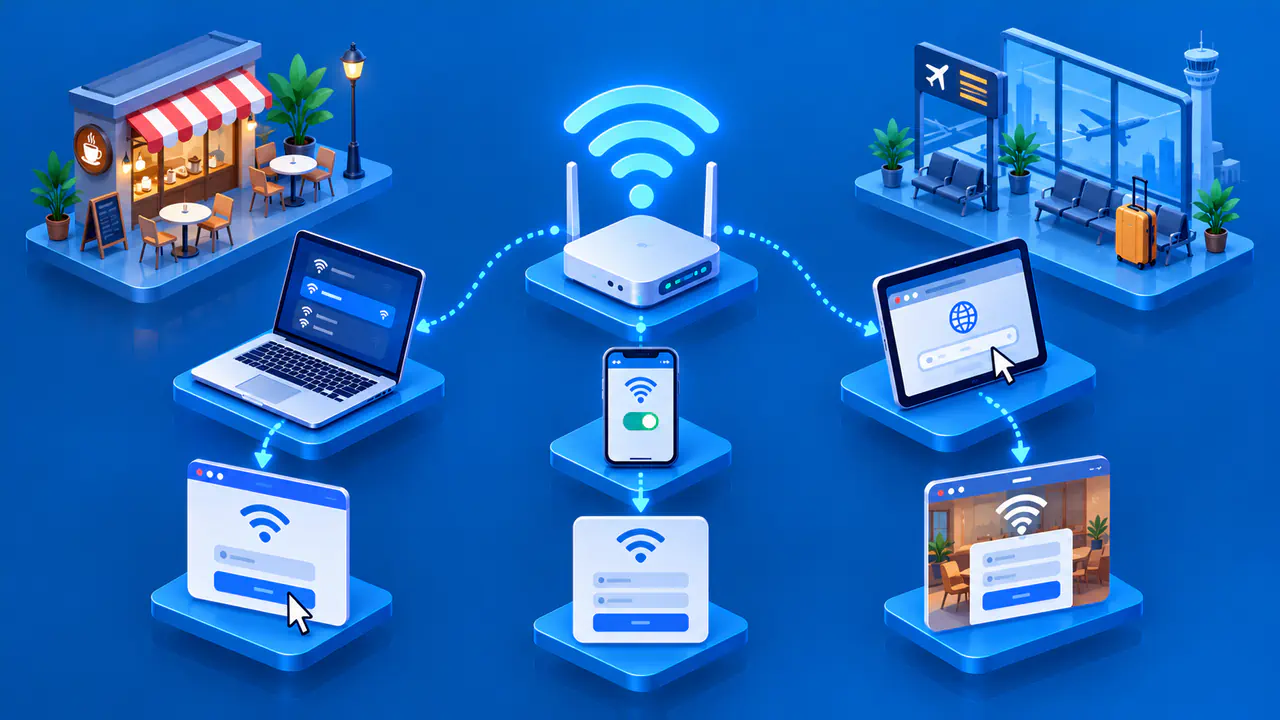
To open a public WiFi login page, join the venue's network and select the sign-in prompt your device displays. If no prompt appears, open the portal address supplied by the venue or try a plain HTTP page to trigger a redirect. These methods depend on the hotspot's setup, so a missing page does not always mean your device is faulty.
On many public WiFi networks, connecting to WiFi does not immediately give you internet access. A captive portal then asks you to accept terms, enter a code, or sign in. Confirm that you are using the intended network and its genuine portal before entering personal or payment details.
Join the Network and Open the Sign-In Prompt
Look at the network name posted by the venue or confirmed by its staff. Join that network through your device's normal WiFi settings, then open any network sign-in notification. A connected WiFi icon shows a local connection, but it does not prove the portal step is complete.
On an iPhone or iPad, open Settings, select Wi-Fi, and tap the network name. Wait for the login window, or tap More Info beside that network and select Join Network. On other devices, the sign-in control may appear in the WiFi settings or as a notification, depending on the operating system.
If a sign-in window appears, check that the address and the steps on the page match the venue's instructions. Branding alone cannot establish that a page is genuine. The portal may ask for a room number, voucher, email address, payment, or acceptance of terms depending on the operator. Confirm unexpected requests and any charges with staff before proceeding.
Open a Portal That Does Not Appear Automatically
If the automatic prompt does not appear, ask the venue for its portal address and enter it directly in the browser's address bar. A search result for a hotel's login page may refer to a different hotel or lead to an unrelated site. The operator can also confirm whether that network actually requires a portal.
Another option is to enter the full address of a familiar, nonsensitive HTTP page, starting with http://, while connected to the hotspot. Some captive networks redirect this unencrypted request to their sign-in page. Do not use a bank or account sign-in page for this test, and do not submit passwords or payment information over HTTP. A browser or website may upgrade the request to HTTPS, so this method does not work on every network.
If an HTTPS page shows a certificate warning, stop. A hotspot generally cannot redirect an HTTPS request for another website to the portal while presenting a valid certificate for that website. Do not click through the warning or type your account password on a substitute page. Use the WiFi sign-in prompt or the operator's documented portal address, or ask staff for help.
Check Settings That Can Block the Portal
A VPN or proxy may prevent the browser from reaching the portal before the hotspot authorizes internet access. Some VPN apps also have a kill switch that blocks traffic while the VPN is disconnected. Check the app's instructions for captive networks rather than assuming that pressing Disconnect will make the portal reachable.
If you control the device and are allowed to change its security settings temporarily, write down the current VPN or proxy settings before adjusting them to sign in. Limit any temporary change to what you need to sign in through the verified portal. On a managed device, ask the administrator for the approved procedure before changing a required security control.
A custom DNS service can also cause trouble if your device cannot reach that service before sign-in or if the service cannot resolve a portal name available only through the network's own DNS server. If you chose a DNS service manually and are allowed to change that setting, temporarily switching back to automatic DNS settings may help. Built-in portal detection can handle DNS differently from ordinary browsing, so secure DNS is not automatically the cause. Restore any settings you changed after sign-in.
Complete Sign-In, Then Start the VPN
Follow the portal's sign-in or payment steps as confirmed by the operator. Check for a completion message, then load more than one trusted website to test actual internet access. On a phone, temporarily turn off cellular data for this test to make sure the phone is testing internet access over WiFi. Turn cellular data back on afterward if it was enabled before the test.
If the portal rejects a voucher or repeatedly returns to the login screen, contact the venue or hotspot provider with the exact message. Do not make repeated payments to troubleshoot a stalled page. The operator can check whether the payment or access request was accepted before you try again.
Once normal internet access is working, connect your VPN if you use one. Check the VPN app's connection status and test a trusted site again. If you were allowed to change a security setting temporarily for sign-in, restore the previous setting promptly. A failed VPN connection after successful hotspot access is a separate problem to investigate with the VPN provider or device administrator.
Check Why the Connection Still Fails
If you have another authorized device available, compare both devices on the same hotspot at roughly the same time. Make sure the comparison device is using WiFi rather than cellular data. If neither device can open the portal, the portal service or the network may be unavailable. That comparison alone does not identify which component has failed.
If only one device has trouble, disconnect it from WiFi and reconnect to request a fresh sign-in prompt. Restarting the device may also help. You can also forget the saved network if you have the information needed to rejoin. Forgetting a network removes its saved connection settings. A device that already has working internet access may not need another portal login.
Even after you have signed in successfully, a particular website can fail for reasons unrelated to the portal. Record whether several sites fail, whether the browser reports a DNS or certificate error, and whether the portal itself remains reachable. A working portal page does not prove that all DNS lookups or outside connections work. Ask the operator to check the access session and network service if normal browsing still fails.
Protect Your Information during Sign-In
The network operator can see that your device is connected and may see connection metadata. HTTPS helps protect the contents exchanged with a properly secured website, but it does not make a fraudulent website trustworthy. Use the venue's verified network and portal, and avoid sharing more personal data than its access terms require.
If the login page looks suspicious, stop and ask the venue to confirm that the page is genuine. Once connected, a VPN can protect traffic sent through its tunnel, but using a VPN does not prove that the portal is legitimate. When requesting help, report the network name, location, time, device type, and the error displayed. Do not send a screenshot that exposes a voucher, password, or personal session link.