How to Log In to an ASUS Router
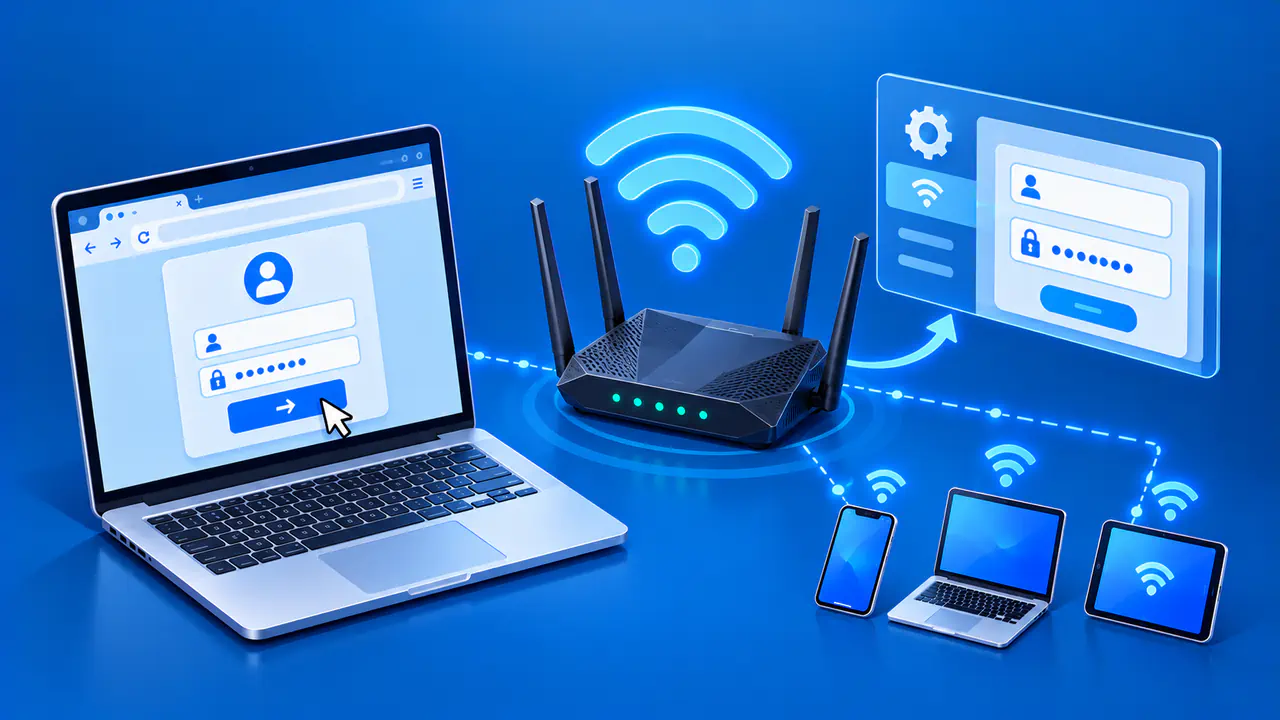
To log in to an ASUS router, connect to its network, open its local address in a browser, and enter the router's administrator username and password. The settings page is called the WebGUI. It runs on the router, so you can reach it locally even when the internet connection is down.
A router that has not been set up may open Quick Internet Setup, or QIS, instead of the usual login screen. On a router that is already set up, use its current administrator username and password. The steps below are for a router you own or manage; menu names and login options vary by model and firmware.
Connect to the Router
Connect your computer to one of the ASUS router's LAN ports with an Ethernet cable, or join its WiFi network from a computer or phone. For a new router, look for the default WiFi name on the product label. If the network has already been set up, use its current name and WiFi password instead.
Wait for the router to finish starting before opening the login page. Check that your device is actually using the intended WiFi or Ethernet connection. A phone using mobile data alone cannot reach this local interface, and a guest network may block access to the router's settings.
Open the ASUS Login Page
Type http://www.asusrouter.com into the browser's address bar and press Enter. Enter the address directly rather than searching for a login website. The address should open a page served by the router itself. Do not enter router credentials on a website you found through a search engine.
You can also use the router's current LAN IP address. Some ASUS models default to 192.168.50.1, while others use 192.168.1.1, so http://192.168.50.1 is only an example. If the administrator has changed the LAN address, enter the current address instead.
If your router uses HTTPS for local management, open its configured HTTPS address instead. ASUS commonly uses port 8443 for HTTPS, as in https://www.asusrouter.com:8443. Use the current port if it has been changed, and check your model's instructions if the address does not work. You do not need to enable management from the internet to log in from the local network.
Find the Router's Current IP Address
If the usual address does not open the ASUS page, first confirm which device you are trying to manage. A home can have an internet provider's router as well as an ASUS router or access point. Opening the provider's settings page will not give you access to the ASUS unit.
When the ASUS router is your device's default gateway, its address appears in the active connection's network details under a label such as Router or Default Gateway. An ASUS access point or repeater may have a different management address assigned by the main router. In that arrangement, the gateway address can belong to the main router instead.
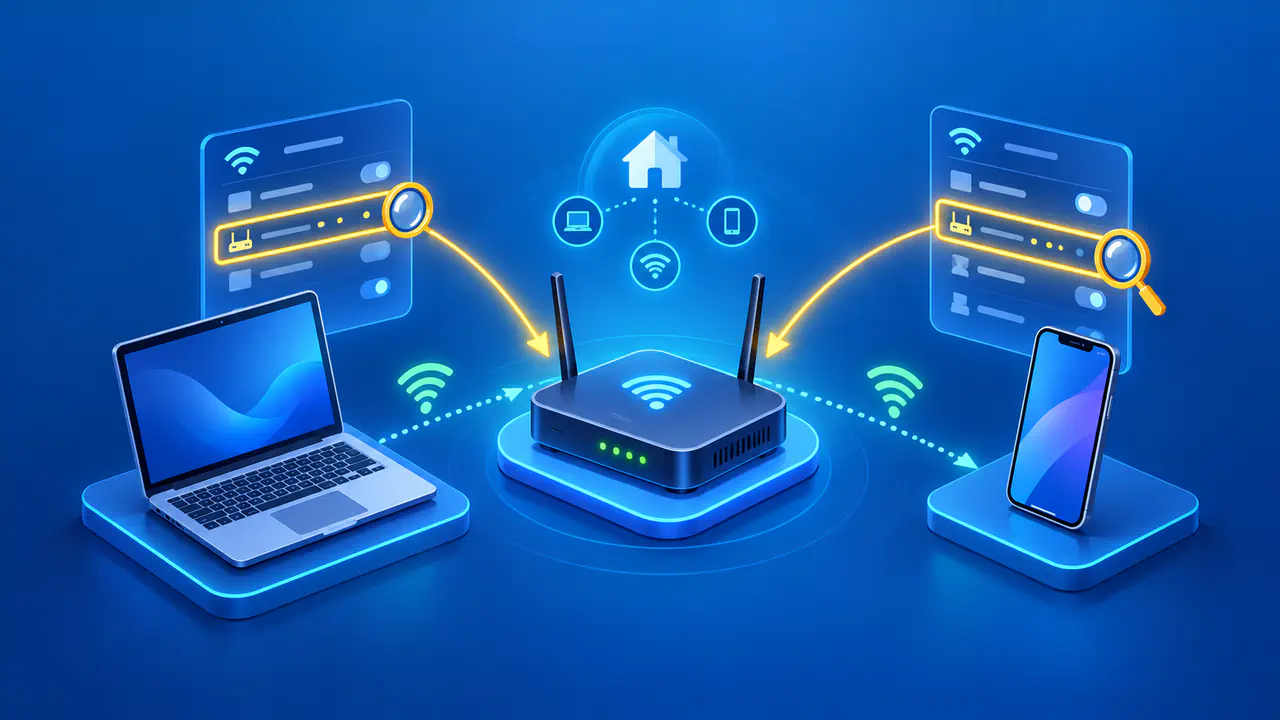
ASUS Device Discovery can help find ASUS routers, access points, and repeaters on your local network. On Windows, download and install the utility from your model's ASUS support page, connect to the router's network, and select Search. In the results, find the model or WiFi name that matches your ASUS device, then open the IP address listed for that device. Installation steps and the app's layout vary by operating system.
Sign In or Complete the Initial Setup
On an already configured router, enter its administrator username and password at the login prompt. These credentials control access to the settings; the WiFi password connects your device to the wireless network. If your internet provider requires a username and password to establish the internet connection, those details are separate from the router's administrator login. If a password manager lists several entries for the network, choose the one saved for router administration.
For a router that has not been set up, QIS guides you through the initial configuration. It may ask for internet connection details, a WiFi name and password, and a router administrator account. The order and available choices depend on the model. Some models have factory login details on the label, but those details will not work after the administrator changes them.
Complete QIS only when you intend to set up that router. If the setup screen appears unexpectedly on a router you have been using, confirm that you opened the correct device and ask whether anyone reset or replaced it before you change any settings. A factory reset returns the router to an unconfigured state. Once setup is complete, use the administrator account chosen for that router to open its dashboard.
If the Administrator Password Does Not Work
Check the username and password saved for this specific router, including capitalization. The username may have been changed along with the password, so do not assume that it is still admin. If someone else manages the network, ask them for access before trying more passwords.
If no one knows the current administrator username and password, a factory reset may be needed to set new login details. A reset removes the router's custom settings, including its WiFi and internet connection configuration. Before resetting the router, gather any connection details your internet provider requires and let others know that the network will be unavailable while you set it up again.
Follow the reset instructions for the exact model, since button locations and the required hold time can differ. After the reset, reconnect using the router's default network details and complete QIS again. If you cannot restore access with the model's documented steps, contact ASUS support with the model name and a description of the screen or error you see.