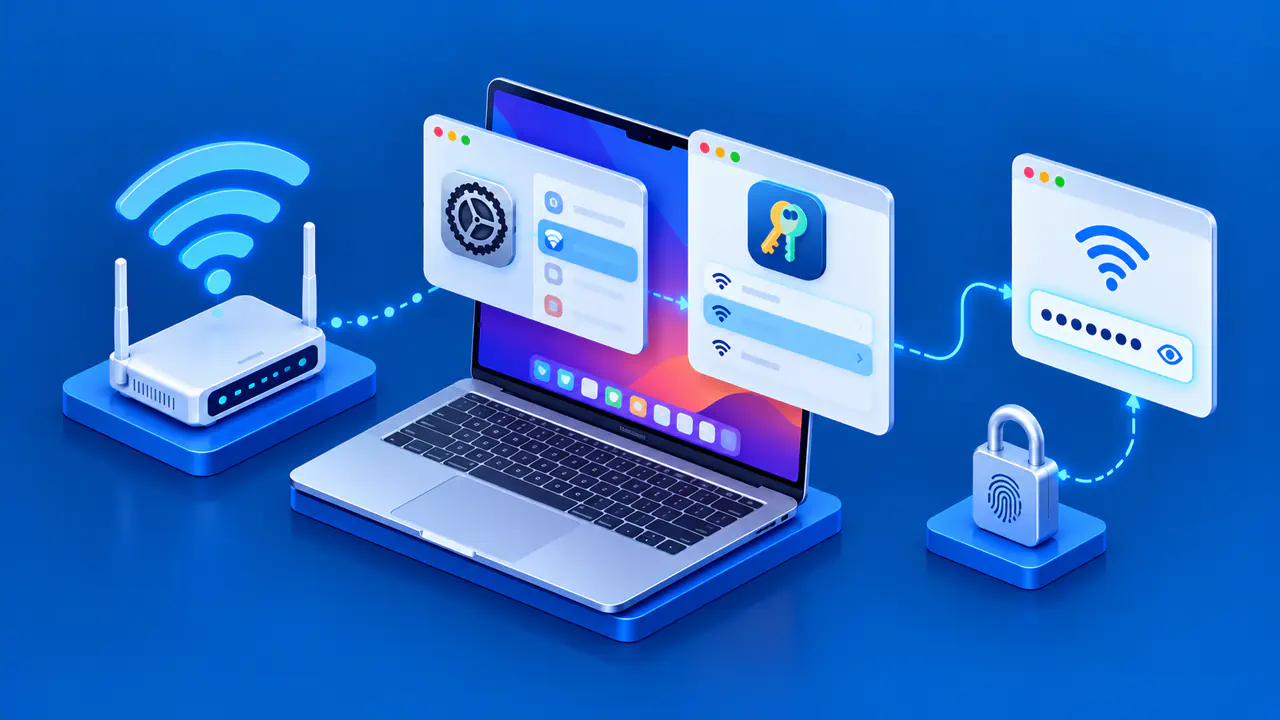
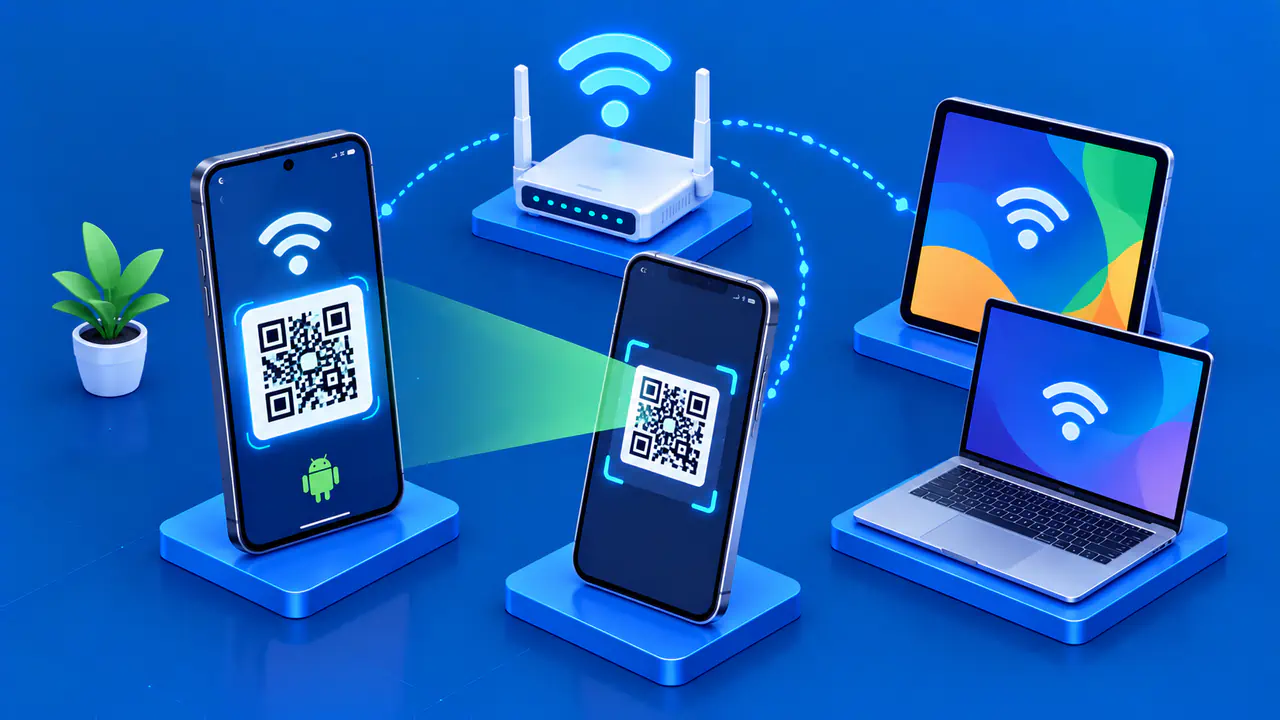
How to Log In to an AT&T Nighthawk MR1100 Hotspot
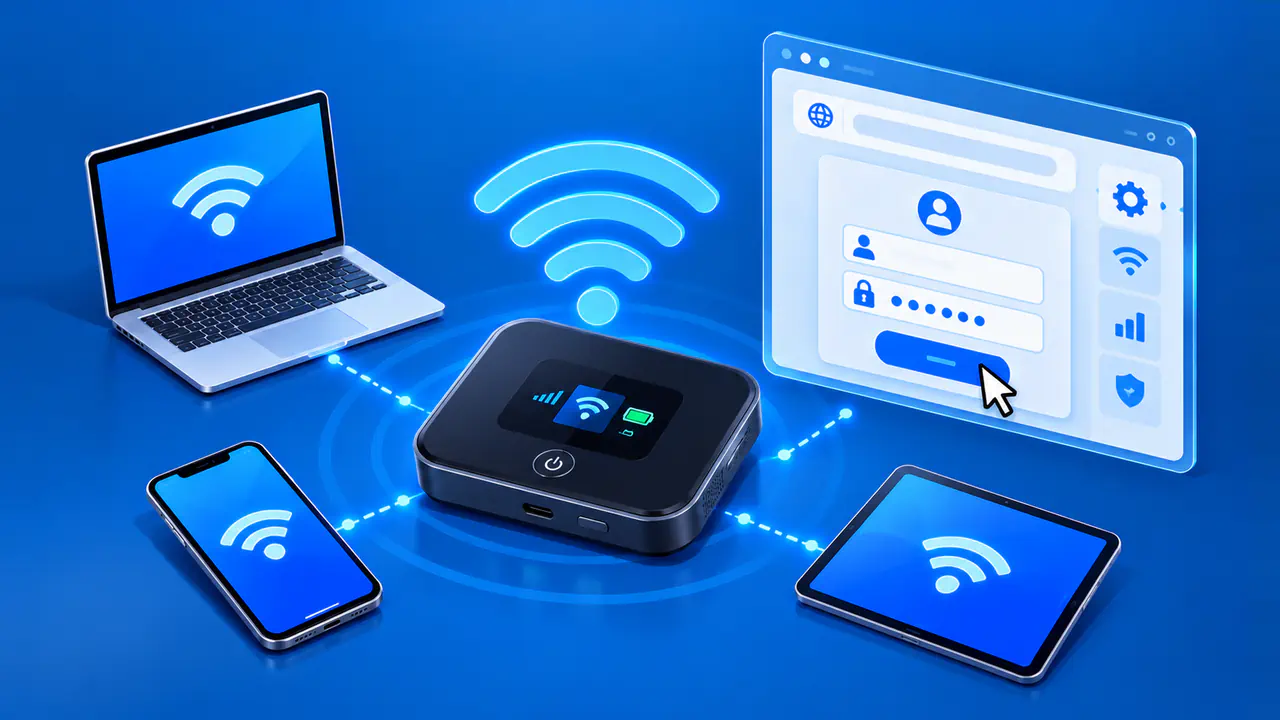
The AT&T Nighthawk MR1100 has a browser interface called AT&T Wi-Fi Manager for changing the hotspot's settings. To log in, connect a phone or computer to the hotspot's WiFi, open http://attwifimanager in a browser, and enter the administrator password. The hotspot hosts the page locally, so your device must stay connected while you manage the settings.
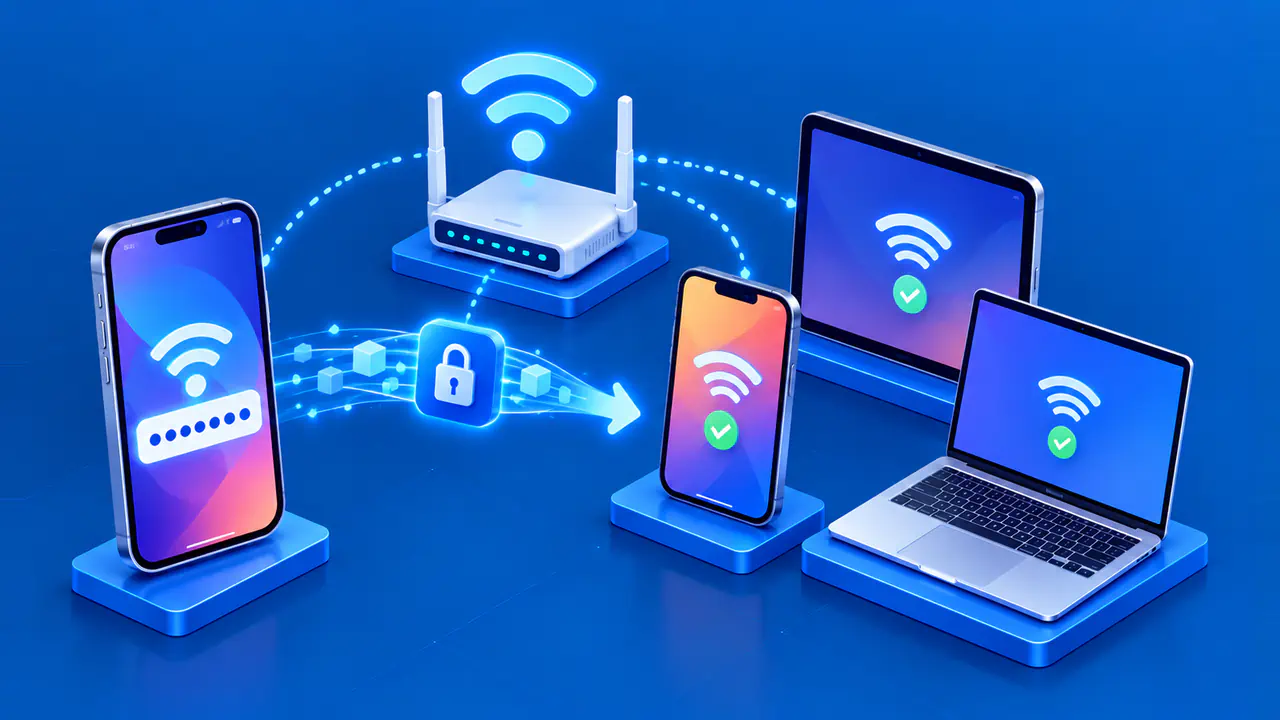
Joining the WiFi network and signing in to the manager are separate steps with separate passwords. Use the WiFi password to join the hotspot's network and the administrator password to open its settings. Your AT&T account password is for your service account and cannot be used for either of those steps.
Connect to the MR1100's WiFi
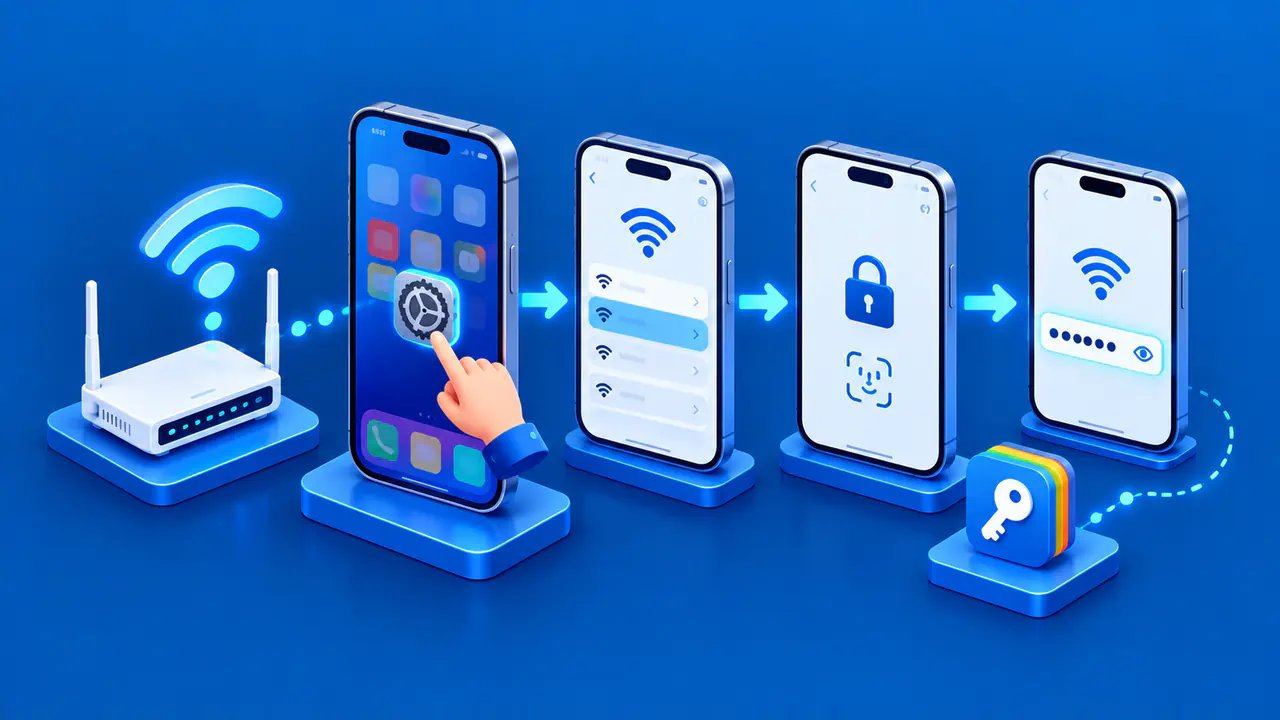
Turn on the hotspot, then press and quickly release its Power button to move through the display screens until you see the WiFi name and password. Open the WiFi settings on your phone or computer, select that network, and enter the displayed password. Check capitalization carefully because the password is case-sensitive.
The label under the battery also shows the original wireless details. If the network name or password has changed, the printed label will not show the new values. Use the WiFi name and password on the display, or ask the person who manages the hotspot for the current details.
Before opening the browser, check that your phone or computer is still connected to the MR1100's WiFi. Your phone or computer may switch back to a saved home or office network if the hotspot connection drops. Stay connected to the MR1100 even if your phone reports that the network has no internet access. A cellular service problem does not necessarily prevent you from opening the local manager.
Open the Local Login Page
Type http://attwifimanager into the browser's address bar and press Enter. Include the http:// prefix so the browser treats the text as an address rather than a search. A page of search results means the browser searched for the name instead of opening the hotspot's manager.
You can also use http://192.168.1.1 if the hotspot still has its default local IP address. If someone changed the hotspot's local IP address, use the new address. The numeric address is not unique to your MR1100; another router can use it on a different local network.
Check that the login page is for your MR1100. If you see an unrelated router's page or an AT&T billing sign-in page, stop and recheck the address and connection.
Enter the Administrator Password
On an MR1100 that still uses its factory login, the administrator password is attadmin. If the form includes a username field, enter admin there. Enter the password with the correct capitalization and select Login or Sign In. Once the password is accepted, the manager opens its dashboard.
A previously configured hotspot may have a different administrator password. Use the current administrator password, which may have been set during setup or changed later. If someone else manages the hotspot, ask them for the password before trying the factory default.
During first-time setup, the manager asks you to choose and confirm a new mobile router password. The next screen lets you change the WiFi network name and password before you select Finish. Label your saved passwords clearly so you can distinguish the administrator password from the WiFi password. If you change the wireless details, reconnect using the new network name and password.
If the Manager Page Will Not Open
If the login form does not appear, make sure the hotspot is powered on and your phone or computer is connected to its network. Try the hotspot's current local IP address if http://attwifimanager does not work. You can also try another browser on the same device, then another device connected to the MR1100. If one of those attempts succeeds, check the browser or device that could not connect.
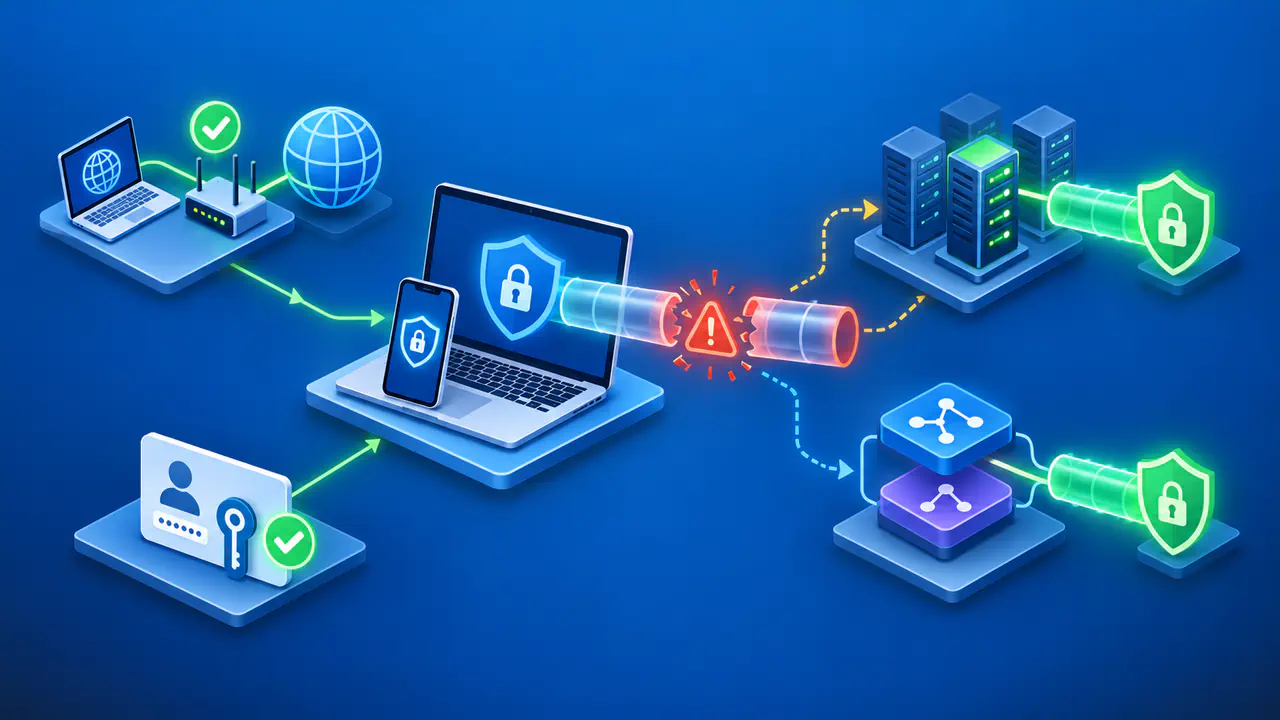
A VPN or another active network connection can affect access to local devices. Check whether your VPN settings allow local network access. If there is no such option, briefly disconnect the VPN only if your organization's rules allow you to do so. Try opening the hotspot's page again. Reconnect the VPN after the check.
USB tethering offers another way to reach the MR1100 from a computer. Connect the hotspot's USB-C port to the computer with a cable that supports data transfer. Once the computer recognizes the connection, open http://attwifimanager in your browser. USB tethering is unavailable during Ethernet data offloading, when the hotspot gets its internet connection through an Ethernet cable. Use WiFi to manage the MR1100 in that configuration.
If the Administrator Password Is Rejected
If the login page rejects your password, retype the current administrator password before considering a reset. Check for accidental spaces, incorrect capitalization, or an old password filled in by a password manager. If you saved several credentials for the hotspot, select the administrator entry rather than a wireless network entry.
If nobody who manages the hotspot knows the administrator password or has a saved copy, a factory reset restores the default login. It also removes customized settings, including the WiFi name and password, so devices may need to reconnect afterward. Reset only when you are prepared to set up the hotspot again and have permission to do so.
For a physical reset, leave the MR1100 powered on with its battery in place, remove the back cover, and locate the recessed RESET button below the battery. Use a paperclip or SIM tool to press and hold the RESET button for 10 seconds. After the hotspot restarts, reconnect using the factory WiFi name and password and complete setup again.