Why Does Google Show the Wrong Location?
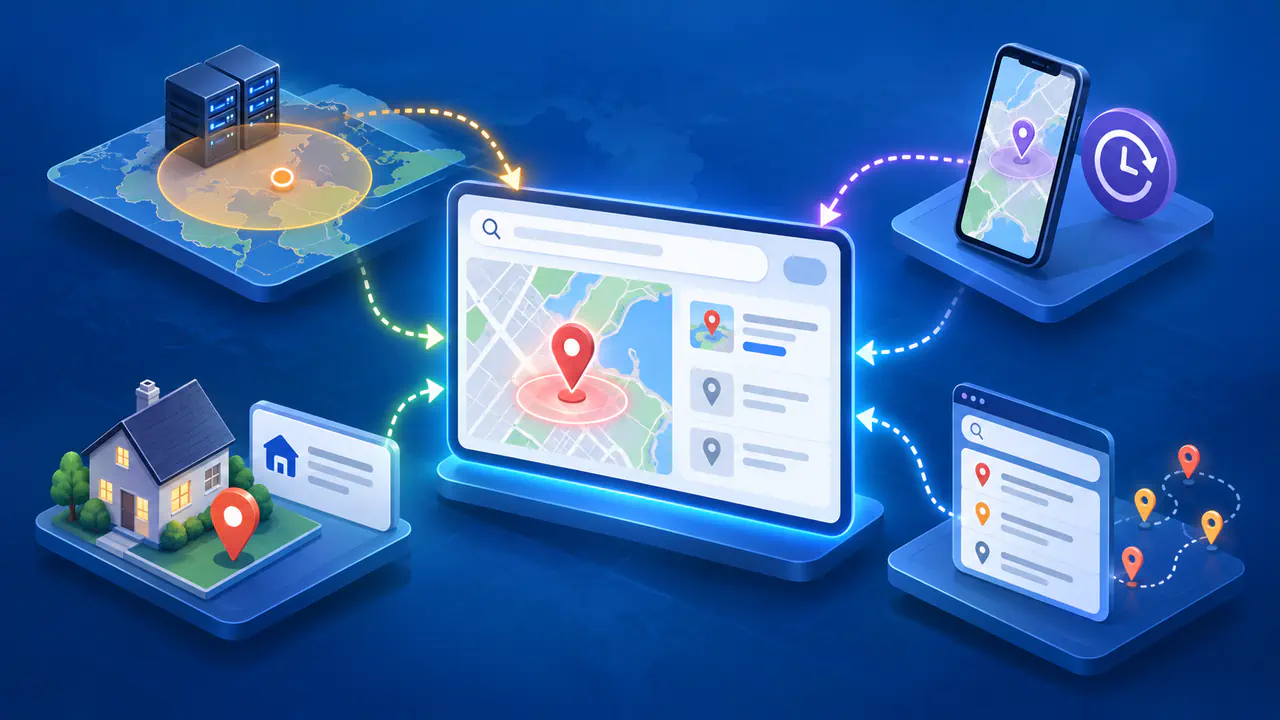
Google Search can show a city or nearby results that do not match where you are because it estimates location from several possible signals. Your internet address, device location, saved home or work address, and previous activity can each influence the result. Check the location explanation at the bottom of a Search results page before changing settings.
The location shown below Google Search results describes the location used for that search. A misplaced business or address pin in Google Maps and a wrong city in a third-party IP database require different correction paths. Search settings are being updated, so the controls available in one account or app may differ from those in another.
Check How Google Estimated Your Location
Run a search that clearly depends on location, such as coffee shops, and scroll to the bottom of the results page. This area identifies the estimated location and explains how it was determined. Read the place name and the accompanying explanation. A city name alone does not tell you whether the estimate came from your connection, device, account, or previous searches.
"From your internet address" points to an estimate based on the connection's IP address. IP location is a rough indication of a general area, so the city can be wrong or broader than your actual position. "From your device" means device location contributed. "Based on your places" refers to a saved home or work address. "Based on your past activity" indicates prior Google activity influenced the result.
Repeat the check in the app or browser where the problem occurs. A signed-in account, another device, or a different connection can produce a different mix of signals.
Separate IP, Device, and Account Signals
If Search says "From your internet address", first note whether you are using your normal network, mobile data, a VPN, or another routed connection. An IP estimate concerns the connection seen by Google and may differ from your physical location. Traffic routed through a VPN can present the VPN server's address instead. A local Wi-Fi address shown in device settings is not necessarily the address Google receives with the search. If the problem appears only on one network, its address or routing may explain the difference.
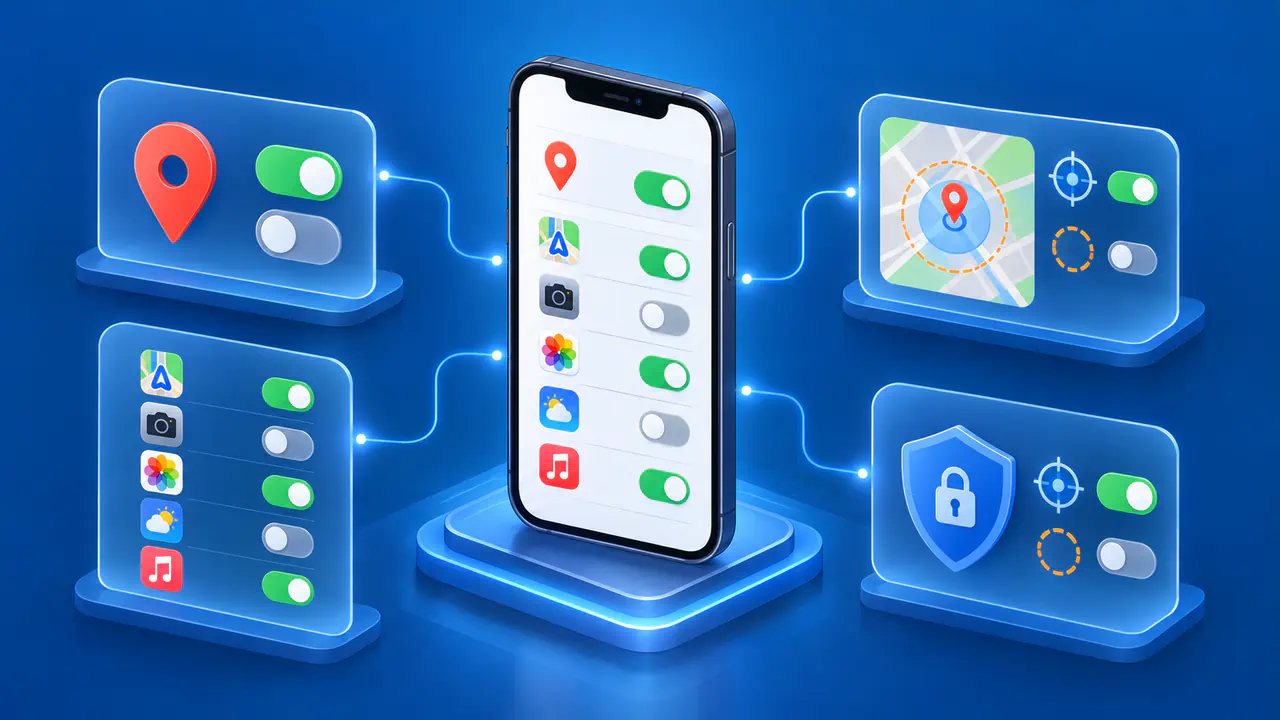
If the footer says "From your device", check both the device's location setting and the permission granted to the browser or Google app. On a computer, open the browser's site permissions for google.com and check whether location is allowed or blocked. In Chrome, these controls are under Settings, Privacy and security, Site settings, then Location. The operating system may also need to allow location access for the browser.
On Android, a search in Chrome depends on the phone's location setting, Chrome's app permission, and the website's permission. In Android Settings, open Location and the app permission controls, then check the browser or Google app you use to search. For a Chrome website permission, open google.com, select the site information icon beside the address bar, and open Permissions to check Location. Granting more precise location is a privacy choice, so enable it only if you want Search to use that information.
A browser can temporarily reuse a device location stored in a cookie while waiting for a fresh location reading. A recently moved device can therefore show an older place without proving the IP database is wrong. Refresh the search after the current device location is available and read the location explanation again. Avoid treating a single stale result as proof of an account-wide setting.
Check Saved Places and Search Settings
When the footer says "Based on your places (Home)" or "Based on your places (Work)", review the home or work address saved in the Google Account. Edit a place that is no longer correct. These addresses can be used when Search estimates that you are at one of those places. A saved place is account information, so merely changing networks may leave that signal intact.
If it says "Based on your past activity", consider whether earlier searches specified another city. An earlier search for services in one city can influence a later search that names only the service. For a signed-in account with the new controls, review Search Services History and Personalized Recommendations in the account's data and privacy settings. Accounts awaiting the change may still use Web & App Activity and Search Personalization, so use the controls actually shown for that account.
When not signed in, Search customization can still use some previous searches on the device. Turning that setting off stops those previous searches from being used to estimate location. Check this control in the same browser or app that shows the wrong place, rather than changing an unrelated network setting.
For an immediate local result, add the intended place to the query, such as a service name followed by the city. A Search region preference can also affect which country's results are emphasized, but it does not change the device's physical position. In the Android Google app, open the profile menu, select Settings and then Search, and find Search region. A language preference concerns the language of results, so it is not a substitute for choosing the intended country or checking a wrong location estimate.
Check the Result After a Change
After changing the relevant setting, repeat the same query in the same app or browser and account. Compare the displayed location and its explanation with the earlier result. If you compare two networks, keep the account and permissions unchanged so that the network is the main difference. A result that changes along with several settings does not establish which change corrected it.
Search may continue to estimate a general area from the connection when current device location is unavailable. A change from "From your device" to "From your internet address" therefore means a different type of location estimate is being used. A broader place name after disabling device access does not by itself mean the permission change failed.
If the location remains wrong, use a feedback option offered on the affected Search result. Where a result has a More menu with Feedback, open it and describe the expected place, the displayed place, and Google's explanation for the estimate. Include the app or browser and the relevant connection type so the report identifies the circumstances of the wrong estimate.