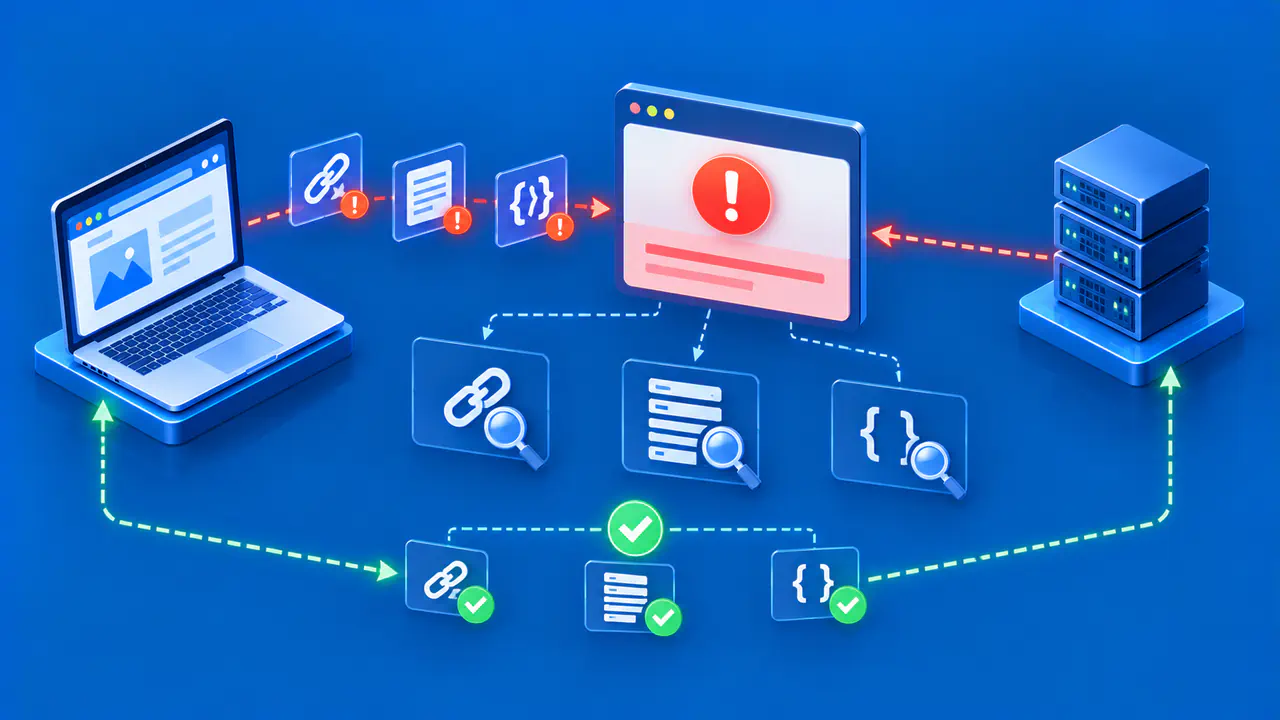
How to Fix a 500 Internal Server Error
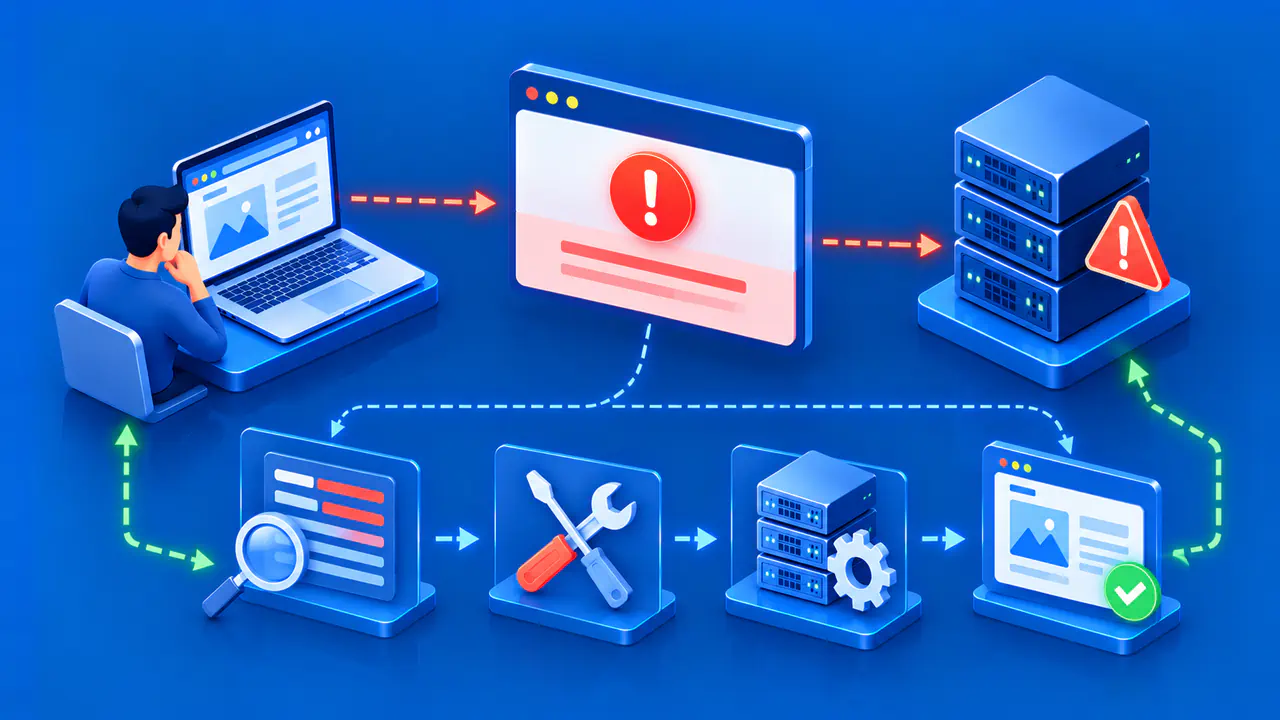
A 500 Internal Server Error means a server could not complete a request because something unexpected went wrong. The code does not identify the faulty component. The fix depends on finding the corresponding error in the server logs and correcting the code, configuration, or service responsible.
A site owner or hosting provider can investigate that failure; a visitor generally cannot repair the underlying application. A 500 can affect one page or action while the rest of a site works. Start by recording exactly what failed and when, rather than changing unrelated browser or server settings.
Record the Request and Time of the Failure
Note the URL, request method, and time with its time zone. If the page displays a request or correlation ID, keep it with your report; this identifier can help the owner match the error to a log entry.
In Chrome, open developer tools and select Network before repeating an action that is safe to repeat, such as opening an information page. Select the request showing 500, then open Headers to check the Request URL, Request Method, and Status Code. A failed image or API request may have a different address from the page shown in the address bar.
If the error followed a payment or form submission, check the account or order record through the site's normal interface before submitting again. Processing may have succeeded before the server failed to produce its response. If the outcome is unclear, contact support with the time, affected action, and request ID. Remove passwords, payment details, tokens, and personal information from any screenshot or copied request you share.
Separate Visitor Checks from Owner Diagnosis
A visitor can confirm that the address is correct and, for a read-only page, try again later. The site's status page may identify an ongoing incident. If only a personal session is affected, signing out and back in through the normal interface can establish a new session, but it will not repair faulty server code. Preserve any unsaved work before signing out.
A site owner should inspect application, web server, and relevant intermediary logs for the failing request. Look for the exception, error category, or upstream failure associated with the same timestamp and ID. If you use managed hosting and cannot access those logs, send the hosting provider the request details and ask for the matching error. Avoid guessing the backend language or software from the 500 status alone.
Compare a failing request with a successful one, keeping the method, URL path, account role, and environment in view. An error limited to a particular path can involve code for that path, a service it calls, or the data it processes. An error across many paths may involve a shared service or configuration. These patterns help narrow the investigation but do not establish the cause.
Match the Error to a Specific Cause
Compare the first failures with deployments, configuration changes, database migrations, and dependency updates. A change made shortly before the failures is a clue, not proof. Read the associated exception or server error before deciding what to undo. For example, an application that expects a new database column may fail if its required migration has not run.
Use the error details to select the next check. A database connection failure calls for checking the configured host, service availability, and application credentials. A missing file or permission error calls for checking the deployed path and the access granted to the service account. A memory or disk error calls for checking resource use at the time of the failure, rather than increasing every limit.
Some errors arise only with particular input. Reproduce those cases in a test environment using data that preserves the relevant condition without exposing private information. A stack trace can identify the sequence of code calls leading to an exception, but its first line may not explain the underlying cause. Keep detailed traces in restricted logs and leave debugging output off public error pages.
Apply a Correction You Can Reverse
Correct the cause supported by the logs. For a confirmed regression in a recent release, consider reverting to the last working version through the normal deployment process. First check whether any database or data changes remain compatible with that version; reverting code alone can introduce another failure. For a configuration mistake, preserve the previous value and change the specific setting involved.
On Apache, for example, an invalid directive in an active .htaccess file can trigger a server error. The error log can identify the directive and whether it is misspelled, unsupported, or disallowed in that location. Correct that entry or restore the known working configuration instead of deleting unrelated rules. Other web servers use different configuration systems, so an Apache fix should not be applied to every 500.
Test the correction before sending ordinary traffic through the affected operation. If a plugin or extension is implicated, isolate that component in the test environment and check a compatible version or fix. Turning off authentication, a firewall, or logging across the whole site can create additional problems without addressing the cause. A service unavailable because of temporary overload or maintenance may appropriately return 503 while it recovers.
Retest the Affected Operation
After the correction, repeat a read-only request to the affected URL and check both its status and expected content. Test a related working page for unintended effects. Match the new request to its log entries so that a different error hidden behind the same public message is not mistaken for the original failure.
For operations that change data, use controlled test records and confirm the intended result occurs only once. Where the application supports an idempotency key, follow its documented retry rules; the key lets the service recognize repeated attempts at the same operation. These rules vary by service, and a new key can be treated as a new operation.
Continue watching the affected route's error rate after deployment, particularly if the original failure depended on specific input or appeared only occasionally. A successful home page check does not validate a previously failing checkout or API operation. If the same error returns, compare the new exception and request details with the original before making another change.