How to Turn Off Data Roaming on an iPhone
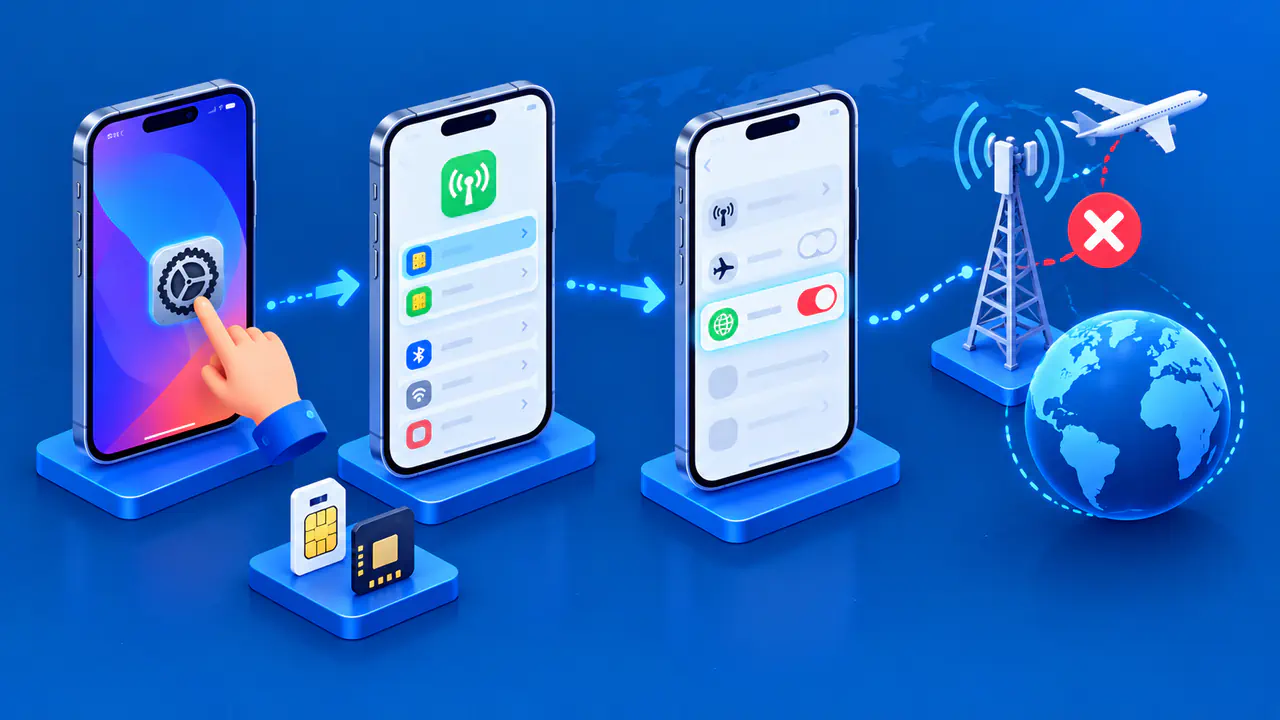
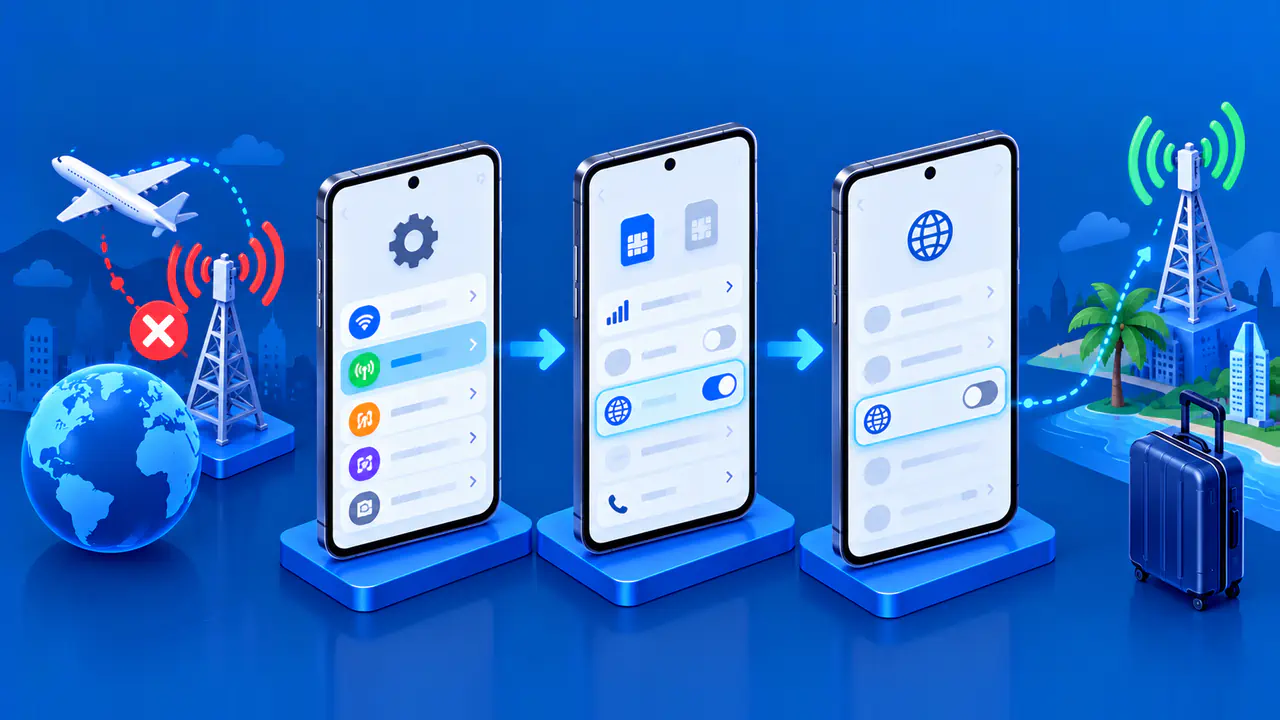
To turn off data roaming on an iPhone, open the cellular settings for the line you want to control and switch Data Roaming off. On a phone with two SIMs or eSIMs, the line selection matters: changing the setting for one line does not automatically change the other. Check both if you are preparing for travel.
Data Roaming controls whether a cellular line can use a partner network for mobile internet outside its carrier's coverage area. It is not the same switch as Cellular Data, which controls cellular internet access more generally.
Find the Correct Cellular Line
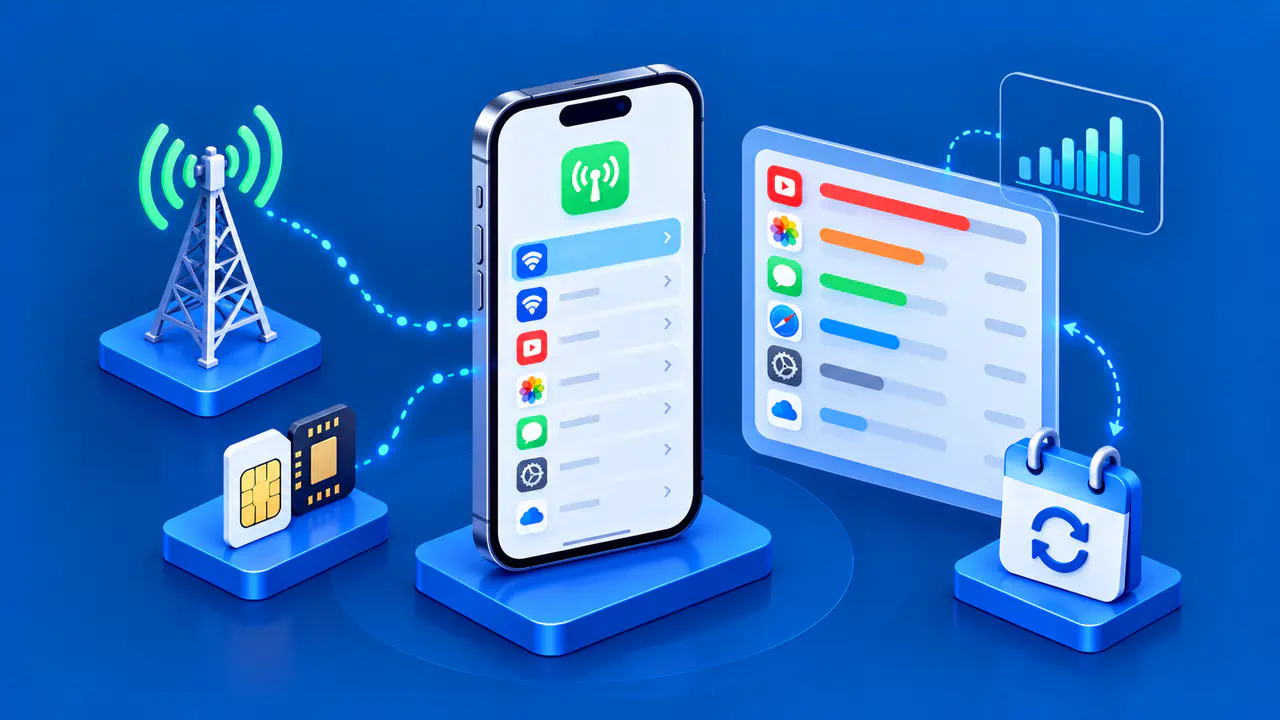
Open Settings > Cellular. Depending on your region and language settings, this menu may be labeled Mobile Data or Cellular Data. If more than one line is installed, look under SIMs and identify the plan whose roaming setting you want to change.
Use the carrier name, phone number, and line label to confirm that you selected the intended plan. For example, a home line and a travel eSIM may both be active. A label such as Primary is just a name for the plan; it does not tell you which line is being used for cellular data.
Turn Off Data Roaming
- In Settings > Cellular, open Cellular Data Options if your iPhone has one SIM or eSIM.
- If your iPhone has multiple lines, tap the intended number or label under SIMs, then open Cellular Data Options. Some configurations show Data Roaming directly on the selected line's screen.
- Set Data Roaming to off.
- Leave that screen, reopen the same line's settings, and confirm that Data Roaming is still off.
- Repeat for any other line whose roaming data use you want to restrict.
Make these changes before leaving your carrier's coverage area when possible. If you are already abroad and unsure which plan is providing internet access, turn off Cellular Data while you check the settings and plan terms. Do not turn Cellular Data back on just to open a web page and test whether roaming is blocked.
Available controls can vary by carrier, model, and region. If the roaming switch is missing, check that you opened the intended line and its data options, then ask the carrier whether that plan offers a separate roaming control. Changing unrelated Voice & Data or network-selection settings will not reliably make a missing Data Roaming switch appear.
Check What Still Works Afterward
With Data Roaming off, an iPhone may still use cellular data on its carrier's own network, subject to the plan and coverage. Wi-Fi can also provide internet access independently of cellular roaming. Seeing web pages load after this change does not prove that the switch failed: the connection may be Wi-Fi, the carrier's own network, or another active data line.
If you want browsing, email, and other internet services to use Wi-Fi only, turn off the separate Cellular Data switch. Those services will not have a cellular internet connection when Wi-Fi is unavailable. This broader setting differs from blocking roaming data for a particular line.
Turning off Data Roaming does not disable cellular voice calls or SMS. A line can remain registered with a mobile network for those services, and their availability and charges depend on the carrier. Do not treat working calls as evidence that the phone is still using roaming data.
Choose the Data Line on a Dual SIM iPhone
Go to Settings > Cellular > Cellular Data and check which line is selected. If you intend to use a travel plan for internet access, select that plan explicitly. Choosing a default number for voice calls does not select the same number for cellular data.
In the same menu, review Allow Cellular Data Switching. This option lets the iPhone use either line for data depending on coverage and availability. Turn it off if you want to keep the selected plan as the data line, and check that plan's roaming setting separately.
Cellular internet may be unavailable during a voice call on the line that is not selected for data if Allow Cellular Data Switching is off. Automatic data switching during a voice call does not work while you are using data roaming. Do not assume your iPhone will automatically switch to a second plan while you are abroad.
Confirm the Carrier's Travel Rules
Some plans include international roaming, while others charge separately for it; domestic travel can also involve roaming on a partner network. The iPhone setting does not show the price or terms of your plan. Ask the carrier which destinations and networks are covered, whether there are data limits, and which charges apply to the lines you will keep active.
Review calls and SMS separately from mobile data. A plan fee or a charge for another service is not necessarily evidence that Data Roaming was left on. Use the carrier's account records and plan terms to identify what the charge covers.
If Mobile Internet Stops Abroad
A travel SIM or eSIM may rely on partner networks and require Data Roaming to be on. Check that specific plan's instructions before changing the switch back; a setting needed for the travel line does not need to be enabled on your home line. If you want to leave roaming off, use an available Wi-Fi connection instead.
If the travel line still cannot connect, confirm that it is enabled, activated, and selected for cellular data. Check how much data is left on the plan and whether it covers your location. If you contact the provider, tell them which plan you are using, where you are, and the exact message your iPhone shows, such as No Service.