How to Check Data Usage on an iPhone
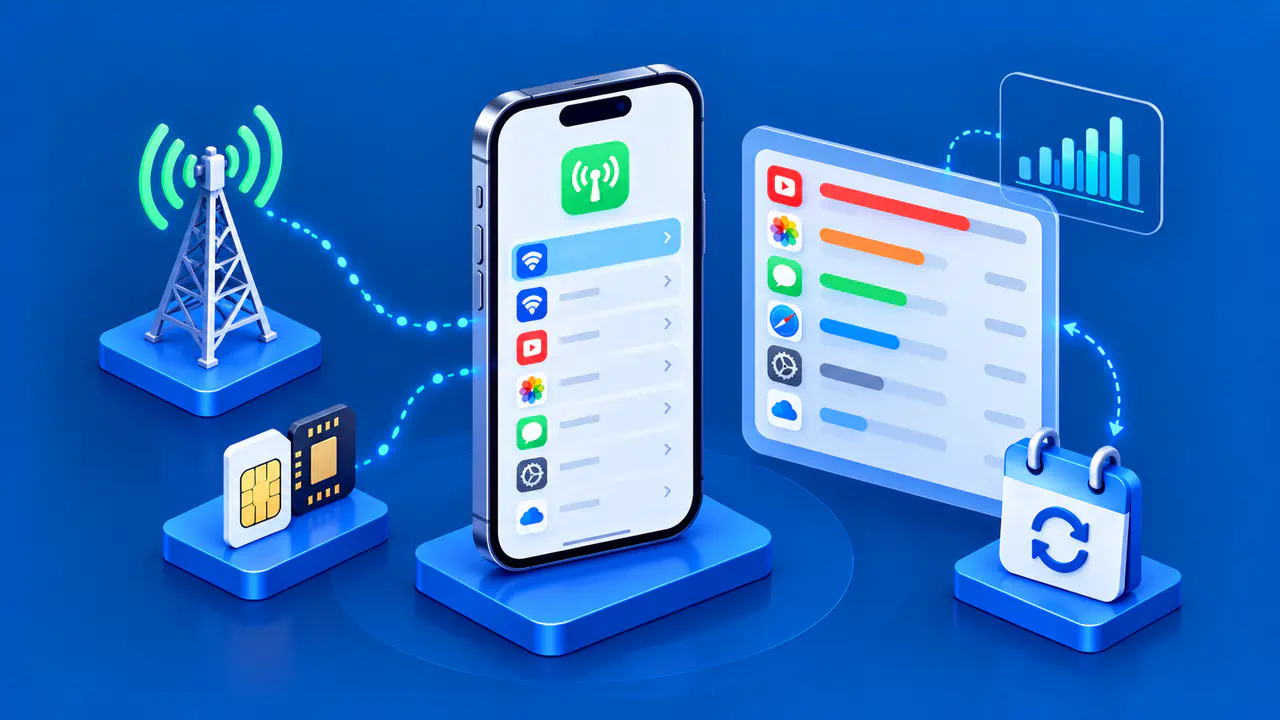
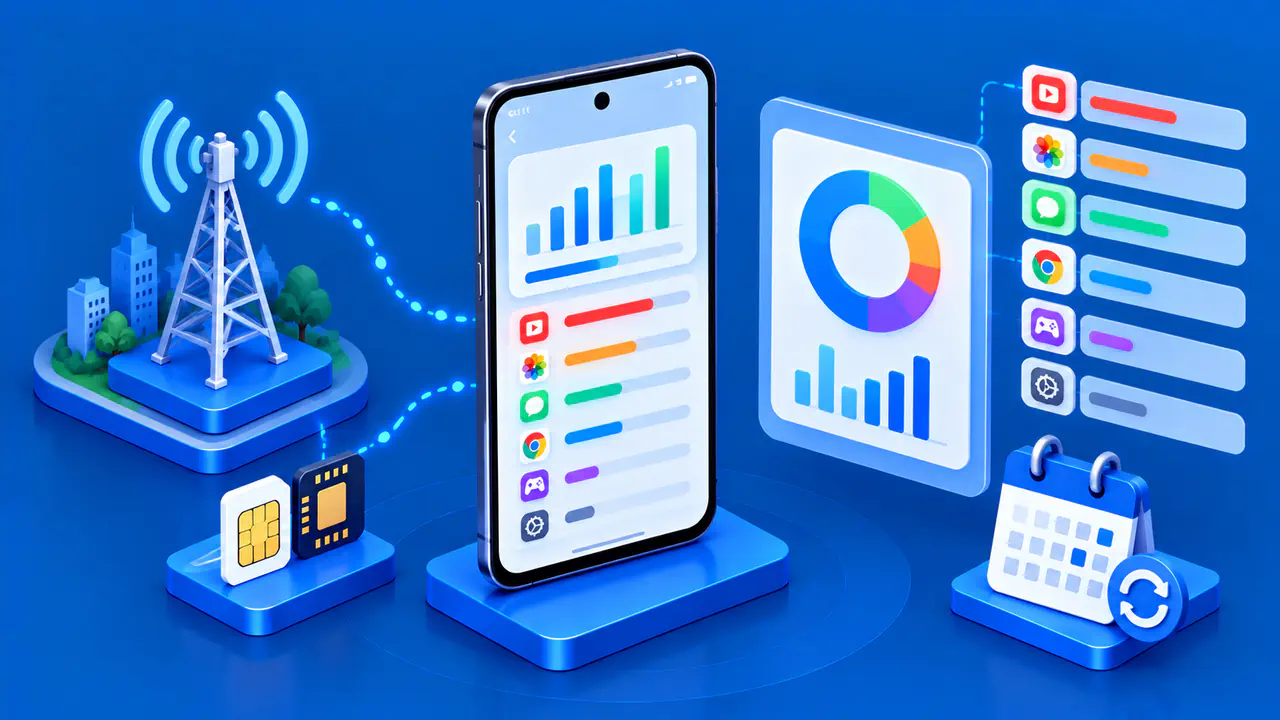
Your iPhone can show how much cellular data its apps and system services have used. Open Settings > Cellular, then scroll to the data usage section to see the total and the amount used by each app. The labels may say Mobile Data or Cellular Data in your region.
Check when the counters were last reset before treating the total as this month's usage. The period shown on your iPhone may not match your carrier's billing cycle. Resetting the counters starts a new count, so save any figures you need before doing so.
Check the Cellular Data Line
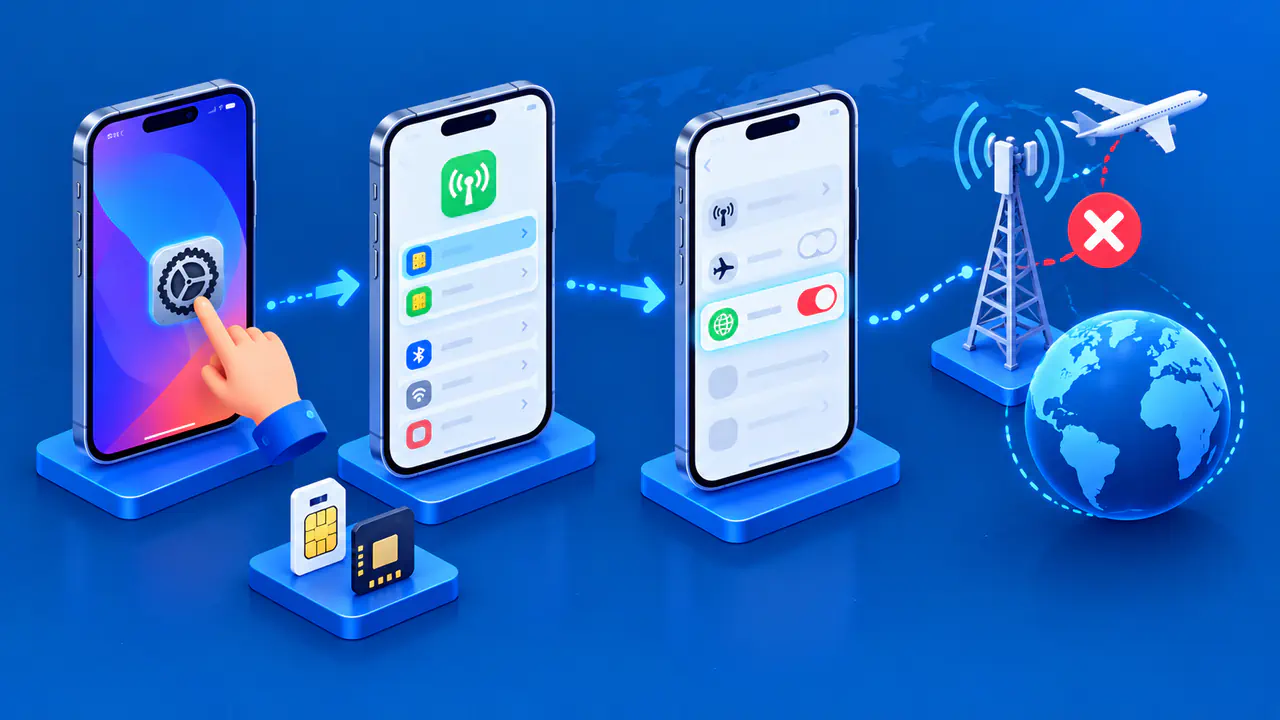
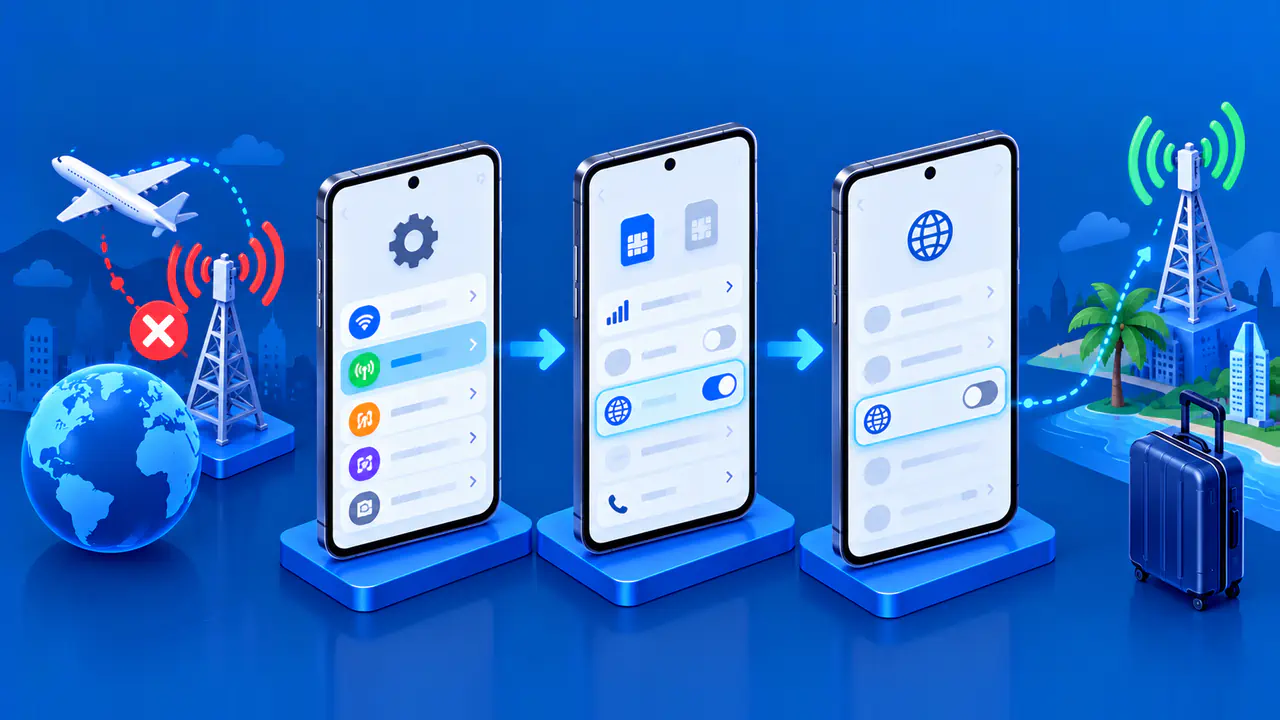
On an iPhone with Dual SIM, the usage shown in Cellular settings applies to the selected cellular data number. If you use a personal line and a travel line, check each plan separately; the figures for one line do not represent both.
To verify the selected line, tap Cellular Data near the top of Cellular settings and note the chosen number or plan label. If Allow Cellular Data Switching is enabled, the phone may use either line depending on coverage and availability. Use your carrier's records when you need the total used on each plan.
Read Usage by App
- Open Settings > Cellular.
- Scroll to the list of apps under the cellular data section. Tap Show All if that control appears and you need to expand the list.
- Read the amount displayed beneath an app's name.
- Compare apps over the same period. A total collected over several weeks does not show how much data an app used today.
The figure beneath an app is its cellular data use recorded by the iPhone for the current statistics period. It is not a measure of the app's Wi-Fi use or its battery use. A video app that mostly ran on home Wi-Fi can have a lower cellular figure than an app you used briefly away from Wi-Fi. A high number may also reflect activity accumulated over a long period if the statistics were not recently reset.
The switches beside apps control their cellular access. You can read the usage figures without touching the switches. Turning off an app's switch makes it use Wi-Fi for data and leaves its recorded usage unchanged.
Look at System Services and Roaming Use
Tap System Services in the cellular section to see data used by the iPhone's system functions. Cellular data cannot be switched off for individual system services on that screen. The cellular screen also provides roaming usage statistics. Check the roaming figures when reviewing a trip, and use System Services to investigate data that is not shown under an app in the main list.
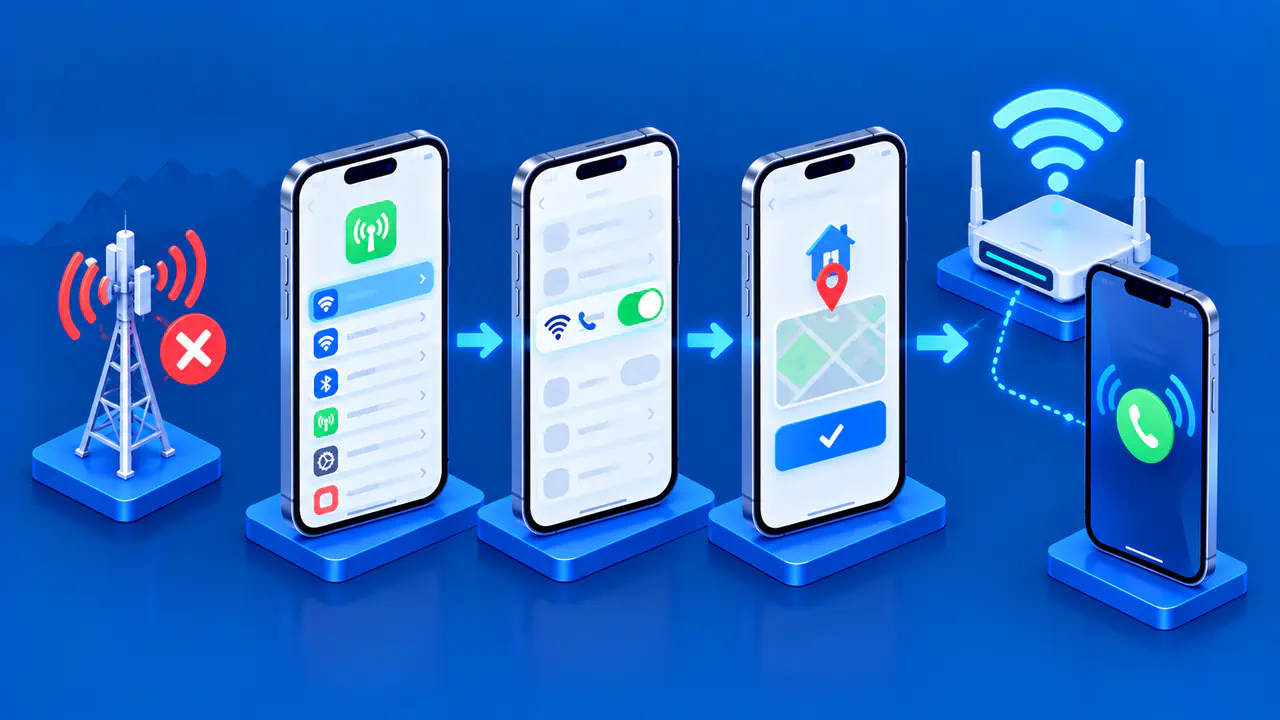
Connectivity Assist can use cellular data alongside Wi-Fi when the Wi-Fi connection is unreliable. On iOS 27, open Settings > Wi-Fi to find Connectivity Assist and its cellular data counter. That screen also has a Reset Data Usage control for starting a new count. Check the counter before resetting it if you are investigating unexpected cellular use while connected to Wi-Fi.
Understand the Current Period
Find Current Period in Settings > Cellular, then scroll down to check Last Reset near Reset Statistics. Use Last Reset to check when the counters were last cleared. If that date precedes the start of your current billing cycle, the total can include earlier usage; if it falls after the start, the counter covers only part of the cycle.
For a meaningful comparison, note the date when the device statistics began, the dates of your carrier's billing period, and which SIM supplied data. A 12 GB device counter cannot be fairly compared with a 30-day carrier bill if the two windows differ. The carrier's account page or bill is the right place to confirm billable usage and any plan allowance.
Reset the Counters for a New Period
To start fresh, open Settings > Cellular, scroll to the bottom, and tap Reset Statistics. Confirm the action only after recording any figures you may need. Resetting clears the local usage statistics you were inspecting; it does not erase data already used with the carrier or change the provider's bill.
To track usage over a new period, note the reset date and check the same line and counters again later. You can reset the counters on your plan's renewal date, but this does not change your carrier's billing dates. Before clearing a high total, check how long the phone has been counting.
Compare Your Usage with the Carrier's Records
Use your carrier's records to confirm the data usage applied to your plan. Carrier records may cover different dates, include more than one line, or count data differently from the iPhone. The account portal or bill can also show charges and allowances that the phone's per-app figures do not provide.
If the numbers differ, make sure you are comparing the same dates and data line, then check whether you reset the iPhone's counters during that period. If you contact your carrier about the difference, a screenshot of the iPhone's totals can help you explain it. Hide any account numbers or other personal details before sharing the screenshot.