How to Share a Wi-Fi Password from an iPhone

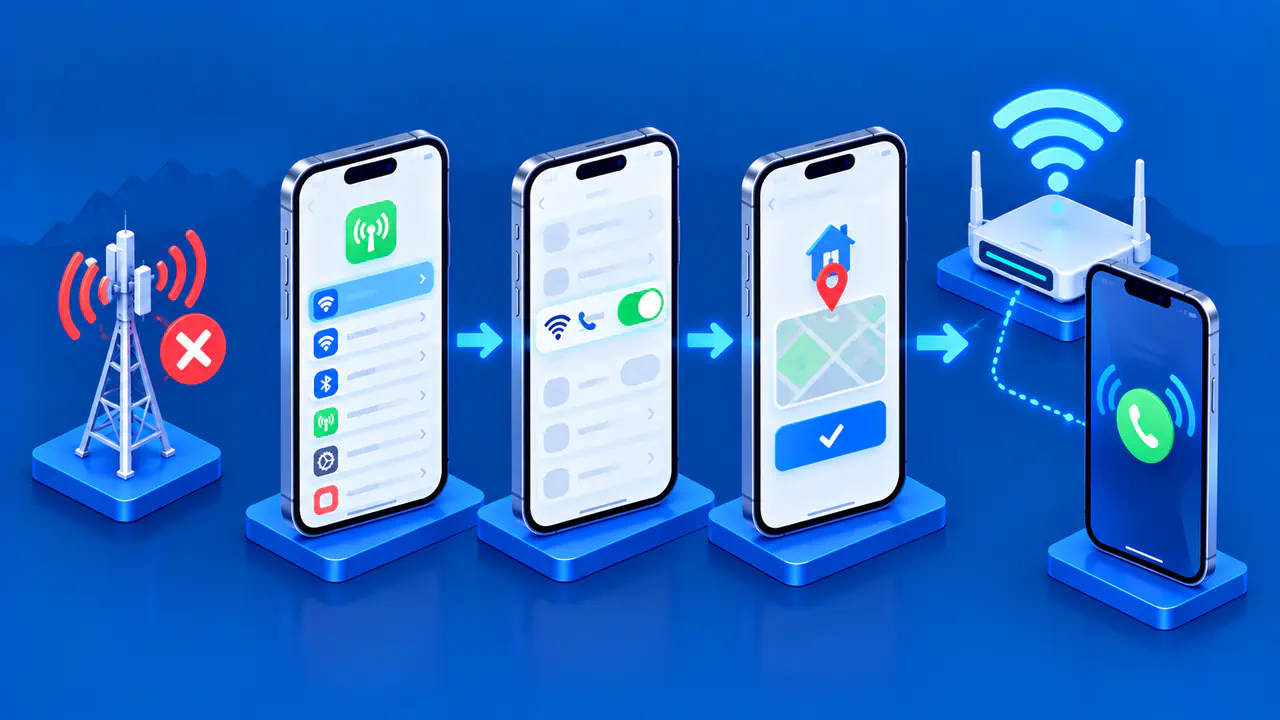
An unlocked iPhone can send the password of its current Wi-Fi network to a nearby eligible iPhone, iPad, or Mac. The other person selects the network on their device; your iPhone then offers a Share Password prompt. You do not have to read the password aloud or type it on their screen.
The receiving device joins the wireless network directly. Your iPhone does not supply its cellular connection as it would through Personal Hotspot, and the transfer does not include your other saved Wi-Fi networks.
Prepare Your iPhone
First, connect your iPhone to the Wi-Fi network you want the other device to join. Open Settings > Wi-Fi and check the network name beside the checkmark.
Make sure you are signed in to your Apple Account and that Wi-Fi and Bluetooth are on. You can check Bluetooth in Settings > Bluetooth. Turn off Personal Hotspot if it is enabled on either device, and install the latest software available for each device before retrying a persistent problem.
Prepare the Receiving Apple Device
The recipient should use an iPhone, iPad, or Mac with Wi-Fi and Bluetooth enabled and be signed in to their own Apple Account. Place the devices close together; do not rely on one being elsewhere in the building. On an iPhone or iPad, open Settings > Wi-Fi to find the network. On a Mac, open System Settings > Wi-Fi.
Check Contacts on both devices. Each person needs the other person's Apple Account email address or phone number saved in a contact card. A display name alone does not supply the account information needed to recognize the request.
To check your own account details on an iPhone or iPad, open Settings, tap your name, then tap Sign-In & Security. On a Mac, open System Settings, click your name, then click Sign-In & Security. Compare the listed email addresses or phone numbers with the details the other person has saved for you.
On an iPhone, open the person's card in Contacts and tap Edit to correct a missing or outdated detail, then save the change. Confirm that the recipient has also saved your account information on their device. There is no need to exchange Apple Account passwords or verification codes.
If there are multiple similar network names, match them exactly. Sharing the main network while the recipient selects the guest network will not complete the intended connection. An extender or neighboring network can look similar, so compare the recipient's selection with the network marked with a checkmark on your phone.
Share the Password
- Leave the sharing iPhone unlocked and connected to the intended Wi-Fi network.
- On the recipient's iPhone, iPad, or Mac, select that network in Wi-Fi settings.
- Wait for the Wi-Fi Password notification on your iPhone.
- Tap Share Password, then tap Done when the transfer finishes.
- Ask the recipient to confirm that their device joined the expected network.
On an iPhone or iPad, a checkmark beside the network name confirms the connection. On a Mac, check the connected network in Wi-Fi settings. A password entry field still waiting for input means the recipient has not yet completed the connection through sharing.
If the Prompt Does Not Appear
If the recipient cannot see the network in Wi-Fi settings, move closer to the router and confirm that the network is available. The devices need to be within range of the wireless network as well as near each other; bringing two phones together does not extend the router's coverage.
If the network is visible, check which device is waiting for input. The password entry field on the recipient's device is separate from the approval notification on yours. Keep your iPhone awake during the exchange; if it has locked, unlock it before asking the recipient to select the network again.
Check your Wi-Fi connection in Settings rather than relying on the Control Center button. Tapping the Wi-Fi button in Control Center can disconnect your iPhone from its current network while leaving Wi-Fi available for some other features. Reconnect to the intended network in Settings before another sharing attempt.
Recheck any changed account or contact details and make sure the devices are still close together. If both devices are set up as described above but no sharing notification appears, restart them and have the recipient select the network again. Try sharing after each change so you can tell which step solved the problem.
If the prompt remains unavailable, ask the network owner for the current Wi-Fi password and let the recipient enter it manually. For a work or school network that uses individual credentials or a configuration profile, obtain the approved connection instructions instead of assuming there is one shared password. Failure of the sharing prompt alone does not show that a network password is wrong.
Decide Who Can Join the Network
Approve the prompt only for a person you intend to give network access. If you manage the network and no longer want a shared password to work, change the password in the network's settings and enter the new one on devices that should still have access. Closing the sharing prompt does not remove a device that has already joined the network.