How to Fix SOS or No Service on an iPhone
SOS, No Service, and Searching mean your iPhone is not using its normal cellular connection. No Service and Searching indicate that the phone is not connected to a cellular network. In Australia, Canada, and the United States, SOS or SOS only means emergency calling remains possible through another carrier's network, even though normal service on your own carrier is unavailable.
Start with coverage and the affected line, then try a simple reconnection. If the problem persists, check the SIM or eSIM, carrier account, iOS, and carrier settings.
Check Where and When Service Disappeared
Move to a place where your carrier normally has coverage, such as outdoors or away from a basement or thick walls. Ask whether other customers of the same carrier nearby have service. If the problem started suddenly in one area, the carrier may have an outage; if it follows your phone across several places, a line or device issue becomes more plausible. These observations help you explain the problem when contacting support.
If you have just traveled abroad, verify that your plan permits service there. You may need to activate a travel plan or enable Data Roaming to use cellular data on a partner network, and charges can apply. Do not enable Data Roaming on the wrong line or assume it is free. Check the travel plan's instructions and the carrier's coverage and pricing details first.
Reconnect with Airplane Mode and a Restart
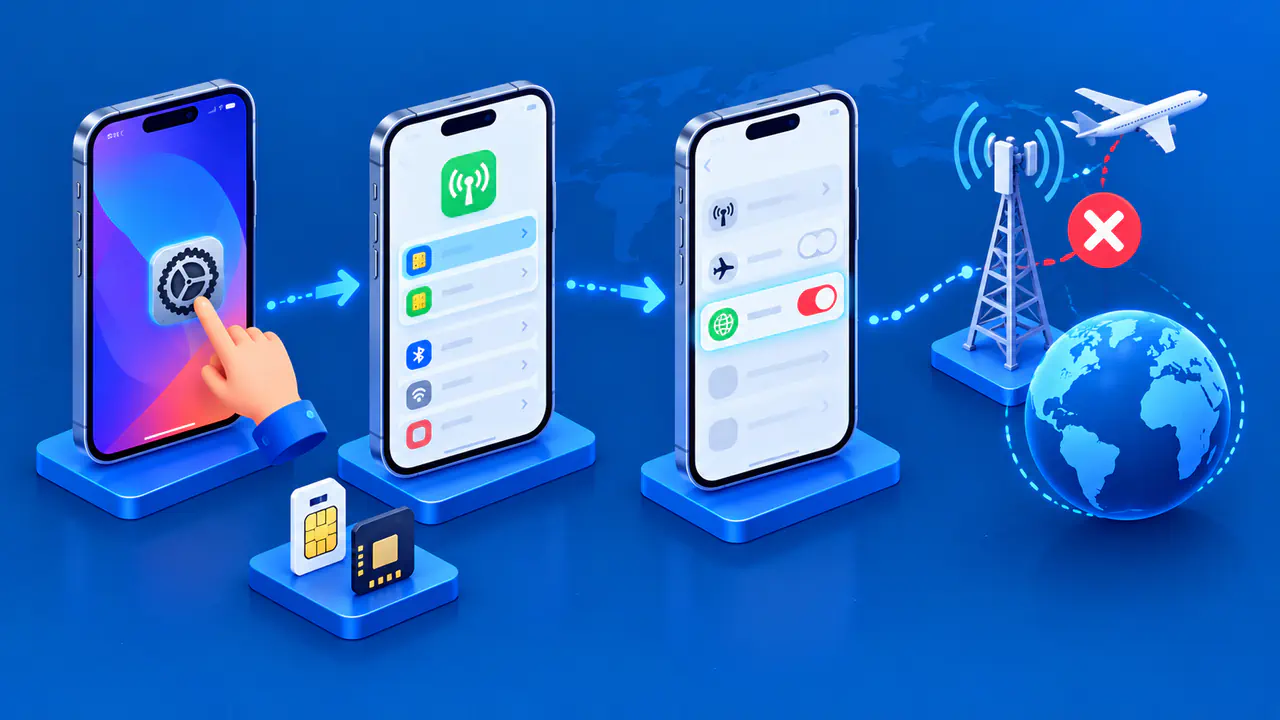
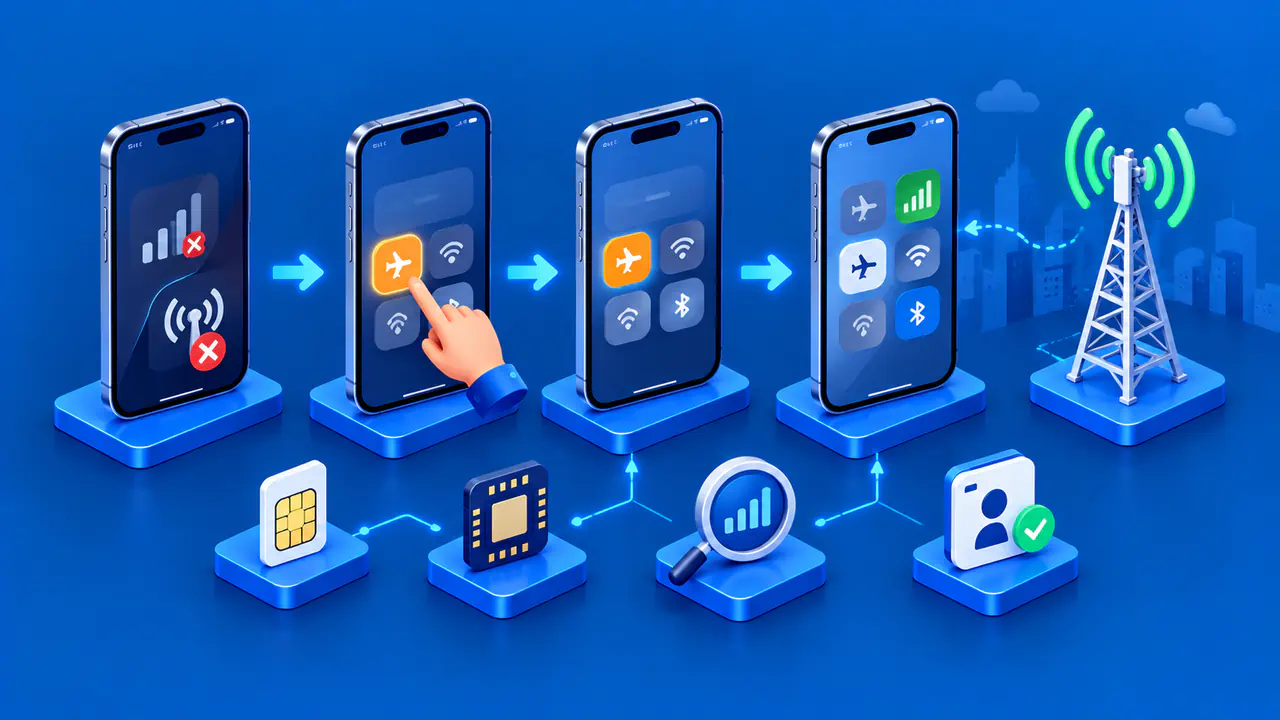
- Open Settings and turn on Airplane Mode.
- Leave it on for at least 15 seconds.
- Turn Airplane Mode off and wait while the iPhone searches for service.
- If the status does not change, restart the iPhone and check again.
On an iPhone with Face ID, hold either volume button and the side button until the power-off slider appears. On an iPhone 6, 7, 8, or a second- or third-generation iPhone SE, hold the side button alone; on an earlier model, use the top button. Drag the slider, wait about 30 seconds for shutdown, then hold the side or top button until the Apple logo appears.
Turning Airplane Mode off lets the phone attempt a new cellular connection, but it cannot provide missing coverage or reactivate a suspended account. If service returns briefly and then disappears, note the location and timing. Repeatedly turning Airplane Mode on and off is unlikely to solve an ongoing outage or plan restriction. Move on to the line and carrier checks instead.
Check the SIM or eSIM Line
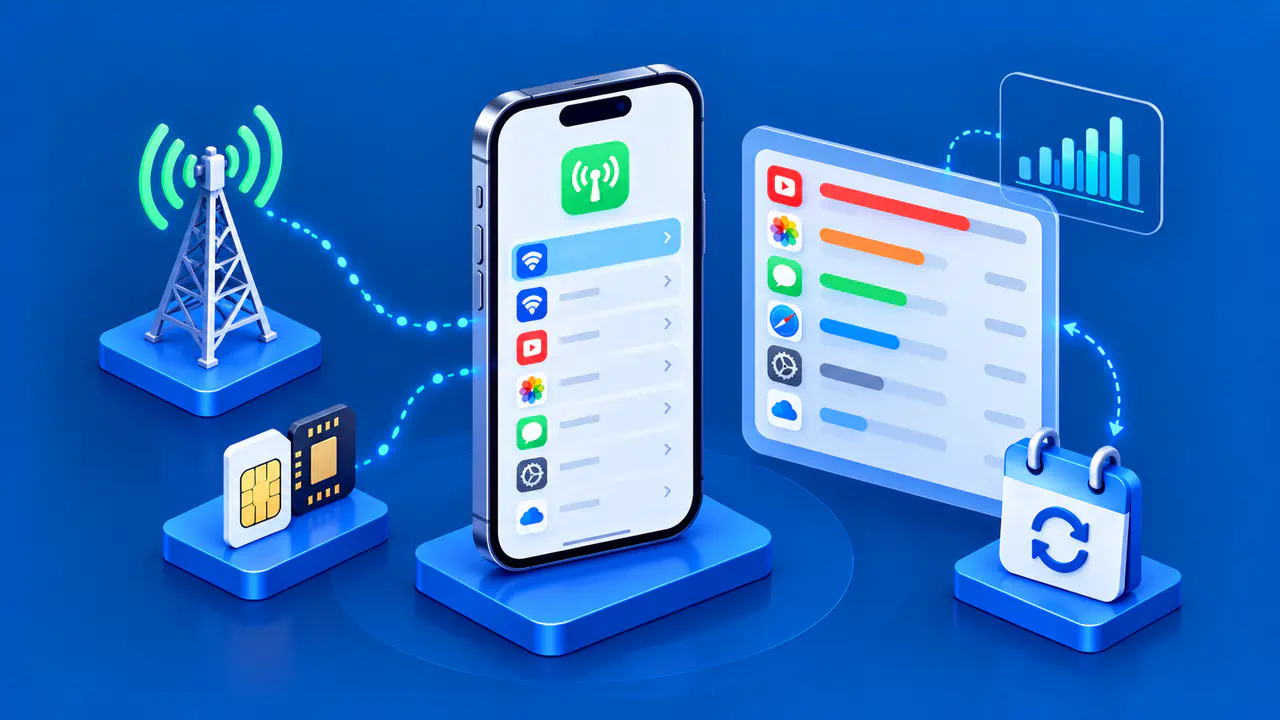
Open Settings > Cellular, which may be labeled Mobile Data in your region. On a Dual SIM iPhone, tap the affected number or plan label and confirm Turn On This Line is enabled. A disabled line cannot provide its normal service. Check each line separately; one may work while the other shows no service. Also confirm that the line you expect to use for cellular data is selected under Cellular Data.
If the expected line does not appear, contact the carrier about eSIM setup or the physical SIM. For a physical SIM that is present but not detected, remove and reinsert it carefully, checking that the tray closes fully. If the card is damaged, does not fit correctly, or was transferred from another device, ask the carrier whether a replacement is needed. Do not order or swap a SIM solely because the status says SOS; first check coverage and ask the carrier to confirm that the SIM or eSIM is correctly activated.
Update iOS and Carrier Settings
Back up the iPhone to iCloud or a computer before updating iOS. Connect to Wi-Fi and power, then open Settings > General > Software Update and follow the on-screen instructions for an available update. An update may address a software issue, but it does not replace checking coverage or whether the line is active.
To check carrier settings, connect to Wi-Fi, then open Settings > General > About. If an update is available, the iPhone offers an option to install it. A new SIM or eSIM may need a carrier settings update. The absence of an update prompt does not confirm that the carrier has activated your account or configured the line correctly.
Check with Your Carrier
Contact your carrier if the iPhone still has no cellular service. Ask whether the account is active and in good standing, whether coverage or an outage affects your area, and whether the device is blocked from using the network. Have the carrier check that the correct plan is assigned and the SIM or eSIM is activated. In some countries, an imported iPhone may require local IMEI registration; the carrier can tell you whether that applies.
Give the carrier the affected phone number or line label, approximate locations and times, the exact status message, and what changed after the reconnection steps. Avoid posting account identifiers or the phone's IMEI publicly. If the carrier confirms your account and the network are working normally, ask what to check on the iPhone next.
Check Older iPhones after a 3G Shutdown
If an older iPhone lost service after a carrier retired its 3G network, ask the carrier whether that model can still make calls on the replacement network. Some phones that used 3G for voice calls cannot make calls on the replacement network, even if they supported LTE data. Restarting cannot restore a retired network.
For an iPhone 5s, 5c, or earlier, discuss supported device options with the carrier. On an iPhone 6 or later, install the latest iOS version available for that model and check that LTE is enabled in Cellular Data Options where that control is available. If service still fails, ask the carrier to check the model's compatibility rather than assuming every phone with LTE support will work.
Get Help If Service Still Does Not Return
On an iPhone running iOS 18 or later, the latest Apple Support app can run additional cellular diagnostics. Connect to Wi-Fi, open the app, choose Cellular service, and tap Run Diagnostics, then follow the prompts. If the carrier has ruled out coverage, account, and line activation problems and a hardware issue is suspected, contact Apple or an authorized service provider to have the iPhone checked. The status message alone does not prove that a component needs repair.
If you urgently need help, do not treat SOS as a guarantee that an emergency call will complete in every place. Use the local emergency number and another available phone or connection if necessary.