How to Turn On Wi-Fi Calling on an iPhone
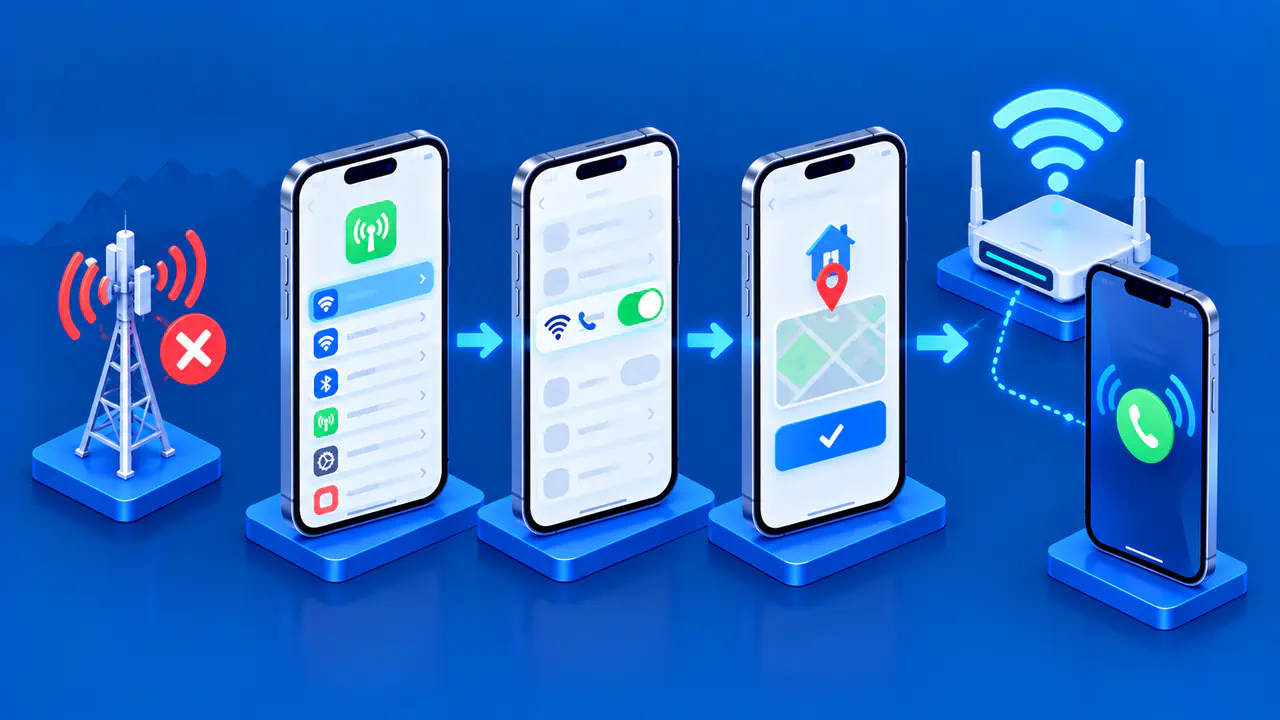
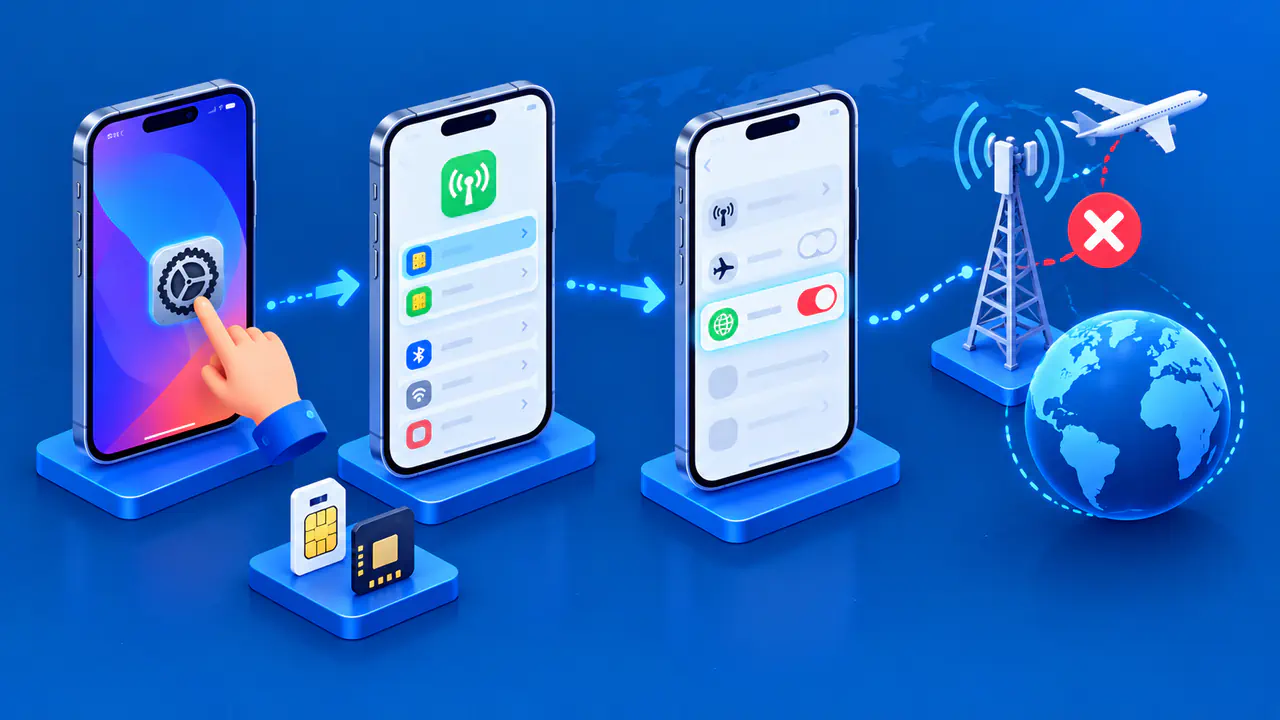
Wi-Fi Calling can let a supported iPhone make and receive ordinary phone calls over a Wi-Fi connection when cellular coverage is weak. To enable it, open Settings > Cellular, choose the correct line if you have multiple SIMs, and tap Wi-Fi Calling. Turn on Wi-Fi Calling on This iPhone and complete any emergency address prompt from your carrier.
The feature depends on the carrier, the line, the country or region, and a usable Wi-Fi connection. Seeing the switch or turning it on does not confirm that a call is using Wi-Fi. Check the Wi-Fi label beside the carrier name in Control Center before relying on the feature.
Check Carrier Support and Connect to Wi-Fi
Join a Wi-Fi network with working internet access. To check that a web page can load through Wi-Fi alone, temporarily turn off Cellular Data in Settings > Cellular, open the page, and then restore your previous data setting. Otherwise, the iPhone may use cellular data even while connected to Wi-Fi.
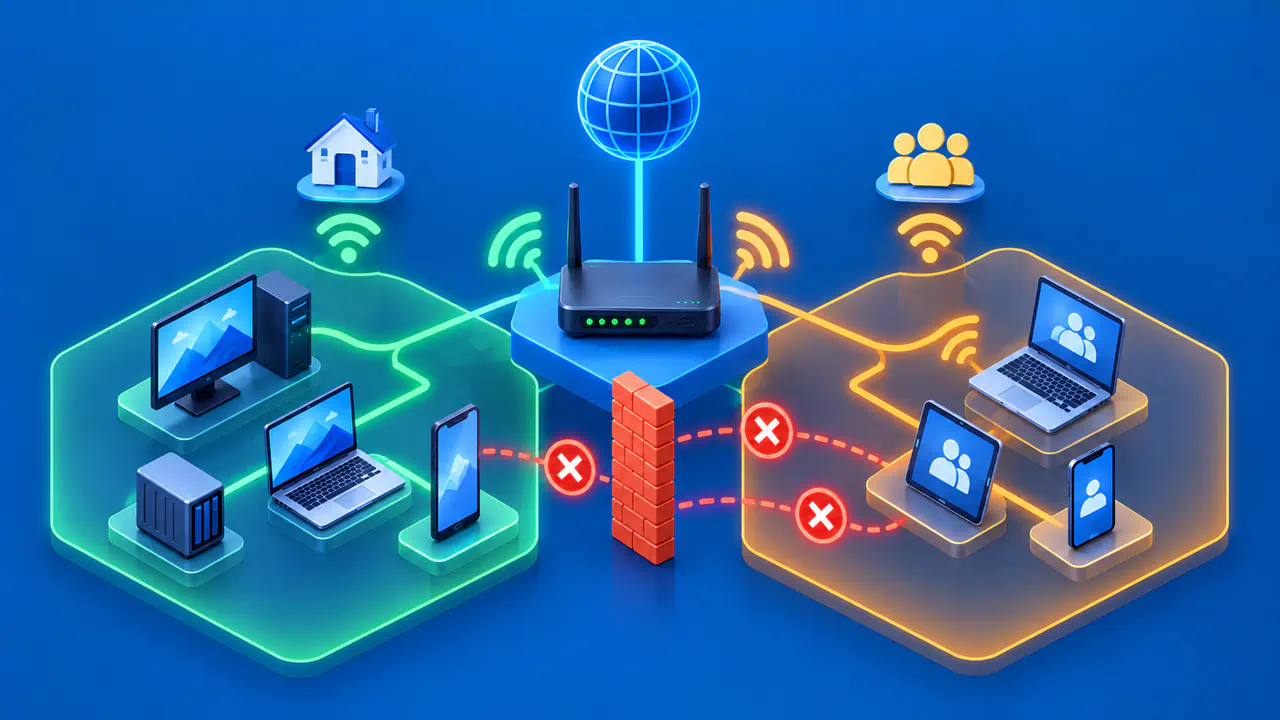
A successful browsing check does not prove that the network supports Wi-Fi Calling. Some networks block the feature, and others require you to complete a web sign-in before you can use their internet connection.
Confirm with your mobile carrier that Wi-Fi Calling is available for your plan and location. The feature is not offered by every carrier or in every country or region. Keep iOS current, especially if activation or use fails. Your carrier must activate the line before you can use Wi-Fi Calling.
Initial setup can also require a cellular connection even though later calls use Wi-Fi. For example, a Verizon iPhone must connect to the Verizon network in the US to activate Wi-Fi Calling. Check your carrier's activation requirements before traveling or entering an area without cellular coverage.
Choose the Right SIM or eSIM
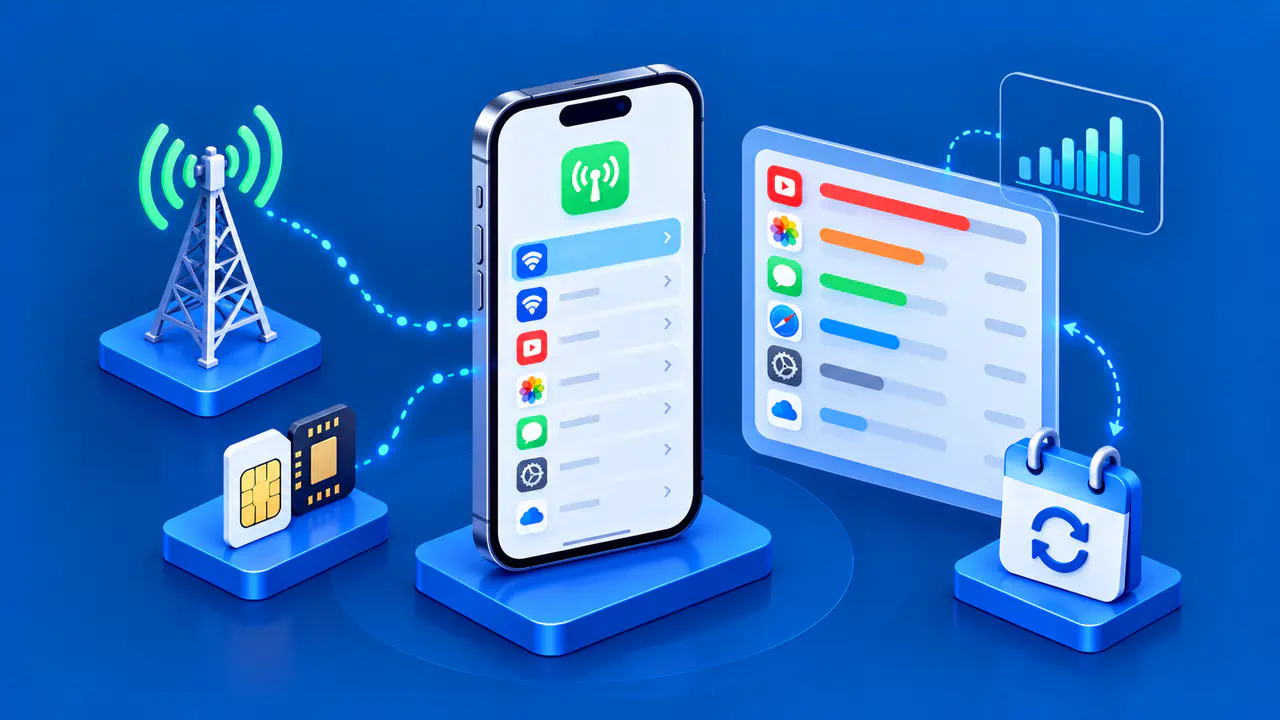
Open Settings > Cellular. On a single-line iPhone, the Wi-Fi Calling option may be on that screen. On a Dual SIM iPhone, tap the phone number or plan label under SIMs for the line on which you want the feature. A home number and a travel eSIM can have different carrier support and billing rules. Make sure you are changing the intended voice line, not just the line selected for mobile data.
Check the line label and carrier name before proceeding. Make sure the line is turned on, and contact your carrier if the line is missing. Wi-Fi Calling may work on one line and be unavailable on the other.
Turn On Wi-Fi Calling
- In the selected line's Cellular settings, tap Wi-Fi Calling.
- Turn on Wi-Fi Calling on This iPhone, which may be labeled Wi-Fi Calling on This Phone.
- Tap Enable if the confirmation appears.
- Follow any carrier instructions shown on the screen, including entering or confirming an emergency service address if required.
- Return to the setting and check that the switch remains on.
Enter an accurate address through the carrier's setup screen. Some carriers may use the registered address to help locate emergency calls. If you move or use Wi-Fi Calling at a different location, check your carrier's process for updating that address.
Verify That Calls Are Using Wi-Fi
Open Control Center while connected to Wi-Fi. On an iPhone with Face ID, swipe down from the top-right corner of the screen; on an iPhone with a Home button, swipe up from the bottom edge. Look for Wi-Fi after the carrier name in the status bar. That label indicates that Wi-Fi Calling is available and calls on that line will use it.
To test the feature, use the Phone app to call someone who has agreed to help. Do not place an emergency call as a test. Confirm that the selected line is the one you intend to use and that both sides can hear each other. A successful call without the Wi-Fi label is not proof of Wi-Fi Calling, because the iPhone may have used cellular service.
Emergency Calls and Alerts
An iPhone uses cellular service for emergency calls when that service is available. If cellular service is unavailable and Wi-Fi Calling is enabled, an emergency call may use Wi-Fi. Device location may be used to aid responders even if Location Services is off, and some carriers rely on the address registered for Wi-Fi Calling. Tell the emergency operator your current location.
Your iPhone may not receive emergency alerts while connected to Wi-Fi Calling. The ability to place a call and the ability to receive an alert are separate, so a successful ordinary call does not confirm that alerts will arrive. Review your carrier's emergency calling instructions for your location.
Call Charges and Travel
Charges for international calls, roaming, or other use depend on the carrier's terms. Ask the provider how it bills calls made over Wi-Fi, especially when traveling or calling another country. The Wi-Fi label shows the connection method, not a price.
If Activation or a Test Call Fails
First check that your carrier supports Wi-Fi Calling, your iPhone has the latest iOS version available for it, and you have selected the right line. Also check that the Wi-Fi network has internet access. If activation still fails, contact the carrier to check whether Wi-Fi Calling is enabled for that number and whether an emergency address is required. Note the exact error message and your iOS version so you can give them to support.
After the carrier confirms support, check that Wi-Fi Calling remains on, restart the iPhone, and then try a different Wi-Fi network. If necessary, turn Wi-Fi Calling off and back on. Allow two minutes after each troubleshooting action before moving to the next one so the phone has time to reconnect.
A network settings reset is a later troubleshooting option, since it removes saved network settings and can require you to rejoin Wi-Fi. Try the earlier checks before considering a reset, and follow the carrier's guidance if activation still fails. A weak cellular signal alone does not explain why a Wi-Fi call failed.