How to Find Your Wi-Fi Password on an iPhone

You can view the password for a Wi-Fi network your iPhone has saved, provided you can complete the device's authentication check. Open the network's saved details in Settings or the Passwords app, then tap Password to reveal it. The available route depends on your iOS version.
Start by identifying the exact network name. A home setup may include a main network, a guest network, and a similarly named extender network, each with a different password. These controls display the password stored for one selected network; they cannot recover a password your iPhone does not have.
Check Your iOS Version and Unlock the iPhone
Open Settings > General > About if you are unsure which iOS version the phone uses. On iOS 18 or later, the Passwords app provides a direct list of saved Wi-Fi networks. On iOS 16 or later, the Wi-Fi settings screen can reveal a saved network password.
Follow the authentication prompt, which may offer Face ID, Touch ID, or the iPhone passcode. This check protects credentials stored on the device; it does not ask for the Wi-Fi password before showing it. If the phone belongs to someone else, ask its owner to perform these steps rather than requesting their unlock code.
With Stolen Device Protection, you may need Face ID or Touch ID to view saved passwords, with no option to use the passcode instead. Depending on your settings, this requirement applies away from familiar locations or everywhere.
Find the Password for the Current Network in Settings
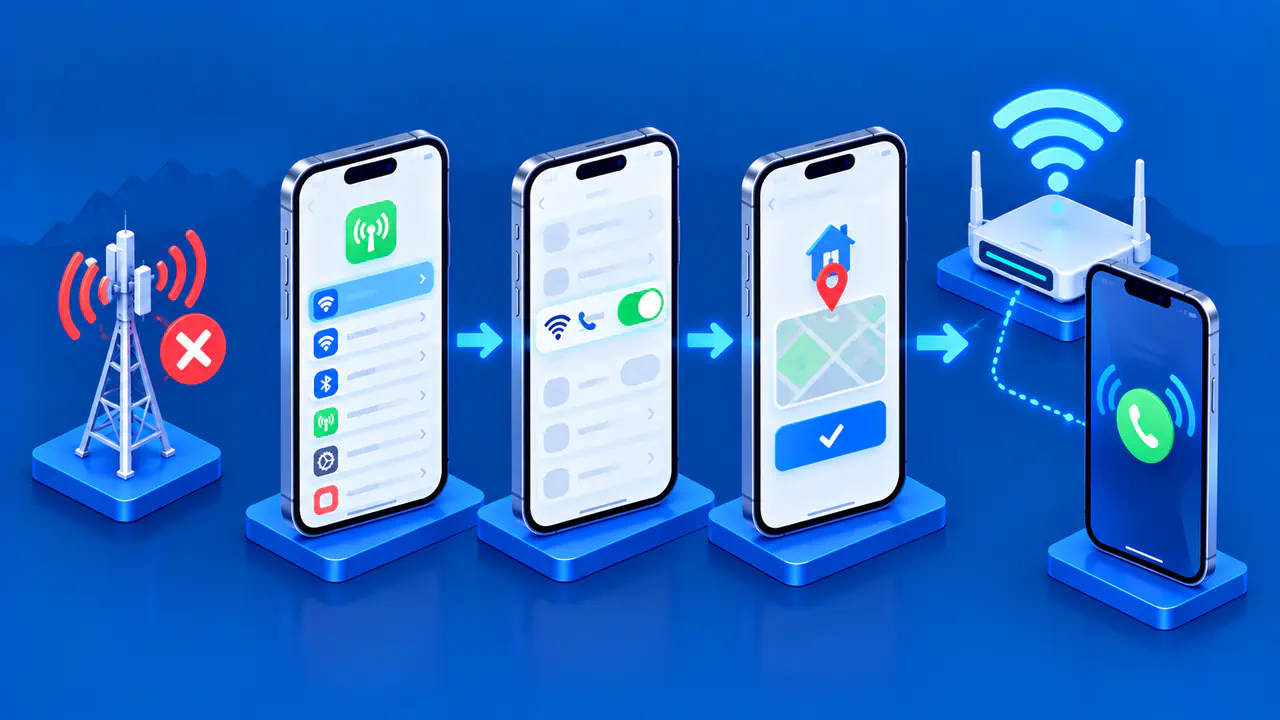
- Open Settings and tap Wi-Fi.
- Confirm the network name beside the checkmark. Tap the information button beside that network.
- Tap the Password field and complete the authentication prompt.
- Read the revealed password or tap Copy to place it on the iPhone's clipboard.
If no network has a checkmark, use the saved network list described below. There is no need to join a network again just to read a password already stored on the phone. Tapping the information button opens the network's details; tapping a nearby network's name can instead start a connection attempt.
Find a Previously Joined Network in Settings
- Open Settings > Wi-Fi and tap Edit.
- Authenticate when prompted to open the list of known networks.
- Find the intended network and tap its information button.
- Tap Password to view the saved password, then copy it if needed.
The Edit list differs from the scan of nearby networks on the main Wi-Fi screen. It can include networks from places you visited earlier, even when those networks are out of range. Seeing a network in the nearby list does not mean your iPhone has its password saved.
Use the Passwords App on iOS 18 or Later
- Open the Passwords app and authenticate.
- Tap Wi-Fi.
- Choose the current or saved network by its exact name.
- Tap the Password field to reveal it, then use Copy Password if needed.
When the iPhone is connected to Wi-Fi, the current network appears at the top of this list. Other saved networks are also available here. Use the Wi-Fi category rather than a website or app account that happens to have a similar name.
If Passwords is not on the Home Screen, look for it in the App Library or use iPhone Search. You can also use the Settings route instead. Not seeing the app's icon does not by itself mean the saved network entry is missing.
If the Password Field Is Missing
On iOS versions earlier than iOS 16, you cannot view saved Wi-Fi passwords with these built-in options. Ask the person who manages the network, or check the router's label for its default password if that password has not been changed. If you administer the router, its management page or app may also let you view the current wireless password.
An open network has no shared Wi-Fi password to reveal, although it may require a separate web sign-in after connection. A work or school network can instead use individual credentials or a certificate. Follow the organization's connection instructions if there is no shared password available to copy.
If the network is missing from both Settings and the Passwords app, check another device that has saved its password, or ask the network owner. Detecting a nearby network does not give an app access to that network's password.
If the Revealed Password Is Rejected
A saved entry can contain an old password if the network owner has changed it. Confirm that you are trying to join the same network whose password you viewed, and check the current password with its owner. A router label may also be out of date after a password change.
If the password is current, check the characters you entered on the device you are connecting. A request to sign in on a web page after joining Wi-Fi is a separate step, not evidence that the Wi-Fi password was wrong. If the device is out of range, the correct saved password alone will not make it connect.
Use and Protect the Password
Copy the password only when you need it. Avoid placing it in an open chat, shared note, or screenshot. Someone who can read a copied password may be able to join the network, depending on its configuration. If you need to give another person access, ask the network owner which sharing method is appropriate.
Lock the iPhone when finished. If you suspect the Wi-Fi password has been exposed, the network owner can change it in the router or network management system. Devices using the old password will need the new password to reconnect.