How to Set Up an Isolated Guest Wi-Fi Network

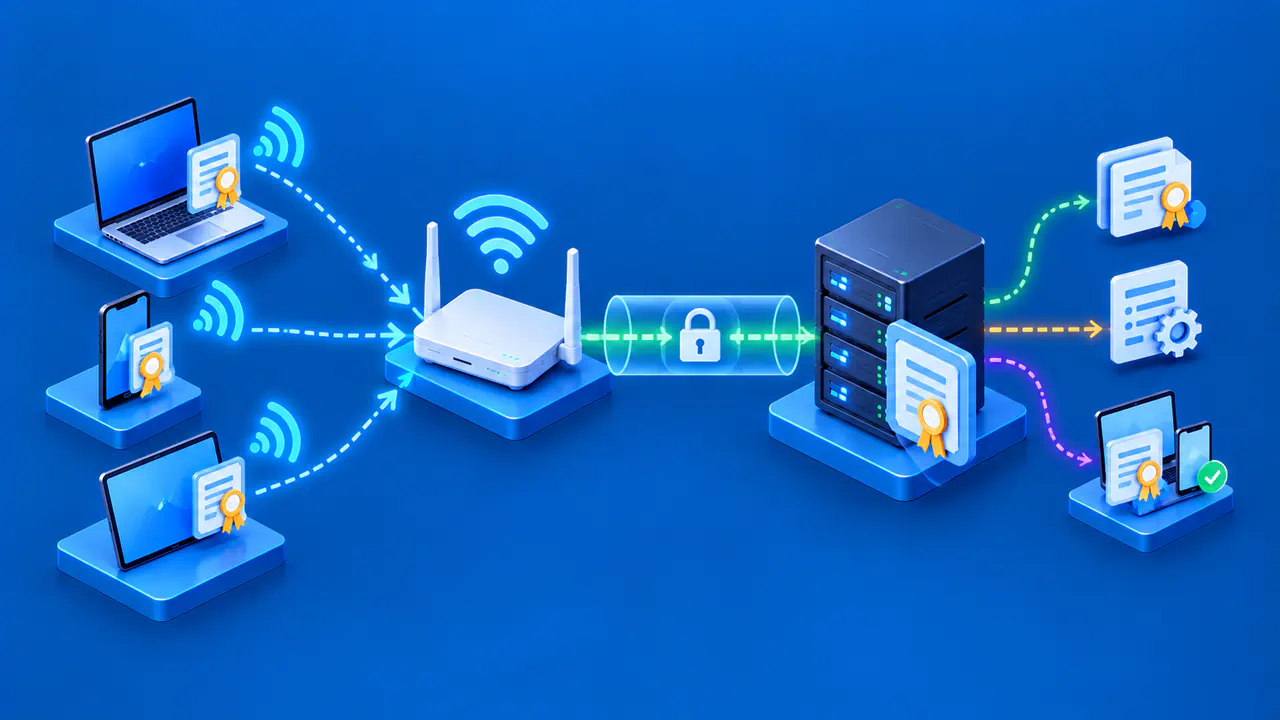
A guest Wi-Fi network can give visitors Internet access while keeping them away from your computers, storage, and other devices. A second network name and password do not provide that separation by themselves. The router and Wi-Fi equipment must block the connections you do not want guests to make.
Check two kinds of access separately. First, decide which devices and services on your main network guests must not reach, including the router's administration interface. Second, decide whether guests should be able to contact one another's devices. Routers often provide separate controls for these two types of access.
Apply those restrictions and test each type of access. A guest network name, also called an SSID, does not prove that the network is isolated. The available controls and their behavior depend on the model, firmware, and whether the device acts as a router, access point, or mesh node.
Enable the Guest Network
Back up the current router configuration, then install current firmware through the vendor's supported update process. Sign in from a trusted device, open the wireless or guest-network settings, and enable a guest network on the bands your visitors need. Some products create one profile across all bands; others require separate 2.4 GHz, 5 GHz, or 6 GHz settings. Follow the instructions for your model and firmware.
Choose a recognizable SSID that does not disclose a surname, address, router model, or the main network password. Leave the network name visible so visitors can select it from their Wi-Fi list. Hiding the SSID does not secure the network and requires visitors to enter its name themselves.
Decide whether the network should stay available or run only during visits. If the router supports a schedule or time limit, use it to turn off guest access when you no longer need it. Check that the guest network is available from the mesh units your visitors will use; some systems support guests only on the main router.
Choose Wi-Fi Security Settings
Use WPA3 Personal where the router and guest devices support it. On 2.4 GHz or 5 GHz, WPA2/WPA3 Transitional can support older clients, with WPA2 Personal and AES as a fallback when the newer modes cannot be used. For a password-protected 6 GHz guest network, use WPA3 Personal; WPA2 is not supported on that band.
Create a strong guest password that is different from the main Wi-Fi password and router administration password. Visitors should be able to join the guest network without learning either of those other passwords. Change the guest password after an event or when a former visitor should no longer connect.
A captive portal can show a sign-in or terms page and provide temporary access, but that page does not replace Wi-Fi encryption or network isolation. MAC filtering and a hidden SSID are not substitutes for secure authentication either. Protect the router's administration account separately with a strong, unique password.
Connect one test device and confirm that it receives an address, default gateway, and DNS settings for the guest network. Use the router's device list to check that the device joined the intended guest profile. Even if the guest network uses a different address range from your main network, firewall rules still determine whether traffic can pass between the two networks.
Limit Access to Local Devices
Turn off the option that allows guests to access the local network, intranet, private network, or LAN. On the Archer AX10 V1, clear Allow guests to access your local network. Supported ASUS interfaces provide an Access Intranet control. Read the wording carefully because a selected checkbox may mean access is allowed.
To stop guests from contacting one another's devices, enable client isolation, AP isolation, or peer isolation if the router offers it. If the setting is worded as Allow guests to see each other, clear that checkbox instead. This restriction can also stop legitimate file sharing or other local connections between visitors.
Keep address assignment and DNS working without exposing the router's administration page. Guest devices may still need DHCP or DNS services from the router; allowing those services does not require allowing access to its management interface. Check whether the router blocks guest management access automatically or provides a separate control.
If visitors need one local resource, avoid enabling unrestricted LAN access merely for convenience. A supported policy that permits only the required printer or service is preferable, but many consumer routers offer only an all-or-nothing guest setting. Leave LAN access blocked unless you intend to give visitors that wider access. Save the guest-network settings before testing.
Test LAN and Peer Isolation
From a guest device, first confirm that Internet access works. Then try to open the router's administration page and known main-network services, such as a printer page or a file share you control. Test by both device name and private IP address, because a device that does not appear in a discovery list can still accept a direct connection.
A failed ping does not prove isolation; the target may ignore ICMP while still accepting other connections. Before testing a service from the guest network, confirm that the same service works from a trusted device on your main network. Guest access to that service should fail while access from the main network still works. Test only devices and services you own or have permission to check.
For the guest-to-guest test, use two of your own devices and a test service on one of them. First confirm that the second device can reach that service on your main network. Then connect both devices to the guest network and repeat the connection by IP address.
Check that the service is still running, accepts connections on the first device's current guest-network address, and is permitted by that device's firewall. Otherwise, a failed connection could reflect the service or firewall settings rather than the router's isolation. If the service still responds from the other guest device, the guest-to-guest restriction is not blocking that connection.
Repeat the test across different guest bands and mesh nodes where those combinations are supported. Confirm that Internet access still works on both devices. Record access to your main network and access between guests as separate results.
Repeat both the main-network and guest-to-guest checks with IPv6 where it is available. Blocking IPv4 connections does not prove that equivalent IPv6 connections are blocked. Separately check whether local discovery still reveals services you intended to hide from guests.
After testing, stop any temporary test services and remove firewall exceptions created only for those tests. Keep passwords out of shared screenshots or notes. Retest after firmware updates or major network changes because isolation can change with the software or operating mode.
Check Isolation on Access Points and Mesh Nodes
Switching a router to access point mode can change how guest isolation works. In that mode, the device may broadcast a guest SSID while relying on an upstream router for address assignment and firewall rules. In the classic ASUS Guest Network interface, Access Intranet works only in wireless-router mode, and related controls can be absent in AP mode. Other vendors and models differ.
Some systems use a virtual LAN, or VLAN, to carry guest traffic separately across shared equipment. If your setup uses a guest VLAN, check that the access point assigns guests to it, the switches carry it, and the gateway enforces the required access rules. Other access points can enforce guest restrictions themselves, so check which method your product uses. Without effective separation, two network names can still lead to the same LAN.
Guest settings may not work the same way on every mesh unit. Some Orbi interfaces combine the controls for access between guests and access to the main network, while other products provide separate settings. Test from a satellite as well as near the main router when both provide guest Wi-Fi.
Review the guest settings periodically. Turn the network off when it is not needed, remove exceptions that no longer serve a purpose, and change the guest password when someone should no longer have access.