What Is a Network Security Key?
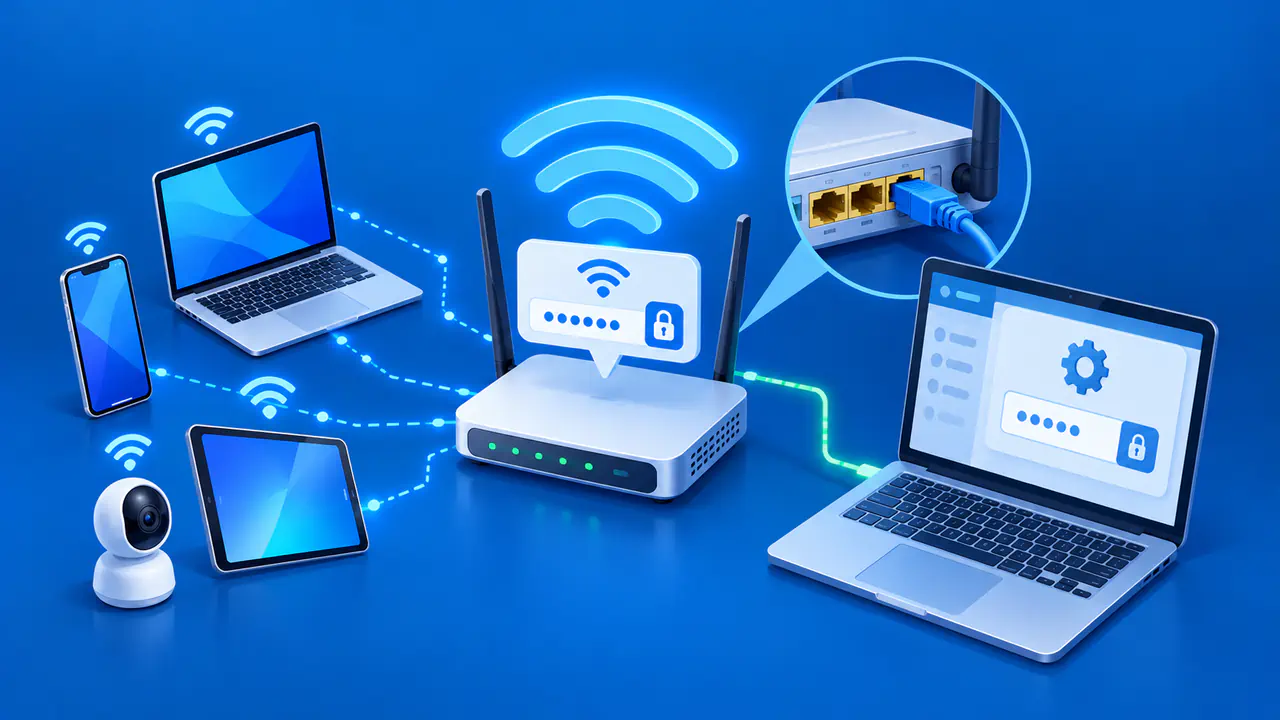
When a phone or computer asks for a network security key, it usually means the password for the WiFi network you selected. On a typical home network, WiFi password, wireless password, and passphrase all refer to the same text. You enter that password to join the network.
The WiFi password is different from the password used to manage the router. A setup card may list both, so the label beside each one matters. If you do not manage the network, its owner or administrator can tell you which password to use.
What the Network Security Key Is For
The network name, or SSID, identifies a WiFi network in your device's list. After selecting a network that uses a shared password, you enter its network security key. The network name and password are separate values, even when they appear on the same router label.
Home routers commonly offer WPA2 Personal or WPA3 Personal security, both of which can use a shared password. The device and access point use the password to establish an encrypted wireless connection. The software handles the encryption details, so the password prompt does not ask you to calculate an encryption key.
Windows uses the label Network security key in some connection settings, while other screens simply call it a WiFi password. Once the device joins WiFi, it has a local wireless connection. Internet access still depends on the router's internet connection and other network settings, so a successful WiFi connection alone does not prove that websites will load.
Workplace or school networks may use Enterprise authentication instead. They can require an individual account, a certificate installed on the device, or settings supplied by the organization's IT team. A shared password from a router label will not replace those requirements. If your device asks for an account or certificate when you join, follow the organization's connection instructions.
Where to Find the WiFi Password
First, confirm the exact WiFi network name with the owner. Nearby networks can have similar names. If you are visiting someone, ask for the current password or ask whether the owner can share it from a connected device. At a hotel or cafe, staff can identify the network and explain any sign-in requirements.
If you manage the router, check its label, setup card, or the information left by the internet provider. The label or setup card may list the default WiFi name and password. A printed default password will not work after someone has changed the WiFi password in the router's settings.
The router manufacturer's app or your internet provider's app may show the current WiFi password after you sign in. The router's settings webpage may also display the password. Check that the displayed network name matches the network you want to join, then look for the password listed for that network.
A device that has already joined the network may let you view a saved password. Windows 11 provides a Show option for Wi-Fi network password in its network properties and saved-network settings. Windows 10 displays a Network security key field in the Security tab of Wireless Network Properties. A saved password may be outdated if the network owner has changed it.
Recent iPhone, iPad, and Mac software also provides ways to view or share saved WiFi passwords. Viewing a saved password can require a device passcode, biometric authentication, or a computer login. Available options depend on the software version and any management restrictions. If you cannot find the current password on a device you are allowed to use, ask the network owner or the person who set up the router.
WiFi Passwords and Router Login Passwords
A router administrator password protects access to the router's settings. An app from your internet provider or router manufacturer may require a separate account. These logins serve a different purpose from the WiFi password, even if a setup card lists all of them together.
When connecting a new device to WiFi, enter the wireless password. When signing in to manage the router, use the login required by that page or app. Knowing the WiFi password does not automatically give you access to those settings.
The passcode or login password you use to unlock your phone or computer is also separate from the WiFi password. Your device may ask you to unlock it before showing a saved WiFi password. An IP address, a DNS server address, and the network name cannot substitute for a missing WiFi password.
If the WiFi Password Has Been Exposed
If you manage the network and believe the WiFi password has been exposed, change it on the router's settings page or in the app you use to manage the network. Choose a strong replacement that you do not use for other accounts. Devices that have only the old password will need the new one when they reconnect.
Someone who knows the WiFi password may be able to connect additional compatible devices. Screenshots, messages, and printed copies of the password can make it available to other people. A guest network with its own password, where the router supports one, lets you give visitors access without distributing the main network password.
If you do not manage the router, report the concern to its owner or administrator. Changing the shared password stops devices from using the old password to make new connections. The owner must still correct any insecure router settings and address any compromised devices separately.