What Is a Router and How Does It Work?
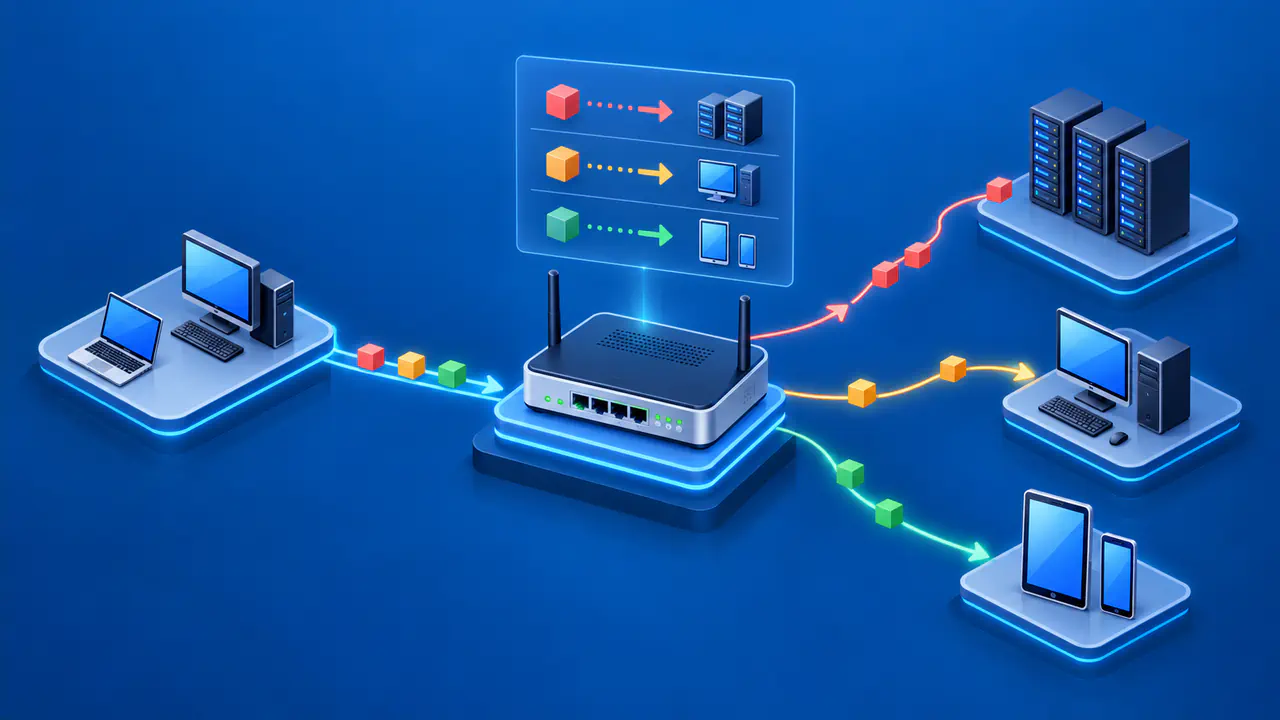
A router connects two or more IP networks and moves packets between them. In a home, it commonly sits between the local network and an upstream connection supplied by an internet provider. When a device sends data to another network, the router reads the packet's destination IP address, chooses a route, and forwards the packet toward the next network. A router can do this over wired connections without Wi-Fi.
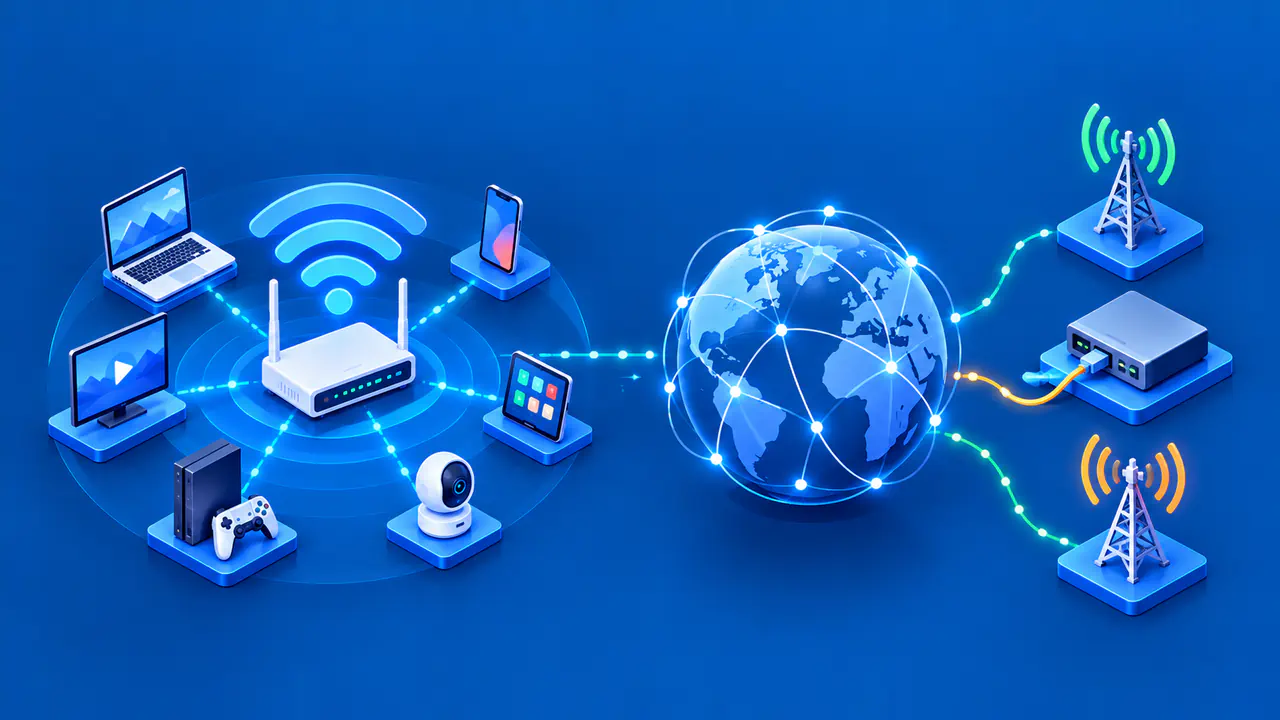
A home router often handles several other jobs. It may include a Wi-Fi access point, Ethernet switch ports, a DHCP server, firewall features, and network address translation. These functions can operate independently, so one may fail while others keep working. For example, a device may join the Wi-Fi network successfully but still lack the IP settings or working route it needs to reach a website.
How a Router Connects Networks
A local area network, or LAN, is a group of devices connected within a limited area such as a home. Devices on the same local network can communicate locally, subject to the network's settings. The router provides a path from that local network to a different network, commonly the provider's wider network. It has an interface or logical connection on each side, so it can receive a packet from one network and forward it toward another.
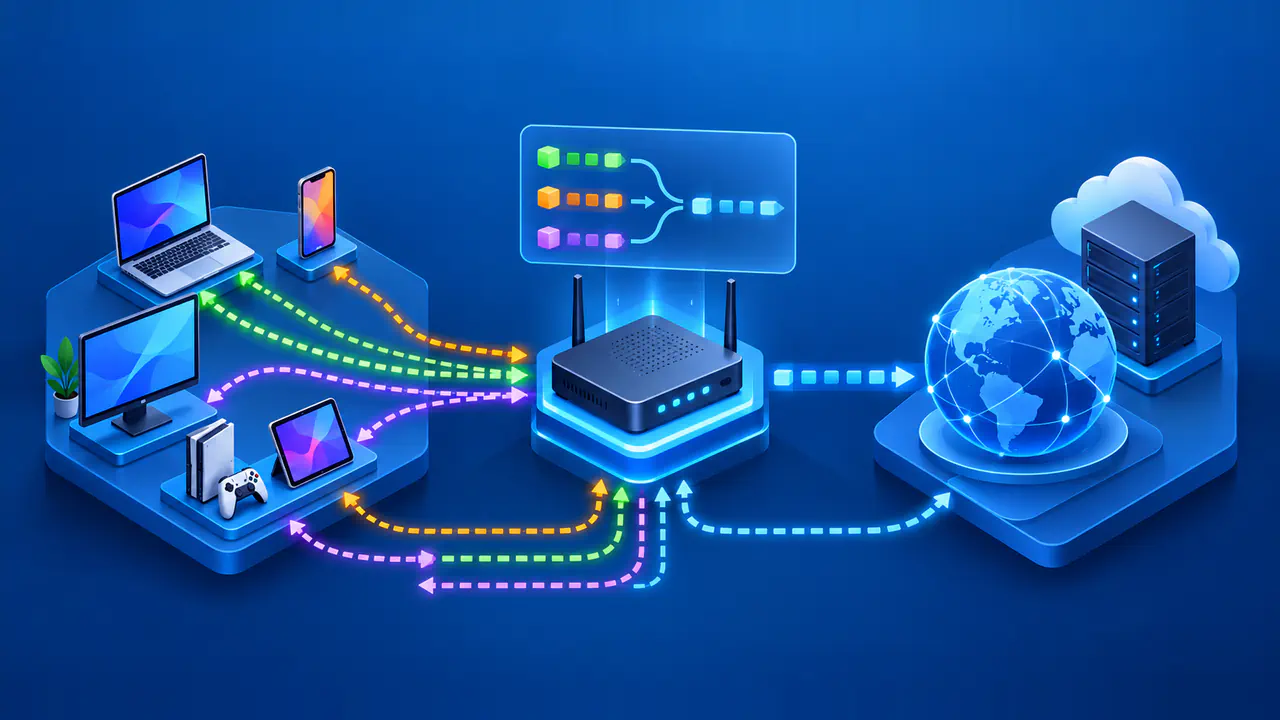
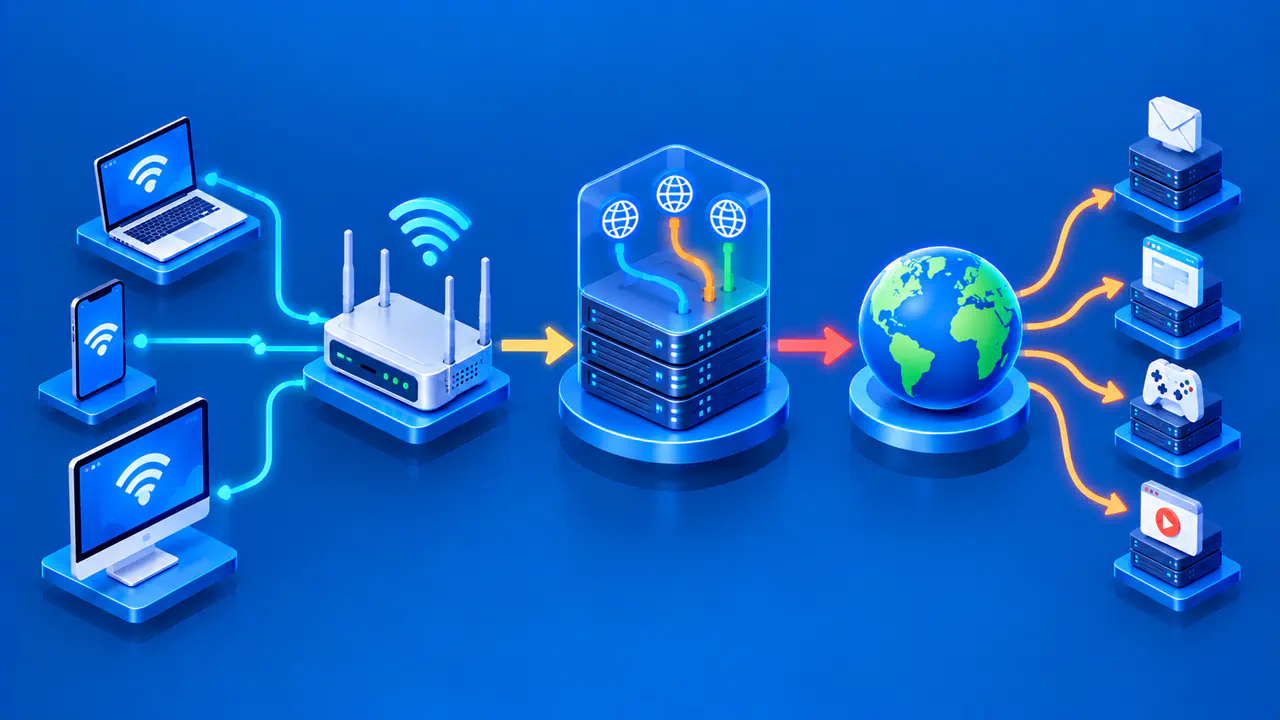
Imagine a laptop sending a request to a website. In a typical home setup, its network settings direct traffic for remote destinations to the default gateway, usually the home router. The laptop sends the packet to that gateway while keeping the website server's IP address as the packet's destination.
The router examines the destination and forwards the packet through its upstream connection. Other routers make further forwarding decisions along the path, and the response returns through routers toward the home network. The return path can differ from the outgoing path. For each packet, a router chooses the next hop without needing a complete map of the path to the destination.
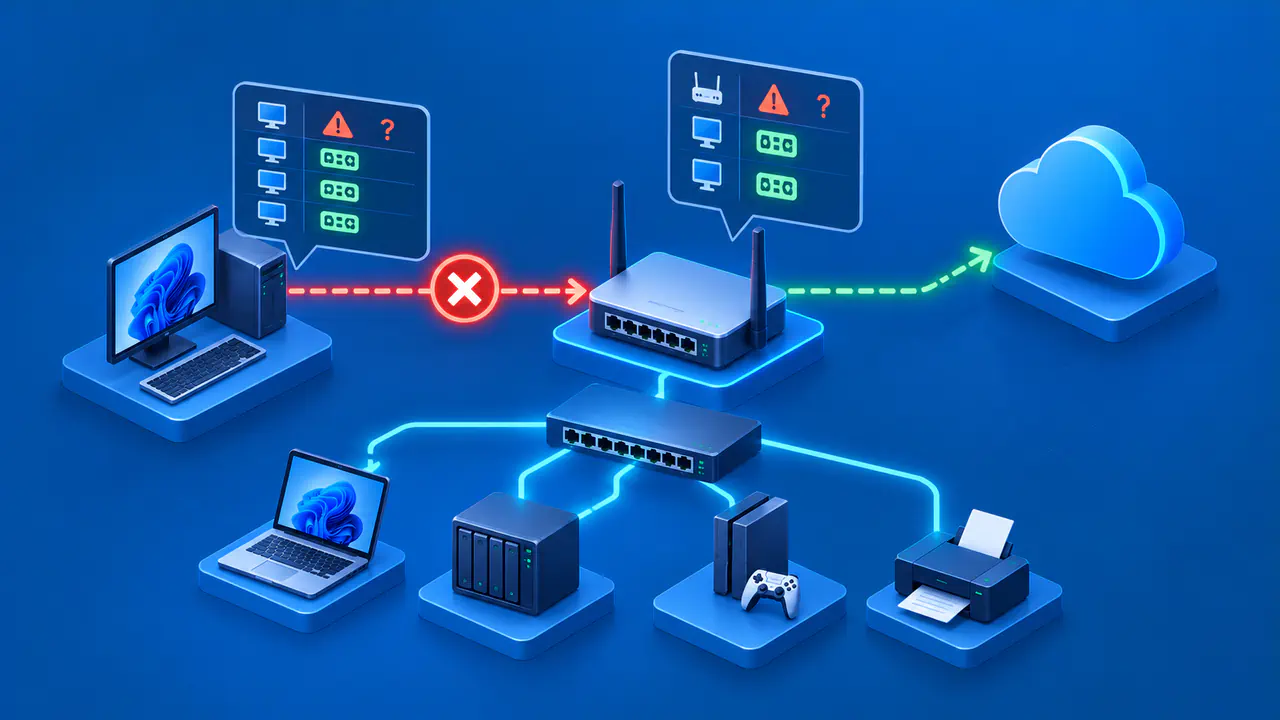
Traffic between two devices on the same local segment may not need the router's IP forwarding function. A built-in Ethernet switch or Wi-Fi access point can carry local traffic between connected devices. This is why a local printer or file share can sometimes work while the internet connection is down. It also explains why having a Wi-Fi signal is not proof that packets can reach a website.
How Routes and Next Hops Work
A router keeps a routing table: entries that say which destinations can be reached through which interface or next hop. For ordinary destination-based forwarding, it reads the destination address and chooses the most specific matching network route. The next hop is the immediate network neighbor to which the packet should be sent, not necessarily its final destination. At home, there is often a directly connected LAN route and a default route toward the provider for destinations not known more specifically.
The choice is based on the routing information available to that router. Routers in larger networks can learn and update routes through routing protocols, while a small home router often relies mainly on directly connected networks and a default route toward the internet provider. The routes can change when a link becomes unavailable or the network configuration changes. If there is no usable route or the upstream link fails, local connectivity can remain while external traffic stops.
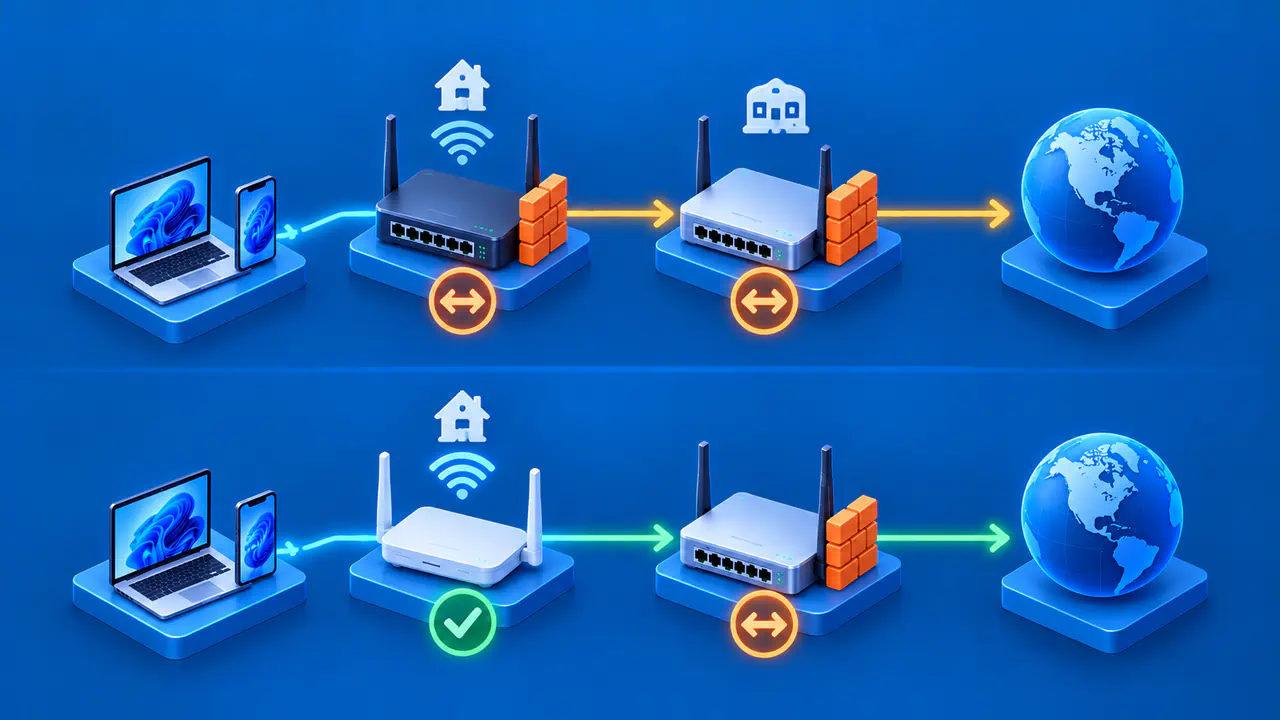
One gateway can serve several IP networks. A main network and a separate guest network may use different IP address ranges, even though their devices connect to the same physical box. Routing can provide a path between those networks, while firewall rules can restrict which traffic is allowed through. Separate address ranges alone do not guarantee that guests cannot reach devices on the main network.
What Home Gateways Add: DHCP, NAT, and Wi-Fi
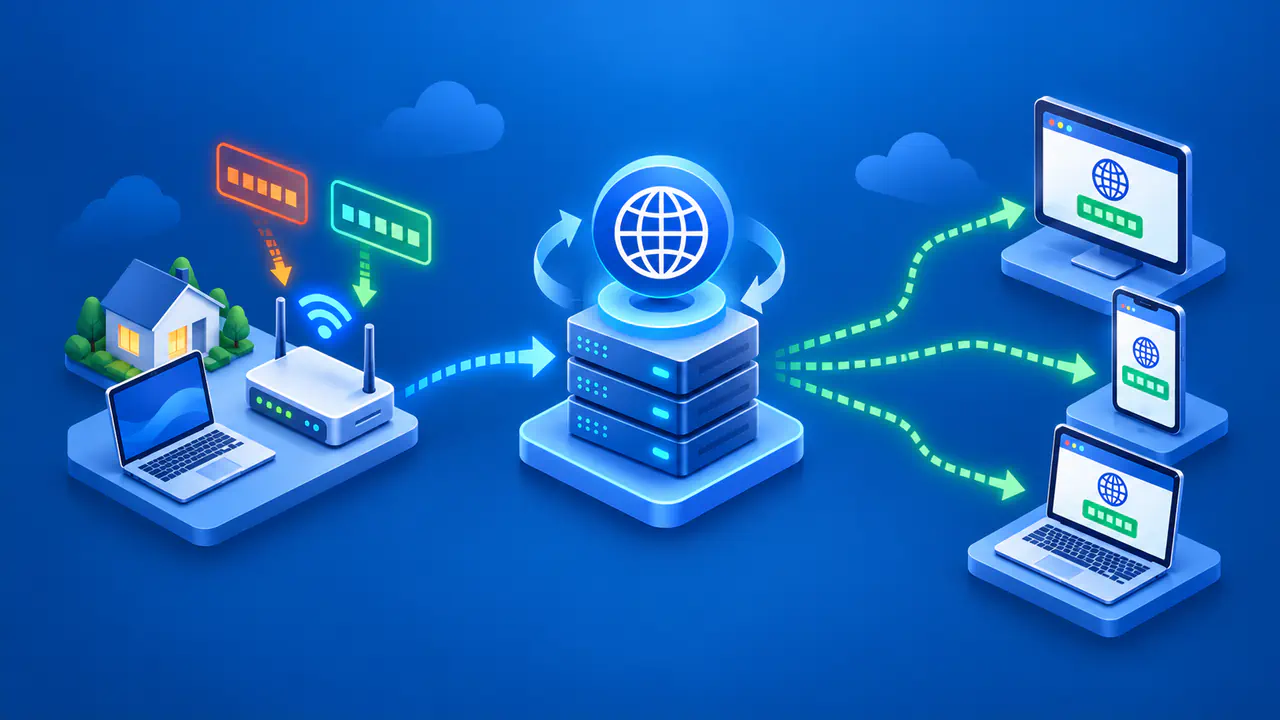
Many home gateways run a DHCP service. DHCP can give a device joining the network a local IP address, a default gateway, and DNS server information. The address usually comes with a lease that the device can renew to keep using the same address. Receiving these settings does not prove that the provider connection is working. Internet access also needs a usable path beyond the local network, but routing between local networks does not require an internet connection.
On many IPv4 home networks, the gateway also performs network address translation, or NAT. Local devices use private addresses, and outbound traffic is mapped to an address on the upstream side. In the common setup that lets several devices share one upstream IPv4 address, the gateway tracks TCP or UDP port mappings as well as addresses. It uses those mappings to send returning traffic to the right internal connection. NAT is separate from route selection and firewall filtering, and address translation alone does not guarantee protection.
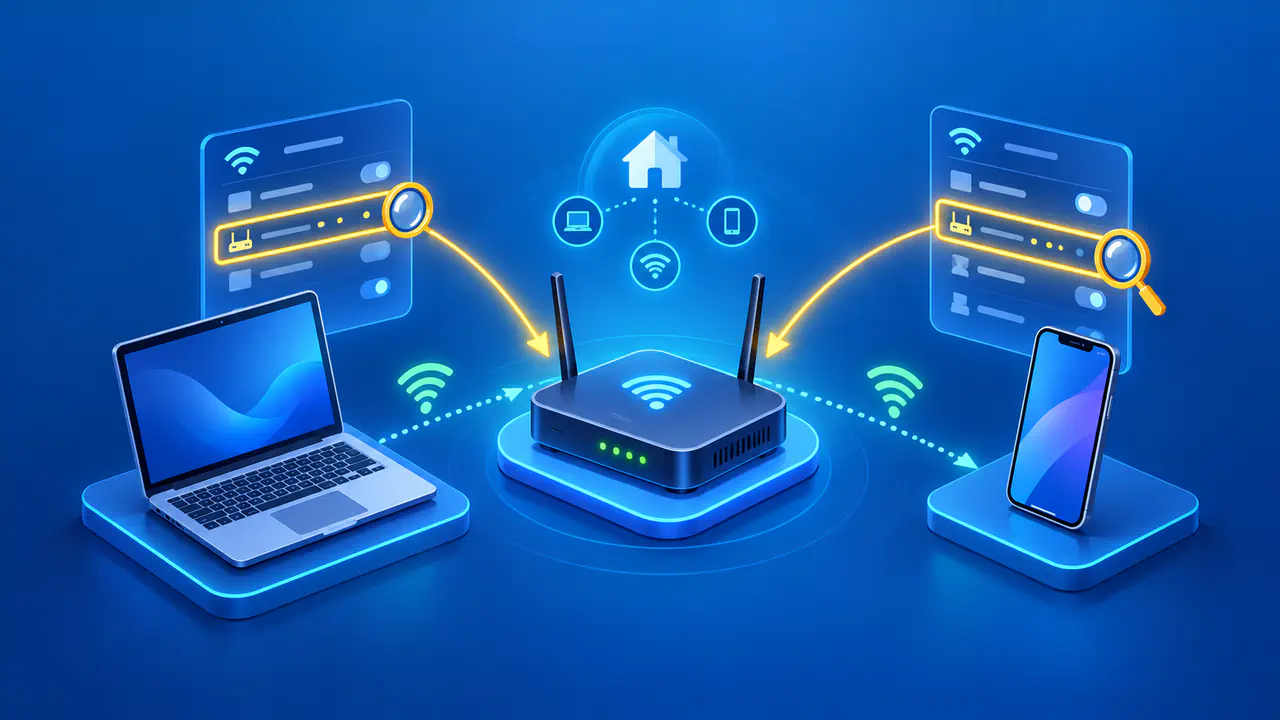
A home wireless router also contains a Wi-Fi access point. The access point connects phones and laptops wirelessly to the local network, while the router forwards IP packets between networks. A wired router can do the same routing job with no Wi-Fi radio, and a standalone access point can provide Wi-Fi without being the network's router.
The Connection to the Internet Provider
Some home gateways include the modem or fiber terminal that connects to the internet provider. A separate router typically connects to that equipment through an Ethernet cable; in an integrated gateway, the connection is internal. Either arrangement can perform the same routing function, so the number of boxes does not tell you how many IP networks are involved.
Local Connectivity and Internet Access
A home gateway's switch or access point may keep local devices connected during a provider outage. Routing cannot restore internet access when the gateway has no working upstream connection. If a phone shows a strong Wi-Fi signal while websites fail, the radio link may be fine and the fault may lie in DNS, the router's upstream route, the provider connection, or the destination service. Conversely, a working wired connection does not prove that the Wi-Fi access point is functioning.
Comparing affected devices helps narrow down the cause. If every device loses internet access but local devices still communicate, check the shared connection to the internet provider. If other devices can reach the same website and only one laptop fails, that laptop's connection or IP settings may be responsible. These comparisons help locate the fault without treating every connection problem as a routing failure.