2.4 GHz vs 5 GHz vs 6 GHz Wi-Fi
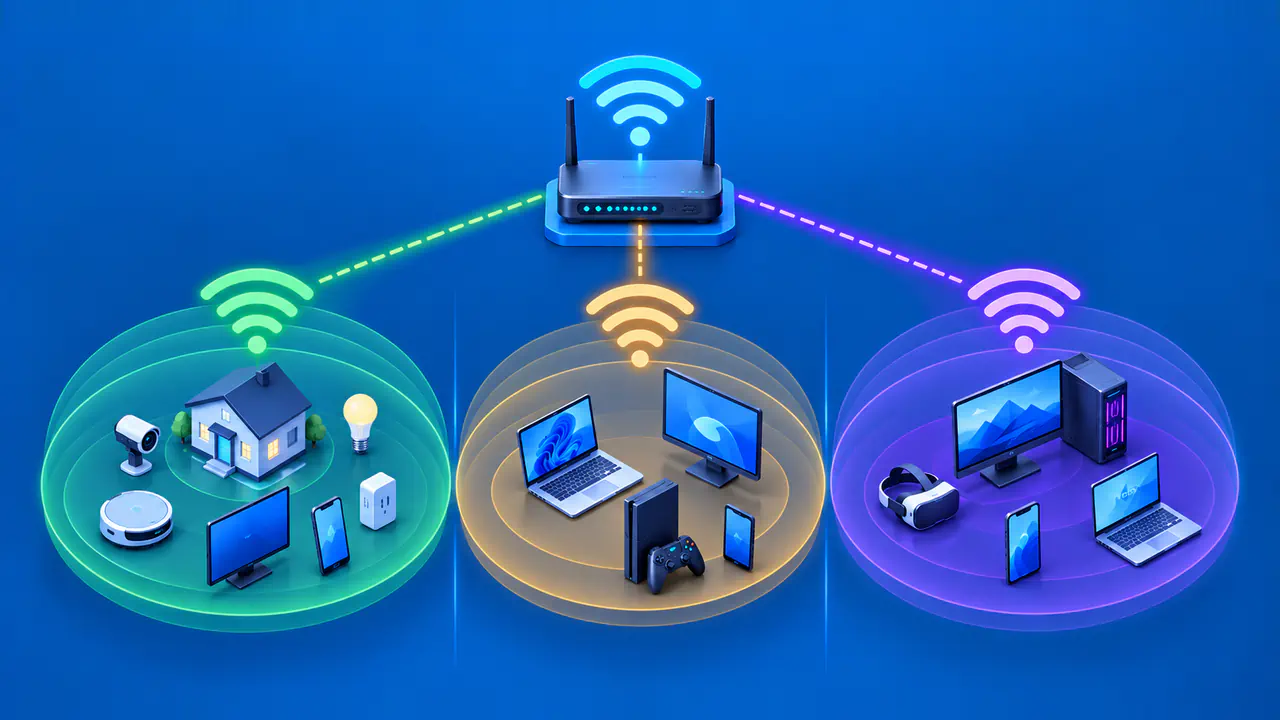
The 2.4 GHz, 5 GHz, and 6 GHz Wi-Fi bands offer different combinations of range, capacity, and device support. Under comparable conditions, 2.4 GHz signals generally travel farther and pass through obstacles more easily. The higher bands provide more room for wider channels, which can carry more data when the signal is strong enough.
The best band depends on the device and where you use it. Both the router and the connected device, or client, must support the band and compatible security settings. The band must also be available under local rules, and the signal must be strong enough at the device's location.
For example, a computer near the router may transfer large files faster over 6 GHz, while a distant sensor that sends little data may work more reliably on 2.4 GHz. Testing both devices where they will be used is more useful than choosing a band from its frequency alone.
Check Device Support
Start with the exact radio specifications for the router and client. Many older or low-cost devices support only 2.4 GHz, while most dual-band home routers support both 2.4 GHz and 5 GHz. Using 6 GHz requires compatible Wi-Fi 6E or Wi-Fi 7 hardware, along with support from the operating system, drivers, firmware, and regional settings.
A Wi-Fi generation label does not tell you exactly which bands a product supports. Wi-Fi 6 equipment can use 2.4 GHz and 5 GHz without having a 6 GHz radio, while Wi-Fi 6E adds 6 GHz support. Wi-Fi 7 products can support different combinations of bands, so check the model's specifications.
Confirm security support as well. For example, a password-protected 6 GHz network on compatible UniFi equipment uses WPA3 and Protected Management Frames (PMF), which protect certain network management messages. Older devices that cannot use the needed security may require a separate network name, or SSID, on 2.4 GHz or 5 GHz instead of weakening the newer network.
On the client, check the current band, channel, and Wi-Fi mode in the connection details, if the operating system displays them. If the network is missing from the list, confirm that the client supports its band and that the band is allowed in your region before changing settings.
Compare Range and Congestion
The 2.4 GHz band usually reaches farther and passes through obstacles more easily than the other two bands under comparable conditions. Many older clients and connected home devices use it. Nearby Wi-Fi networks and other equipment sharing the spectrum can make the band crowded.
The 5 GHz band usually offers more channel choices and capacity than 2.4 GHz at moderate range. Its signals weaken more readily through walls and floors, so router placement matters. Some channels require the access point to check for radar and leave the channel if radar is detected, which can interrupt service.
The 6 GHz band gives newer compatible devices additional spectrum without devices limited to the older bands sharing those channels. Finding a wide, relatively clear channel can be easier, although nearby 6 GHz networks still compete for transmission time. At comparable power and channel settings, 6 GHz generally has less reach through obstacles, so it is often most useful near an access point.
These differences do not establish fixed distances or speed limits. Building materials, nearby interference, and antenna design can make one band perform better than expected at a particular location. The client's position, channel width, and transmit power also affect the comparison.
Regional Spectrum Rules
The bands and channels you can use depend on the country or region. Rules also differ for transmit power and indoor or outdoor use. Where automated frequency coordination (AFC) is required, a system uses the access point's location to identify channels and power levels that protect existing licensed services. Settings permitted in one country may therefore be unavailable in another.
Use the correct country setting and the manufacturer's approved firmware on the access point. The client must also support operation in that region. Having a 6 GHz radio is not enough if local rules or the product's approval prevent its use there.
For outdoor 6 GHz use, check that the exact model is approved for that type of installation in your region and meets any frequency-coordination requirements. A device approved only for indoor use should not be treated as an outdoor access point.
Do not select another region to expose unavailable channels or higher power. That can create interference, violate local rules, and cause clients to reject the network. If a band or channel is missing, check the current national allocation, product certification, and firmware release notes.
Choosing a Band for Each Device
Use 2.4 GHz for devices that need reach, send modest amounts of data, or lack newer radios. Smart plugs, sensors, and devices behind several obstacles often fit this profile. The band can still be congested, so reliability must be measured rather than assumed.
For compatible phones, computers, televisions, and consoles, 5 GHz is often a useful balance between range and data capacity. Many devices support it, but a crowded apartment may still need careful channel selection and access-point placement.
Try 6 GHz for compatible devices that have a strong enough signal, particularly where 5 GHz is busy or large local transfers benefit from wider channels. It can also serve as the backhaul, or connection between mesh units, when the units support 6 GHz and are close enough for a reliable link. A device outside that coverage will need another band or a closer access point.
A shared network name can let compatible clients choose among the router's bands. If the router supports band steering, it can encourage a client to use a preferred band, but the client still decides where to connect. Separate network names can help when troubleshooting or connecting devices with special compatibility needs; neither arrangement guarantees the fastest connection.
Verify Actual Performance
Compare bands in the places where you use Wi-Fi, using the same client, application, and test method. Note which access point, band, and channel width the client actually uses. Measure data-transfer speed, delay, and packet loss, and record signal strength and the connection's reported rate if available. Repeat the comparison during a busy period, when other devices are active.
A file transfer between the Wi-Fi device and a computer connected to the router by Ethernet can help separate local wireless performance from internet speed. The wired connection, computers, and storage must be fast enough not to limit that transfer. An internet speed test includes the provider's network and remote server, so its result alone does not show how much data the Wi-Fi band could carry.
Keep the devices in the same positions for each band comparison. Then, if needed, move just the client or access point and repeat the measurements. If 6 GHz is fast beside the router but unstable in the next room, 5 GHz may work better there; through several walls, 2.4 GHz or a closer access point may provide a more reliable connection.
Keep the settings that work reliably for the device and the tasks you use it for. Record the router and client models and software versions with the results so you can repeat the comparison after an equipment or layout change.