How to Change Your Location in Proton VPN

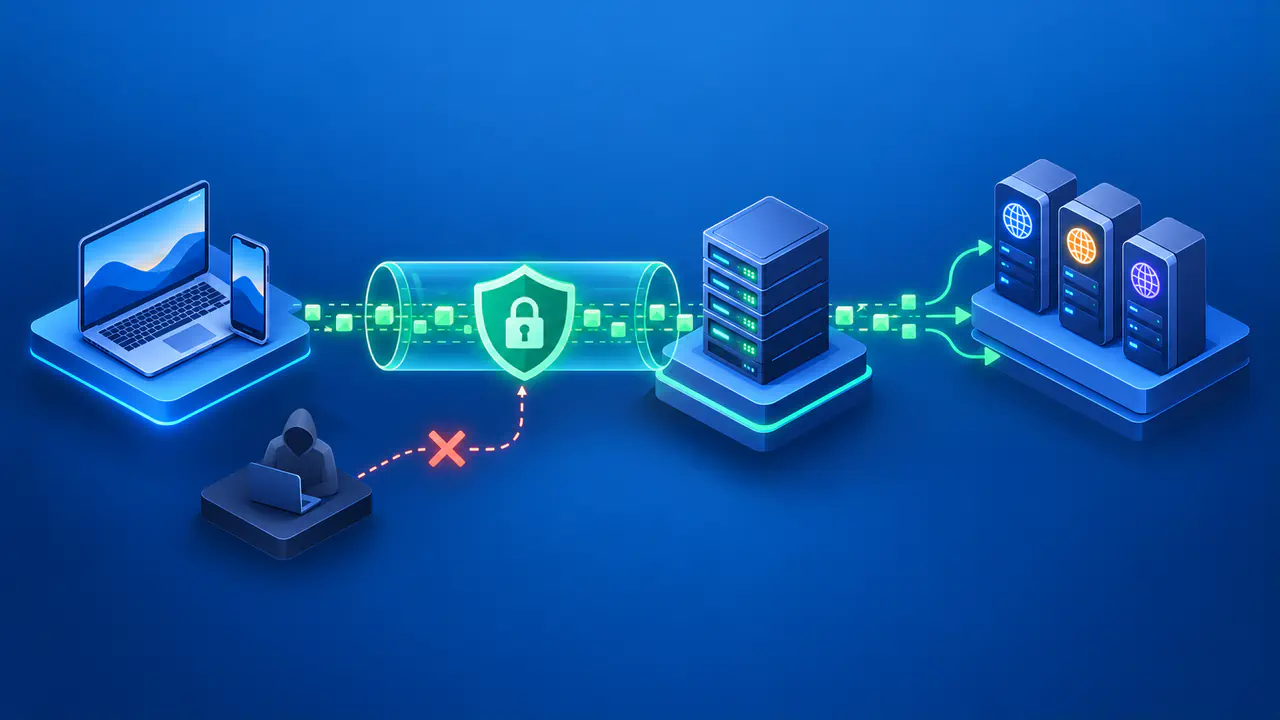
Changing location in Proton VPN means using a different VPN server. Websites receiving traffic through that server see the VPN server's public IP address. The country associated with that address can differ from your device's physical location and the country saved in an online account.
Your Proton VPN plan determines whether you can choose a country or must let the app choose a server. The controls also differ between the mobile and desktop apps. Selecting a country starts a connection attempt; wait for the app to show that it is connected before checking the location websites see.
Check Your Account and App
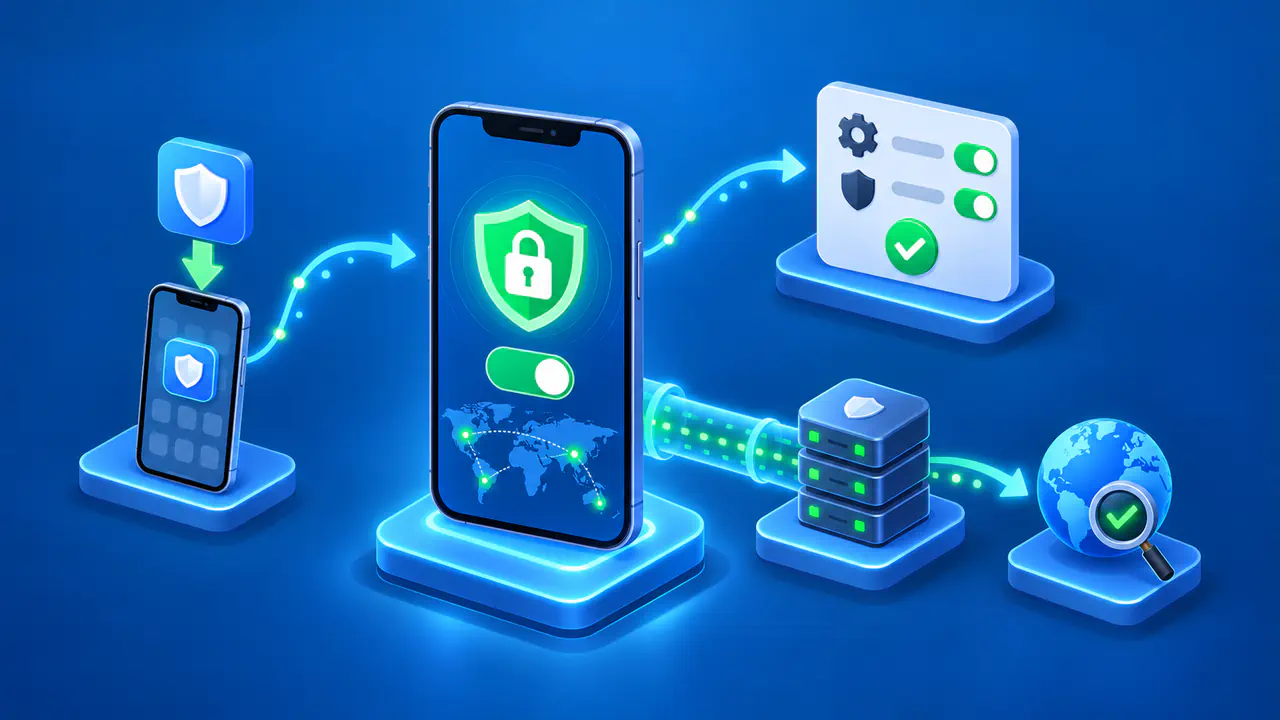
Open Proton VPN and check which account and subscription the app is using. If you paid for VPN access but see only free options, make sure you signed in to the account with that subscription. If you use Guest mode on iPhone or iPad, sign in to your paid account to access its server choices.
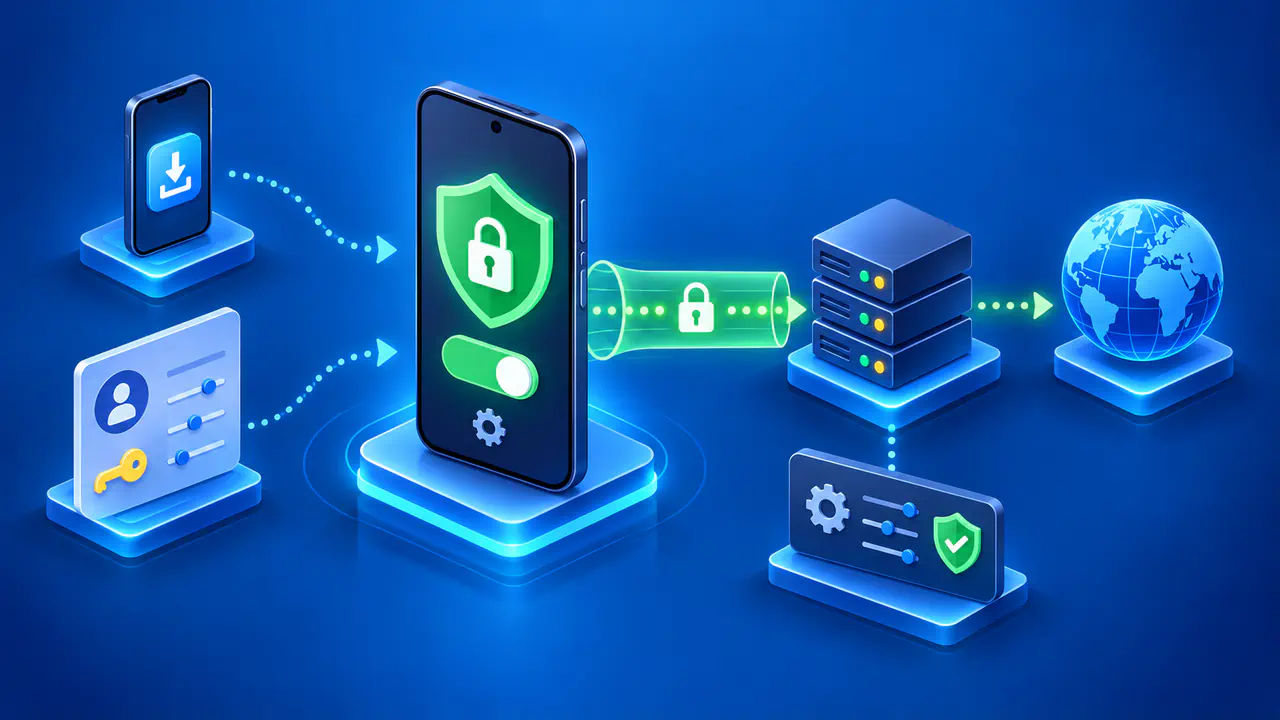
Use a supported version of the app for your device. The iPhone and iPad app requires a compatible version of iOS or iPadOS and permission to add a VPN configuration. Allow Proton VPN to add its configuration when the device asks. If your employer or school manages the device's VPN settings, check with the administrator before changing those settings.
Choose a Country with a Paid Plan
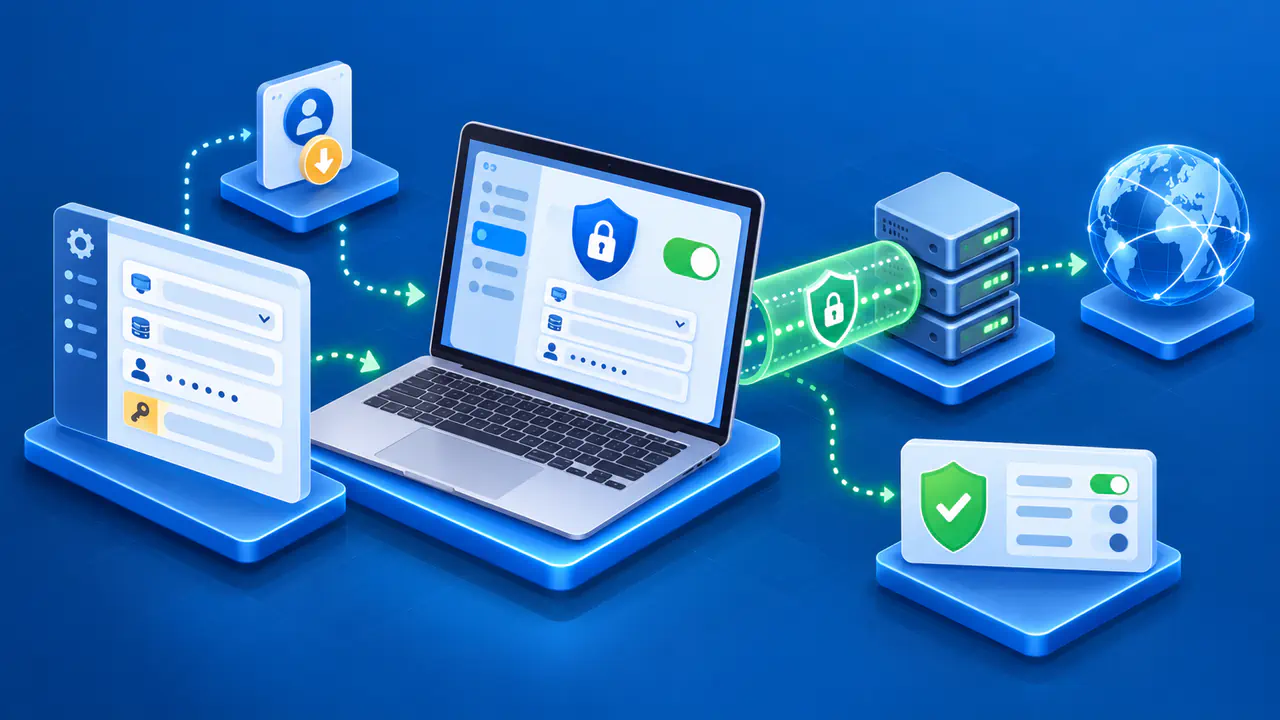
On Windows, select a country under Countries, then All. To choose a particular city or server, expand the country and then the city using the arrows beside their names. On iPhone or iPad, use the Countries tab:
- Open the Countries tab and find the country you want.
- To connect within that country automatically, tap the connection button beside it.
- To choose a city or server, tap the country name and select a server from the list.
- Wait for the app to finish connecting, then open the active connection details.
Check the server and country shown for the active connection. A country highlighted in the list is not proof that the VPN connection succeeded. If the connection fails, try another available server in the same country, unless you need a specific server. A failed connection is a different problem from a connected server whose IP is labeled incorrectly by a website.
Request a Different Free Server
On the Free plan, select Connect to let the app choose a server; on iPhone or iPad, select Fastest country first. To switch servers, use Change server while connected. If you cannot find Change server on Home, check Countries. You cannot specify the next country because the app chooses the new server randomly.
If a countdown appears, wait until it finishes before requesting another change. Tapping Change server again will not bypass the waiting period or let you choose the next country. Once the switch finishes, check the new connection details before testing your browser. If you need a particular country, repeated free changes are not a dependable way to obtain it.
Check the Public IP after Switching
Before switching servers, note the public IP shown by an IP checker and the server shown in the app. After the switch completes, reload the checker on the same device and browser. Compare the address shown before and after the switch. A different IP confirms that the checker received the new request from a different address; it does not, by itself, identify the VPN or proxy used.
You can also compare the VPN address with the address used without the VPN, provided you are allowed to disconnect. Check the public IP with the VPN off, reconnect, and check again. If the tunnel must remain active, compare the old and new VPN connections instead. Keep the VPN connected if your work or security requirements depend on it.
Compare IPv4 with IPv4 and IPv6 with IPv6. An IPv4 address cannot be matched directly to an IPv6 address, and a checker may report one or both. An IP check also covers only the browser request that reached that service. It does not prove that every application, DNS query, or other connection followed the same route.
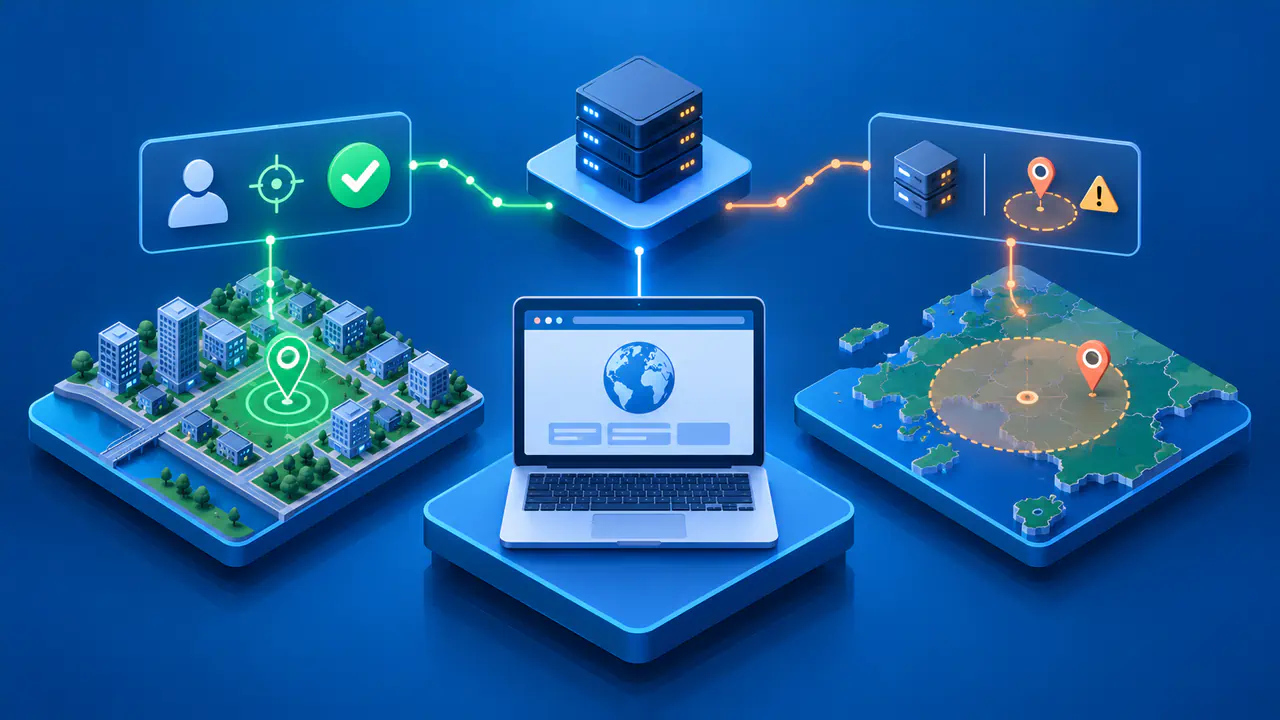
The country or city beside an IP is a database estimate. Databases can disagree or retain an older location after an address is reassigned. If the IP address changed but the country or city looks wrong, check the same address with another IP location service before concluding that the switch failed. Keep the actual IP addresses private when sharing screenshots or asking a public forum for help.
Investigate a Location That Still Looks Wrong
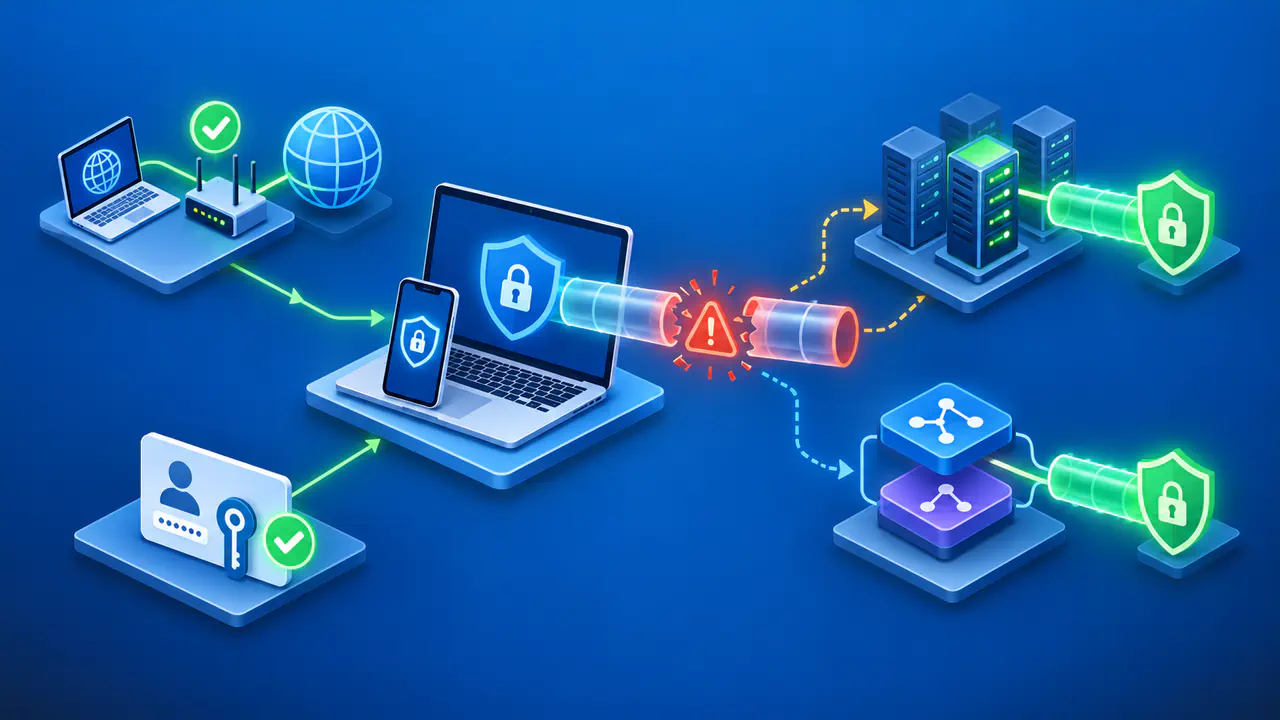
If the IP result appears unchanged, reload the checker and confirm that Proton VPN is connected on the device running the browser. On a computer using a separate VPN browser extension, that extension can send browsing traffic through a different server from the main app. Check which server the extension uses as well as the server selected in the main app.
The VPN does not alter the location supplied by your device's Location Services. On iPhone and iPad, Location Services can determine your position using GPS, nearby WiFi, cellular networks, and Bluetooth signals. A website or app with the necessary location permission may therefore receive a position different from the VPN server's location. Review that permission if the service is using device location rather than an IP estimate.
A website's account country and billing region are stored separately from your VPN settings. A service may use a saved address, cookies, or previous account activity to choose regional content, even after the public IP changes. Changing the VPN server does not edit those records or the App Store region. If you need to update an account's country, check that service's account settings and the requirements for changing countries.
If the connection details and fresh IP checks remain inconsistent, contact Proton VPN support with the app version, selected server, test time, and a description of the mismatch. Distinguish an unchanged IP from a changed IP with an unexpected country label. Include what the app displayed and what the IP checker reported so support can investigate the specific mismatch.