How to Turn Location Services On or Off on iPhone
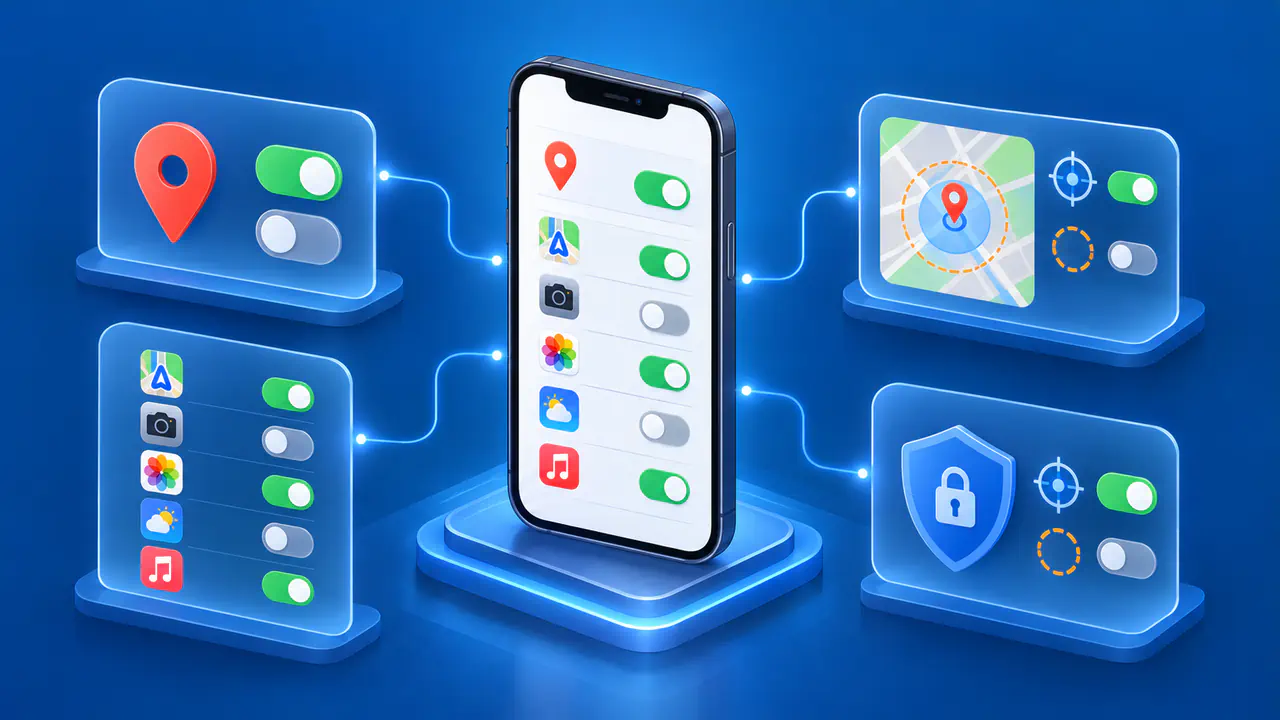
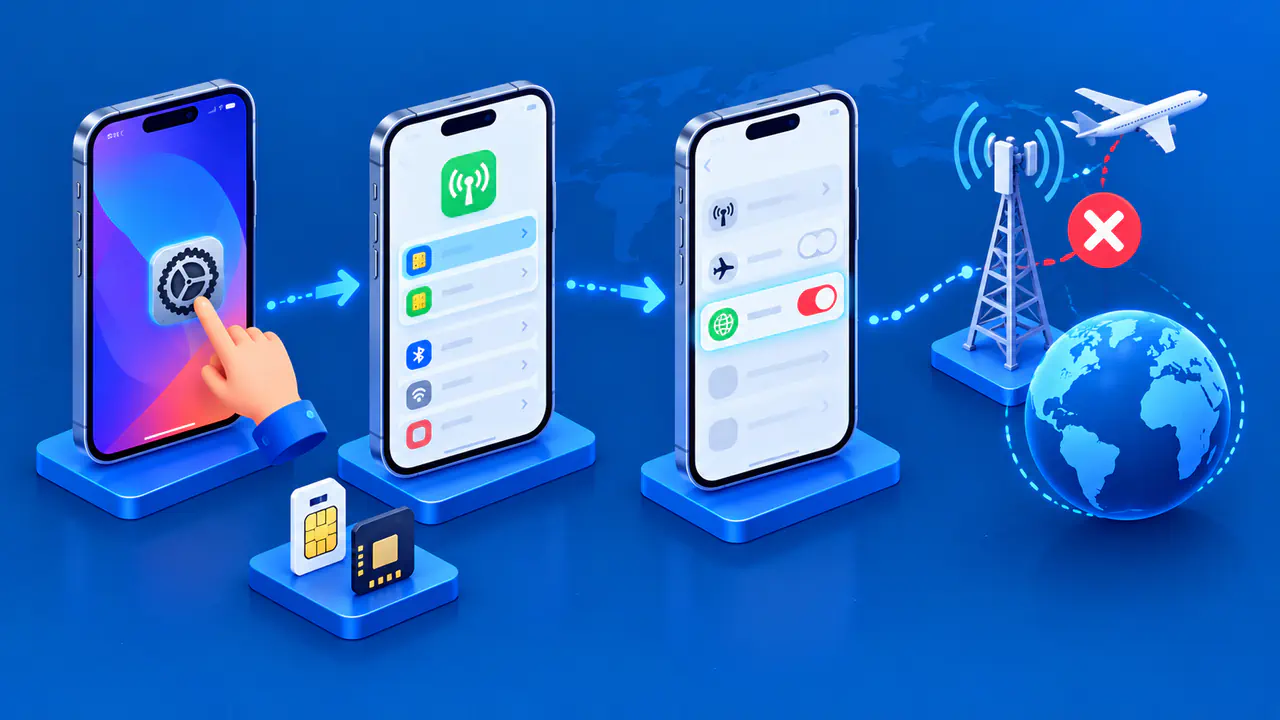
To turn Location Services on or off on your iPhone, open Settings, tap Privacy & Security, then choose Location Services. The switch at the top controls access across the phone. To change access for just one app, leave that switch on and select the app from the list below.
The same page lets you decide how much location detail an app receives. A weather forecast may work with an approximate area, while directions from your current position need more detail. Choosing access and precision separately lets you keep a useful feature without giving every app the same permissions.
Turn Location Services On or Off
Turn the main Location Services switch on or off. If a confirmation appears when you turn the service off, read it and confirm the change. When you want to restore location access, return to this page and turn the switch back on.
The main switch affects apps throughout the phone, so turning it off can interrupt several features at once. A map may no longer place you at your current position, and an app may ask you to enter a location instead. For a problem with one app, changing that app's permission keeps location available to the others you use.
Turning the main switch on does not give every app unrestricted access. Each app still needs permission, and its individual setting determines when it can receive your location. If a feature remains unavailable after you enable the main switch, open that app's entry and check the permission there.
Location Services draws on GPS, nearby Wi-Fi and cellular information, and Bluetooth where available. Turning it off does not hide your internet connection's public IP address. A website can still estimate your area from your IP address, so a regional search result is not proof that the Location Services switch failed.
Set Location Permissions for Each App
Scroll through the app list on the Location Services page and tap the app you want to change. The entry includes the app's explanation of why it needs location access. Available choices vary: an app that only needs your location while you use it may not offer an Always option.
Choose Never to block that app from receiving Location Services data. Ask Next Time Or When I Share lets you decide when the app next requests access. While Using the App permits access during active use, whereas Always also supports location-dependent features that operate without you opening the app each time.
Match the permission to the feature you want. For a shopping app, you might prefer to type a city or postal code into its store search, if available, and leave location access off. For directions from your current position, access during use may be useful. The app's need to find you for one task does not by itself justify ongoing access.
After changing the permission, return to the feature and try it again. If the app offers manual location entry, check whether that is enough for your task before granting broader access. A request for permission explains what the app wants; you can still choose a more limited option.
Choose Precise or Approximate Location
In an app's Location Services entry, use Precise Location to control the detail the app can receive. Turn the switch off for an approximate area, or leave it on when the feature needs a more specific position. The choice applies to that app, so you can use different levels of precision for different tasks.
Approximate access can suit a regional forecast or a list of services in your area. A feature that needs to identify the street you are standing on may need precise access. Judge the result in the app: a useful forecast and a useful walking route call for different amounts of detail.
Precision and permission answer separate questions: how accurately the app can locate you, and when it can do so. Turning Precise Location on does not override Never or grant Always access. Likewise, approximate access still gives the app location information; it does not mean that location sharing has stopped.
Review Background Access and System Services
While Using the App can include an ongoing activity that continues after you switch away from the app, such as a navigation session. A location indicator may remain visible during that activity. The setting does not necessarily mean location use stops the moment the app leaves the foreground.
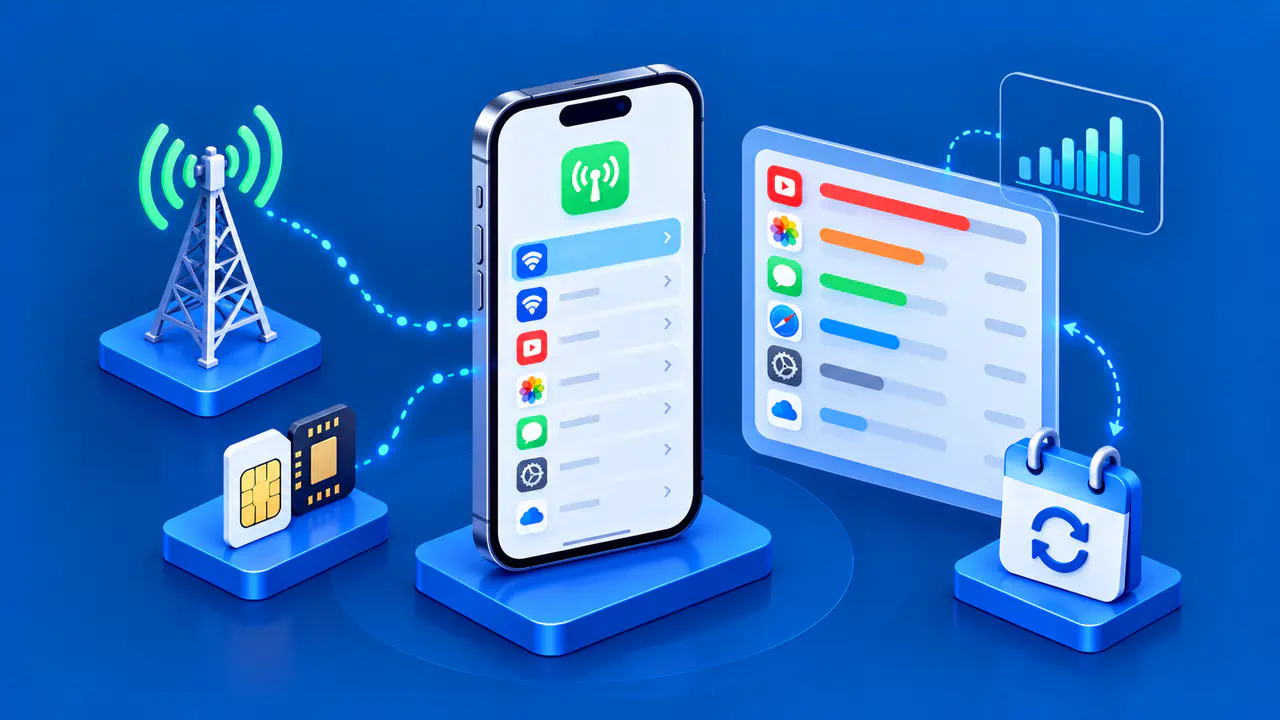
Always allows broader background access, but the permission alone does not show how often an app actually uses your location. iPhone may display reminders about background use, including a map of recently accessed locations. Use those reminders to reconsider whether you still want that app to have ongoing access.
At the bottom of the Location Services page, open System Services to review location access for iPhone functions. These include features such as setting the time zone and providing location-based suggestions. Change a specific service when you want to adjust that function; switching every entry off at once can make it harder to identify which change affected a feature.
Emergency calls are an exception to ordinary location permissions: your iPhone may use location information to help responders even when Location Services is off. Sharing your location with other people through Find My also has separate controls. If your aim is to change who can see your location, review those sharing settings as well as app access.