How to Find a Lost Android Phone
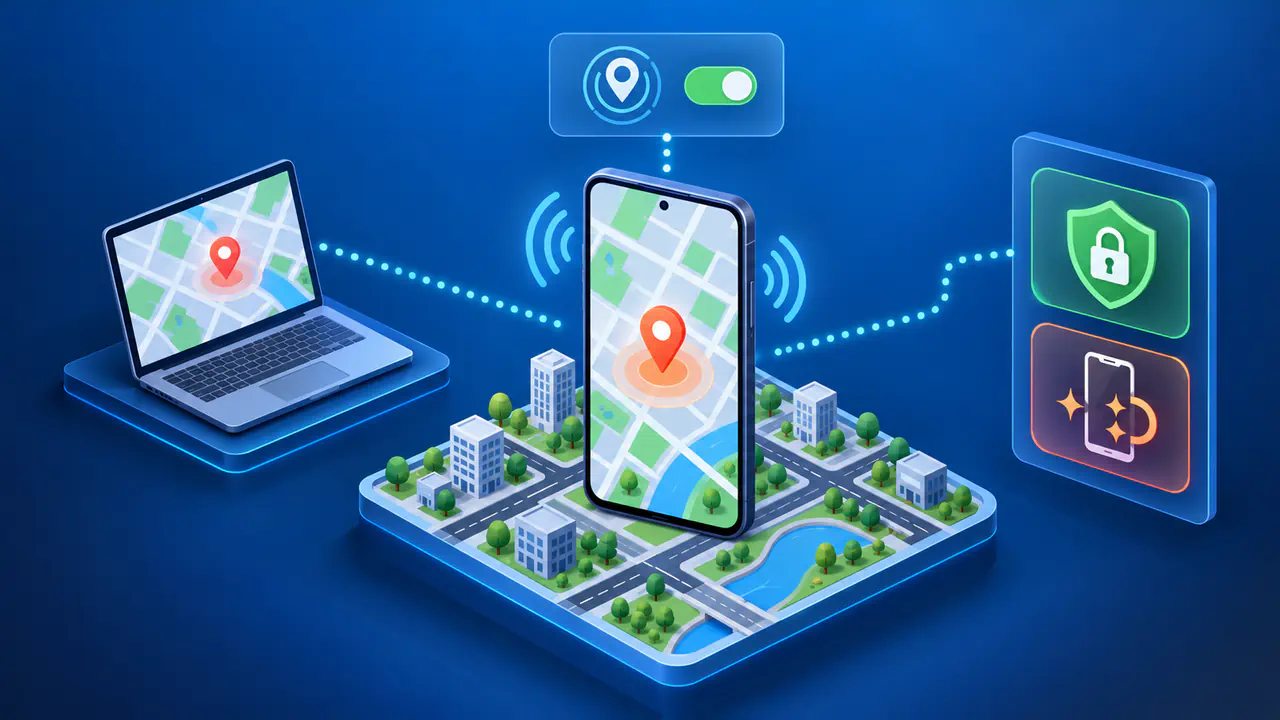
To find a lost Android phone, open Google Find Hub on another device and sign in with the Google Account used on the missing phone. Select the phone to check its location and the available remote controls. Find Hub must have been enabled on the phone before it went missing.
You may see a current position, a last known location, or no location at all. The result depends on the phone's settings and whether the phone or a nearby device can report a location. Start by checking what Find Hub shows, then decide whether to search nearby, lock the phone, or erase its data.
Locate Your Phone with Find Hub
Use the Find Hub app on another Android device or enter android.com/find in a browser. On a friend's Android phone, choose Sign in as guest and sign in yourself. If you borrow a computer, use a private browsing window and close that window when you finish.
Choose the missing phone from the device list and enter its screen-lock PIN or your Google Account password if prompted. If you have several Google Accounts, check the account used on the phone's main user profile; the most recent location is available to the first account activated on the device. A phone hidden in your Google Play device list will not appear in Find Hub, so check that the phone's Show in menus option is selected there.
Look at the location's time as well as the map marker. GPS, nearby Wi-Fi networks, and cell towers can provide different levels of accuracy, and the circle around the marker shows uncertainty. An older report can help you retrace your route, but it cannot confirm that the phone is still there.
If the phone seems to be nearby, select Play sound to ring it at full volume for five minutes, even if you left it on silent or vibrate. Check places you recently visited and ask staff about lost property. If you suspect theft, give the location information to the police rather than confronting someone at the address shown.
How Offline Finding Works
A phone without an internet connection may still appear on the map. Find Hub can use an encrypted location saved while the phone was online, or a report from the Find Hub network. In the second case, a nearby participating Android device detects the missing phone over Bluetooth and reports where the detection occurred.
The offline finding option selected before the loss determines which reports are available. Without network allows stored recent locations; With network in busy places only can also use reports from multiple nearby devices. With network everywhere allows help even when just one participating device detects the phone. Off disables these offline finding methods.
Network assistance requires a PIN, pattern, or password to have been set on the lost phone. Finding a phone after shutdown also requires a supported model, such as a Pixel 8, with Bluetooth and Location on at shutdown and one of the network options enabled. On supported models, finding may remain possible for several hours after the phone turns off or its battery runs out.
An offline location report does not mean the phone can receive a remote command. To receive a lock or erase command, the phone must have power and an internet connection. It must also be signed in to a Google Account, have Find Hub enabled, and be visible on Google Play. Check the action's status in Find Hub instead of assuming that a map update confirms a successful lock.
Lock the Phone and Protect Your Accounts
Select Mark as lost to lock the phone with its PIN, pattern, or password. Follow the prompts to add a message and a contact number that you can still answer, then confirm the action. A short message gives someone who finds the phone a way to return it without exposing unnecessary personal details on the screen.
Signing the phone out can limit further finding options. If you can still use Find Hub, check the location and try the available controls before removing account access, unless doing so would delay urgent security steps. You do not need to wait for another map report when someone may already have access to your messages or accounts.
If the phone was stolen, especially while unlocked, protect the accounts accessible from the device promptly. From a trusted device, open your Google Account's security settings, find the lost phone under Your devices, and use the sign-out option to remove its account access. Change your Google Account password and any other saved passwords that someone with the phone could use.
Contact your mobile carrier to suspend the SIM or arrange a replacement. The carrier may also need the phone's IMEI to block the device; you can find that identifier in the phone's settings within Find Hub. Suspending mobile service protects the number, but the phone will then need another internet connection, such as Wi-Fi, to receive Find Hub commands.
Decide Whether to Erase the Phone
Remote erasure is appropriate when protecting the data matters more than continuing the search through Find Hub. Select the phone, open its settings in Find Hub, and choose Factory reset. Read the confirmation carefully: the reset permanently deletes data on the phone, but may leave data on an SD card. The device will no longer be available in Find Hub afterward.
Erasure also affects recovery if you later get the phone back. When you set up a protected Android device after a Find Hub reset, you need the username and password for a Google Account previously added and synced to the phone. Keep access to that account so you can verify ownership, and remember that files without a separate backup cannot be recovered from the erased phone.
When Find Hub Cannot Show a Location
If Find Hub shows Sync recent location, select that option and complete the account or screen-lock verification it requests. This prompt can appear when the encrypted location information is out of sync. A recent location appears only if one is available; completing verification does not create a new report from an unreachable phone.
Some further troubleshooting steps require access to the missing phone, such as responding to an Account action required notification on that device. You cannot complete those steps from a borrowed phone. A sync problem that requires action on the missing device may have to wait until you recover the phone.