How to Turn Off Data Roaming on Android

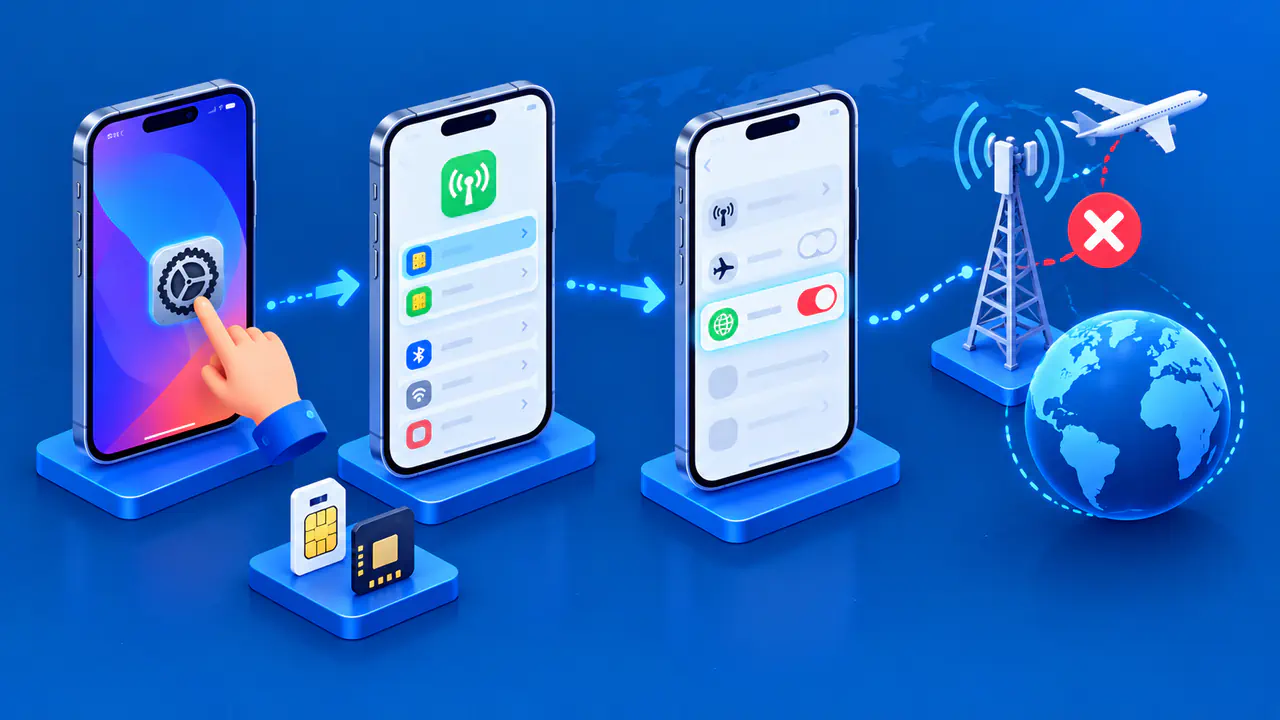
To turn off data roaming on Android, open the mobile network settings and disable Roaming or Data roaming for the line you want to control. On a Google Pixel, start at Settings > Network & internet > SIMs. On a Samsung Galaxy, start at Settings > Connections > Mobile networks.
Data roaming allows your phone to use mobile internet on networks that your carrier treats as roaming networks. Menu names and available controls vary with the phone, software, and carrier, so the Pixel and Galaxy instructions below are separate examples. If you use a home SIM and a travel eSIM, check which line each setting affects before changing it.
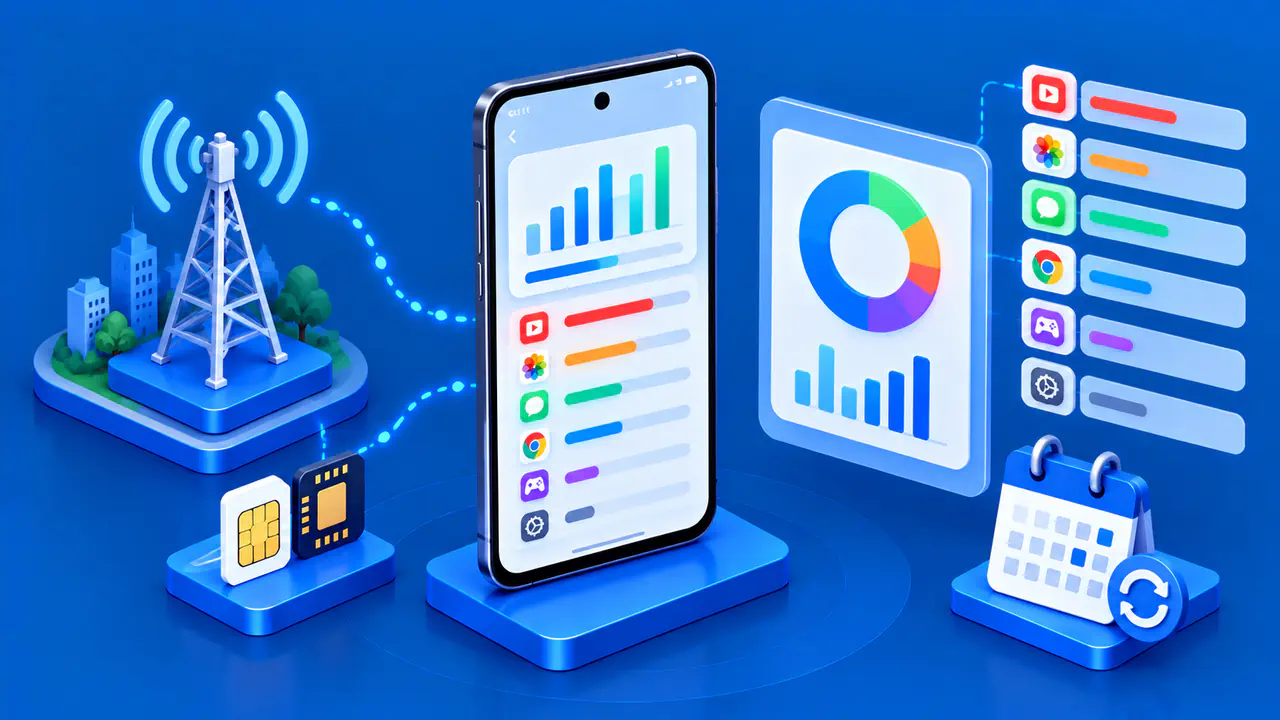
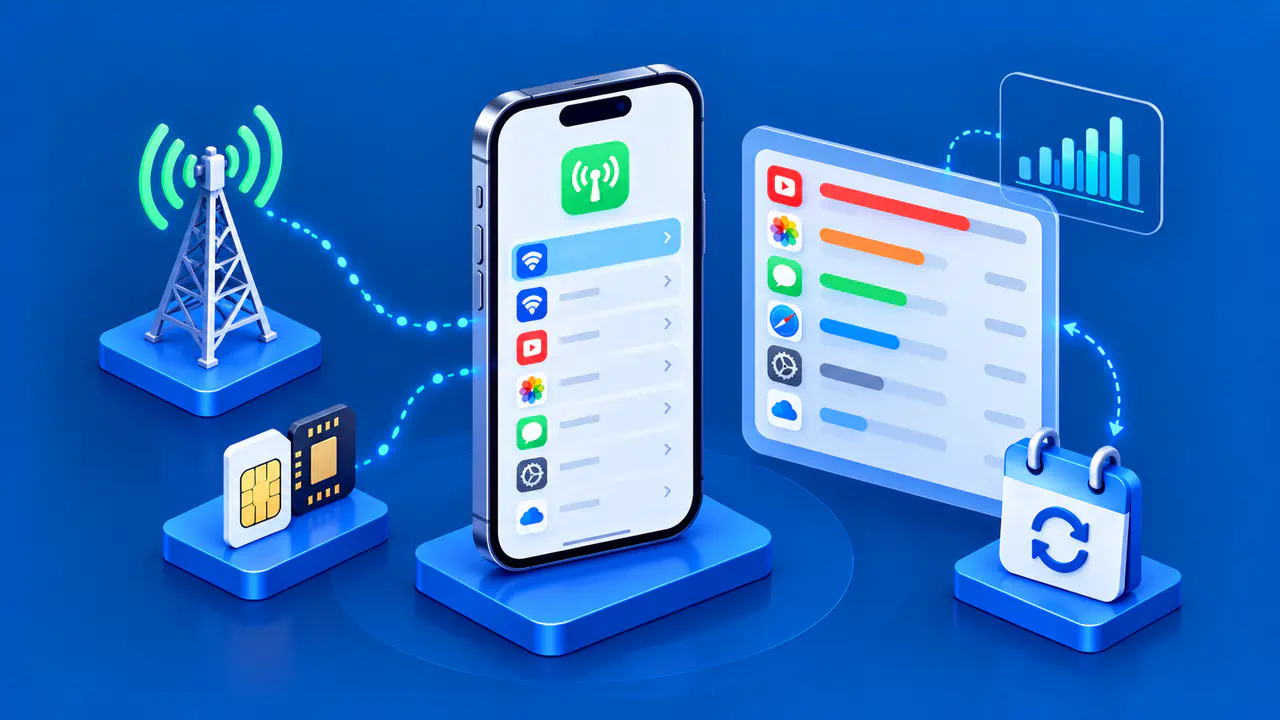
Check Which SIM Supplies Your Mobile Data
On a Pixel, open Settings > Network & internet > SIMs and check the SIM selected for Mobile data. The choices for calls and texts are separate, so the line you use for calls may not be your default data line. Note the carrier name or SIM label so you can identify the correct line in its network settings.
On a Galaxy, open Settings > Connections > SIM manager. Some versions call this SIM card manager, and carrier versions may show either a Mobile data choice or a Primary SIM setting. Check which plan handles data rather than assuming that the first listed SIM is selected. A travel eSIM may need roaming enabled to use its provider's partner networks, even when you want roaming disabled on your home line.
Also look for automatic data switching. A supported Pixel may show Automatic data switching under SIMs; some Galaxy models show Data switching in SIM manager. Turn that feature off if you do not want the phone to switch to another SIM for mobile data automatically. On older Pixels, a separate Data during calls option can allow data use on the calling SIM, so review that option if it appears.
Turn Off Roaming on a Google Pixel
- Open Settings > Network & internet > SIMs.
- Select the intended carrier or SIM if more than one line appears.
- Find Roaming and turn it off.
- Reopen that line's settings and confirm that Roaming remains off.
If your Pixel shows a different menu layout, use the Settings search field to look for roaming and check the carrier named on the result screen. A phone with two SIMs can have separate mobile network settings for each line. Apply the change to every line on which you want to restrict roaming data, including any line that could supply data during a call.
If you cannot find a mobile network or SIM entry, check whether the phone recognizes your SIM or eSIM. An inactive or missing line can leave the relevant options unavailable. Do not reset network settings simply to look for the switch; first check the instructions for your Pixel model and carrier.
Turn Off Roaming on a Samsung Galaxy
- Open Settings.
- Tap Connections, then Mobile networks.
- Turn off Data roaming, which some carrier versions call Data Roaming Access.
- Reopen the screen and confirm that Data roaming is off. If the screen names a SIM, check that the name matches the line you want to change.
A Galaxy may have one roaming control rather than a separate switch for each SIM. If you need roaming for a travel eSIM, do not assume that your home SIM is excluded from a shared control. Check the instructions for your phone and carrier to find out which SIM the roaming control affects. You can turn an unused SIM off in SIM manager, but doing so also makes that line unavailable for normal cellular calls and texts.
If Data roaming is grayed out, check Mobile data under Settings > Connections > Data usage. On some models, the roaming control is unavailable while Mobile data is off. If you are already abroad and trying to prevent data use, leave Mobile data off while you get instructions for that model; turning Mobile data on just to make the roaming switch available could allow a connection before you finish. Check the roaming setting before departure when possible.
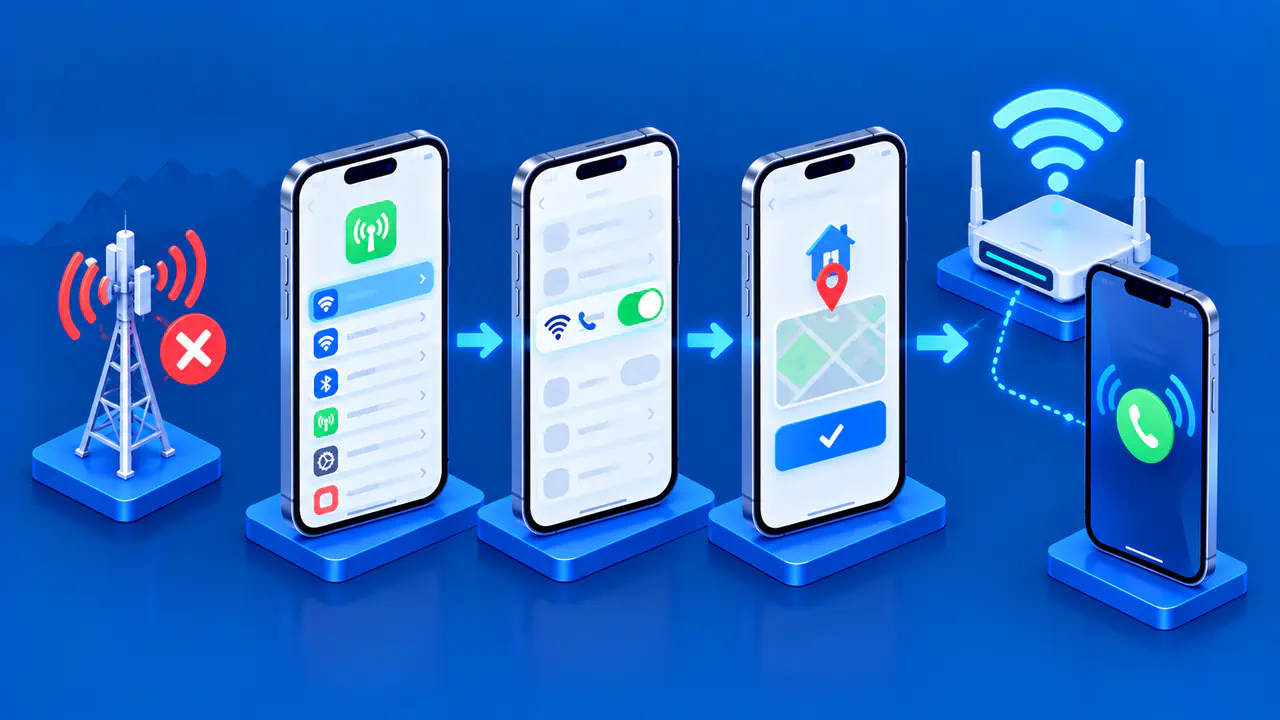
Understand What the Switch Does
Turning off data roaming does not disable ordinary mobile data on networks where your carrier allows it without roaming. Wi-Fi also works independently. A page that still loads is therefore not proof that the roaming setting failed: the phone might be using Wi-Fi, a non-roaming connection, or another data SIM.
To stop cellular internet more broadly, turn off the separate Mobile data control for the relevant lines. On a Pixel, look under Settings > Network & internet > SIMs; on a Galaxy, look under Settings > Connections > Data usage. Apps then need another internet connection for online features. Data Saver limits some background activity, and a data warning only alerts you; neither replaces disabling mobile data.
Roaming can occur within a country as well as abroad. The data roaming switch does not block all voice calls or ordinary SMS messages, cancel a travel package, or erase charges already incurred. Check your provider's terms for those services and any account-level roaming restrictions.
Check the Setting after a SIM Change
After installing an eSIM or changing your default data SIM, reopen the selected line's settings and check whether roaming is on or off. Compare that setting with the plan's setup instructions. A travel eSIM that requires roaming will not provide mobile data while roaming is disabled.
If the roaming setting matches the provider's instructions but your phone still cannot connect using that SIM, check that the plan is active and covers your destination. Ask the provider to confirm network access for that SIM before changing other lines. Tell your provider which phone model and SIM you are using, and whether the roaming control is missing, grayed out, or already off.