Why Is My Internet Not Working?
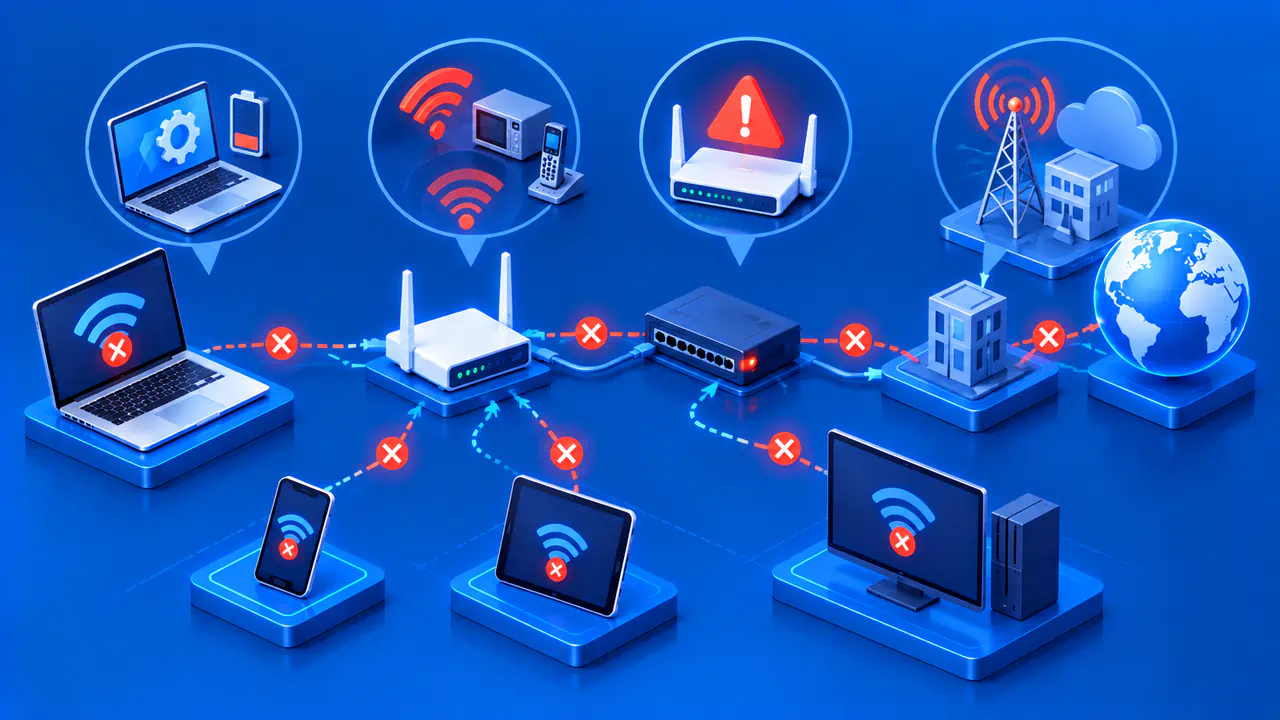
Internet access can fail because of a device setting, a lost local connection, faulty network equipment, or an interruption at your internet provider. A problem affecting one device needs a different response from a problem affecting every device in the home. A WiFi icon or a browser error alone does not tell you which part failed.
Check the affected device's connection, try another device and a separate connection, then inspect the network equipment and service status. Record what happened before making broad resets so you can tell whether a change helped.
Check What Is and Is Not Working
Try two unrelated websites or services on the affected device. If only one site fails while others work, a total internet outage is unlikely; the site, browser, login, or a route specific to that service may need attention. If every service fails, check whether the device is connected to the intended WiFi network or has an active wired link. “Connected to WiFi” only confirms a local wireless connection; that network may still lack internet access.
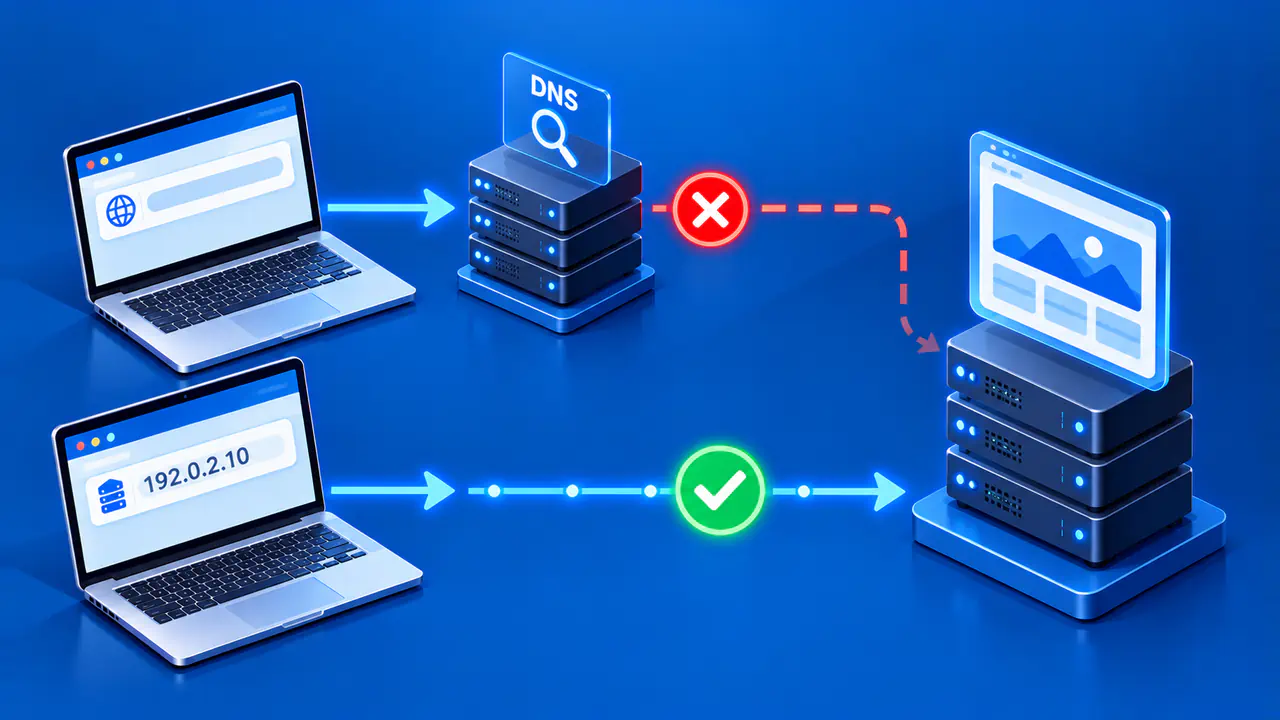
A DNS error concerns a name lookup, such as finding the IP address for a website's domain. That error can come from a device setting, a connection problem, or the DNS service.
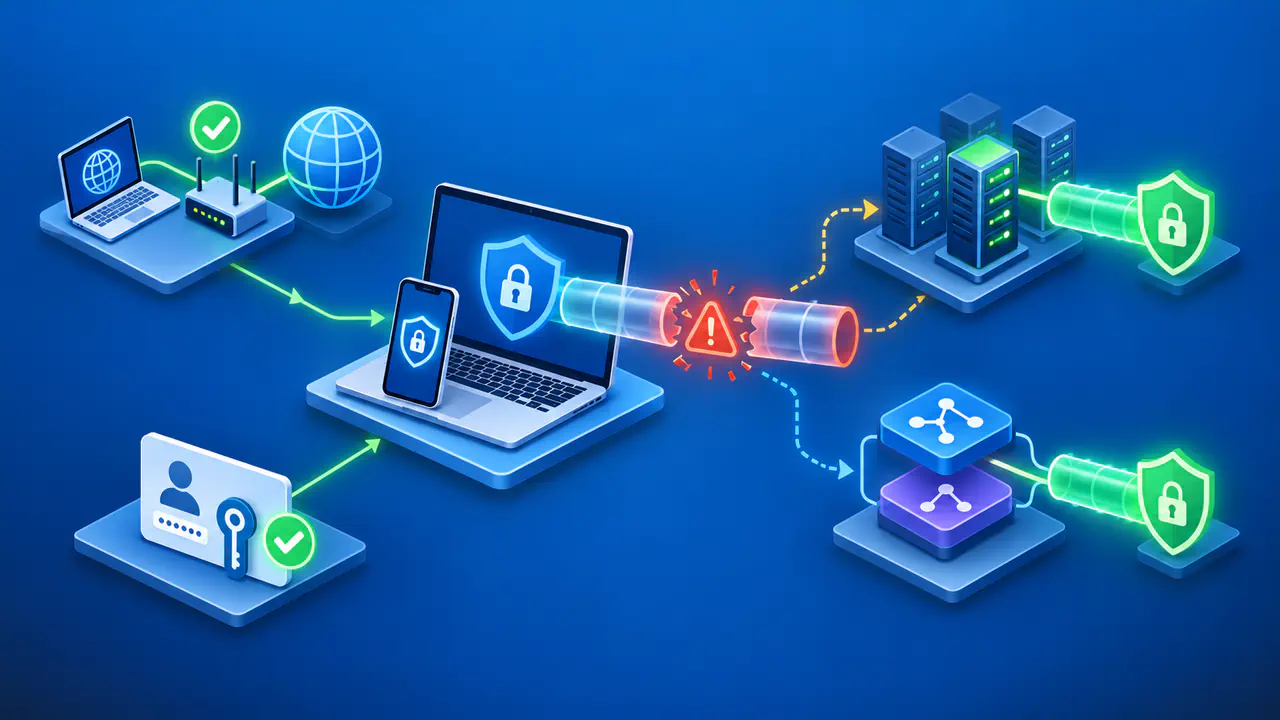
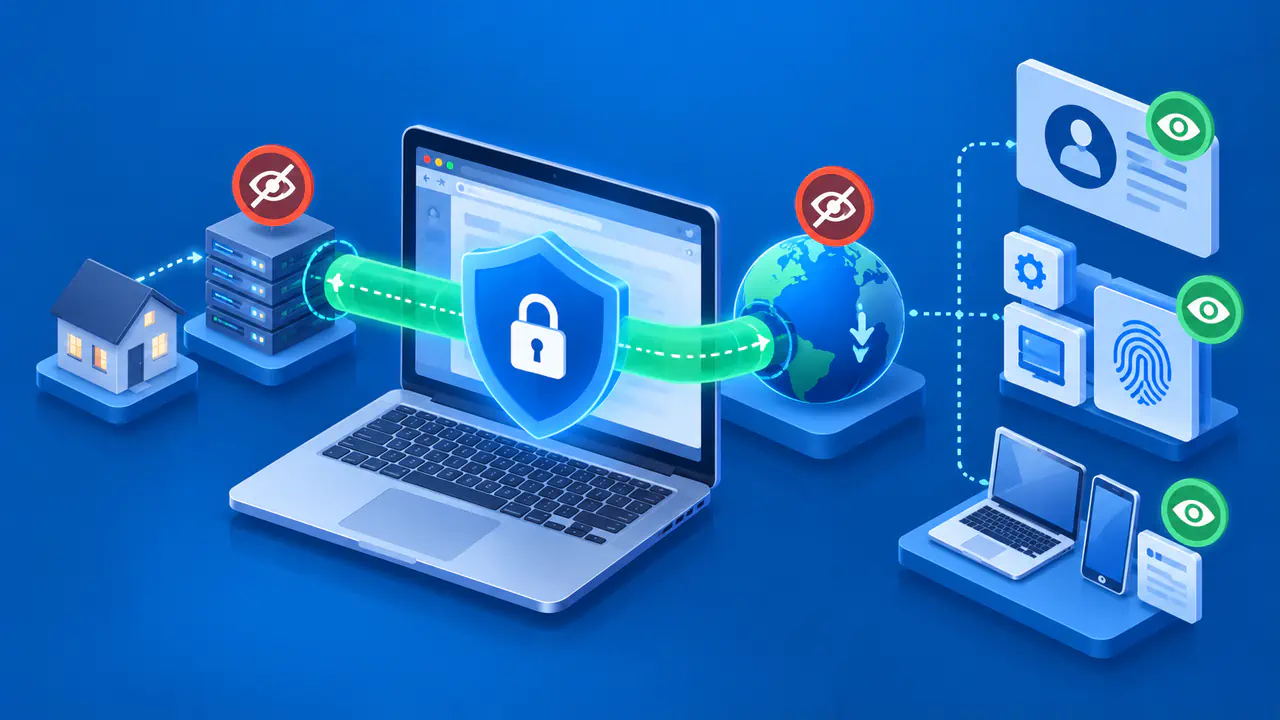
On a guest network, you may need to sign in or accept the network's terms on a captive portal page before you can access the internet. A VPN or security tool can also affect one device's traffic. Investigate these possibilities after comparing devices, before resetting network settings.
Try Another Device and Connection
Use another phone or computer on the same network at about the same time. Make sure a phone has not silently switched to mobile data; confirm that it is actually using the WiFi being tested. If one device works and the other does not, focus on the failing device's connection state, network settings, VPN, or software. If both fail, a problem with the shared router, modem, or provider connection becomes more likely.
Next, try a different way of connecting. If a device works on mobile data or another trusted WiFi network but not on the home network, that points toward the home connection. If a wired device reaches the internet through the same router while wireless devices cannot, investigate the WiFi connection. If WiFi works but a single wired computer does not, inspect that cable, port, and adapter. Each comparison narrows the possible causes, but no single comparison proves a specific component has failed.
Test the devices as close together in time as possible, preferably while the problem is happening. If service returns between tests, a phone that connects later can make the problem look specific to the first device. Note which device, network, and access method were active for each observation.
Check Equipment and Service Status
Look at the modem, router, or combined gateway without changing settings yet. Check that the equipment has power, and compare its internet or broadband status lights with the normal pattern described by the manufacturer. Indicator meanings vary by model, so use the manual for your model or your provider's guidance. A loose power or data cable can be checked visually and reseated when safe, but avoid factory reset buttons while identifying the problem.
If every device is affected on both WiFi and Ethernet, check the provider's official outage page or app using a separate connection such as mobile data. A public outage notice can explain why several devices are offline. There may still be a service problem at your address even if the provider has posted no notice. The subscriber may need to contact the provider to check the account or service status.
A normal restart of the modem and router can sometimes restore the connection, but it interrupts everyone on the network. Save your work and follow the startup order recommended by the equipment manufacturer or your provider, then allow the devices to finish reconnecting. If the equipment belongs to your building's management or workplace, ask the network administrator before restarting it. Do not use factory reset as a general first step; it can erase configuration needed for service.
Choose the Next Step Based on the Results
If a device keeps dropping its WiFi connection, check whether the disconnections stop when you move it closer to the router. For a device that stays connected to WiFi, check for a network sign-in request or a specific DNS error. If only a browser fails while other apps work, try another browser on the same device before changing network settings.
For a problem affecting a Windows 11 device, run the Network and Internet troubleshooter in Get Help. On a Mac with WiFi trouble, hold Option while opening the WiFi menu and choose Open Wireless Diagnostics. Keep the diagnostic results so you can describe what the system detected.
A recent VPN, security app, or operating system change is also relevant to a problem affecting one device. Check whether the connection stopped working immediately after that change. Avoid copying a list of reset commands across platforms or changing several settings at once.
If all devices fail and the provider reports an outage, waiting for restoration or contacting support may be the appropriate next step. If no outage is listed and the equipment cannot obtain service after a normal restart, provider support can check the connection to your home and the configuration that activates your service. Describe the checks you already performed without assuming the internet provider is at fault solely because a website failed.
Keep a Useful Record for Support
Write down the outage start time and time zone, whether it is continuous or intermittent, which devices and apps are affected, whether WiFi or Ethernet remains connected, and what happens on mobile data or another network. Record the modem or router's model and indicator state, plus any official provider status message. If you tested an address or used a diagnostic, include the target and actual result, not only “ping failed.”
Note each change you made and whether it helped. A restart that helps for five minutes differs from one that restores service for days. Preserve any error message exactly, but remove passwords, account numbers, and personal contact details before sharing a screenshot publicly. Give support the observed symptoms and the time of each check so that a temporary recovery is not mistaken for a lasting repair.