Why Does My VPN Keep Disconnecting?
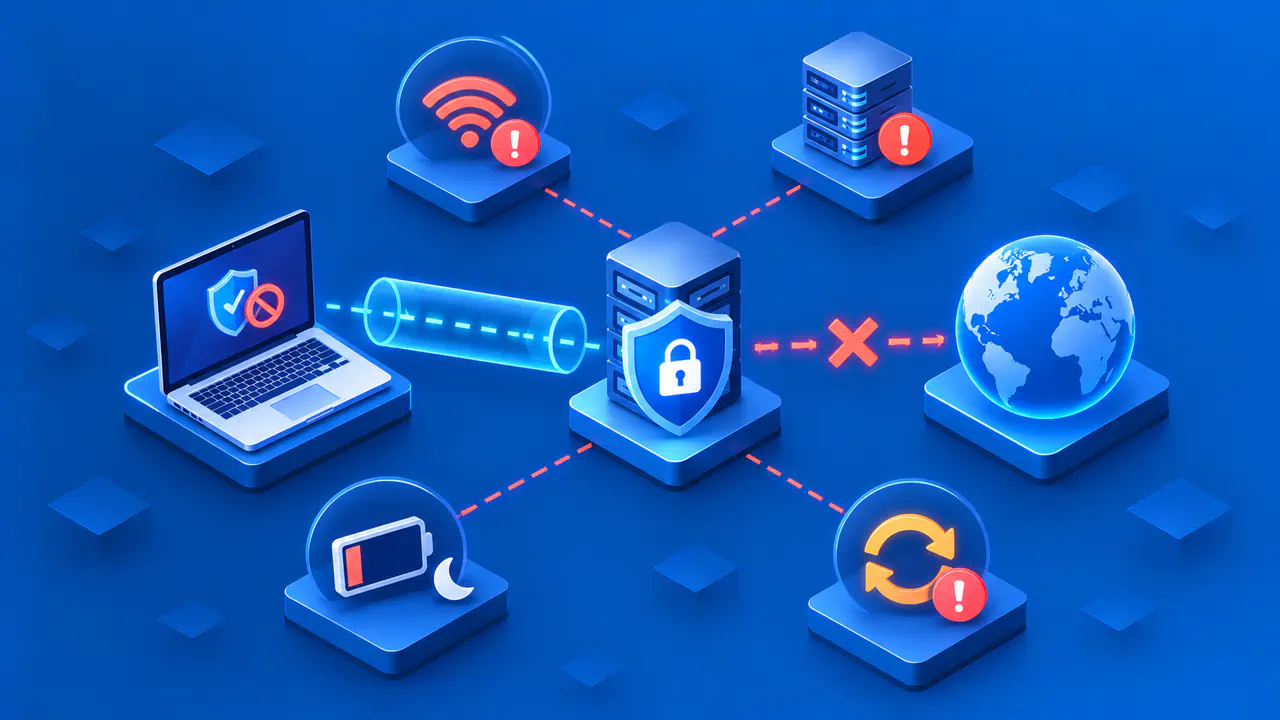
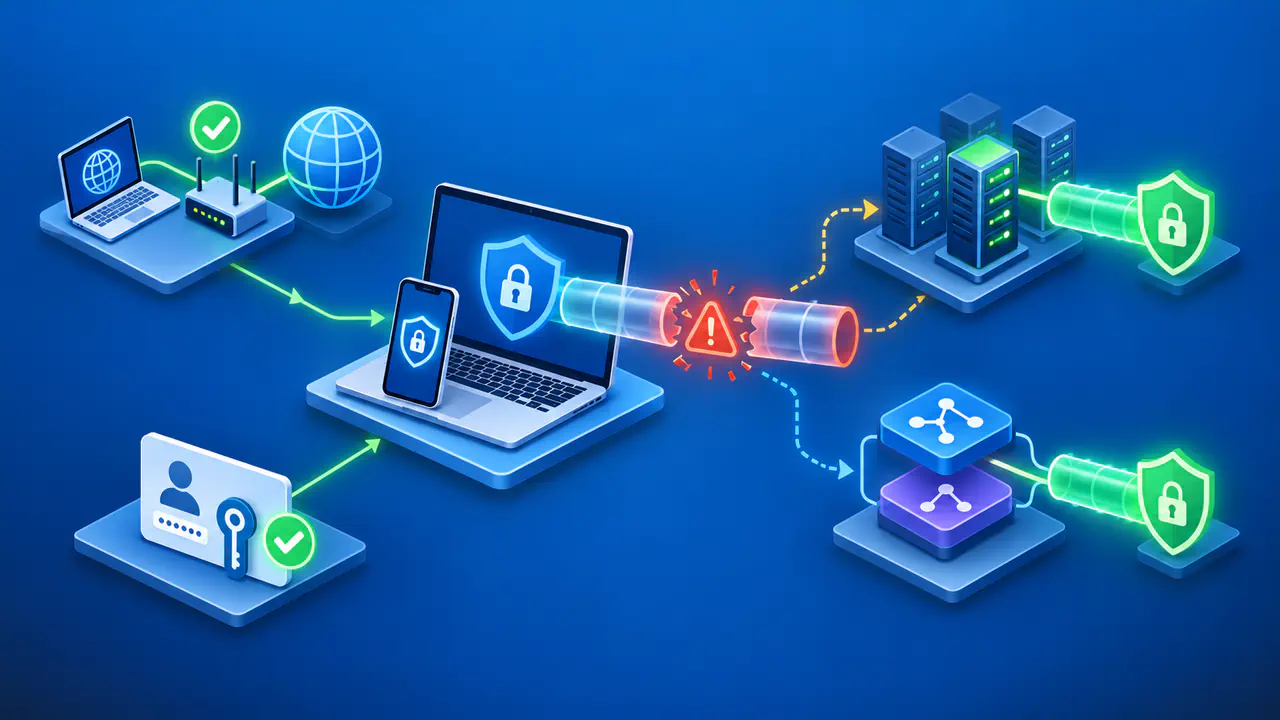
A VPN can repeatedly disconnect when the internet connection drops, the device suspends the VPN app, or the network disrupts the selected VPN protocol. Server outages and problems renewing a session are other possible causes. The timing helps narrow the search: a drop after sleep calls for different checks from a failure during a large upload.
These checks apply to a VPN that connects successfully and then loses the connection. Start by noting the app and operating system versions, selected server, protocol, and time of each drop. If the VPN's kill switch blocks internet access after a disconnection, that block may be working as intended. Leave the protection enabled while investigating the cause.
When the Connection Drops
Record when the VPN app shows that it is connected, reconnecting, or disconnected. Add anything that happened just before the change, such as the device waking up, switching from Wi-Fi to cellular data, asking you to sign in again, or starting a large transfer. Note how long the interruption lasts and whether the VPN reconnects automatically.
Look for a pattern during normal use before deliberately interrupting anything. For example, a connection that fails after every wake-up suggests a device or app behavior worth checking. A failure limited to one VPN server suggests a problem with that server or the route to it. Neither pattern identifies the cause on its own, but each gives you a specific comparison to make.
Check the VPN provider's service status for maintenance or an outage affecting the selected server. If another server is available, compare it using the same device and internet connection. A stable connection to the second server is useful evidence, but it does not show whether the first server itself or the network path to that server caused the drop.
Internet Access and Network Changes
A VPN depends on a working connection to its server. If Wi-Fi disconnects, a hotspot loses its mobile signal, or the router restarts, the VPN can stop carrying traffic. Check the device's network status and, where available, the router's connection history. A Wi-Fi icon confirms a local wireless connection, not necessarily working internet access.
A kill switch can make a VPN failure look like a complete internet outage. If you have another device on the same network, check whether that device can still reach the internet. That comparison helps identify a wider outage, although it does not prove that the affected device's connection is healthy. When the underlying connection is failing too, address that problem before changing VPN settings.
Switching from Wi-Fi to mobile data can briefly interrupt a tunnel even when both networks work. The VPN may need to establish a new route or reconnect. Note which network was active before and after the interruption. A page loading during the gap is not proof that the VPN stayed connected, because the browser may have used a direct connection.
Sleep and Session Renewal
If drops follow sleep or screen lock, check the VPN app's background and automatic reconnection settings for your device. Some Android battery controls can stop a VPN app from running in the background. Compare normal use with a sleep-and-wake cycle, and follow the app provider's instructions if a battery setting needs to change. Avoid changing battery restrictions for unrelated apps.
Disconnections at roughly regular intervals can indicate a problem renewing a VPN session. Some OpenVPN configurations request authentication again when encryption keys are renewed. An expired token or an unanswered sign-in request can prevent the connection from continuing. Use the VPN app or account page to resolve any sign-in or subscription warning, or contact the administrator responsible for authentication. Disabling key renewal leaves the underlying problem unresolved.
VPN Protocols and Packet Size
The VPN protocol determines how the tunnel exchanges and protects traffic. A network may block or disrupt one supported protocol while allowing another to work. Use the protocol choices offered by the VPN app, and keep encryption and certificate checks enabled. On a managed device or network, ask the administrator about the permitted configuration instead of turning off a firewall to test the connection.
Packet-size problems can leave a tunnel apparently connected while transfers stall. The maximum transmission unit, or MTU, limits the size of a packet on a network link, and wrapping traffic for a VPN adds extra bytes. If oversized packets are dropped and the sender does not adjust, small requests may work while larger transfers fail. That symptom warrants investigation, but it is not proof of an MTU problem or of a disconnected tunnel.
Tell the VPN provider which protocol and network show the problem, and whether small requests still work during the stall. Settings for handling packet size depend on the protocol and configuration. Randomly lowering the MTU can reduce efficiency without fixing the actual cause. Use a specific adjustment only when the provider or administrator has identified the need and supplied suitable instructions.
Checking Whether a Change Helped
Keep the VPN app up to date, then compare one setting at a time. You might select another server or try another supported protocol while keeping the device, network, and activity the same. Note the original setting before making the change. If the problem continues, restore that setting before trying a different option.
Use a comparison long enough to include the circumstances that previously triggered the drop. A few minutes of browsing cannot establish that a problem occurring after an hour has stopped. Likewise, an awake session cannot confirm a fix for a sleep-related failure. Pause important transfers before a deliberate reconnection test, and use a page that does not require sensitive information.
After the test, confirm the VPN app's connection status and check the public IP address from a browser included in the tunnel. That address check covers the browser request, not every app on the device. If the drops continue, send support the timing, error text, and result of the single change you tried. Use the provider's private support channel for requested logs, and remove unrelated personal information before posting any diagnostic details publicly.