Why Is My Internet Slow and How Can I Fix It?

Your internet connection can stay active but feel slow because of weak WiFi, a busy device, competing traffic, or a problem with your internet provider or an online service. The right fix depends on where the slowdown starts. Improving wireless coverage or pausing a large transfer can help with a local problem, while a provider or service fault may need support.
Start by checking whether the slowdown affects one app, one device, or the whole network. Change one condition at a time and note the result so you can tell what made a difference. If websites and apps cannot connect at all, check for a loss of service before treating the problem as reduced speed.
Check What Is Slow
Notice whether the problem affects every website and app or only one service. If videos buffer on only one site while other services work, the problem could be with that service or the route to it. If all devices are slow at the same time, look at shared network conditions. Write down when the slowdown occurs and whether it began after an equipment or plan change.
Check the download and upload rates listed for your actual internet plan, including whether they are typical rates or advertised maximums. Compare each direction with its own stated rate. Then run a speed test and note the test server, connection type, whether the VPN was on, and time. Let one test finish before starting another.
Download and upload results describe how quickly data moves during the test. Latency describes delay, often reported by a speed test as the round-trip time to its server in milliseconds. Packet loss means some packets fail to reach their destination. It can disrupt calls or cause data to be sent again. A high speed in Mbps does not guarantee that pages will respond quickly or calls will run smoothly.
A speed test measures performance between your device and a particular server under the conditions at that moment. Repeat under similar conditions and compare the pattern, not just the highest number. Record a missing measurement as unavailable rather than as zero. The result alone does not identify a faulty device or prove that the provider's access line caused the slowdown.
Compare Devices on the Same Network
Try the same task on another device using the same network and a similar location. If only one device is slow, check its downloads, software updates, VPN, browser extensions, and memory and processor use. Close unneeded apps or tabs after saving your work, then try again. Restarting the device may clear a temporary problem, but an improvement after a restart does not tell you exactly what went wrong.
If the problem is limited to browsing, compare the same page in another up-to-date browser. If the page loads normally in the other browser, check the affected browser's settings and extensions before changing router settings. Use the device maker's supported update process where a software fix is needed. Do not turn off security software just to get a higher speed test result.
If several devices slow down together, inspect the router's traffic information if available and check what other devices are doing. Cloud backup, game downloads, video streams, and calls can compete for capacity. Pause nonessential transfers with permission and retest. If performance repeatedly improves when those transfers stop, schedule them for a less busy time or check whether your plan has enough capacity for everyone at home.
Compare WiFi with a Wired Connection
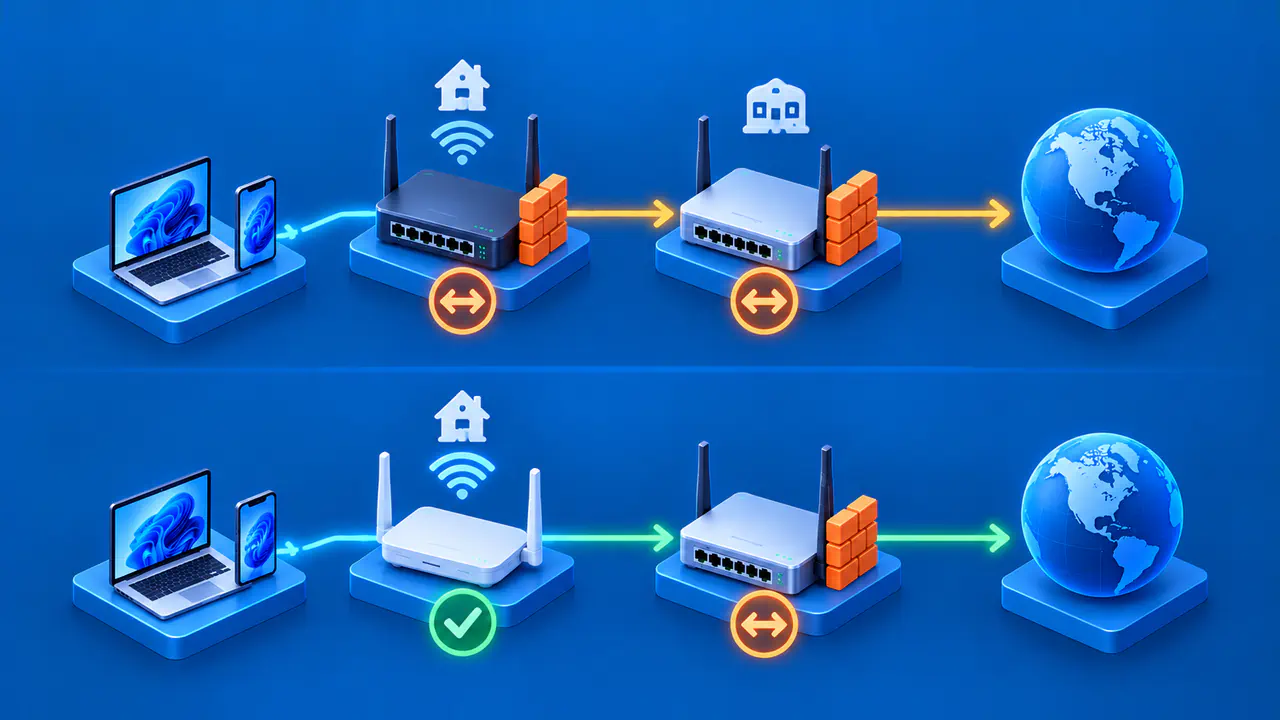
If your computer and router support Ethernet, connect them with an Ethernet cable and run the same test with other network traffic paused. Confirm that the test traffic is using Ethernet instead of WiFi. This removes that device's wireless link from the comparison, but the device, cable, router, and internet path still matter. If wired performance is acceptable but WiFi is consistently slow, focus on wireless conditions.
Distance, walls, interference, crowded channels, router placement, and device radio capability can affect WiFi. Test closer to the router with the same device. If that helps, place the router in a more open position where practical. For a mesh node or extender, check its connection back to the router and follow the manufacturer's placement guidance.
Many routers offer more than one WiFi band. If the router and device support a choice, compare available bands in the location where you use the device. Coverage and interference vary, so one band is not always faster in every room. Full bars on the WiFi icon indicate a strong local wireless signal; they do not measure your internet speed beyond the router.
If the wired test is also repeatedly slow, check that the computer, Ethernet cable, adapter, and router port can support the plan's rate. A damaged cable or slower port can limit results. If possible, try a cable you know works or another compatible port and repeat the test. A better result can help you identify a local problem, so do not assume your internet provider is at fault.
Check the Provider and Online Service
If slow results persist on multiple devices and a wired connection during quiet periods, check your internet provider's service status and account plan. Ask whether the correct service rate is assigned to your account, especially after a plan change. Line problems or a wider service incident may also need investigation. Slowdowns that recur at busy hours can reflect demand on shared network capacity, even when your own devices are quiet.
A high speed test result does not rule out a problem with a particular website, the route to that site, or the app you use to view it. Check that service's status and compare another device or browser. DNS lookup delays can slow the start of a connection, but changing DNS does not raise the capacity of your access link. Investigate an actual lookup problem before treating DNS as a general speed fix.
Check Managed and Mobile Connections
On a work or school network, traffic policies, proxies, and VPNs may be intentional. If your organization allows you to disconnect the approved VPN, compare performance with the VPN on and off. When your traffic passes through a VPN, the route and VPN service can affect the transfer speed. Contact the network administrator before changing a managed configuration.
On a cellular connection, signal strength, demand from other devices using the cell, plan limits, and movement can affect performance. Repeat the same task while staying in one place with usable coverage, and note whether your phone is using cellular data or WiFi. Keep results from these connection types separate. An Ethernet test on your home network does not test the radio connection between your phone and a cell tower.
Restart and Update Network Equipment
A normal modem or router restart may clear a temporary problem. Follow the provider's or manufacturer's instructions for your equipment, and choose a time when disconnecting everyone will not interrupt critical work. If the setup has a separate modem and router, follow the required power-up order and wait for service to return before testing. Avoid repeated restarts that prevent the equipment from finishing its startup.
A factory reset is different from a restart and can erase connection and household settings. Do not use it as the first response to a slow result. If the router manufacturer recommends a firmware update, follow the instructions for your exact model and keep the router powered on until the update finishes. Updates may interrupt service, so arrange a suitable time before starting.
Retest and Contact the Right Support Team
Change one variable, then repeat the same activity and speed test. For example, compare WiFi test results near the router and in the room where you first noticed the slowdown, using the same device and test server. Record the date, local time and time zone, connection type, download and upload speeds, and latency. Keep the test method and other traffic as consistent as possible when comparing results from different times.
For a fixed home connection that remains slow, give your internet provider dated wired measurements if available, both stated plan rates, the equipment model, and whether multiple devices are affected. Ask the provider to check the connection and confirm which equipment your plan requires. If only one device or service remains slow, give the relevant device maker, network administrator, or service operator the comparisons that show the problem. Remove passwords, account details, IP addresses, and sensitive log entries before posting results publicly.